
How to Add a Countdown Timer in Constant Contact Emails (2026 Guide)
Creating urgency in your email campaigns is key to driving more opens, clicks, and conversions. One powerful way to do this is by adding a timer in Constant Contact emails. A live, animated countdown timer builds FOMO (fear of missing out) for flash sales, events, webinars, or limited-time offers.
Constant Contact doesn't have a built-in countdown timer feature, but you can easily add a dynamic one using animated GIF-based tools like Countdown Builder. These real-time timers are hosted as GIF images that update automatically when the email is opened, and they work perfectly in Constant Contact.
Countdown Builder lets you create professional, customizable timers that integrate seamlessly with Constant Contact and other platforms.
Why Add a Timer in Constant Contact?
Incorporating a timer in Constant Contact is a smart email marketing strategy:
- Builds Urgency: Ticking clocks motivate subscribers to act fast.
- Increases Engagement: Animated elements make your emails stand out.
- Drives Conversions: Countdown timers can boost click rates by 20-30% in promotional campaigns.
- Fully Compatible: Constant Contact supports animated GIFs, so your timer animates smoothly on desktop and mobile.
Real-time timers update for each recipient, showing accurate remaining time unlike static images.
Step-by-Step: How to Add a Timer in Constant Contact Using Countdown Builder
Countdown Builder is user-friendly, with 30+ templates, full customization, evergreen options, and no watermarks on free plans.
Step 1: Create Your Countdown Timer on Countdown Builder
- Visit Countdown Builder and sign up for a free account (or start without one).
- Click "Create" on the dashboard.
- Select a template or build from scratch.
- Choose the timer type:
- Fixed-date: Ideal for events or sales with a set end time.
- Evergreen: Personalizes and resets for each subscriber (perfect for automations).
- Customize to match your brand:
- Colors, fonts, labels (supports multiple languages).
- Backgrounds, animations (e.g., pulsing effects).
- Time zone, expiration date/time.
- Post-expiration display (e.g., "Offer Expired" or custom message).
- Preview your timer and generate it.
Step 2: Copy the GIF Image URL
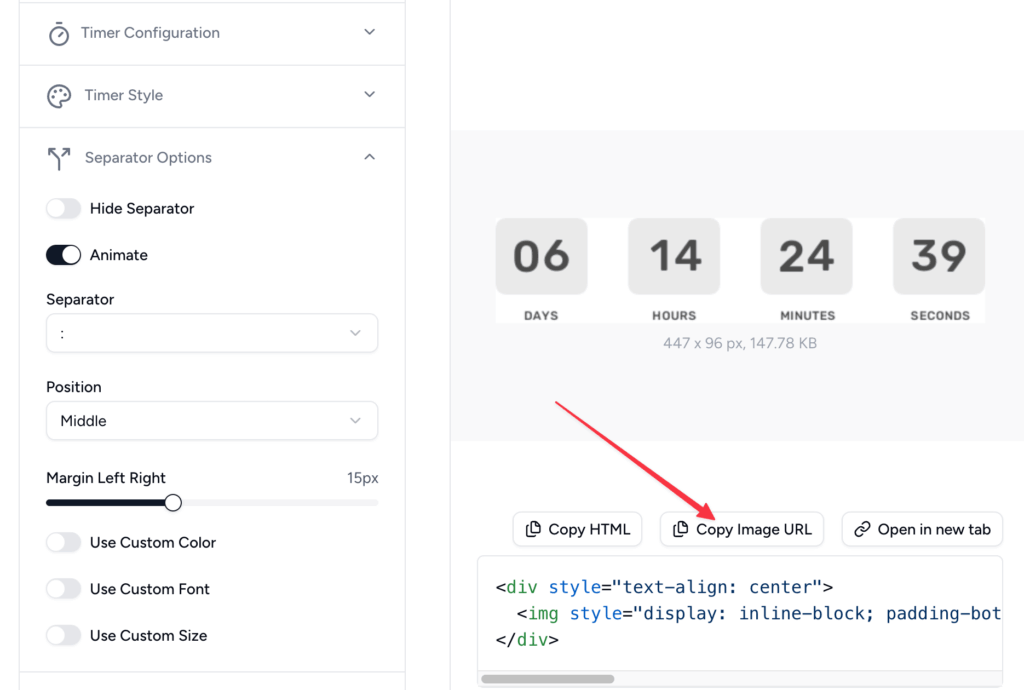
- In the embed section after generation, find the direct GIF URL (ends in .gif).
- Click "Copy Image URL" – copy only the URL, not the full HTML.
Step 3: Insert the Timer in Constant Contact
- Log in to Constant Contact and open your email campaign in the editor.
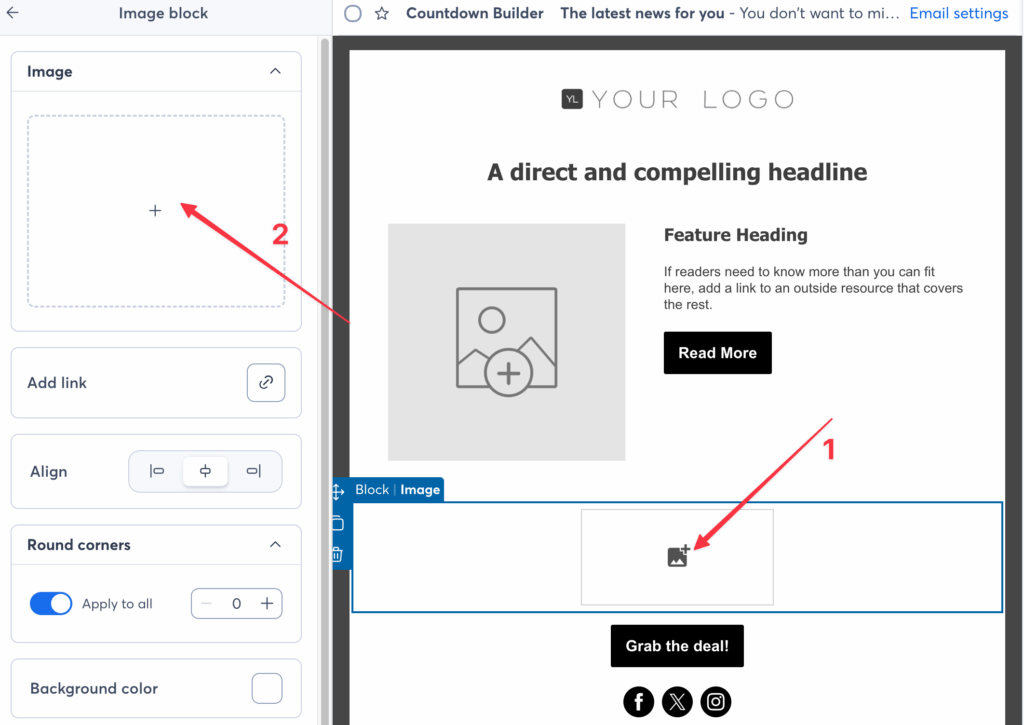
- Drag an Image block from the left sidebar to where you want the timer in your layout.
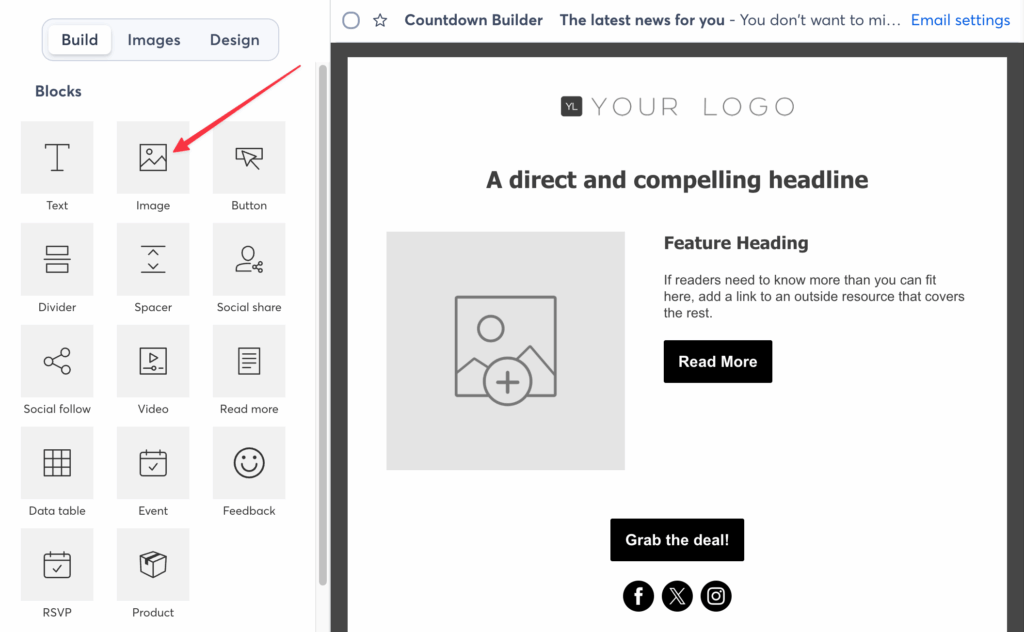
Click on the image block (or "Replace" if there's a placeholder).
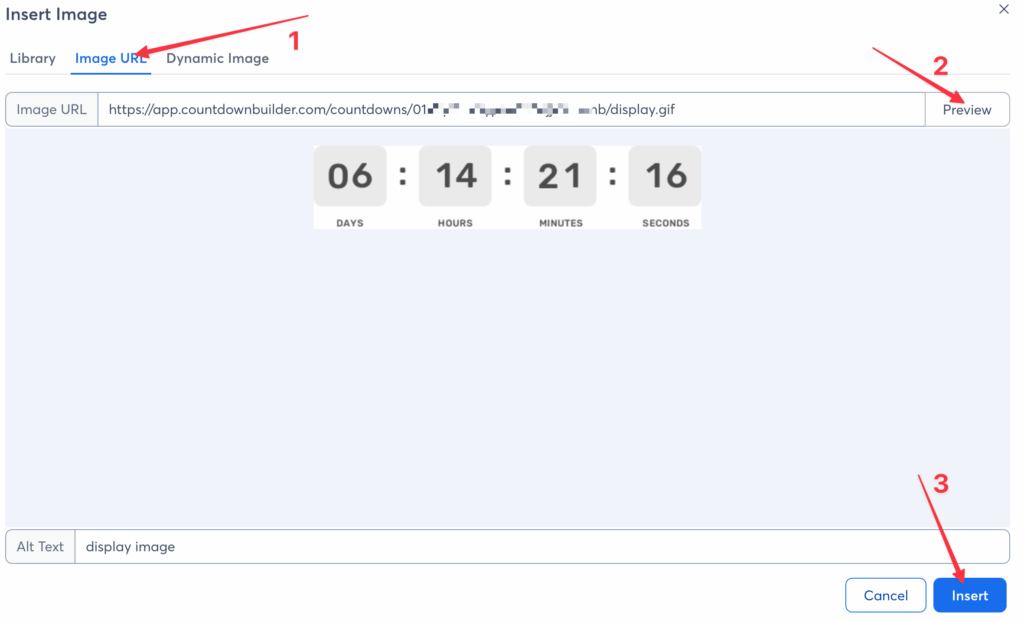
- In the editor popup, select the Image URL tab (or "Web Address").
- Paste the GIF URL you copied from Countdown Builder.
- Preview the timer, then click Insert or Save.
- Adjust the size: Resize the block by dragging corners or set width/height for responsiveness.
- Optionally add padding, alignment, or a link to your offer.
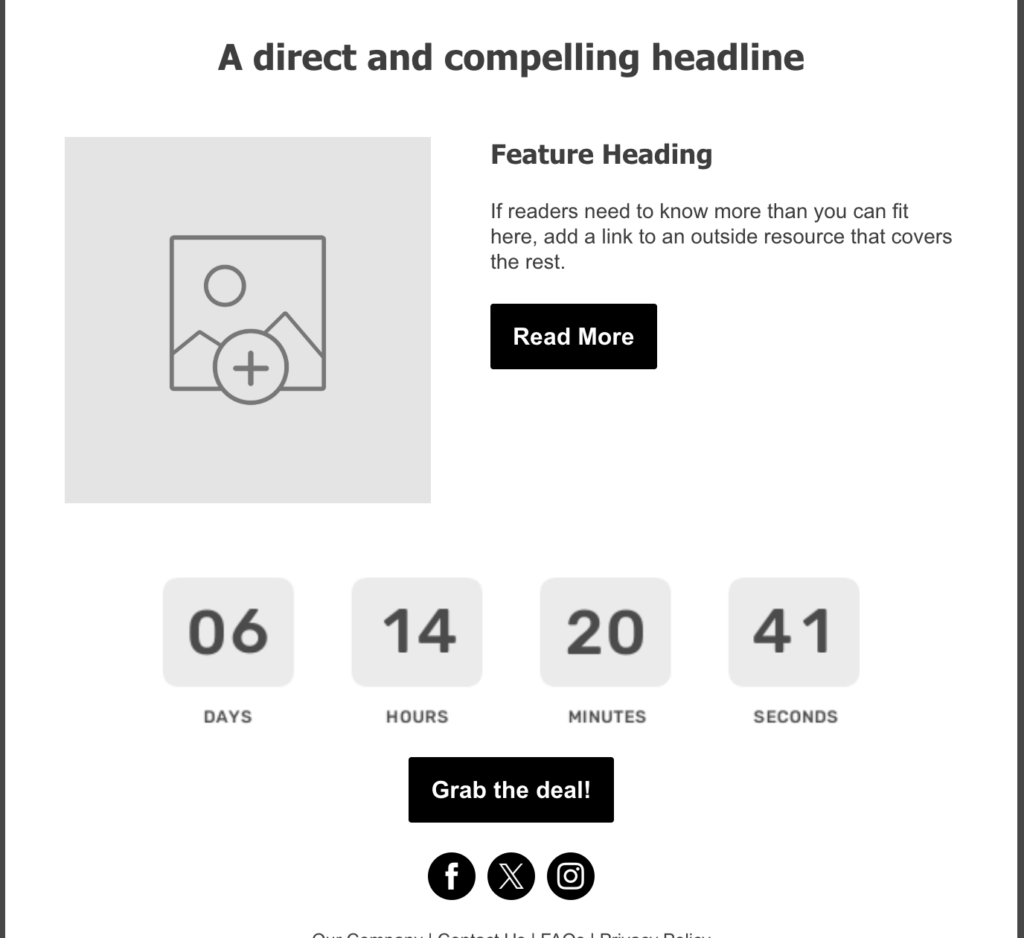
Your animated countdown timer will now tick down in real-time!
Step 4: Test and Send
- Preview your email in Constant Contact.
- Send a test to yourself and check on different devices/email apps.
- Confirm images load (Constant Contact handles external images well).
Best Practices for Timers in Constant Contact
- Placement: Position near your call-to-action (e.g., "Claim Offer Now").
- Design: Align with your brand – keep it clean and not overwhelming.
- Mobile Optimization: Countdown Builder timers are fully responsive.
- Expiration Handling: Use a custom end message for graceful fallback.
- Urgency Copy: Pair with subject lines like "Ends Soon – Only Hours Left!" and text like "Hurry, time is running out!"
- Compliance: Stick to genuine deadlines to maintain trust.
Why Countdown Builder for Your Constant Contact Timer?
Countdown Builder stands out with:
- Unlimited views on paid plans.
- Detailed analytics.
- Broad compatibility with Constant Contact and 100+ ESPs.
- Zero coding required.
Ready to add a powerful timer in Constant Contact and elevate your campaigns? Get started free at Countdown Builder now!