
How to Add a Countdown Timer in Constant Contact Emails
 By Mehedi Hasan
Constant Contact doesn't include a built-in countdown timer in its email editor. You can still add one: countdown tools such as Countdown Builder generate an animated GIF hosted on their servers, and Constant Contact's image block accepts external image URLs.
The timer is regenerated each time the email is opened, so recipients see the current time remaining rather than a static snapshot.
This tutorial shows how to create a timer in Countdown Builder and insert it into a Constant Contact email. It's aimed at anyone running a campaign with a real deadline — a sale, an event, a webinar, or a registration period.
Why Add a Timer in Constant Contact?
A few things to know about how timers behave in Constant Contact:
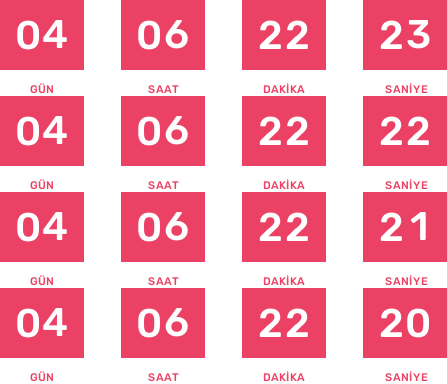
- Animated GIF support: Constant Contact renders animated GIFs, so the timer animates in most email clients.
- Per-open updates: The GIF is regenerated when the email is opened, showing accurate remaining time instead of a fixed snapshot.
- External image URL: The timer is added through the image block's URL option — no file upload needed.
Step-by-Step: How to Add a Timer in Constant Contact Using Countdown Builder
Countdown Builder includes 45+ templates, full customization, evergreen options, and no watermark on the free plan.
Constant Contact takes the timer as an image, so the flow runs through the GIF URL instead of HTML:
flowchart LR
    A["Create the timer in Countdown Builder"] --> B["Copy the GIF image URL"]
    B --> C["Drag an Image block in Constant Contact"]
    C --> D["Use the GIF URL as the image source"]
    D --> E["Test and send"]
Step 1: Create Your Countdown Timer on Countdown Builder
- Head to the free email countdown timer at countdownbuilder.com and sign up for a free account (or start without one).
- Click "Create" on the dashboard.
- Select a template or build from scratch.
- Choose the timer type:
- Fixed-date: Ideal for events or sales with a set end time.
- Evergreen: Personalizes and resets for each subscriber (useful for automations).
- Customize to match your brand:
- Colors, fonts, labels (supports multiple languages).
- Backgrounds, animations (e.g., pulsing effects).
- Time zone, expiration date/time.
- Post-expiration display (e.g., "Offer Expired" or custom message).
- Preview your timer and generate it.
Step 2: Copy the GIF Image URL
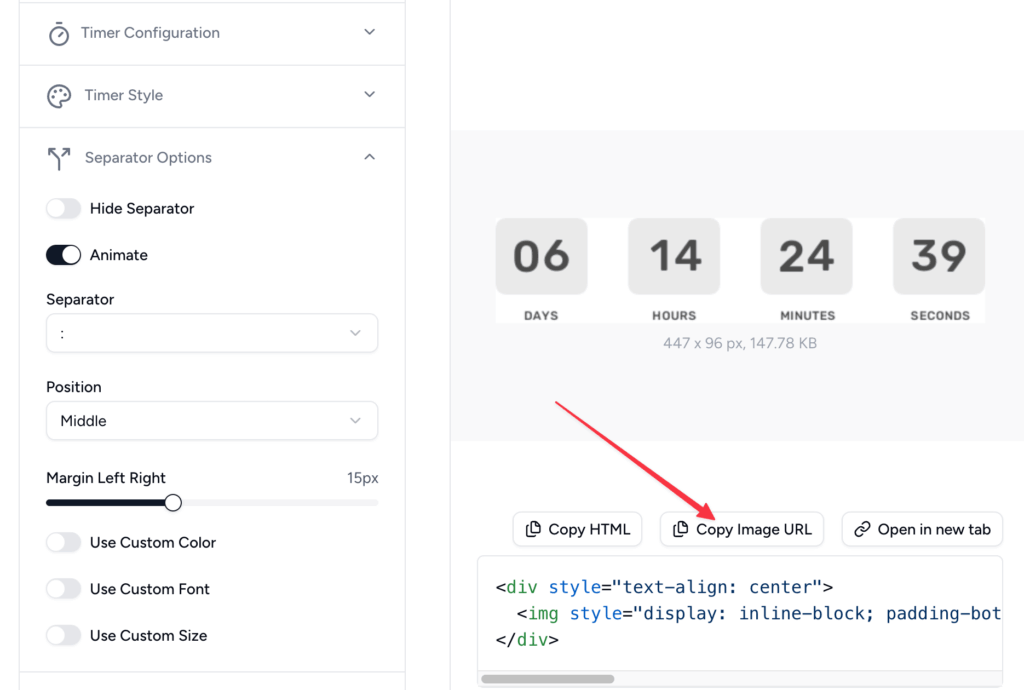
- In the embed section after generation, find the direct GIF URL (ends in .gif).
- Click "Copy Image URL" – copy only the URL, not the full HTML.
Step 3: Insert the Timer in Constant Contact
- Log in to Constant Contact and open your email campaign in the editor.
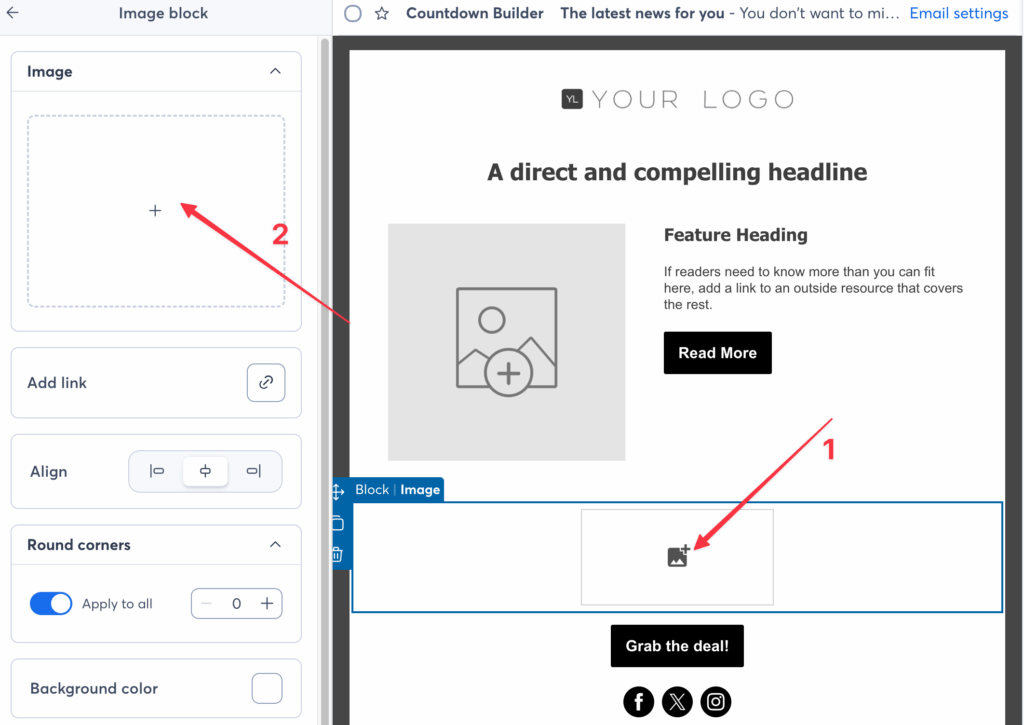
- Drag an Image block from the left sidebar to where you want the timer in your layout.
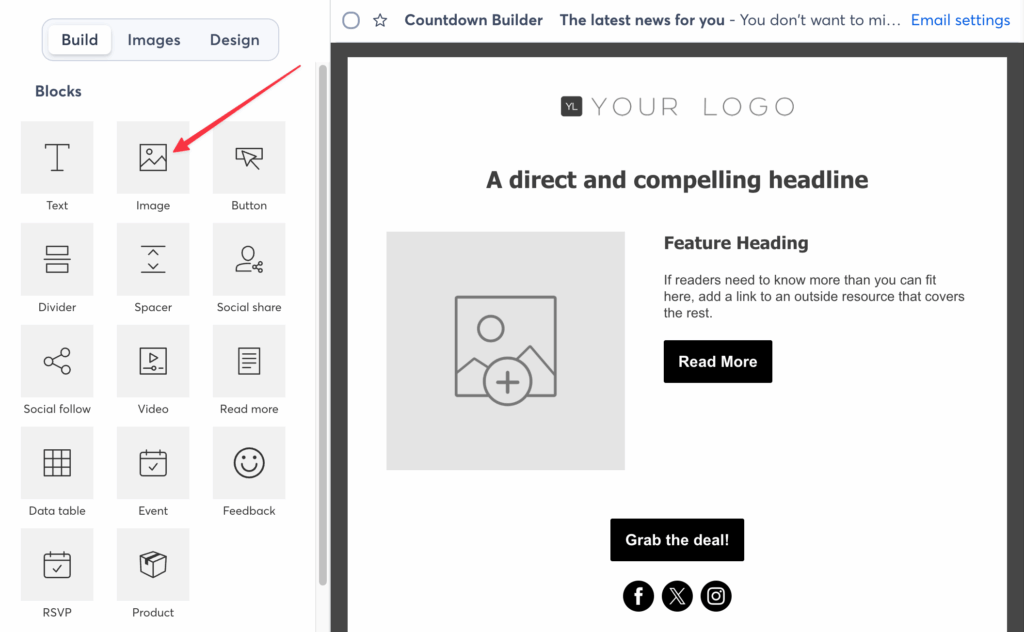
Click on the image block (or "Replace" if there's a placeholder).
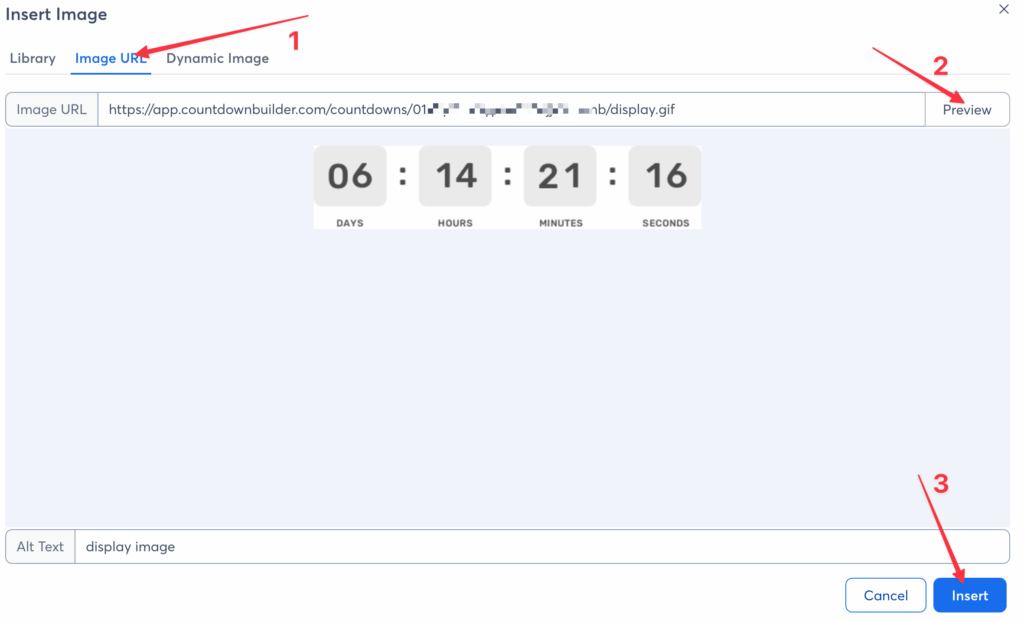
- In the editor popup, select the Image URL tab (or "Web Address").
- Paste the GIF URL you copied from Countdown Builder.
- Preview the timer, then click Insert or Save.
- Adjust the size: Resize the block by dragging corners or set width/height for responsiveness.
- Optionally add padding, alignment, or a link to your offer.
Your countdown timer will now update each time the email is opened.
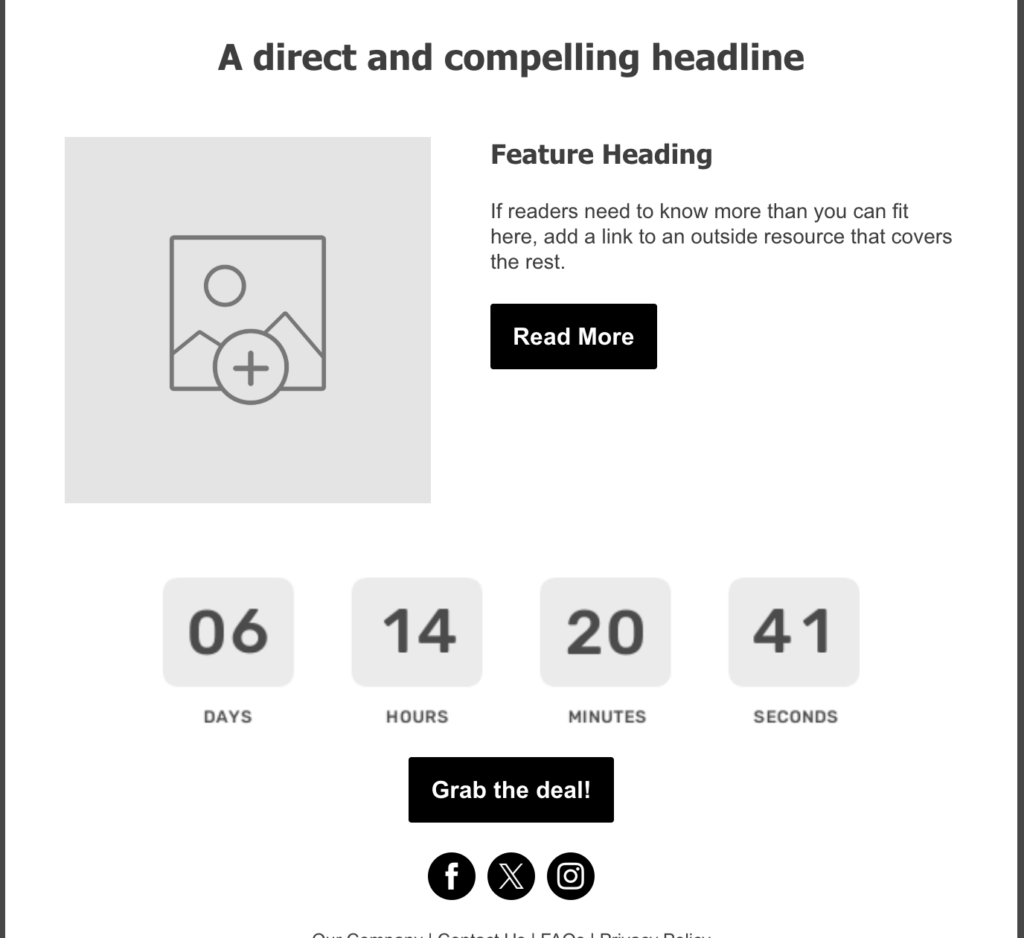
Step 4: Test and Send
- Preview your email in Constant Contact.
- Send a test to yourself and check on different devices and email apps.
- Confirm the image loads and the countdown shows the correct remaining time.
Best Practices for Timers in Constant Contact
- Placement: Position near your call-to-action (e.g., "Claim Offer Now").
- Design: Align with your brand – keep it clean and not overwhelming.
- Mobile: Check how the timer sizes on mobile screens before sending.
- Expiration handling: Set a custom end message so late opens see something sensible.
- Image blocking: Some recipients block images by default, so state the deadline in the email copy as well as the timer.
- Honest deadlines: Only use a timer when the offer genuinely expires; fake deadlines erode subscriber trust.
Costs Across the Campaign Calendar
One flat account covers a full year of Constant Contact campaigns — the spring promotion, the summer event, the holiday push — with unlimited timers and views on paid plans and no watermark on the free plan. The Business plan adds a custom domain with SSL. Current plans are on the pricing page.
If you'd like to try it, you can create a free timer at Countdown Builder.
Last updated: September 2026. These steps reflect Constant Contact's email editor and Countdown Builder as of this date. Email platform interfaces change over time, so the labels you see may differ slightly.
Written by Mehedi Hasan
Writer & Developer. He writes about email marketing, countdown timers, and campaign design.
Connect on LinkedIn