
Countdown Timer Expiry — What Shows at Zero
A timer that just stops feels unfinished. Decide exactly what your email countdown timer shows when it hits zero — freeze at 00:00:00, a custom message like “Offer Ended!”, or a branded image. The final frame is your last chance to convert.
What Is Expiry Settings?
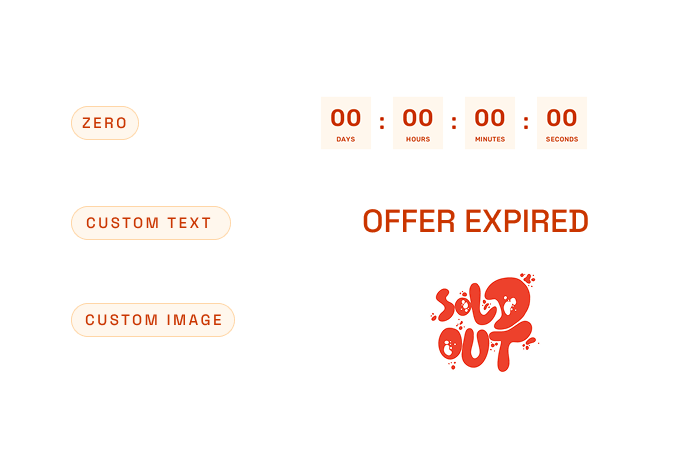
Expiry Settings determine what the countdown shows the moment it reaches zero. Three actions: freeze at 00:00:00, show a custom text message, or display a custom image.
The ending is your last chance to convert, inform, redirect, or reinforce your brand. A frozen timer leaves money on the table — a “Sale Ended!” message or “Sold Out” graphic closes the loop.
- Custom text. Any message, fully styled — font, color, size, background, language.
- Custom image. Upload a graphic (PNG/JPG/GIF/WEBP up to 100KB) with a live preview.
- Smart inheritance. Expiry inherits your global font and color so it always matches.
Default is Zero — the timer freezes at 00:00:00. Switch to text or an image to make the final frame work for you.
Make the Final Frame Count
Freeze at Zero
The classic option — the timer locks at 00:00:00:00 when it expires. Simple and unmistakable.
Custom Text
Show a message like “Offer Ended!”, “Sale Over”, or “Event Started!” — fully styled, any language.
Custom Image
Upload a “Sold Out” graphic, a “Now Live” banner, or any image (PNG/JPG/GIF/WEBP up to 100KB).
Smart Inheritance
Expiry text inherits your font, color, and language by default — or override each one.
Perfect For
“Sale Ended!”
Replace the timer with a clear message the moment a sale closes.
“Sold Out” graphic
Swap the countdown for a branded image when stock is gone.
“Now Live!”
Flip from counting down to a launch banner the second you go live.
“Registration Closed”
Make it obvious that sign-ups are over — no confusing frozen timer.
How It Works
Choose the action
Zero, custom text, or custom image — pick what the final frame shows.
Style the text
Font, color, size, background, and language for any custom message.
Upload an image
Drop in a PNG, JPG, GIF, or WEBP up to 100KB with a live thumbnail preview.
Inherit or override
Expiry inherits your global look by default, so it always matches.
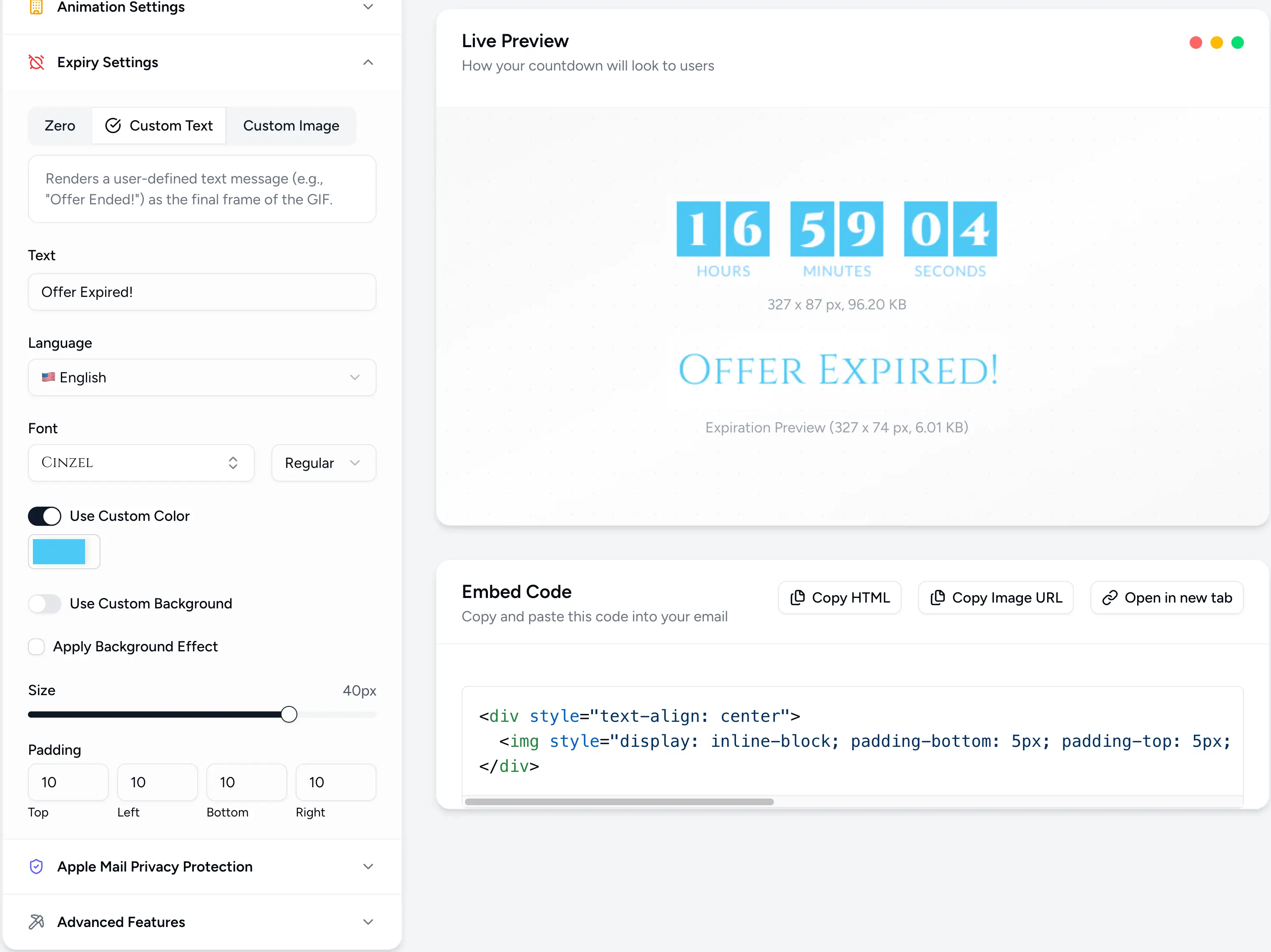
Powerful, Fully Customizable
Simple 3-Step Setup
Open expiry settings
In the editor, open the Expiry panel to choose what happens at zero.
Pick an action
Choose Zero, Custom Text, or Custom Image as the final frame.
Style & send
Configure the text or image, then copy the embed into your email.
End on Your Terms
Control the final frame of every countdown. Join thousands of marketers using Countdown Builder.
Build Your Countdown Timer