Step 01
Pick Dynamic + set a default end time
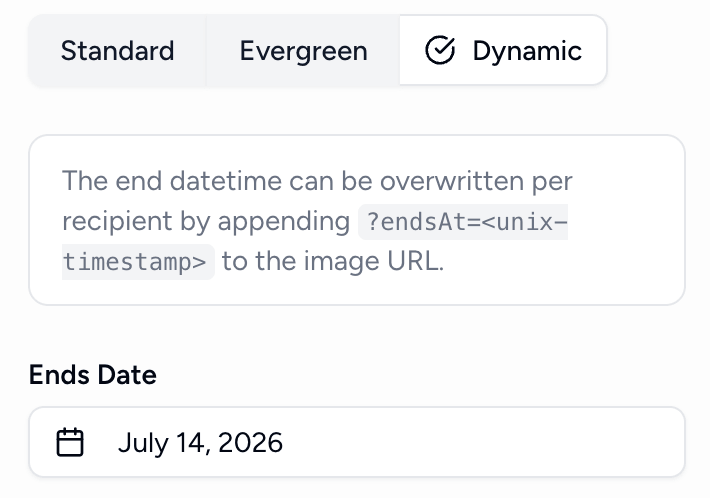
Choose the Dynamic type and set the fallback date/time and timezone for your timer.

Give every subscriber their own exact deadline. Pass a unique end time per recipient, and the email countdown timer counts down to a moment you define — not a fixed date, and not tied to when they open.
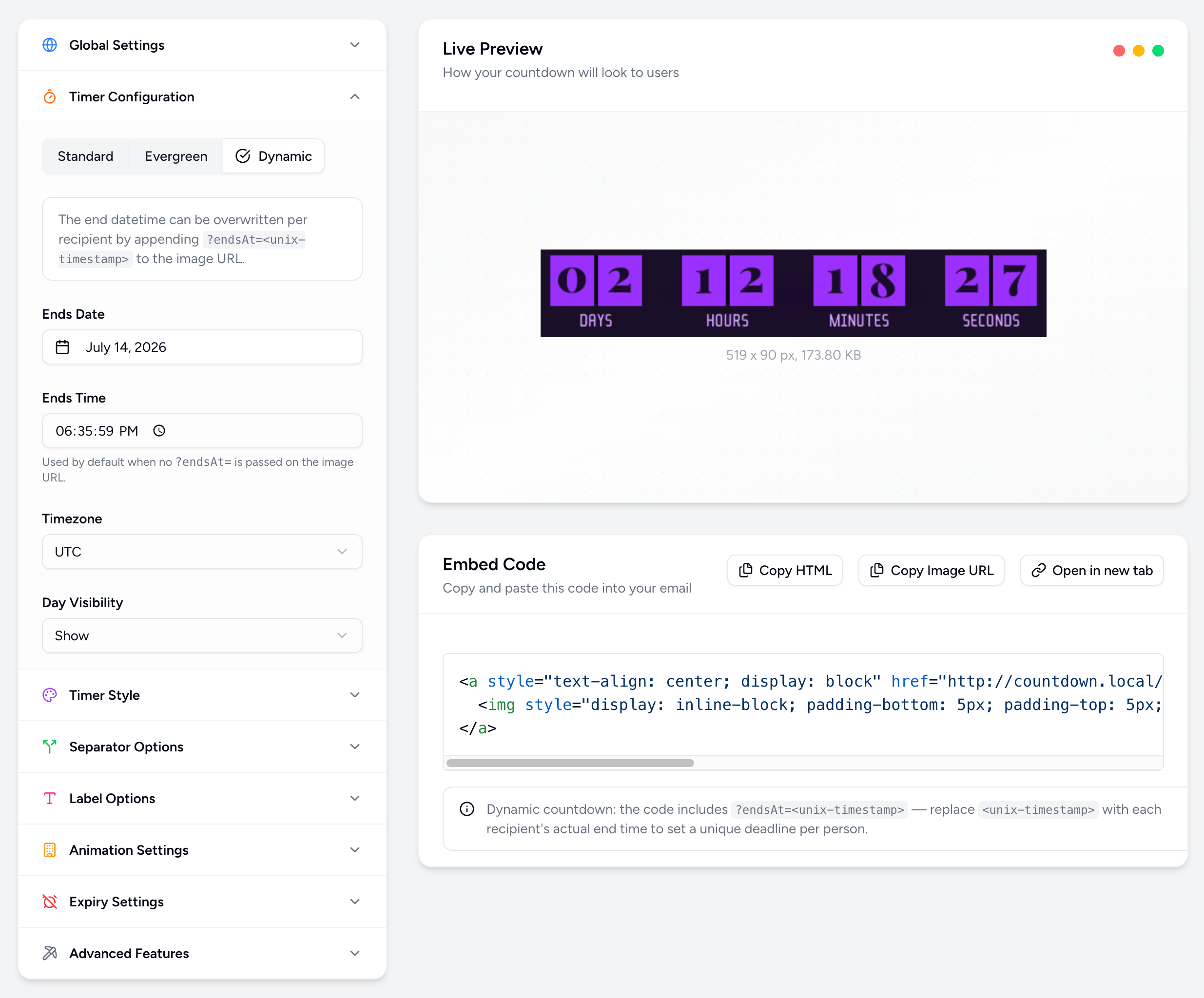
A Dynamic timer is a fixed-deadline countdown (like Standard), except the end time can be set per recipient. When you generate the embed, the image and click URLs include an ?endsAt=<unix-timestamp> parameter.
Your email platform replaces that placeholder with each subscriber's real deadline (via a merge tag), so every recipient sees a countdown to their specific moment.
endsAt is a Unix timestamp — an absolute moment, so no timezone is needed. The selected timezone is only used to interpret the saved default date/time.Dynamic timers never appear "expired" in your dashboard — the saved date is just the default, since each recipient may have their own deadline.
Dynamic is the one timer built for when you already know the exact deadline at send time.
| Type | Deadline | Set by |
|---|---|---|
| Standard | One fixed date for everyone | You, manually (e.g., Black Friday) |
| Evergreen | A duration that starts when each person opens | When each recipient opens |
| Dynamic | An exact moment that is unique per person | You — computed in your ESP/CRM and passed as a timestamp |
Evergreen is great for "24 hours after they open." Dynamic is for when you already know the deadline at send time and just need the timer to reflect it — more precise, more intentional, and not dependent on the open.
Every recipient gets their own exact end time. No two subscribers have to share the same countdown.
Compute the deadline from signup date, purchase date, trial start, renewal, or appointment — in whatever tool you already use.
The deadline is fixed the moment you send. No cookie, no "first open" dependency — just a precise, intentional deadline.
The click link honors each recipient's deadline, redirecting to your live URL before it expires and your expiry URL after.
Compute sign-up + 24h in your ESP and pass it as the deadline.
"Your trial ends Friday at noon" — countdown to each person's renewal.
A per-person date for booked sessions, classes, or live events.
"Sale ends at 9 PM your time" — exact, no matter the timezone.
Tie the offer window to when the item was added to the cart.
The embed includes a per-recipient timestamp your email platform fills in automatically.
Start a new timer and select the Dynamic type.
This saved date is used as the fallback when no per-recipient value is passed.
It includes ?endsAt=<unix-timestamp> on both the image and click URLs.
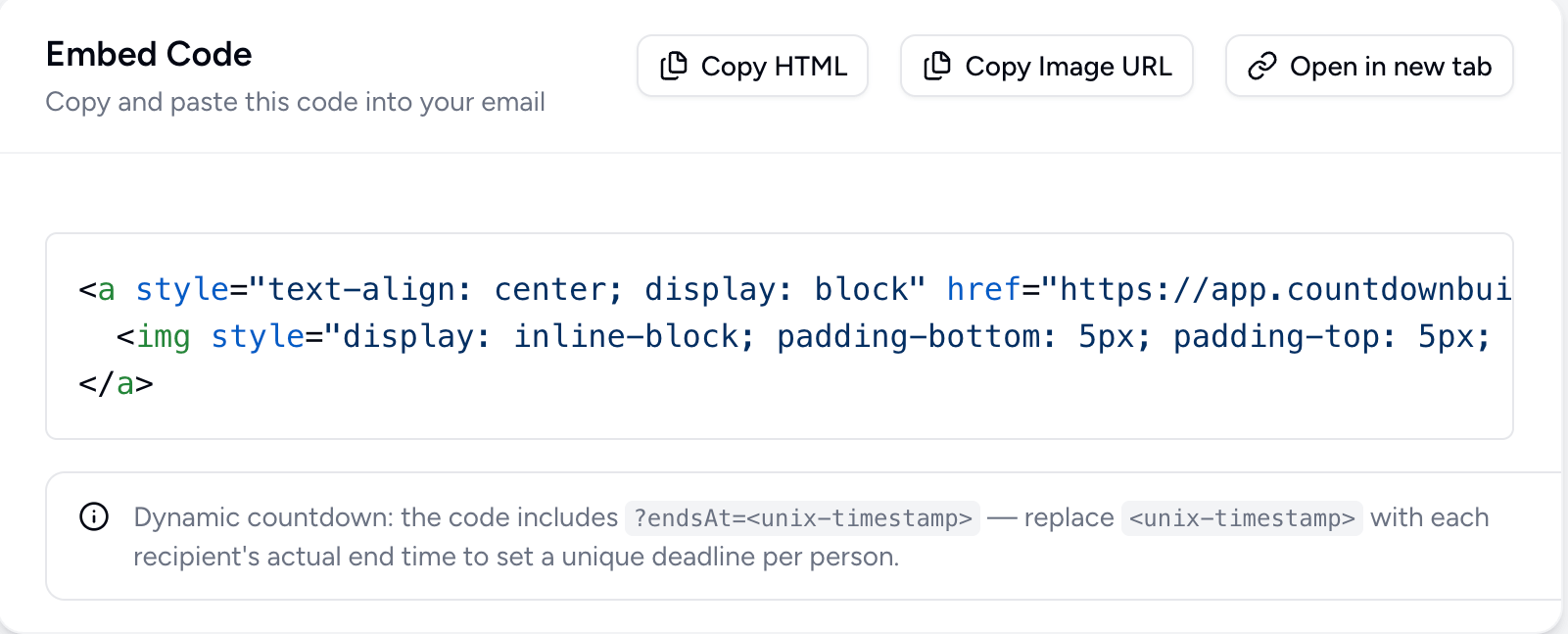
Replace <unix-timestamp> with a merge tag that outputs a Unix timestamp for each recipient.
<!-- Default: not clickable -->
<div style="text-align: center">
  <img style="display: inline-block; padding-bottom: 5px; padding-top: 5px; max-width: 100%" src="https://app.countdownbuilder.com/countdowns/<timer-id>/display.gif?endsAt=<unix-timestamp>" alt="Countdown" />
</div>

<!-- When "Clickable" is enabled -->
<a style="text-align: center; display: block" href="https://app.countdownbuilder.com/countdowns/<timer-id>/click?endsAt=<unix-timestamp>">
  <img style="display: inline-block; padding-bottom: 5px; padding-top: 5px; max-width: 100%" src="https://app.countdownbuilder.com/countdowns/<timer-id>/display.gif?endsAt=<unix-timestamp>" alt="Countdown" />
</a>?endsAt=<unix-timestamp> placeholder always sits on the image. When you enable a Clickable timer, the same placeholder is added to the click link too. Replace it with a merge tag that outputs a Unix timestamp for each recipient — so the image and the click-through both honor every subscriber's personal deadline. Choose the Dynamic type and set the fallback date/time and timezone for your timer.
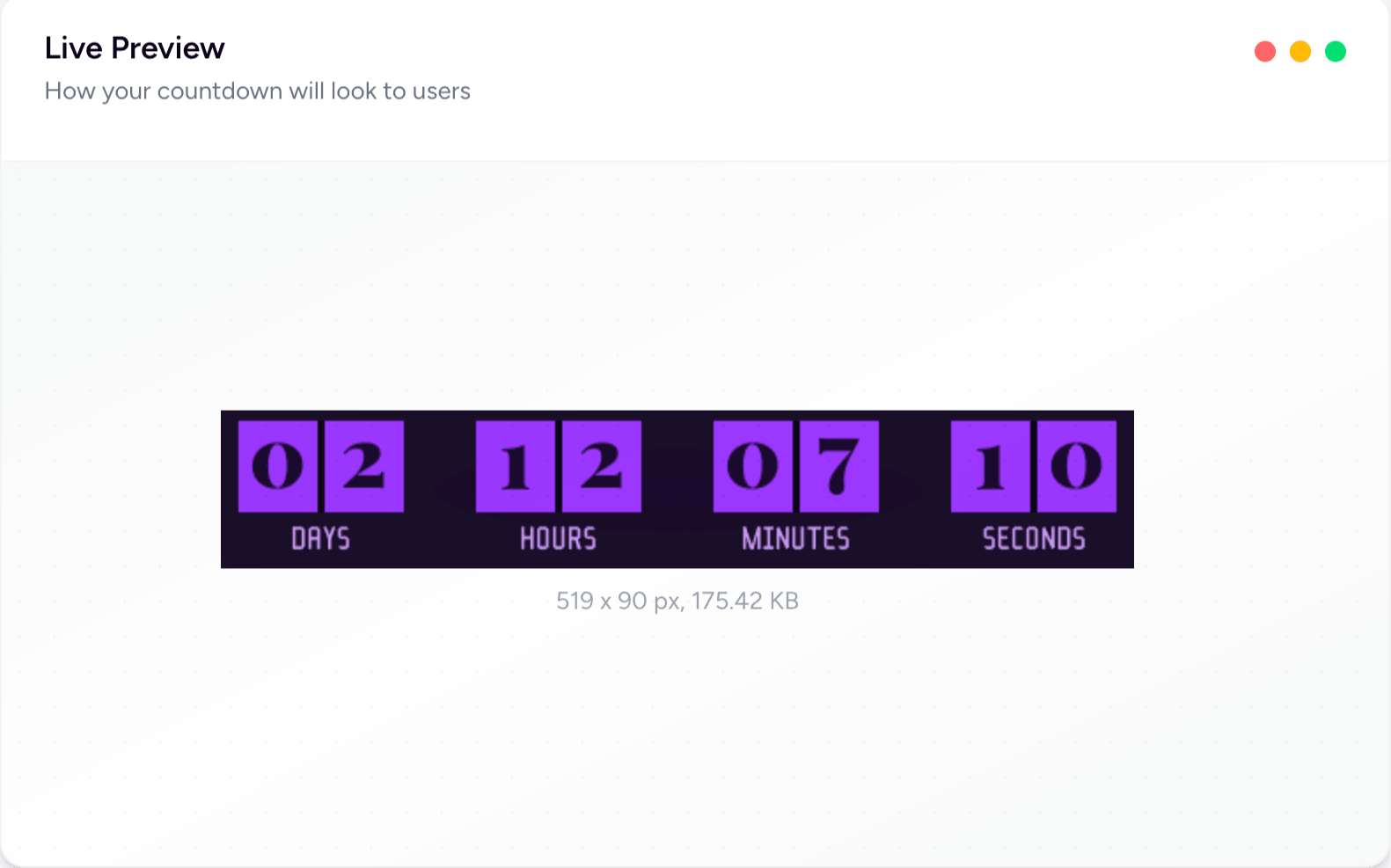
Pick a template and match it to your brand colors, fonts, and labels.
Copy the embed, swap the timestamp placeholder for your merge tag, and paste it into your email.
Give every subscriber their own exact deadline. Join thousands of marketers using Countdown Builder for precise, per-person urgency.
Build Your Dynamic Timer