
Email Countdown Timers and Apple Mail Privacy Protection
Apple Mail blocks images by default — so a large share of your audience may never see your animated GIF. Countdown Builder handles Apple Mail Privacy Protection (MPP) with three modes: keep the animation, show a static fallback with your title and end date, or hide the countdown entirely.
What Is Apple Mail Privacy Protection?
Apple Mail Privacy Protection (MPP) stops senders from knowing when an email is opened — and it pre-fetches or blocks remote images, including your animated countdown GIF. For many Apple Mail users, the timer simply doesn’t play.
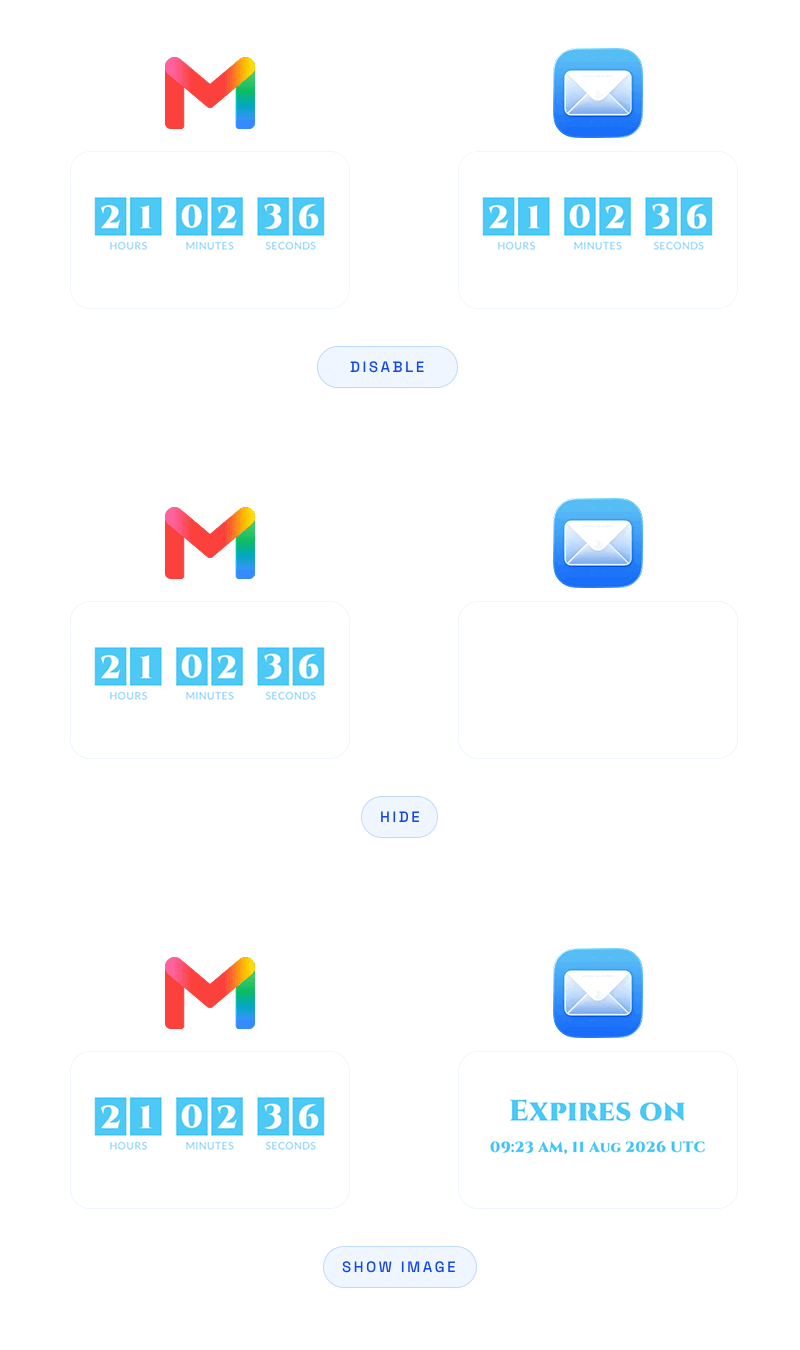
Countdown Builder gives you three ways to handle it: keep the normal animation (Disable), show a styled static image with your title and end date (Show Image), or hide the countdown area (Hide).
- Static fallback. A readable image with your title and end date/time, even when GIFs are blocked.
- 20+ date formats. Match your locale exactly, or use a strftime chrono specifier.
- Fully styled. Custom title text, language, font, size, color, and background.
Default is Disable — the normal animated GIF. Switch to Show Image so no Apple Mail recipient misses your deadline.
Inclusive by Design
Three Display Modes
Keep the normal animation, show a static fallback image, or hide the countdown area entirely — your call.
Static Fallback
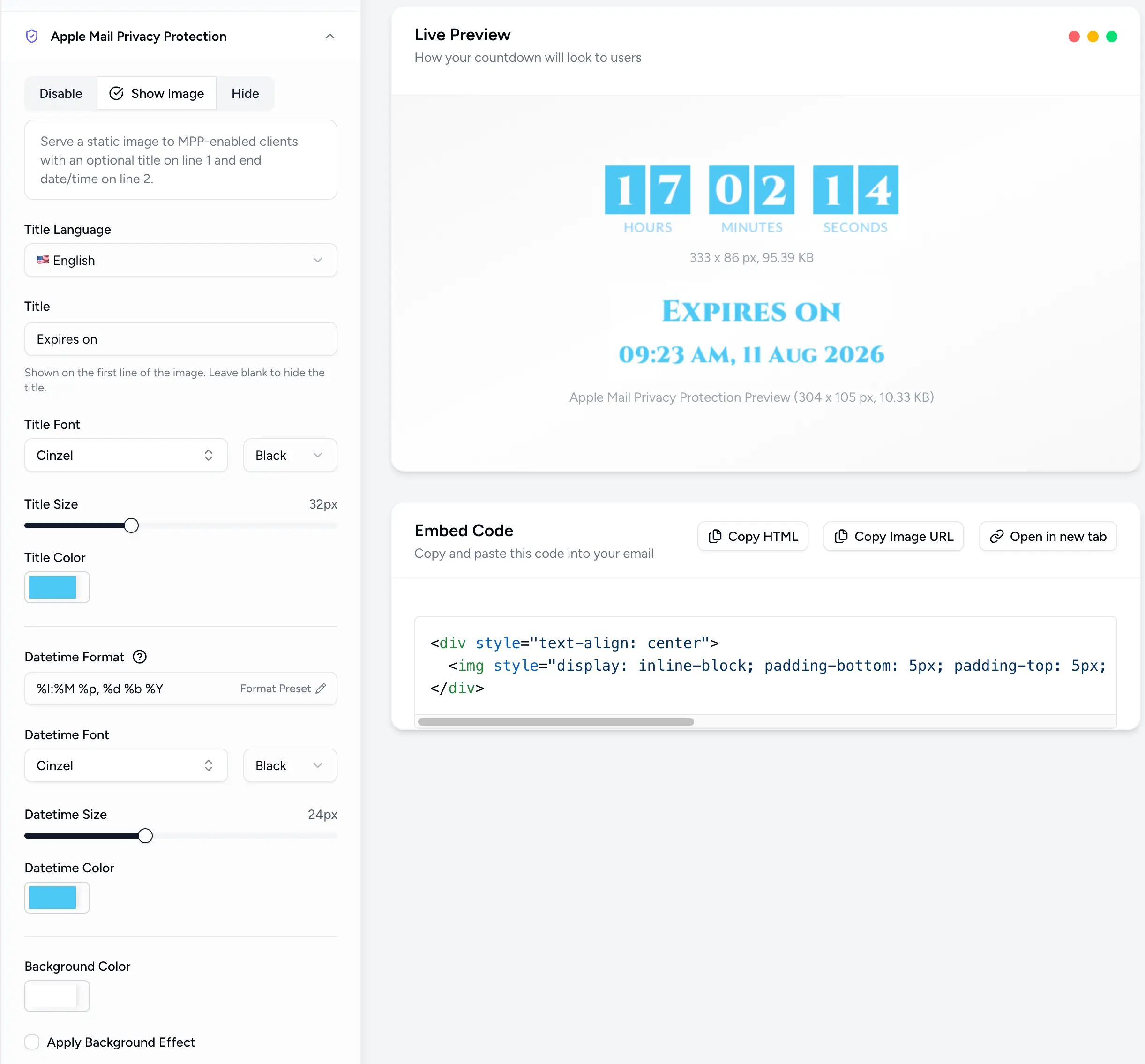
Show a styled static image with your custom title and the end date/time — readable even when GIFs are blocked.
20+ Date Formats
Pick from 20+ date formats or use a strftime chrono specifier to match your locale exactly.
Fully Styled
Custom title text, language, font, size, color, background, and padding for the static fallback.
Perfect For
General campaigns
Show Image ensures Apple Mail users still see your offer and end date.
High-engagement lists
If your audience is mostly Gmail or Outlook, Disable keeps the full animation.
Sensitive comms
Hide the countdown for internal or private emails where a timer isn’t appropriate.
Launches & sales
A static fallback means no Apple Mail recipient misses the deadline.
How It Works
Disable
Keep the normal animated GIF. Best when most recipients allow images.
Show Image
Render a static fallback with your title and end date/time when the GIF can’t load.
Hide
Make the countdown area transparent — useful for sensitive or internal campaigns.
Style everything
The static fallback inherits your fonts and colors, or override each one to taste.
Powerful, Fully Customizable
Simple 3-Step Setup
Open MPP settings
In the editor, open the Apple Mail Privacy Protection panel.
Choose a mode
Disable (normal GIF), Show Image (static fallback), or Hide the countdown area.
Style the fallback
If you chose Show Image, set the title, date format, font, and colors — then send.
Reach Every Apple Mail User
Never let MPP hide your deadline. Join thousands of marketers using Countdown Builder.
Build Your Countdown Timer