Step 01
Create the timer
Open the builder, set the end date, time and time zone, then pick a template and match the colors, fonts and labels to your brand.

An email countdown timer shows subscribers exactly how long they have left on a real deadline. With Countdown Builder you design a countdown timer for email in a visual editor, copy one snippet, and paste it into Mailchimp, Klaviyo, HubSpot or any other platform that accepts HTML or an image URL — no coding needed.
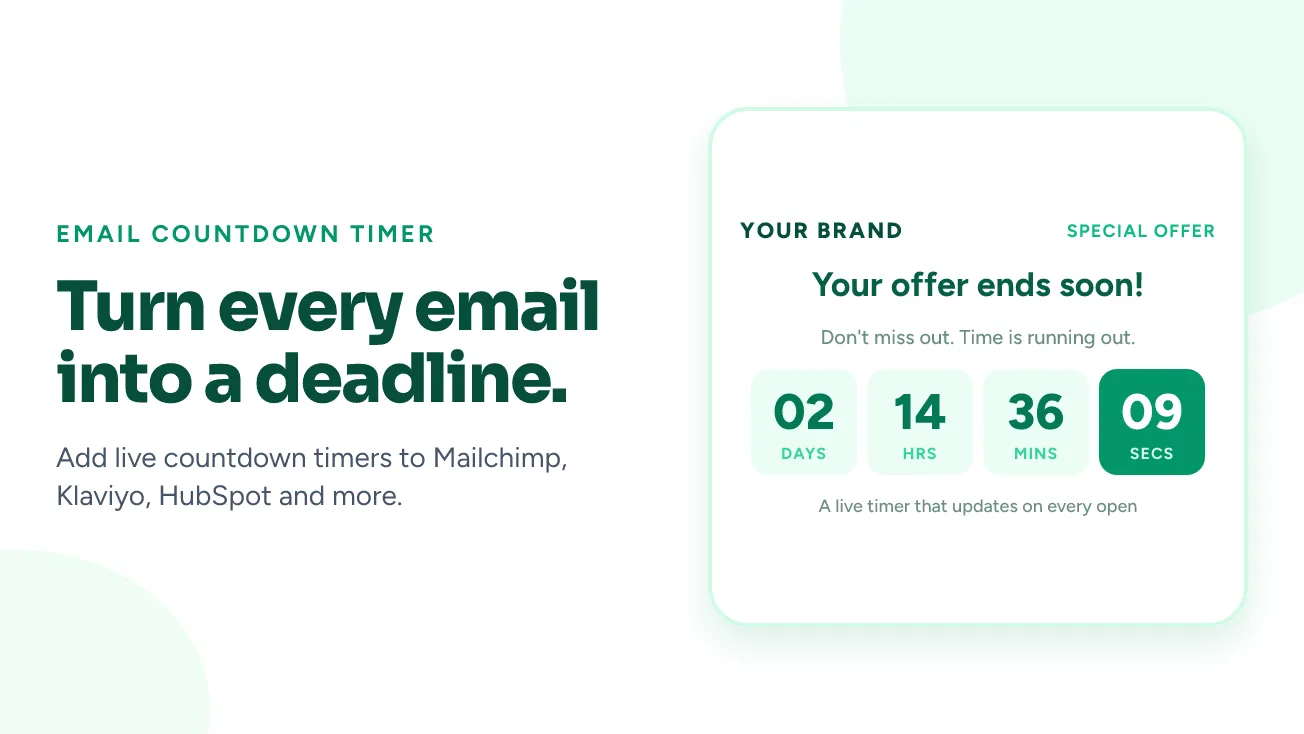
Email clients don't run JavaScript, so a countdown can't tick the way it does on a web page. Instead, your timer is an image hosted by Countdown Builder. Each time someone opens the email, their email client requests that image, the server calculates the time left at that moment, and the animated GIF it returns shows the current countdown.
That means the same email always shows accurate time remaining — whether it's opened an hour or three days after sending. When the deadline passes, the timer can switch to an expired message you define in the expiry settings.
A timer helps when the deadline is real. If the offer doesn't actually end, a countdown reads as pressure and costs trust — so use it for sales, launches, webinars and trials that genuinely expire.
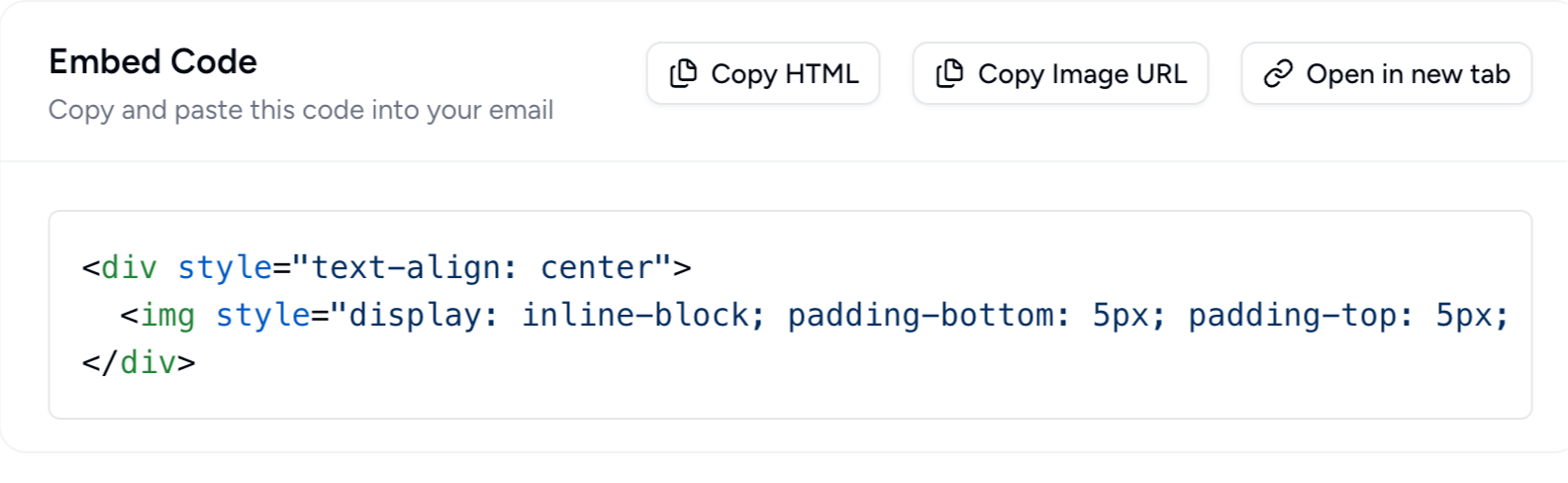
The builder generates a short HTML snippet like this one. Replace the alt text with your own deadline so it still reads when images are blocked.
<div style="text-align: center">
  <img
    style="display: inline-block; padding-bottom: 5px; padding-top: 5px; max-width: 100%"
    src="https://app.countdownbuilder.com/countdowns/<timer-id>/display.gif"
    alt="Sale ends Sunday at midnight"
  />
</div>
Platforms that only accept an image URL can use the plain display.gif link from Copy Image URL instead. For per-recipient deadlines, the same URL takes an end time from a merge tag — see dynamic timers.
Open the builder, set the end date, time and time zone, then pick a template and match the colors, fonts and labels to your brand.
Preview the timer, then click Copy HTML (or Copy Image URL if your email editor has an image block with a URL field).
Add a code, HTML or image block in your email platform, paste the snippet near your call to action, send yourself a test, and schedule the campaign.
Not sure where the block lives in your email editor? Pick your platform below for the exact menu path.
If your platform can add custom HTML or an image by URL, the timer will work. These guides cover the exact steps for each one.
Compare them all on the email countdown timer integrations page.
| Type | Deadline | Good for |
|---|---|---|
| Standard | One fixed date and time for every recipient | Flash sales, launches, webinar registration cutoffs |
| Evergreen | A fixed duration that starts when each person first opens the email | Welcome, onboarding and abandoned-cart automations |
| Dynamic | An exact end time per person, passed from your ESP or CRM | Trial expiry, coupon expiry, renewal reminders |
Whichever type you pick, use a deadline that is real and make sure the offer ends when the timer does.
The full written tutorial: when a timer helps, the build steps, customization options and how to measure results.
Read the guideHow timers work under the hood, plus testing and fallbacks for Outlook and Apple Mail.
Read the guideWhat the free plan includes and how to get a no-watermark timer into a campaign without paying.
Read the guideA short screen recording of the build and embed process, start to finish.
Read the guideDesigns and placements for sales, launches, webinars and re-engagement emails.
Read the guideA checklist for timers that show a static image, the wrong time or nothing at all.
Read the guideStart on the free plan — no credit card and no watermark. See the pricing page for plan details.
Create Your Timer Free