
How to Add a Countdown Timer to a Zoho Campaigns Email
 By Mehedi Hasan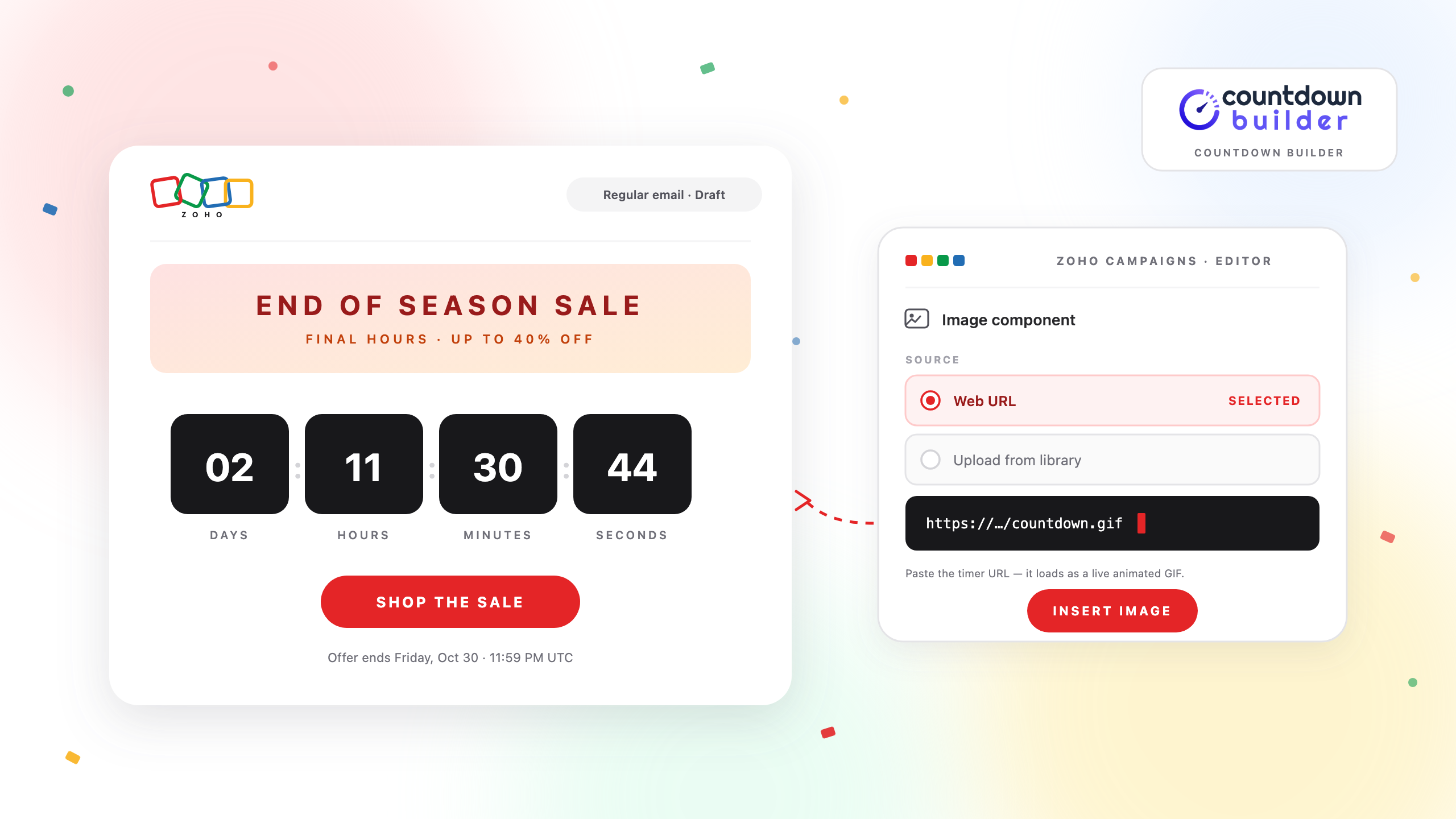
Zoho Campaigns' template editor is a drag-and-drop builder with an Image component that accepts images from a web URL — not just from your uploaded library. That one detail is all an image-based countdown timer needs: the timer lives at a URL, and the campaign pulls it in like any other image.
This tutorial walks through the process with Countdown Builder, the timer service this blog is published by: build the timer, add it to a Zoho Campaigns email, and test the result before it goes to your list.
How Email Countdown Timers Work
Email clients strip JavaScript, so nothing runs live inside the inbox. Timer services work around this by rendering the countdown as an animated image. When a recipient opens the email, the image loads with the correct time remaining at that moment.
Two consequences follow. First, the timer's end date and time zone must be right — the image is generated from the deadline you configured. Second, the image has to load from the timer service's URL each time. That second point matters in Zoho Campaigns specifically, and Step 3 explains why.
What You Need
- A Zoho Campaigns account, and a campaign you're building in the template editor
- A Countdown Builder account (the free tier works) with a timer set to your campaign's real end date
- The timer's GIF URL or HTML embed code, copied from the timer's page
The Flow at a Glance
Four steps, start to send:
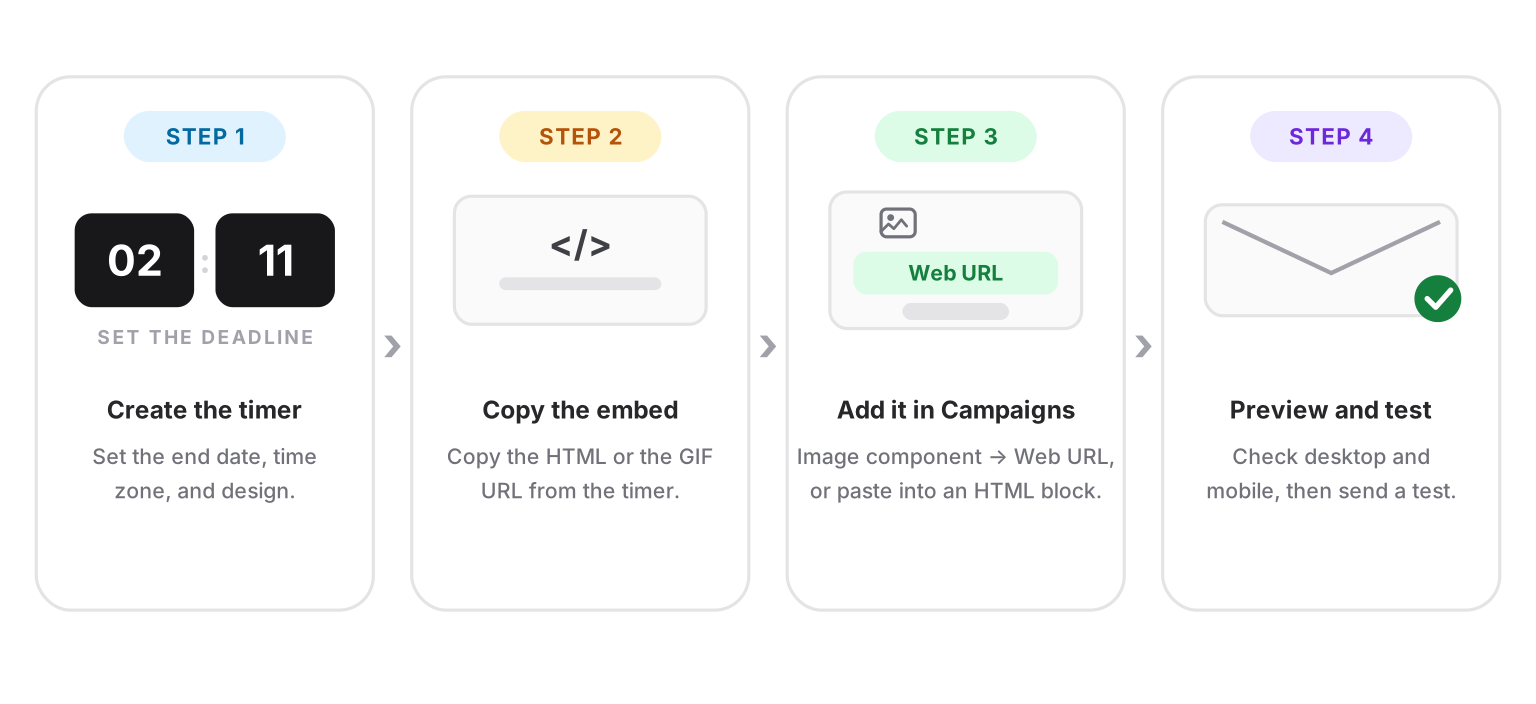
Build the timer outside Zoho Campaigns, then point your campaign at its URL — the same link works in every email tied to that deadline.
Step 1: Create the Timer in Countdown Builder
- Go to app.countdownbuilder.com and create a timer, or sign up free if you don't have an account yet.
- Set the end date, time, and time zone. A sale that ends Friday at midnight should have a timer that ends Friday at midnight. If the offer doesn't actually end, don't add the timer — readers notice, and the next one stops working.
- Design the timer. Start from one of the 65+ templates and adjust colors, fonts, and labels until it matches your brand.
- Set expiry behavior. Decide what recipients see after the deadline — zeros, a custom message like "Offer ended," or a custom image. The options are on the expiry settings page.
- Copy the GIF URL and the HTML embed. You'll use one or the other in Step 3, depending on the route you take.
Step 2: Create the Campaign in Zoho Campaigns
- In Zoho Campaigns, start a regular campaign and pick a starting template — the built-in layouts open in the drag-and-drop template editor.
- Build the email as usual: header, hero, offer copy, button.
If you build emails as full custom HTML instead, Zoho Campaigns has an Insert HTML / Plain Text option when you create a template. The timer's embed code drops straight into that. For everyone else, the drag-and-drop route in Step 3 is the shorter path.
Step 3: Add the Timer to the Email
There are two ways in. The Image component is the simplest; the HTML block handles the full embed.
Route A — the Image component (simplest):
- Drag an Image component into the email where the timer should appear.
- Click the image area, then under Image Properties choose Change.
- Instead of uploading, use the Web URL option and paste the timer's GIF URL.
- Set the alt text (something like "Sale ends Friday at midnight") and, if you want the timer clickable, set the component's link to your sale page.
Route B — the HTML block:
- Drag an HTML block into the email.
- Paste the embed code you copied from Countdown Builder. The snippet arrives ready to use — it carries the image, its alt text, and the click link if you set one.
One thing to avoid: downloading the GIF and uploading it to your Zoho Campaigns image library. A library copy is a frozen snapshot — it shows the time remaining at the moment you downloaded it, on every open, forever. Linked by URL instead, the timer regenerates each time the email is opened, so a subscriber who reads it two days later still sees the correct countdown.
Step 4: Preview and Test
- Use the template preview to check desktop and mobile widths — the timer should span the content column without overflowing.
- Send a test to inboxes you control: Gmail, Outlook, and Apple Mail cover the clients most of your list uses. In Apple Mail, Mail Privacy Protection caches remote images; Countdown Builder serves a static fallback when the animated timer can't refresh, so check how that fallback reads.
- Confirm the countdown shows the correct time remaining, and look at what the expiry setting will display once the deadline passes.
- Associate the template with your campaign, pick your recipients, and send or schedule.
One Timer Per Recipient: the Merge Tag Route
Everything above gives every recipient the same deadline. Zoho Campaigns can also give each recipient their own.
Zoho Campaigns merge tags use the $[...]$ format, and any custom field you create is available as one — a deadline stored in a contact field can be merged straight into the timer's URL as an endsAt timestamp. Each recipient's timer then counts down to that person's exact moment: a trial end, a cart-hold expiry, a renewal date.
The timer carries its own fallback date for contacts whose record is empty, so a missing value shows your default deadline rather than a broken image. The setup is on the dynamic timer page, and the broader pattern — deadlines computed per contact, fed to the timer — is covered in Email Personalization Beyond First Name.
Where to Place the Timer in the Email
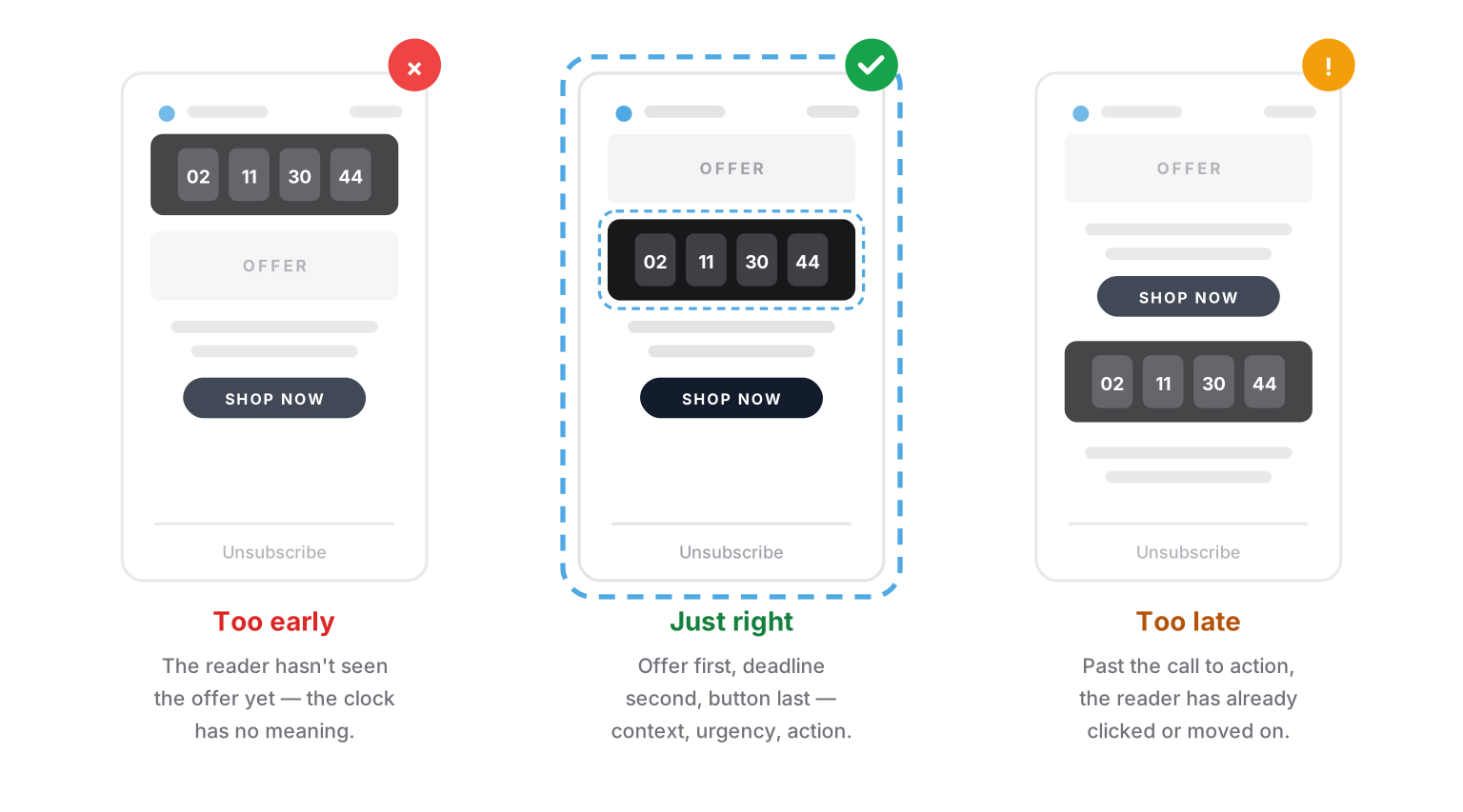
The timer sits between the announcement and the button — after the reader knows what the offer is, before they decide.
- Between hero and CTA. The hero explains the offer, the timer shows how long it lasts, the button closes the loop. A timer at the very top, with no context, counts down to nothing the reader understands yet.
- State the deadline in text as well. Some recipients block images by default. A line like "Offer ends Friday, Nov 27 at 11:59 PM" survives without them, and the alt text covers the timer itself.
- One timer per email. Two clocks counting to two different deadlines in one email communicate nothing except confusion.
FAQ
Does Zoho Campaigns have a built-in countdown timer?
No. The template editor's components don't include one. The standard approach is what this tutorial covers: a timer service generates an animated image at a URL, and the campaign embeds it through the Image component's web URL option or an HTML block.
Will the countdown update live?
The timer is an animated image that regenerates each time the email is opened, so every open shows the correct time remaining. It is not a running clock inside the inbox — no email client allows that — but it is accurate on every open, which is what matters.
Can I reuse the timer across campaigns?
Yes. Link the same GIF URL (or paste the same embed) in every campaign tied to that deadline, and each email shows the correct remaining time. To move the deadline, update the timer in Countdown Builder once — every email carrying it follows. Saving the email as a template in Zoho Campaigns preserves the component for future sends.
Do timers work in Zoho Campaigns autoresponders?
Yes. Autoresponder emails are built with the same template editor, so the Image component and HTML block are both available there. A welcome sequence or abandoned-cart autoresponder can carry a timer the same way a regular campaign does — provided the deadline is real for the person receiving it.
Final Thoughts
Adding a countdown timer to a Zoho Campaigns email comes down to one setting: the Image component's web URL option. Build the timer against the campaign's real deadline, link it by URL — never re-upload the GIF — place it between the hero and the button, state the deadline in text, and test before sending. The timer handles the rest, accurately, on every open.
If you want to try it, you can create a free timer — the free plan needs no credit card and adds no watermark.
Related Guides
- How to Increase Email Urgency with Countdown Timers and End-Time Messages
- How to Boost Flash Sale Conversions with an Email Countdown Timer
- Email Personalization Beyond First Name: Dynamic Countdown Timers
- Countdown Timers for Holiday Campaigns: A Practical Guide
- The Psychology of Scarcity: Why Countdown Timers Actually Increase Sales
Last updated: October 2026. The Zoho Campaigns steps above reflect the template editor as of this date; Zoho updates its interface over time, so the exact labels may differ. Countdown Builder features and pricing reflect the product at the time of publication and can change — see the pricing page for current plans.
Written by Mehedi Hasan
Writer & Developer. He writes about email marketing, countdown timers, and campaign design.
Connect on LinkedIn