
How to Increase Email Urgency with Countdown Timers and End-Time Messages
 By Mehedi Hasan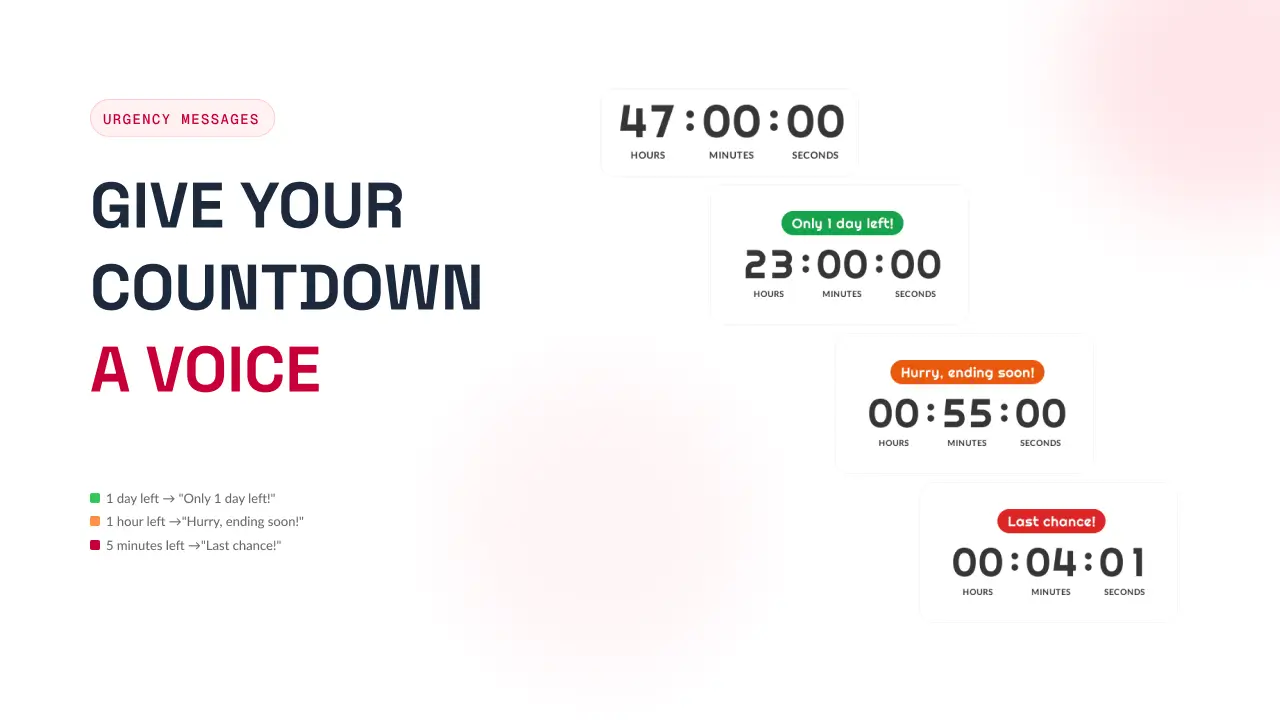
Most promotional emails are undone by a four-word thought: "I'll check this later." The subscriber opens the email, means to come back, and never does. Often nothing is wrong with the offer — the deadline simply wasn't felt.
Urgency is the fix for that, when it's honest. A real deadline, made visible, turns "later" into a decision that has to be made now. This guide covers how to create that effect in email marketing: the psychology behind it, the elements that make urgency work, and the two pieces most campaigns are missing — a countdown timer that shows the deadline, and messages that change what the timer says as the deadline gets close.
Why Urgency Works in Email
Three well-documented mechanisms do most of the work.
Loss aversion. In prospect theory, Daniel Kahneman and Amos Tversky showed that losses weigh roughly twice as much as equivalent gains. A deadline uses that asymmetry: the offer stops reading as "save 20%" and starts reading as "lose 20% at midnight." The reader's question shifts from "do I want this?" to "do I want to miss this?"
Decision simplification. Open-ended offers invite deferral, because deciding later costs nothing. A visible expiry turns an open-ended maybe into a bounded choice: act before the deadline, or accept the standard price. For a subscriber who was already interested, that structure is closer to a convenience than a pressure tactic.
Instant readability. A ticking clock is one of the few email elements that communicates before any copy is read. Falling numbers carry the meaning on their own — no headline required — which matters in an inbox where you get a second or two of attention before the next message.
We cover the scarcity side of this, including the research behind loss aversion, in The Psychology of Scarcity.
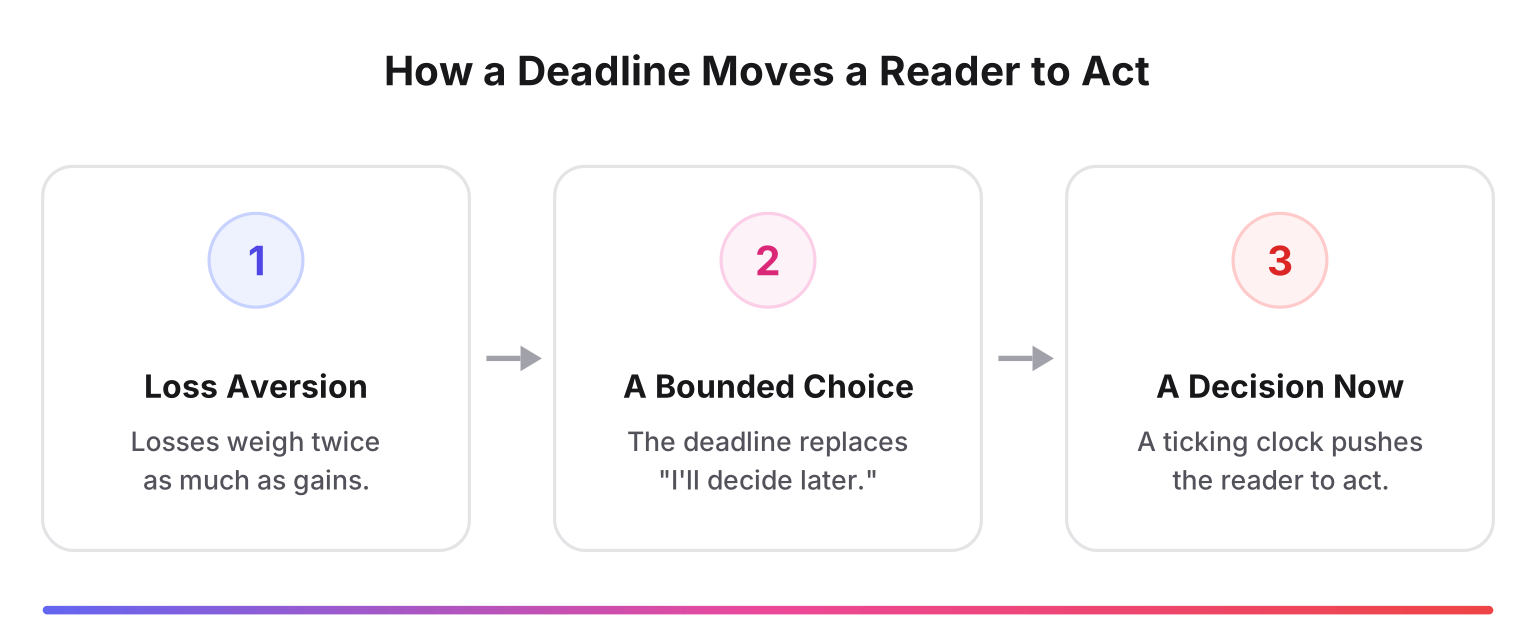
Loss aversion reframes the offer, the deadline bounds the decision, and the visible clock ties the two together.
The Five Elements of Urgency in Email Marketing
Before getting to timers, it helps to see all the levers that create urgency in an email. Most of them fall into five groups:
- Copy. Subject lines and body text that name the deadline directly — "closing tonight," "five seats left" — work better than vague enthusiasm.
- Exclusive, one-time offers. Offers that feel personally extended and won't be repeated carry more weight than standing discounts.
- Responding to the moment. Campaigns tied to real events — holidays, seasonal moments, launches — inherit a deadline that already exists.
- Imagery and motion. Animated GIFs and countdown timers show time passing instead of describing it.
- Scarcity. Limited stock, limited seats, and limited editions combine with time pressure into a stronger reason to act.
Those five elements cover what to say. What they don't cover is execution inside the email: how the timer and its copy behave as the hours actually pass. That's the difference between an email that claims urgency and one that demonstrates it — and it needs two working parts.
Countdown Timers: Make the Deadline Visible
The timer is the visual half of urgency. A few practices decide whether it helps:
- Place it near the primary CTA. The deadline and the action belong together. For short campaigns, keep both above the fold.
- Sync the subject line and preheader. "Our weekend sale is happening now" is an announcement. "Final 3 hours: your 20% discount ends at midnight" is a deadline. The inbox preview should say what the timer will show.
- Pair time pressure with real scarcity only when it's real. "Only 12 left in stock" strengthens urgency only if it's true. Invented stock counts are the fastest way to make urgency feel fake.
- Keep one primary CTA. An urgent email with four competing links dilutes to zero. One action, repeated at most once below.
- State the deadline in text as well. Some subscribers block images. A sentence like "Offer ends Friday at 11:59 PM" and matching alt text keep the deadline intact without the visual.
Countdown timers have ranked among the most-used live-content tactics in email marketing in Litmus's research — they're standard practice now, not a novelty. Any dedicated timer tool can generate one; our comparison of email countdown timer tools covers the options, including ours.
End-Time Messages: Change the Copy as the Clock Runs Down
Here is the half most campaigns skip. A typical urgent email writes one line of urgency copy — "Sale ends Friday!" — and ships it. That line reads exactly the same with three days left and with three hours left. By the final hour it undersells the situation, and after the deadline it's simply wrong.
End-time messages (Countdown Builder calls them urgency messages) fix that. They're short text lines attached to the timer, each bound to a time-remaining threshold. On every view, the timer evaluates how much time is left and shows the message closest to zero — so the copy escalates automatically as the deadline approaches, and never goes stale.
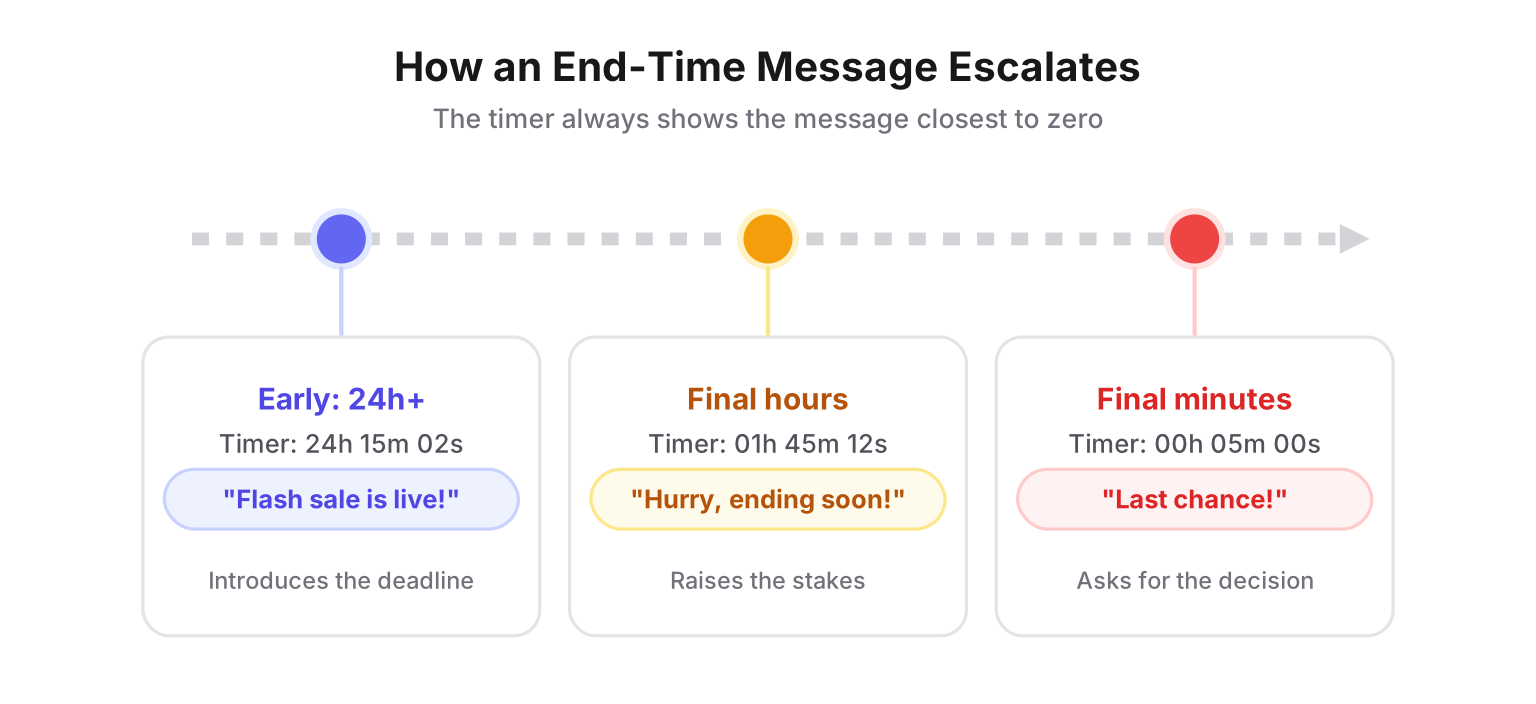
With thresholds at one day, one hour, and five minutes, the copy escalates on its own — no follow-up sends required.
How Countdown Builder Approaches This
We make Countdown Builder — this blog is published by the company — so here is what ours does, factually. Enabling the urgency message in the timer editor pre-loads three starter thresholds: one day left ("Only 1 day left!", green), one hour left ("Hurry, ending soon!", orange), and five minutes left ("Last chance!", red). From there you can:
- Add as many thresholds as you need, each with its own message, text color, and background color
- Position the message above the timer (to interrupt) or below it (to reinforce)
- Style it with its own font, size, corner radius, and padding — or let it inherit the timer's font
- Write messages in any of 20+ supported languages
Because the message closest to zero always wins, a reader five minutes from the deadline never sees "1 day left." And when the timer reaches zero, expiry settings take over, showing an expired message, image, or zeros instead of a stuck clock — which is what protects the campaign for late openers. The full walkthrough is on the urgency messages feature page.
Writing an Escalation Ladder That Works
A few guidelines for the thresholds themselves:
- Two to four triggers is the sweet spot. More than that and each individual message stops standing out.
- Escalate color along with tone. Green for awareness, orange for urgency, red for action maps naturally onto how readers read intensity.
- Keep each message short. "Last chance for early-bird pricing" lands; "This is your final opportunity to take advantage of our limited-time early-bird offer before it ends" does not.
- Be specific where you can. "Ends at midnight" beats "ending soon," because it can be verified.
- Match placement to campaign length. Above the timer interrupts — good for short flash sales. Below the timer reinforces — better for longer campaigns.
Urgency Message Examples by Campaign
| Campaign | Timer setup | Example message ladder |
|---|---|---|
| Flash sale | Fixed-date timer, hours-long window | "Flash sale is live" → "6 hours left" → "Last chance — ends at midnight" |
| Abandoned cart | Evergreen timer, per subscriber | "Your cart is saved for 4 hours" → "1 hour to complete your order" → "Your cart is about to expire" |
| Product launch | Fixed-date timer on launch pricing | "Early-bird pricing is open" → "24 hours of launch pricing left" → "Launch pricing ends tonight" |
| Webinar or event | Timer to registration close | "Registration is open" → "Closes tomorrow at noon" → "Final hours to reserve your seat" |
| VIP subscriber code | Timer to the code's expiry | "Your code is active" → "Expires tonight" → "Last hours to use your code" |
One rule sits under all of it: only promise what actually happens. If the message says the cart expires in four hours, the cart has to expire in four hours. For deeper walkthroughs, see our guides on abandoned cart countdown timers, flash sale campaigns, and product promotion email templates.
How to Set It Up
The whole setup lives inside the timer — no scripting, no per-ESP configuration:
- Create the timer. Set the real deadline, pick a template, and match the styling to your brand in Countdown Builder.
- Enable the urgency message and add thresholds. Start from the pre-loaded ladder and adjust the times and copy to fit the campaign.
- Style, position, and embed. Place the message above or below the timer, copy the HTML snippet, and paste it into your email platform.
The embed works anywhere custom HTML is accepted — Mailchimp, Klaviyo, and the other major email platforms.
Keep Urgency Honest
Everything above multiplies whatever is true about your offer. If the deadline is real, urgency communicates it. If it isn't, urgency amplifies the eventual loss of trust.
- Only use timers for offers that actually expire. A resettable "final hours" clock trains readers to ignore every clock afterward.
- Use evergreen deadlines instead of resetting. If you want every subscriber to get their own countdown, that's what evergreen timers are for — each deadline is individually real.
- Handle zero deliberately. Decide what late openers see: an expired state, a redirect, or the standing offer. A frozen timer at 00:00:00 is the worst outcome.
- Don't put a timer in every email. A clock in every send stops registering within a few campaigns. Save timers for sends where the deadline is the news.
FAQ
Do countdown timers increase email conversions?
They make a real deadline visible and immediate, which reliably improves how clearly the offer communicates. Whether conversions rise — and by how much — depends on the offer, the audience, and whether the deadline is genuine. There is no honest universal percentage.
What is an end-time message?
A short text line attached to a countdown timer that activates when the time remaining crosses a threshold you set — for example, switching from "Flash sale is live" to "Last chance" in the final minutes. The timer picks the message closest to zero on every view, so the copy escalates as the deadline approaches.
How many urgency messages should I set?
Two to four thresholds is usually right: one early message, one for the final hours, and optionally one for the final minutes. More than that dilutes each message.
Do countdown timers work in Gmail and Apple Mail?
Yes — timers ship as animated images, since email clients don't run JavaScript. The caveat is Apple Mail Privacy Protection, which pre-fetches and caches images and can freeze an animated timer at its cached frame. Countdown Builder serves a static fallback in that case, which is another reason to state the deadline in plain text as well.
Final Thoughts
Urgency isn't a trick added on top of an offer — it's the accurate communication of a real deadline. The timer makes the deadline visible, end-time messages make the copy keep up with the clock, and expiry settings handle what happens after. Together they cover the full arc: first open, final hour, and the subscriber who clicks a day late.
If you want to try it, you can create a free timer — the free plan needs no credit card and adds no watermark, and the threshold and styling options are detailed on the urgency messages page.
Related Guides
- The Psychology of Scarcity: Why Countdown Timers Actually Increase Sales
- Evergreen Email Countdown Timers
- 9 Email Countdown Timer Tools Compared in 2026
- Product Promotion Email Template with Countdown Timer
- How to Create an Email Countdown Timer (2026)
Last updated: October 2026. Features described reflect Countdown Builder at the time of publication and can change — see the urgency messages page and pricing page for current details.
Written by Mehedi Hasan
Writer & Developer. He writes about email marketing, countdown timers, and campaign design.
Connect on LinkedIn