
How to Boost Flash Sale Conversions with an Email Countdown Timer
 By Mehedi Hasan
A flash sale already has the one thing a countdown timer needs: a real deadline. Unlike evergreen offers, where the timer has to manufacture personal urgency, a flash sale ends at a specific moment for everyone — so a timer simply makes that fact visible.
This guide covers why timers suit flash sales, where to place them in the email, and how to build one with Countdown Builder. Pre-orders, product drops, and restock alerts share the same property — their deadlines belong to the event, not the campaign — and get their own treatment in countdown emails for scarcity events.
Why Countdown Timers Suit Flash Sales
"Sale ends Sunday" is a claim a reader has to parse and remember. A ticking countdown shows the time actually running out.
A timer works by:
- Making the deadline visible and continuous — it's still ticking when the reader comes back to the email
- Creating a clear reason to act now rather than bookmark for later
- Giving the reader a simple decision: buy within the window, or miss it
The effect depends on the deadline being genuine. If the sale doesn't really end when the timer hits zero, the timer teaches readers to ignore the next one.
Where to Place the Timer in a Flash Sale Email
Common placements:
- At the top of the email, in the hero section
- Immediately before the CTA button ("Shop the sale")
- In the footer as a final reminder
Timers also fit related campaign types:
- Abandoned cart emails during the sale window
- Last-chance reminder emails near the end
- Post-sale thank-you emails (with the timer expired or removed)
For the biggest flash-sale weekend of the year, see the Black Friday email countdown timer guide — the full send sequence from early access to Cyber Monday, built around one timer.
How to Add a Countdown Timer to Your Flash Sale Email
With Countdown Builder:
- Go to app.countdownbuilder.com and create a free account
- Choose a countdown style — classic, bold, or minimal
- Set the end time of your flash sale
- Customize colors, fonts, and time zone
- Copy the image embed code
- Paste it into your email builder (works with Mailchimp, Klaviyo, Kit, and other major ESPs)
No coding is involved — the embed is a standard HTML snippet.
Example: Flash Sale Email with a Countdown
Subject line: 24 hours only — 50% off everything
Body:
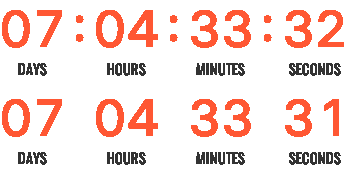
Our biggest sale of the season. Everything is 50% off until the timer reaches zero.
Shop Now
Final Thoughts
Flash sales are short by definition, and the emails that announce them should make the remaining time obvious. A countdown timer does that in a way plain text doesn't — as long as the sale actually ends when the timer does.
If you'd like to try one, you can create a free timer. The free plan needs no credit card and adds no watermark.
Last updated: September 2026. Product features described reflect Countdown Builder at the time of updating and can change — see the pricing page for current plans.
Written by Mehedi Hasan
Writer & Developer. He writes about email marketing, countdown timers, and campaign design.
Connect on LinkedIn