
Black Friday Email Countdown Timer: The 2026 BFCM Playbook
 By Mehedi Hasan
Black Friday is the easiest deadline you will ever market. Nobody has to be convinced that the sale ends. Everyone knows the date, the inbox is full of competing offers, and the only question in a subscriber's head is which emails are worth acting on.
That is exactly where a Black Friday email countdown timer earns its place. A sentence that says "offer ends Friday" is information. A live timer counting down to Friday is pressure the reader can watch. During the one weekend when every brand is shouting, the timer does the shouting for you — without adding another word of copy.
This guide covers the full 2026 Black Friday–Cyber Monday (BFCM) email plan: the dates to build around, the send sequence, how one timer serves the whole campaign, the Cyber Monday deadline switch, subject lines, templates, and setup.
If you want the broader Q4 picture — shipping cutoffs, New Year, gifting — see our guide to countdown timers for holiday campaigns. This page is the Black Friday deep dive.
Why Countdown Timers Fit Black Friday
Most of the year, urgency in email is manufactured: a coupon you defined, a launch window you invented. Black Friday is different in three ways:
- The deadline is public. November 27 is on every retailer's calendar and every shopper's. Your timer points at a date that already exists.
- The inbox is at its most crowded. Subscribers skim. A ticking timer is parsed in a fraction of a second — faster than any paragraph.
- The weekend has multiple deadlines. Early access ends. Black Friday ends. Cyber Monday ends. Each one is a natural send, and each one deserves its own visible clock.
The same logic applies to any short, fixed sale — our flash sale guide covers the mechanics. Black Friday just runs the pattern at full scale, back to back, for eleven days.
The 2026 Dates to Plan Around
| Date | Moment | What ends |
|---|---|---|
| Mon, Nov 16 | Teaser week begins | — |
| Fri, Nov 20 | Early access opens (typical) | Early-access window |
| Thu, Nov 26 | Thanksgiving; many stores go live | — |
| Fri, Nov 27 | Black Friday | End of day |
| Sat–Sun, Nov 28–29 | Weekend continuation | — |
| Mon, Nov 30 | Cyber Monday | End of day |
Two notes on this calendar:
- The dates are fixed; your windows are not. Early access, weekend-only deals, and Cyber Monday extensions are decisions you make. Whatever you decide, the timer must agree with the words around it.
- Black Friday creep is real. Many stores now open discounts one to two weeks early. If your "Black Friday" starts November 20, say so — and let the timer count to the real end, not to a vague "soon."
The BFCM Email Sequence
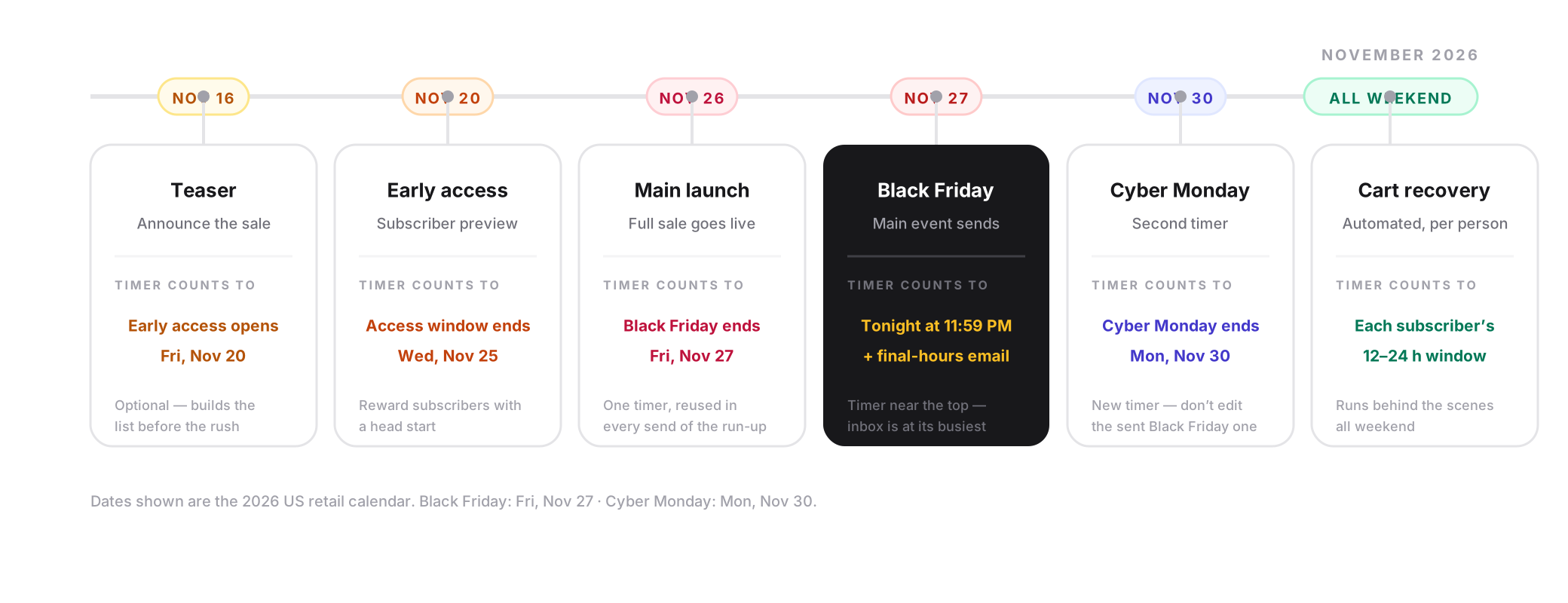
One timer strategy serves the whole campaign, but the emails around it change. Here is the sequence, from teaser to Cyber Monday:
| When | What the timer counts to | |
|---|---|---|
| Teaser | Week of Nov 16 | Optional — the moment early access opens |
| Early access | Fri, Nov 20 | The end of the early-access window |
| Main launch | Thu, Nov 26 | End of Black Friday (Nov 27, 11:59 PM) |
| Black Friday reminder | Fri, Nov 27 morning | Tonight, 11:59 PM |
| Last chance | Fri, Nov 27, final hours | The same deadline — hours or minutes left |
| Cyber Monday launch | Sat–Mon | A second timer counting to Nov 30, 11:59 PM |
| Cart recovery | All weekend, automated | Each subscriber's own short window |
Three details make this sequence work:
- The teaser timer is optional. If you announce the sale a week out, a timer counting to the moment doors open gives the email a destination. If your teaser is a pure "be ready" note, skip the timer — don't burn the visual before the sale exists.
- Black Friday is the main event; treat it like one. On Nov 27 the timer goes near the top of the email, not the middle. This is the busiest inbox day of the year.
- Cart recovery runs underneath everything. It is not a scheduled broadcast — it triggers per subscriber, which changes the timer it needs. We cover that below.
One Timer, Every Send
The core trick of a BFCM timer strategy: build one timer, reuse it everywhere.
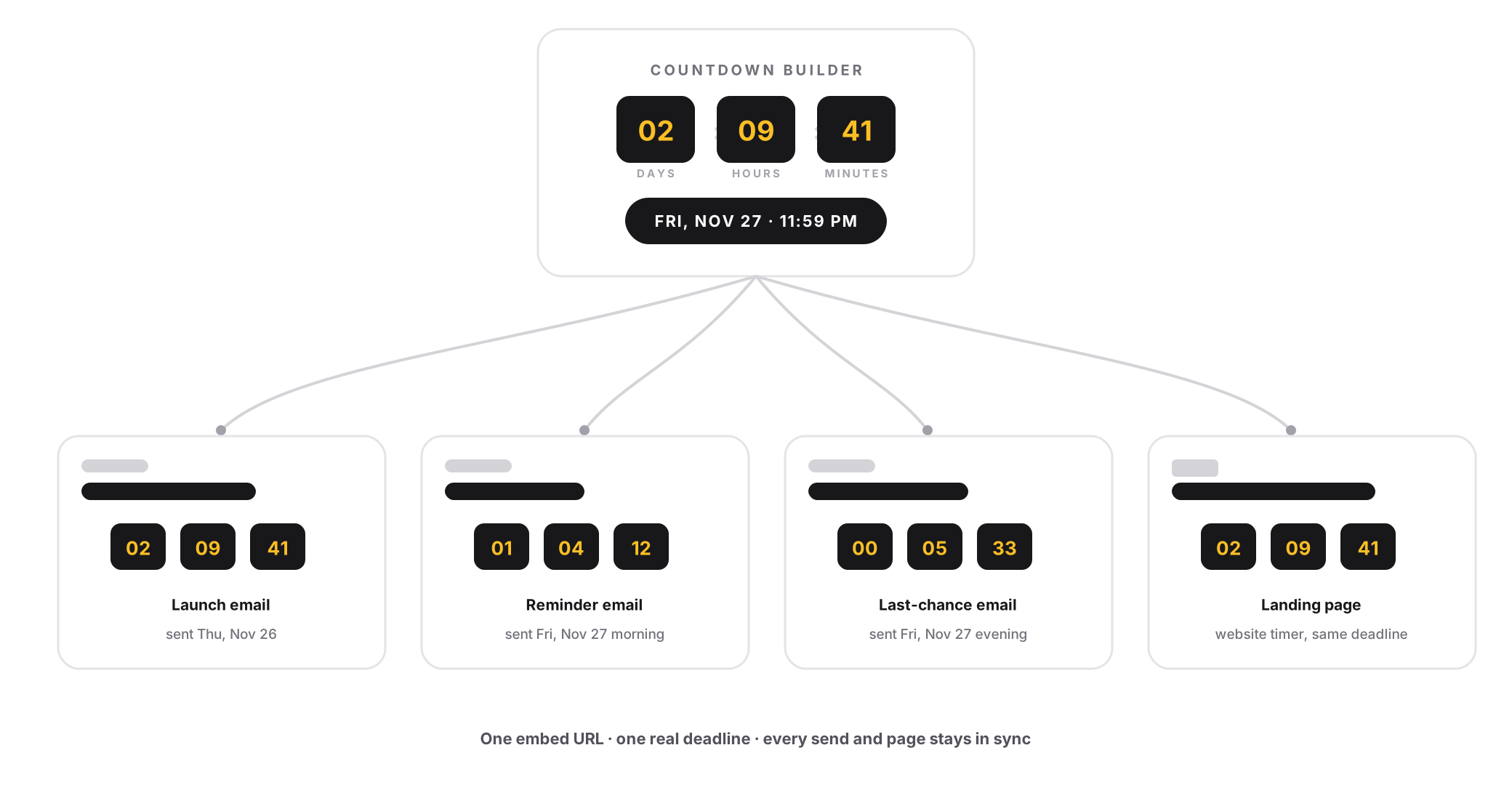
You create a single timer that ends Friday, Nov 27 at 11:59 PM. You copy its embed code into the launch email on Thursday, the Friday-morning reminder, and the final-hours send — and, if you like, the website countdown timer on the sale landing page. Shopify merchants can follow the storefront timer guide for the sale-bar and hero placements. WordPress site owners can follow the WordPress countdown timer guide for the Custom HTML block and widget-area paste. Teams sending from Salesforce Marketing Cloud can follow the SFMC timer guide for the Content Builder and Journey Builder paste. Every touchpoint shows the same digits counting to the same moment.
This works because the timer is a live image, not a picture frozen at send time:
- It re-renders on every open. A subscriber who opens Thursday's launch email on Friday afternoon sees hours left — not the stale "1 day" from when it was sent.
- It stays consistent. The email says "ends tonight," the landing page says "ends tonight," and the timer agrees. Mismatched deadlines are the fastest way to lose trust during a sale.
- It ages correctly. After the deadline passes, the timer shows its expired state everywhere at once. No zombie emails still promising three days left.
Set the deadline once, paste the same embed, and the whole campaign stays in sync.
The Cyber Monday Switch
Cyber Monday needs a different deadline, and this is where many teams make their one big mistake: they go back and edit the Black Friday timer's deadline to November 30.
Don't. The Black Friday emails are already in inboxes, and they still carry the old embed URL. Edit the original timer and you create two problems: emails that promised "ends Friday" now show a timer counting to Monday, and every claim in your sent copy is exposed as negotiable.
Instead:
- Create a second timer that ends Monday, Nov 30 at 11:59 PM.
- Use it only in Cyber Monday sends. From Saturday onward, new emails get the new embed.
- Give the Black Friday timer a graceful expiry. With expiry settings, the old timer can finish as zeros, a short "Sale ended" message, or a custom image — and its clicks can redirect through an expiry URL to the Cyber Monday page, so late openers land on the live sale instead of a dead one.
The rule in one line: one deadline per timer, one timer per deadline.
Building the Black Friday Timer in Countdown Builder
The email countdown timer generator is built for exactly this: design the timer once, grab the embed code, and paste it into every send.
Step 1: Create the timer and set the real deadline
Start a new timer and set it to end Friday, Nov 27, 11:59 PM in the timezone that matches your store. If your checkout and sale pages run on a different timezone than your email tool, the timer's timezone wins — set it to the one your customers experience at checkout.
Step 2: Pick a template that survives a crowded inbox
Countdown Builder includes 65+ templates. For BFCM, lean toward:
- High-contrast tiles — dark blocks with bright digits read instantly at thumbnail size.
- A style that matches your sale branding — if your campaign is black-and-amber, the timer should be too. See the template guide for the full range.
- Larger digits than you think you need. Phones, dark mode, and thumbnail-width inbox previews all shrink the timer.
Step 3: Make it clickable
On Black Friday, the timer is not decoration — it is a conversion path. In the editor, open Advanced Features, enable Clickable countdown image, and point it at your sale page. Subscribers who click the clock skip straight to the offer.
Step 4: Set the expiry state and redirect
Decide now what late openers see after Nov 27:
- Expiry message: a short "Black Friday has ended" or your Cyber Monday teaser text.
- Expiry URL: send expired clicks to the Cyber Monday sale page, not a 404 or an empty banner.
Step 5: Copy the embed and paste it everywhere
Copy the HTML snippet and drop it into a code block in your email platform. Countdown Builder works with Mailchimp, Klaviyo, Brevo, HubSpot, Shopify Email, Omnisend, and any tool that accepts custom HTML.
Then repeat Steps 1–5 for the Cyber Monday timer (deadline: Nov 30, 11:59 PM) — it takes a few minutes, not another planning session.
Subject Lines for BFCM Countdown Emails
The subject line should carry the deadline in words; the timer carries it visually. Use the real date.
- Black Friday starts now — up to X% off
- Early access is open (it ends Wednesday)
- First Name, the Black Friday timer is running
- Doors close at midnight tonight
- Final hours: the Black Friday sale ends at 11:59 PM
- 6 hours left in the Black Friday sale
- Last call — the sale ends when this timer does
- Cyber Monday is live — ends Monday night
- Your cart still qualifies for Black Friday pricing
- The sale ends tonight. Really.
Preheaders that add detail instead of repeating the subject:
- The countdown is live — see how much time is left.
- Early access pricing disappears Wednesday at midnight.
- Your discount applies automatically at checkout.
- The timer in this email is counting to the real deadline.
Copy-Ready BFCM Templates
Three skeletons to adapt. Keep copy around the timer short — the timer does the urgency work.
Early access (Fri, Nov 20)
Subject: Early access is open (it ends Wednesday)
Preheader: Your head start on Black Friday pricing.

Hi [First Name],

Black Friday doesn't start until Friday. Yours starts now.

[Countdown timer]

For the next [N] days, subscribers get early access to every
Black Friday deal — before the crowds, before stock runs low.

[CTA: Shop Early Access]

Early access ends Wednesday, Nov 25 at 11:59 PM. After that,
the same deals — with much more company.
Black Friday — last chance (Fri, Nov 27, evening)
Subject: Final hours: the Black Friday sale ends at 11:59 PM
Preheader: The timer in this email is counting to the real deadline.

[First Name],

This is the last email of the sale.

[Countdown timer]

After the timer hits zero, the sale closes and pricing returns
to normal. If you've been waiting, this is the moment.

[CTA: Claim Your Deal]

Ends tonight at 11:59 PM. No extensions.
Cyber Monday launch (Sat–Mon)
Subject: Cyber Monday is live — ends Monday night
Preheader: The deals continue, with a new deadline.

The Black Friday sale is over. The Cyber Monday sale isn't.

[Countdown timer]

Online-only deals on [category/product line], through Monday,
Nov 30 at 11:59 PM.

[CTA: Shop Cyber Monday]

After Monday night, sale pricing is done for the season.
Cart Recovery with a Black Friday Timer
Abandoned-cart emails during BFCM work differently from broadcasts: each subscriber triggers their own flow at their own time, so a fixed Nov 27 deadline is usually the wrong clock.
Two patterns that fit:
- A short personal window. "Your cart is reserved at Black Friday pricing for 12 hours." The timer counts to that subscriber's deadline — an evergreen countdown timer handles the per-subscriber start automatically.
- The shared sale deadline, honestly framed. If the cart discount simply ends with the sale, the timer counts to Nov 27 like everything else — and the final-hours sends do the pushing.
For a full walkthrough in a WooCommerce store, see how to add a timer to abandoned cart recovery. For Shopify stores, the Shopify abandoned cart countdown guide covers the same decision against Shopify's abandoned checkout recovery.
Design Tips for a Crowded Inbox
- One timer per email. Two clocks reading different deadlines in one email is confusing, not twice as urgent.
- Keep the timer next to the CTA. Offer → timer → button. The eye should hit all three in one pass.
- Design for dark mode. Inboxes that invert colors will recolor your email around the timer — dark tiles with bright digits survive best.
- Check it on mobile before sending. BFCM opens skew heavily toward phones, and a timer that looks great at desktop width can turn illegible at 375px.
- State the deadline in copy too. Some subscribers block images. The timer is the visual; the words are the backup.
Common BFCM Timer Mistakes
- Editing the live Black Friday timer for Cyber Monday. Sent emails keep the old embed — make a second timer instead.
- Resetting a spent timer to re-run the "last chance." Subscribers who saw it end once will notice, and next season's deadline stops being believable.
- Deadline mismatch. Email says 11:59 PM, landing page says midnight, timer says UTC. Pick one moment, use it everywhere.
- No expired state. A timer frozen at zeros under a "HURRY" headline is worse than no timer. Set the expiry message and redirect before launch. For every other way a timer can misrender — Outlook still frames, Apple Mail caching, dark mode — see the email countdown timer troubleshooting guide.
- Timer buried under six discount badges. If everything is urgent, nothing is. One offer, one clock, one button.
Pre-Send Checklist
- The timer deadline matches the email copy and the landing page.
- The timezone matches your store's checkout.
- The countdown image is clickable and points to the right sale page.
- The expiry message and expiry URL are set.
- A second timer exists for Cyber Monday (deadline Nov 30).
- The email has been test-sent and the timer checked on mobile and dark mode.
- Cart-recovery flows use the per-subscriber timer, not the broadcast one.
Countdown Builder for the BFCM Weekend
Countdown Builder gives you everything the sequence above needs:
- 65+ timer templates, fully brandable.
- Email and website countdown timers from one account.
- Clickable countdown images.
- Custom expiry states and an expiry URL for late openers.
- Evergreen timers for cart-recovery windows.
- Unlimited timers and views on paid plans — enough for Black Friday, Cyber Monday, and every sale after.
On paid plans, pricing is flat per account rather than per view, so a BFCM spike in opens doesn't change the bill. You can create a free email countdown timer on the free plan — no credit card, no watermark — and have your Black Friday timer embedded before the weekend gets close. Current plan details are on the pricing page.
Black Friday gives every marketer a real deadline. The brands that win the weekend are the ones whose emails, pages, and timers all agree on exactly when it ends. The full teaser-to-last-chance sequence above is one of the fifteen annotated layouts in the email countdown timer examples gallery.
Last updated: October 2026. Dates in this guide follow the 2026 US retail calendar — Black Friday falls on Friday, November 27 and Cyber Monday on Monday, November 30. Product features and pricing reflect Countdown Builder at the time of updating and can change; see the pricing page for current plans.
Written by Mehedi Hasan
Writer & Developer. He writes about email marketing, countdown timers, and campaign design.
Connect on LinkedIn