
Shopify Countdown Timer for Your Store (Not Just Email)
 By Mehedi Hasan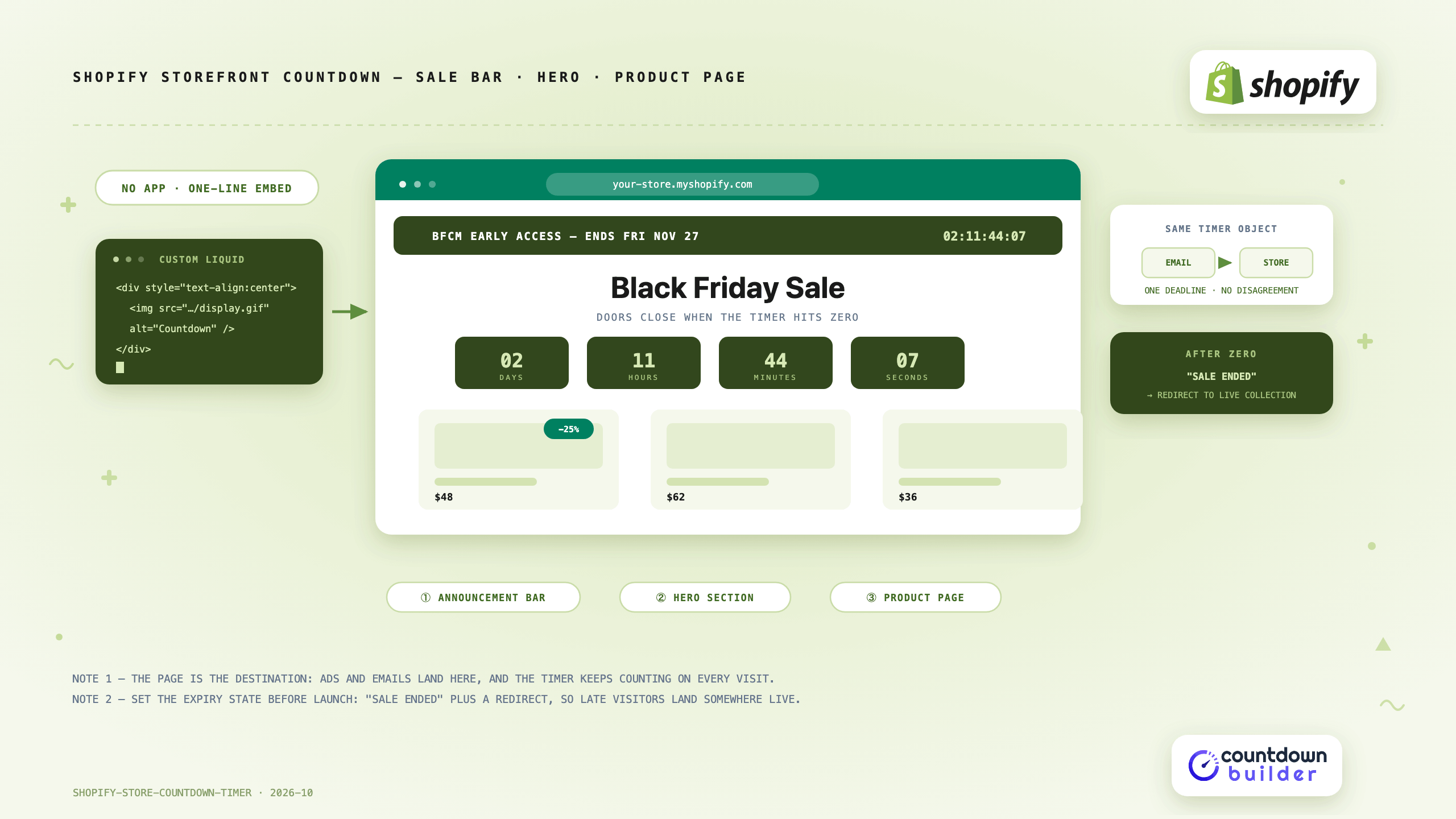
A Shopify sale usually gets its countdown timer in the emails — and then the shopper clicks through to a store page with no clock on it. The email said four hours; the page says nothing. That gap is where a Shopify store countdown timer earns its place: the storefront is the destination every email and ad points at, and it's open all day, including for visitors who never got the email.
The mechanics are simpler than most merchants expect. No app subscription, no theme rebuild — the timer is a one-line embed, and Shopify gives you two places to paste it: a Custom Liquid section in the theme editor, or the theme code itself. This guide covers both paths, where on the page the timer belongs, and how to keep the storefront clock and the email clock on the same deadline.
If you're coming from the email side, the companion guides are how to add a countdown timer to Shopify Email and Shopify abandoned cart emails with a countdown timer. This one is about the store.
Why the Storefront Wants Its Own Clock
- The page is the destination. Every email, ad, and social post lands on the store. A visitor arriving from Thursday's email on Friday afternoon should see the same shrinking window the email promised — not a static banner.
- The store is open when the inbox isn't. Emails get one open, maybe two. The sale page gets visited repeatedly during the decision — and a countdown that's still accurate on the fifth visit is doing work no send can.
- Consistency is the whole asset. A store timer that disagrees with the email timer (different deadline, different timezone, different expiry) is worse than either timer alone. Build once, embed in both places.
Where the Timer Goes
Three placements cover nearly every campaign:
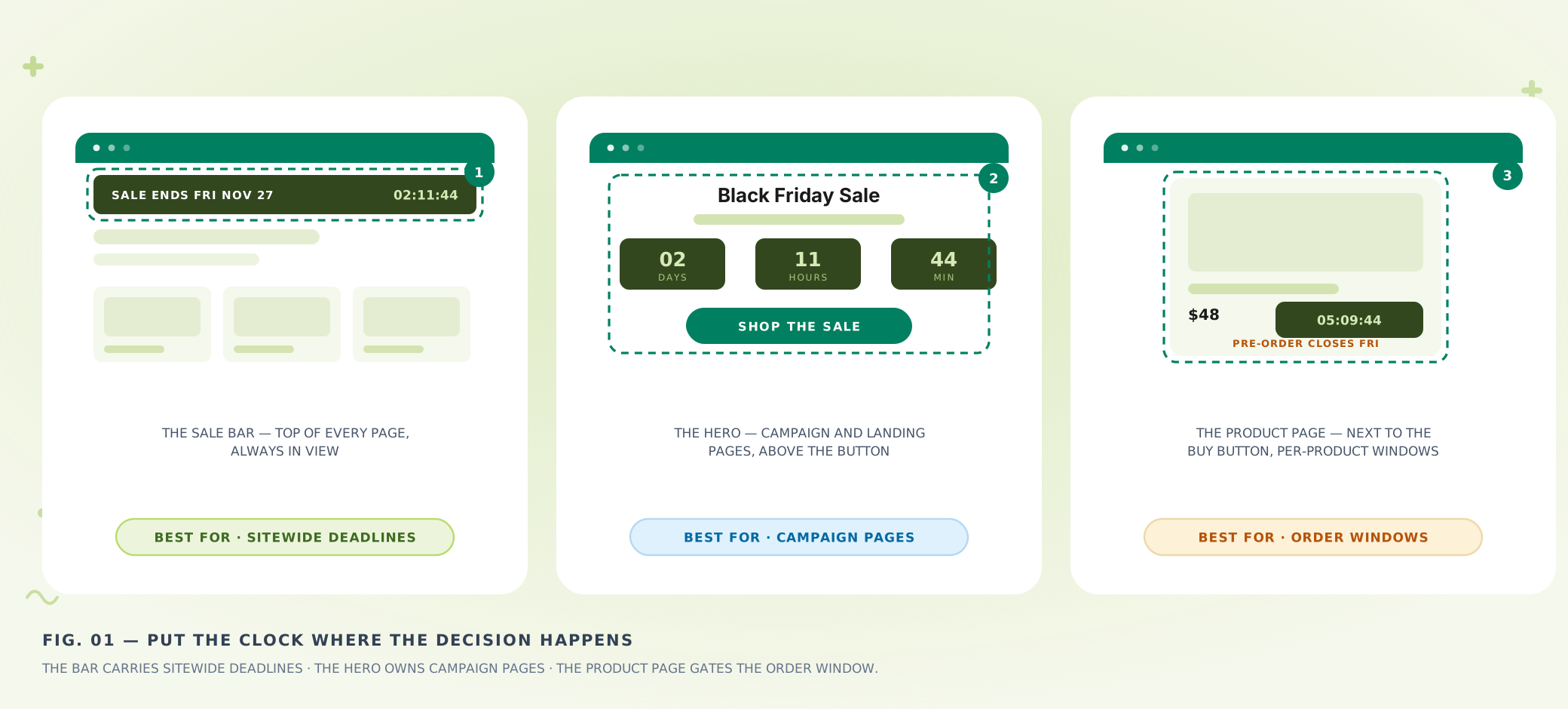
Put the clock where the decision happens — the bar for sitewide deadlines, the hero for campaign pages, the product page for order windows.
- The sale bar (announcement-bar position). Top of every page, sitewide deadlines: "Early access ends Friday." Highest visibility, smallest footprint — one line of timer, nothing else in the bar competing with it.
- The hero section. Campaign and landing pages: Black Friday, a product drop, a seasonal sale. The timer sits under the headline and above the button — the same position it holds in your emails.
- The product page. Order windows that belong to one product: a pre-order close, a restock hold, a bundle that ends. Next to the price and the buy button, where the deadline gates the exact action. Our pre-orders, drops, and restocks guide covers which deadline belongs there (spoiler: the order window, never the ship date).
One clock per page. A bar timer and a hero timer counting the same deadline in one view is redundancy; two different deadlines is confusion.
Path A: The Theme Editor (No Code Files)
The fastest route on any Online Store 2.0 theme:
- Create the website timer first. In Countdown Builder, create a website countdown, set it to the campaign's real end date in your store's timezone, and copy the one-line embed code.
- In the Shopify admin, go to Online Store > Themes and click Customize on your live theme.
- Click Add section where the timer belongs — top of the homepage template for a bar, inside the campaign page's hero — and choose Custom Liquid. (Shopify's theme editor docs cover how custom Liquid sections and blocks work, including placing them so they display across multiple page types.)
- Paste the embed code into the Liquid source field. The timer renders in the preview immediately — drag the section to position, check mobile width in the editor's device preview, and save.
Two honest notes on this path: most themes' built-in announcement bar takes plain text only, which is why the Custom Liquid section (not the bar setting) is the reliable home for a timer. And section availability depends on the theme — if yours doesn't offer Custom Liquid, use Path B.
Path B: The Theme Code (Storewide Bars)
For a bar on every page — product, collection, cart, checkout-adjacent pages — or for themes without the Custom Liquid section:
- Duplicate your live theme first. Shopify's own guidance on editing theme code is to duplicate the theme so you have a backup to revert to. This is the step that makes code edits low-risk.
- On the duplicate, open Edit code and paste the embed where the bar should appear — typically in the theme's layout file (
theme.liquid) for a true sitewide bar, or in a specific section or template for one page type. - Preview the duplicate theme, check desktop and mobile, then publish it when it's right.
The code path is also where a developer can wrap the embed in Liquid conditionals — show the bar only during the sale window, only on certain templates, or hide it the moment the timer expires.
An App, or an Embed?
The Shopify App Store has dedicated countdown apps, and for some stores they're a fine choice. The tradeoffs worth knowing before you install one:
- Cost shape. Timer apps are usually a monthly subscription per store. The embed comes from the tool your emails already use — one account, both surfaces, no per-store app fee.
- Weight. Apps inject scripts. The timer embed is a single lightweight element that doesn't block page rendering — the same property that makes it safe in a Liquid template.
- Consistency. When the email timer and the store timer come from the same account, they share one deadline object by construction. An app's timer is a second system that has to be configured to agree with the first.
Whichever you choose, the rule is unchanged: the deadline has to be real, and everything on the page has to agree with it.
One Deadline, Email and Store
The strongest configuration is one timer object serving both surfaces:
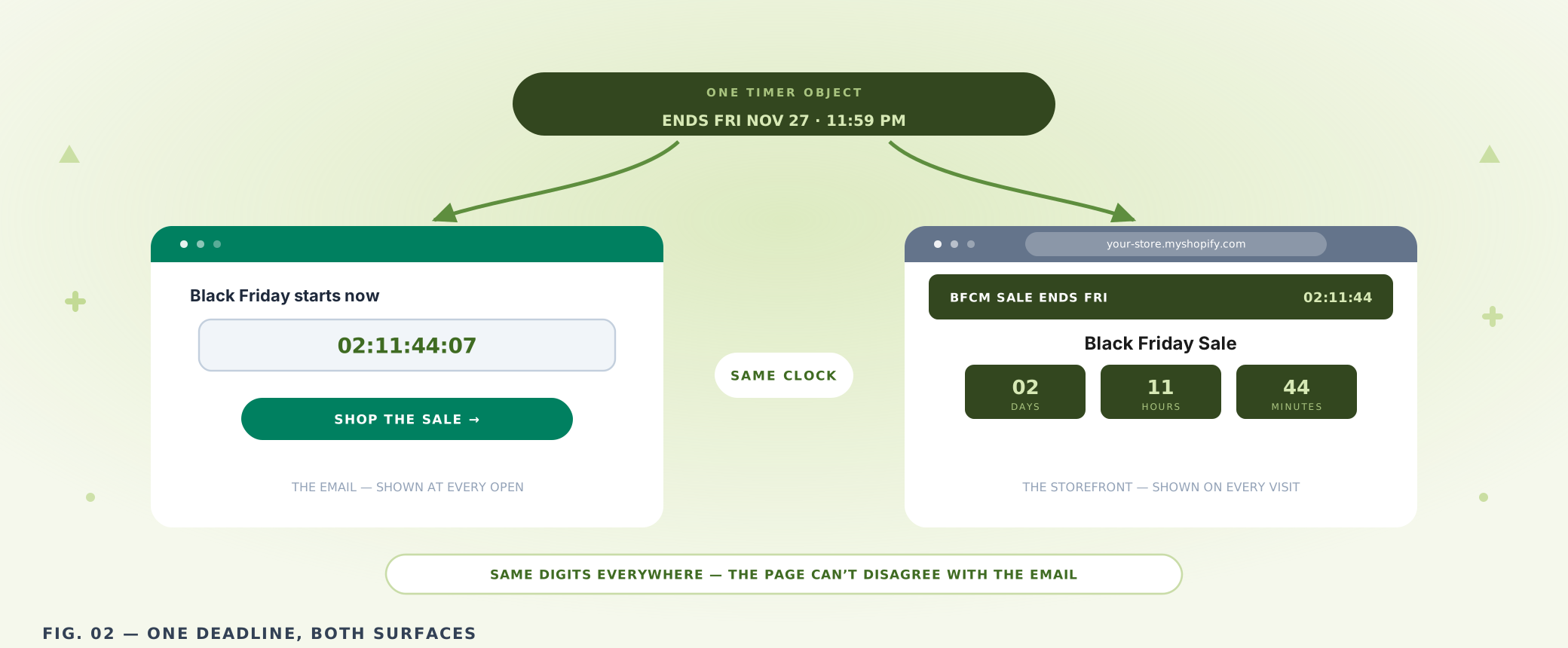
The email says 02:11:44 and the page says 02:11:44 — same timer, same deadline, no way to disagree.
Build the timer once against the real deadline — for a Black Friday sale, Friday, Nov 27 at 11:59 PM in the store's timezone — then embed it in the countdown timer for email campaigns and on the storefront. Every send, the sale page, and the bar all count to the same minute. The full send sequence around that deadline is in the Black Friday email playbook; the storefront embed is what makes the landing side of it hold up.
Building the Storefront Timer
- Create a website countdown and set the end date and time in the timezone your store operates on — the same setting your checkout and sale pages use. A store timer an hour off from the store's own checkout is a support ticket waiting to happen.
- Design it to match the theme. Start from a template and set colors and fonts to the campaign's branding. On a green-and-white storefront, an off-brand red timer reads as an ad network, not as the store.
- Set the expiry state before launch. After the deadline, the timer should read "Sale ended" (or your own text) — not frozen zeros — and with the expiry URL set, clicks route to the live collection instead of a dead banner. Late visitors are the timer's last audience.
- Copy the embed and paste it through Path A or Path B above.
Placement and Design Rules
- Never cover navigation. The bar sits in the page flow, not over it. A timer that hides the menu on mobile costs more than it earns.
- Check 375px before you publish. Most Shopify traffic is phones; tiles that read beautifully at desktop width can collide at mobile width.
- The bar is not the only place the deadline lives. Product pages and the sale's terms should state the end date in text too.
- Retire the timer with the sale. An expiry state and an unpublish after the event — a February storefront still counting to a November deadline is the storefront version of zombie zeros.
Common Mistakes
- Store deadline ≠ email deadline. Usually a timezone mismatch. Set both to the store's timezone and test one against the other before launch.
- Bar timer and hero timer on different deadlines. One page, one clock — or two clocks that provably share a deadline.
- No expiry state. The sale ends; the store keeps serving zeros under a "HURRY" headline until someone remembers to unpublish. Configure the ending before the beginning.
- Counting down to a ship date on the product page. Pre-order close: yes. Delivery estimate: never — that's the fastest way to make the storefront clock ignorable.
Costs for Shopify Merchants
Store traffic spikes with sales — that's the point of the sale — and the timer bills flat per account rather than per view, so a launch-day traffic jump doesn't change the cost. The same account covers the email and website timers, and the free plan carries the full setup with no watermark. Current plan details are on the pricing page.
Final Thoughts
The emails carry the deadline to the inbox; the storefront has to hold it all day. A one-line embed in a Custom Liquid section or the theme code puts a live clock on the bar, the hero, or the product page in minutes — no app subscription, no rebuild. Point it at the same deadline object your emails use, give it an honest expiry state, and the store agrees with every send you've made.
Related Guides
- How to Add a Countdown Timer to Shopify Email
- Shopify Abandoned Cart Emails with a Countdown Timer
- Black Friday Email Countdown Timer: The 2026 BFCM Playbook
- How to Add a Countdown Timer to Your Website
Last updated: October 2026. Shopify's theme editor and admin interface change over time — the menu names above reflect the layout at the time of updating. Product features and pricing reflect Countdown Builder at the time of updating and can change; see the pricing page for current details.
Written by Mehedi Hasan
Writer & Developer. He writes about email marketing, countdown timers, and campaign design.
Connect on LinkedIn