
Shopify Abandoned Cart Emails with a Countdown Timer (2026 Guide)
 By Mehedi Hasan
A customer added your products to their cart, typed their email at checkout, and left. On Shopify, that is an abandoned checkout — and it is the moment your store can act: Shopify captures the cart, and a recovery email can go out automatically with the items, a recovery link, and, if you choose, a discount with an expiry.
A countdown timer makes that expiry visible. "Your discount expires soon" is a sentence; a live timer counting to the deadline is a clock the shopper can read in one glance.
This guide covers the whole pattern for a Shopify store: what Shopify actually sends when a checkout is abandoned, which type of timer fits which kind of offer, exactly where the embed code goes, how to tie the discount to the deadline, and the recovery sequence that uses timers well. It is the Shopify counterpart to our WooCommerce abandoned cart guide — same timer mechanics, different platform.
Abandoned Cart vs Abandoned Checkout on Shopify
The terms get used interchangeably, but Shopify draws a line worth knowing:
- An abandoned checkout means the customer reached checkout and gave you their email address, then didn't complete the purchase. Shopify tracks this natively and can send recovery emails automatically. This is what most "abandoned cart email" tools on Shopify actually use.
- An abandoned cart in the broader sense — items added, checkout never started, no email captured — is invisible to native tracking unless the customer is logged in or you use a marketing app that captures emails earlier in the journey.
Native recovery targets the first case, and it is the higher-value one anyway: the shopper was close enough to buy that they entered checkout. A checkout counts as abandoned once it has sat incomplete for more than ten minutes after the email address was provided.
What Shopify Sends Natively
Shopify's built-in recovery — currently managed under Apps > Messaging > Automations with the "Abandoned checkout emails by Shopify" automation, while the email's template itself lives under Settings > Notifications — sends one automated email per abandoned checkout, after a delay you configure. The interface has moved between these sections over the years, so expect some drift in the exact menus.
A recovery email is skipped in cases worth knowing: the customer completed the purchase first, a payment error occurred, your store doesn't ship to their address, they entered a phone number instead of an email, or the items are no longer available. In other words, the emails that do go out point at recoverable carts — which is why they deserve a good deadline.
One email is a nudge, not a sequence. Stores that want a multi-email ladder — reminder, discount, final call — build it as a Shopify Email automation or through their email platform's Shopify integration. Both accept the timer, and the sequence section below covers which timer each send needs.
The Decision That Shapes Everything: Shared Deadline or Personal Window
Before touching any settings, decide what the timer counts to. There are two honest options, and they map to two timer types.
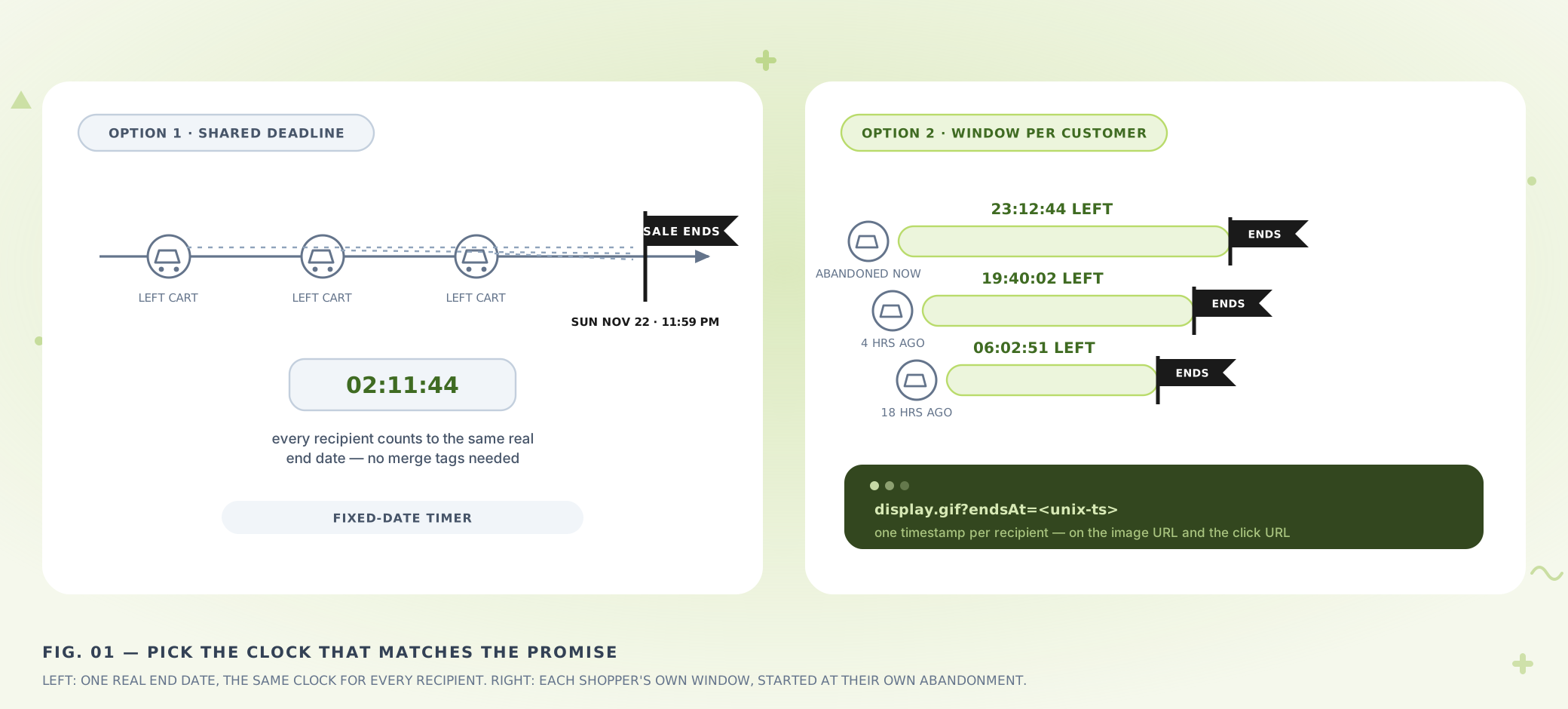
Left: one real end date, same clock for everyone. Right: each shopper gets their own window, started by their own abandonment.
Option 1: A Shared Deadline (Fixed-Date Timer)
If the offer expires on a real date — a sitewide sale ends Sunday at midnight, Black Friday pricing ends Nov 27, the coupon code is valid through the end of the month — every recipient should count to that same moment.
Use a standard fixed-date timer. Set the end date and timezone to the offer's actual expiry, copy the embed, paste. No merge tags, no variables, nothing to compute. This is also the most honest clock in the store: the timer, the coupon, and the sale all end together because they are the same deadline.
Option 2: A Personal Window (Dynamic Timer)
If instead each shopper gets a window from their own abandonment — "your cart is held for 24 hours," "this code expires 48 hours after we sent it" — a fixed date is the wrong tool. Someone whose email arrives three hours after abandonment and someone whose arrives two days later would see the same countdown, and one of them is being misled.
This is what the dynamic timer is for. The embed carries an ?endsAt=<unix-timestamp> parameter on both the image and the click URL, and your email stack fills in a per-recipient timestamp at send time. Each shopper's timer counts to their own deadline, and late openers see the correctly reduced time — the clock is fixed at send, not restarted at open.
Two details that matter when wiring endsAt:
- The timestamp must be 10-digit Unix seconds — a 13-digit millisecond value pushes the deadline centuries into the future.
- Swap the timestamp on both the image URL and the click URL. A late click on a link missing its timestamp can land on the wrong page.
If a recipient's value is missing, the timer falls back to the default date saved in your Countdown Builder dashboard — the email still renders, it just isn't personalized for that send.
Step 1: Build the Timer in Countdown Builder
- Create the timer. Fixed-date for a shared deadline; Dynamic for a per-recipient window. For a Dynamic timer, the saved date and timezone only serve as the fallback.
- Design it to match the store. Pick from the 45+ templates, match fonts and colors to your brand, and check that the digits stay readable at mobile width — recovery emails are opened on phones.
- Make it clickable. Enable the clickable countdown image and point it at the destination: your cart page, checkout, or the storefront offer page. The timer becomes its own button.
- Set the expiry state. Decide what late openers see when the deadline has passed — zeros, a custom text frame like "This offer has ended," or a custom image — and set an expiry URL so the click-through lands somewhere useful: the live store, a smaller fallback offer, or the product page. An expired timer that clicks to a dead page undoes the recovery.
- Copy the HTML embed. That snippet goes into Shopify next.
If you're new to the tool, you can create a countdown timer for email in a few minutes on the free plan — no credit card, no watermark.
Step 2: Add the Timer to the Recovery Email
There are two places the embed can live, depending on how your recovery emails are built.
Path A: The Notification Template
If you use Shopify's abandoned checkout email as-is (or lightly customized), the timer goes into the notification template itself:
- In the Shopify admin, go to Settings > Notifications and open the Abandoned checkout notification.
- Open the email body editor and switch to the code/HTML view.
- Paste the Countdown Builder embed where the timer should appear — typically between the product listing and the recovery button.
- Preview with the sample data, then trigger a real test to an inbox you control.
Because this template is plain HTML plus Liquid, pasting an image-based embed is safe — there is no script for an email client to strip.
Path B: A Shopify Email Automation
If your recovery sequence runs as a Shopify Email automation, the editor supports a Custom Liquid section that accepts raw HTML — the same mechanism covered in our Shopify Email timer guide. Drag the section into the email where the timer belongs and paste the embed.
The automation path is what a multi-email sequence needs, and it exposes recovery variables such as the abandoned checkout URL, which is useful for wiring the timer's click-through.
Wiring the Discount to the Deadline
A timer in a recovery email usually arrives with a discount — and the discount is where deadlines go to die dishonestly. Three rules keep it straight:
- The coupon's validity must match the timer's deadline. If the timer counts to Sunday 11:59 PM and the code still works Wednesday, the deadline was theater. Set the discount's end date to the same moment the timer ends.
- Apply the code from the email. Shopify documents editing the notification template so the recovery link applies the discount automatically at checkout — the shopper shouldn't have to type or remember anything.
- Give expired clicks a destination. With the expiry URL set, a shopper who opens the email after the window still lands on the store, not an error. A smaller evergreen fallback offer is a common next step — just make it a genuinely different, real offer.
A Recovery Sequence That Uses Timers Well
Whether you build it in Shopify Email or your email platform, this three-send ladder is the shape most stores land on:
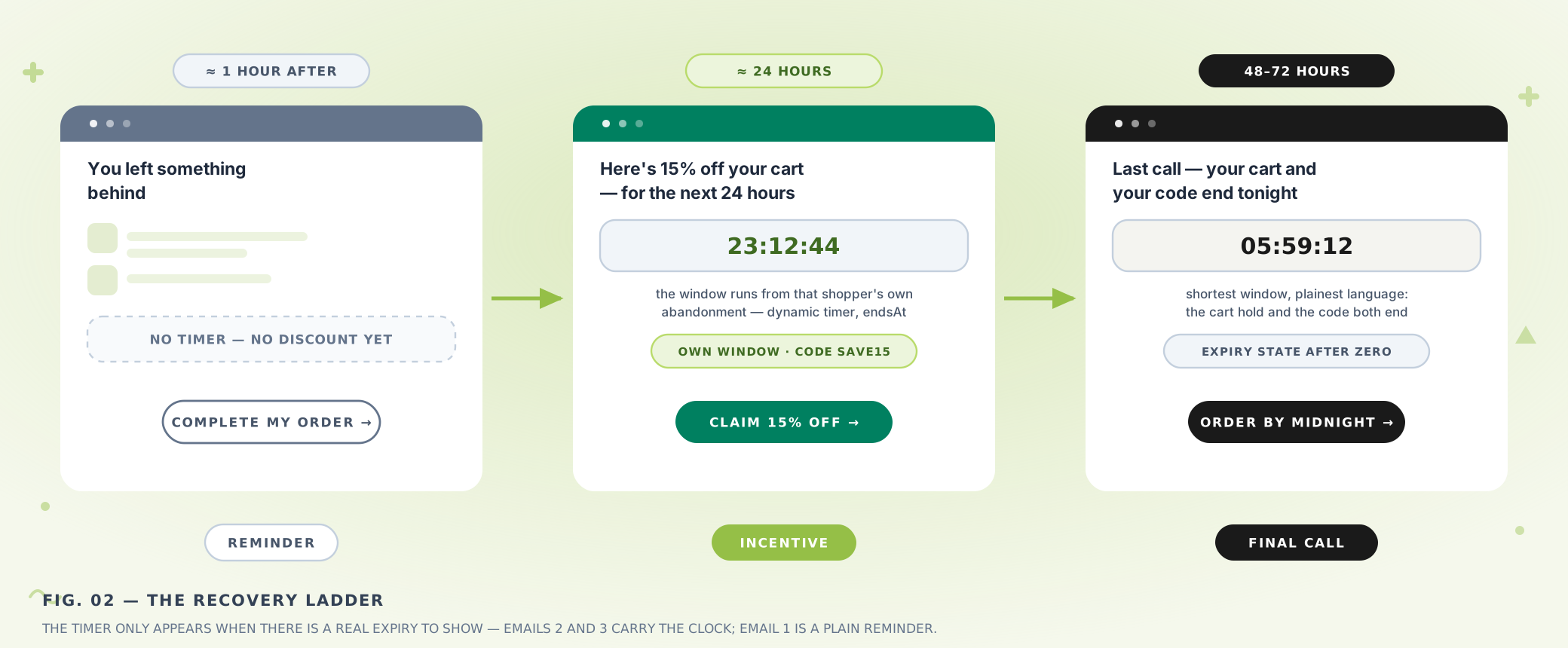
Reminder, incentive, final call — the timer only appears when there is a real expiry to show.
- Email 1 — about 1 hour after abandonment. A plain reminder with the cart contents and the recovery link. No discount, and no timer needed unless a sitewide sale is running — in which case the shared fixed-date timer fits.
- Email 2 — about 24 hours. The incentive email: discount code, the timer on its window, and a clickable countdown pointing at the recovery link. This is where the dynamic timer earns its keep — each shopper's window runs from their own abandonment.
- Email 3 — 48 to 72 hours. The final send, with the shortest window and the plainest language: the cart and the discount both end. Use the expiry state deliberately; some recipients will only open this email after zero.
Subject lines that fit the ladder:
- Email 1: "You left something behind" / "Your cart is waiting"
- Email 2: "Your cart — plus 15% off, for the next 24 hours" / "We saved your cart (and a discount)"
- Email 3: "Last call: your cart and your discount end tonight" / "Your 15% disappears at midnight"
Keep the sequence to two or three sends. Recovery emails work because they are few and useful; past that, they train the shopper to wait for the discount email next time.
Keeping the Deadline Honest
The mechanics above are half the job. The other half is not poisoning the well:
- Never reset the window. If the 24-hour code is still redeemable next week for anyone who asks, the timer was decoration. Shoppers notice, and the next timer you send gets ignored.
- State the deadline in text as well. Some recipients block images by default. A line like "Offer ends Sunday, Nov 22 at 11:59 PM" carries the message without the image, and descriptive alt text covers the timer itself.
- Know the rendering edge cases. The timer is an animated image that regenerates on every open — but classic Outlook on Windows shows the GIF's first frame as a still, and Apple Mail's privacy protection can serve a cached copy. Neither breaks the deadline; both mean the displayed moment may be the time of fetch. The troubleshooting guide covers each client's behavior and what to do about it.
- Test before the sequence goes live. Send yourself the emails across Gmail, Outlook, and Apple Mail on desktop and mobile. Confirm the countdown reads correctly, the click-through lands on the right page, and the expiry state displays after the deadline — the easiest way is a short-window test timer you can watch expire.
Costs for Shopify Stores
Recovery volume swings hard with the season — a quiet week and a Black Friday weekend look nothing alike — and the timer bills the same either way: a flat rate per account, not per view, so a spike in recovery opens doesn't change the cost. The free plan carries the full setup with no watermark, and current plan details are on the pricing page.
Final Thoughts
Shopify hands you the hard part: it knows who almost bought, what was in the cart, and how to reach them. The countdown timer closes the loop by making the one missing thing visible — how long the offer stands. Pick the clock that matches the promise (one real end date, or an honest per-recipient window), paste the embed in the template or automation, tie the discount to the deadline, and give expired clicks somewhere to land.
If you'd like to try it, you can build a free email countdown timer in Countdown Builder — the free plan needs no credit card and adds no watermark.
Related Guides
- How to Add a Countdown Timer to Shopify Email
- WooCommerce Abandoned Cart Countdown Timers
- Black Friday Email Countdown Timer: The 2026 BFCM Playbook
- Email Countdown Timer Not Working? 7 Causes and Fixes
Last updated: October 2026. Shopify's admin interface changes frequently — the menu names above reflect the layout at the time of updating and may differ in your store. Countdown Builder features and pricing can change; see the pricing page for current details.
Written by Mehedi Hasan
Writer & Developer. He writes about email marketing, countdown timers, and campaign design.
Connect on LinkedIn