
Pre-Orders, Drops, and Restocks: Countdown Emails for Scarcity Events
 By Mehedi Hasan
Most urgency in email is a framing decision. A "48-hour flash sale" is 48 hours because you said so, and readers know it. Scarcity events are the exception: a pre-order window closes on a date the production schedule set, a drop goes live at a minute you published weeks ago, and a restock hold expires whether or not anyone reminds the shopper.
That is why countdown emails fit these events better than almost anything else an ecommerce sender does. The timer is not manufacturing pressure — it is reporting a fact that already exists. The craft is in pointing each timer at the right fact, because a scarcity campaign has several honest deadlines and each one belongs to a different email.
This guide covers the three events — pre-orders, drops, restocks — what the timer counts to in each, the send sequences, the per-subscriber version for restock holds, and what the timer should become the moment the event ends.
Why These Events Fit Timers
- The deadline is structural. Inventory, production runs, and hold expiries are decided by operations, not marketing. When the timer hits zero, the thing it promised actually happens — which is the only condition under which countdown timers stay credible long-term. Our psychology of scarcity guide covers why that credibility is the whole asset.
- The audience asked to be told. Pre-order lists, drop notifications, and back-in-stock alerts are opt-in queues of people who already want the thing. The emails don't need to persuade — they need to inform at the moments that matter.
- Each event has several real deadlines. Window opens, gates go live, window closes, hold expires. Each is a legitimate send, and each deserves its own visible clock.
The Three Events, and What the Timer Counts To
Before writing copy or building anything, answer one question per email: what does this timer count to? The three events answer it differently.
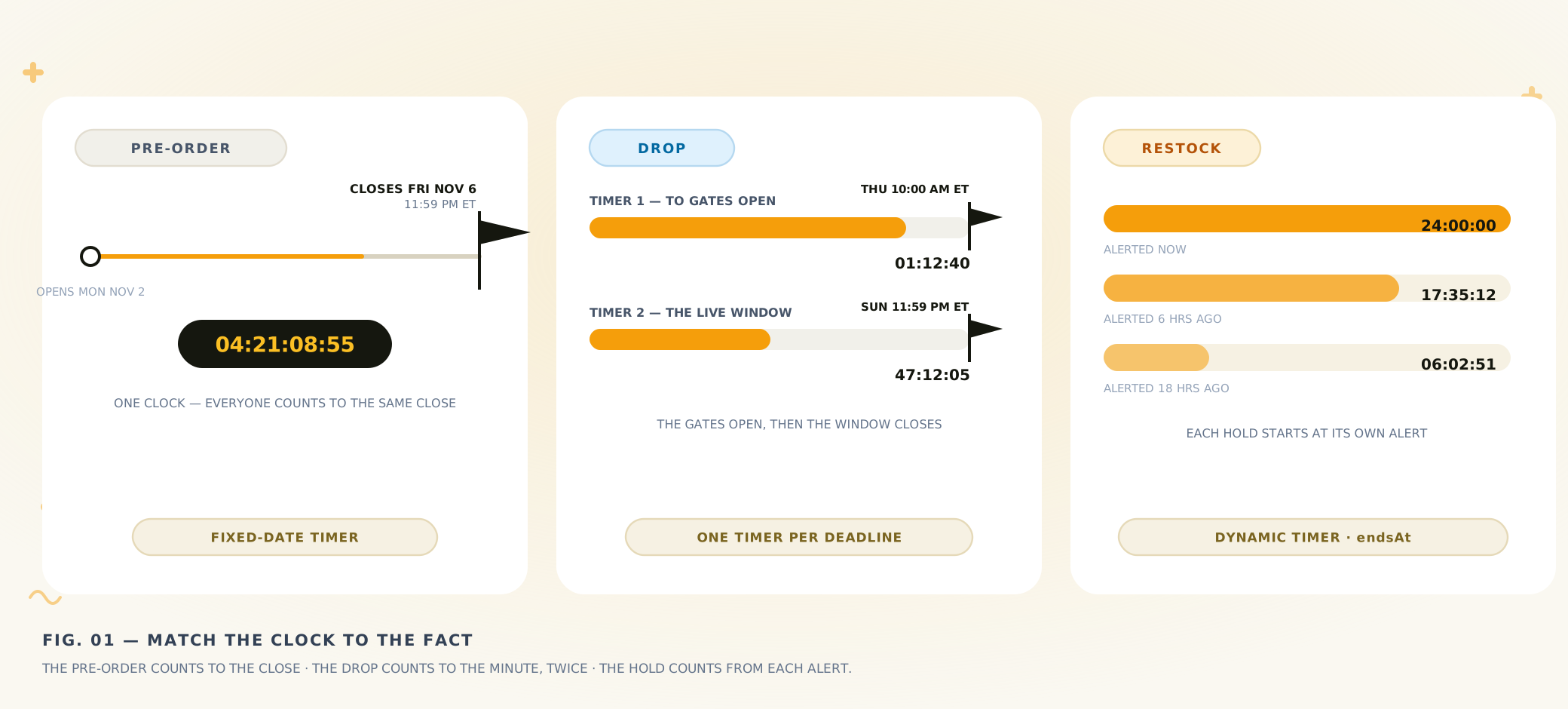
Pre-order: one fixed close. Drop: a launch moment, then a window. Restock: each subscriber's own hold.
Pre-orders: the timer counts to the window close
A pre-order window is the cleanest case — a single, public, fixed end. The timer in every send counts to that moment, exactly like a course cart-close or a sale end.
One rule is specific to pre-orders: the timer never counts to the ship date. Shipping estimates are forecasts, and forecasts slip; counting down to one attaches your timer's credibility to a logistics promise. The timer owns the ordering deadline. The ship estimate lives in copy — "shipping begins March 2027" — where it can be honest without a clock on it.
Drops: two deadlines, two timers
A drop has a before and an after, and they need different clocks.
The announcement emails count to the gates-open moment — Thursday, 10:00 AM ET, published in advance. If the purchase window itself is capped ("live for 24 hours" or "through Sunday"), the live-window emails carry a second timer counting to that close.
That means two timers, and the rule from our Black Friday guide applies directly: one deadline per timer, one timer per deadline. Never edit the gates-open timer's deadline after the announcement goes out — those emails are already in inboxes. Build the second timer separately and use it only in sends from the live window onward.
If the drop runs on "while supplies last" with no announced end, the timer counts to the gates-open moment only. Live stock is the landing page's job, not the timer's — covered below in the honesty section.
Restocks: the hold runs per subscriber
A back-in-stock email that says "we're holding it for you for 24 hours" is describing a window that starts at that subscriber's alert — not a date shared with the list. A fixed-date timer is the wrong instrument: someone alerted Tuesday and someone alerted Thursday would see the same countdown, and one of them is being misled.
This is the dynamic timer's job. The embed carries an ?endsAt=<unix-timestamp> parameter on both the image and the click URL, and your email platform fills in a per-recipient timestamp when the alert fires. Two details that matter:
- The timestamp is 10-digit Unix seconds — a 13-digit millisecond value pushes the deadline centuries out.
- Swap it on both URLs — image and click. A late click on a link missing its timestamp can land on the wrong page.
If a recipient's value is missing, the timer falls back to the default date saved in your dashboard — the email still renders. The per-subscriber mechanics are identical to abandoned-cart recovery windows; the WooCommerce and Shopify cart guides cover wiring the timestamp in those stacks.
The Send Sequences
Three compact sequences. None needs more than three or four sends — the audience asked for these emails, so each one can be short and factual.
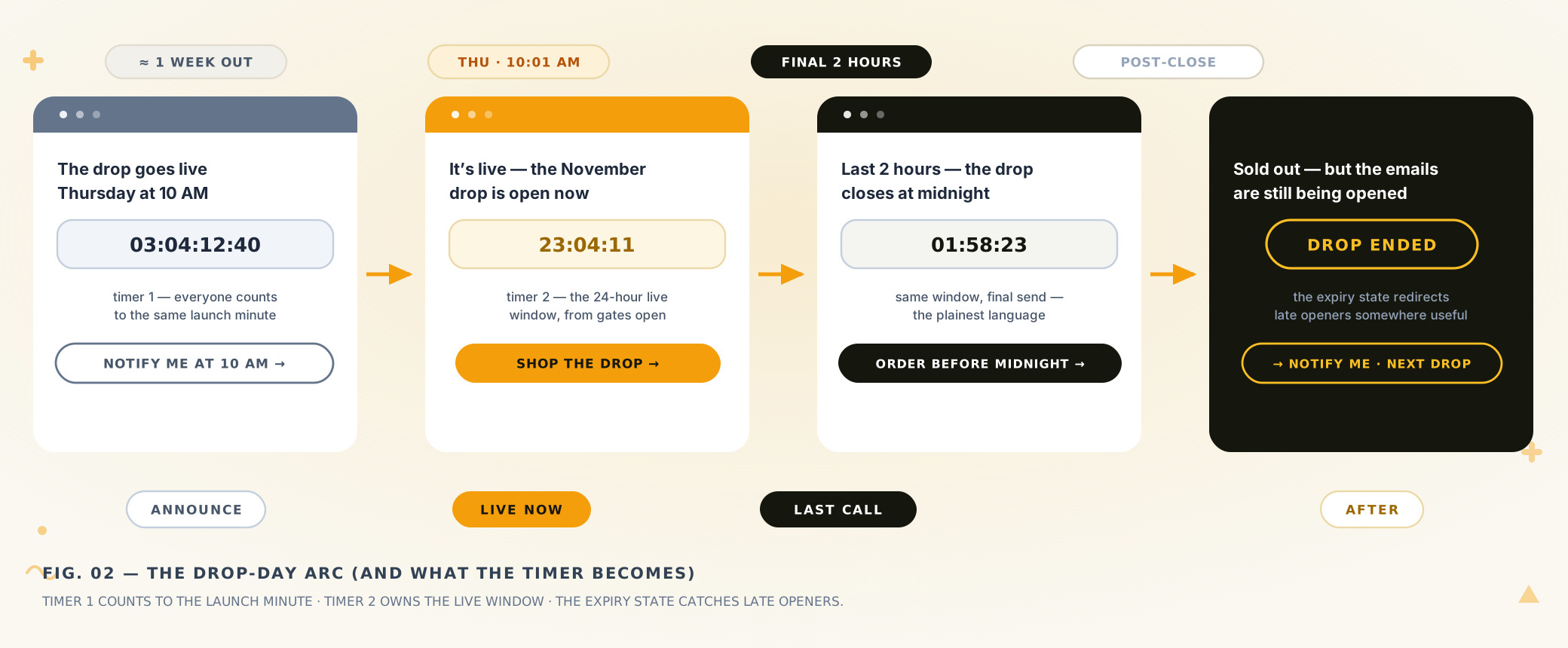
The drop-day arc — the event with the most moving parts. Timer 1 counts to the launch minute; timer 2 owns the live window; the expiry state takes the last shift.
Pre-order window (e.g., Mon Nov 2 – Fri Nov 6)
| When | What the timer shows | |
|---|---|---|
| Window opens | Mon, 9:00 AM | 5 days — the full window |
| Ship-date reminder | Wed | ~2 days — restates the ship estimate in text |
| 24-hour warning | Thu evening | Final day, reading hours |
| Window closed | after close | Expiry state: "Pre-order closed" |
Drop day (e.g., Thu Nov 5, 10:00 AM ET)
| When | What the timer shows | |
|---|---|---|
| Announcement | ~1 week out | Timer 1 — days to gates open |
| 24-hour reminder | Wed evening | Timer 1 — final day |
| Live now | Thu, 10:01 AM | Timer 2 (if the window is capped) — hours remaining |
| Last call | final 2 hours | Timer 2 — reading minutes |
| After the drop | post-close | Expiry state: "Drop ended" |
Restock hold
| When | What the timer shows | |
|---|---|---|
| Back in stock + hold | at alert | Hold timer — 24:00:00 from their alert |
| Hold reminder | ~6 hours left | Same deadline, reading hours |
| Hold expired | after expiry | Expiry state: "Hold expired — check current stock" |
The restock sequence is automated, not scheduled — the trigger is the alert, which is why it needs the per-recipient clock rather than the broadcast one.
Building the Timers in Countdown Builder
- Set the deadline to the exact minute, in the deadline's timezone. Gates open at 10:00 AM ET — the timer ends 10:00 AM ET, even if you build it from a different zone. Timezone slips are the most common misconfiguration on event timers, and a drop timer an hour off is worse than no timer.
- Pick a template that reads at thumbnail size. Drop and restock emails are opened on phones within minutes of arrival — the timer is often seen the moment it lands. Any of the 65+ templates works; high-contrast tiles survive small screens best. When you're ready, you can build an email countdown timer on the free plan — no credit card, no watermark.
- Make it clickable. Point the click at the product page or the drop landing page. In the minutes after gates open, the timer is the biggest element in the email — let it carry the click.
- Configure the expiry state before anything is sent. This is the step scarcity events specifically depend on — covered next.
- Copy the embed once, paste it everywhere. Every send for that deadline, and — if the landing page uses the website countdown timer — the page too, so the email and the page show the same digits.
After the Event: The Expiry State Does the Last Job
A scarcity event ends with live emails still in inboxes: the announcement, the reminder, the last call. Whatever those timers become at zero is configuration you set beforehand.
With expiry settings, the spent timer shows a custom text frame instead of frozen zeros — "Pre-order closed," "Drop ended," or "Hold expired" — and because the countdown image is clickable, the expired timer can forward somewhere useful. The right destination by event:
- Pre-order: the product page for general availability, or the waitlist for the next production run.
- Drop: the "sold out" page with a notify-me field for the next drop. Late openers are demonstrably interested non-buyers; the expiry URL is how they become the next drop's announcement list.
- Restock: the live product page, current stock and all. The hold expired; the product may still be there.
Zeros under a "last chance" subject line, clicking to a dead page, is the one configuration worse than no timer.
Sold Out Before Zero, Zero with Stock Left, and Other Honesty Problems
Scarcity events create edge cases other campaigns don't have. The honest handling of each:
- You sell out before the timer hits zero. The timer counts to the window, not the stock — a drop announced as "live through Sunday" that sells out Friday has still told the truth about the window. Real-time availability belongs on the landing page, which can flip to sold out the moment stock clears. Don't chase the sell-out by editing the live timer's deadline after sends — the inboxes already have the old one, and now your page and your emails disagree.
- The timer hits zero with stock left. Honor the close anyway. If checkout keeps accepting the pre-order price Saturday morning, Friday's "last chance" was theater — and this audience, of all audiences, tracks whether deadlines hold. Move the surplus to general availability; that's a restock email, not an extension.
- Never fabricate the sell-out. "Almost gone" on a full warehouse is the fastest way to make every future timer from your brand ignorable. Scarcity audiences are unusually good at noticing.
- State the deadline in text as well. Alert emails get opened instantly and acted on later; a line like "Gates open Thursday, Nov 5 at 10:00 AM ET" survives image blocking and carries the fact the timer shows.
- The ship estimate is not a countdown. Worth repeating because it's the classic pre-order mistake: counting down to a forecast date. When the forecast slips, a countdown that ended yesterday is a public monument to the slip.
Subject Lines by Event
The subject line should name the real moment; the timer shows it live.
Pre-order
- Pre-orders are open — window closes Friday
- Product pre-orders close Friday at midnight
- 24 hours left to pre-order Product
- Pre-orders are closed — join the next run
Drop
- The Product drop goes live Thursday at 10 AM
- Gates open in 24 hours
- It's live — the Product drop is open now
- Last 2 hours: the drop closes at midnight
- Sold out — get notified about the next drop
Restock
- Back in stock — held for you for 24 hours
- Your hold on Product expires tonight
- Held for 6 more hours — then it goes back on the shelf
Common Mistakes
- One timer pointed at two deadlines. Gates-open and window-close are different moments; reusing one timer for both means editing a live embed — which sent emails ignore. Two timers, from the start.
- A fixed-date timer on restock holds. Every hold looks identical and most of them lie. Per-recipient holds need the dynamic timer's
endsAt. - Extending the window mid-event. The same damage as extending any deadline, compounded: scarcity audiences are the ones who noticed the deadline in the first place.
- No expiry state. Post-event opens are guaranteed — people open last week's email looking for the product. "Drop ended → notify me" converts them; zeros ignore them.
- Counting down to the ship date. The one date in a pre-order campaign that must never carry a timer.
Costs for Scarcity Campaigns
Drop and restock volume is spiky by nature — one announcement can generate more alert sends than a normal week of campaigns. The timer bills flat per account rather than per view, so a sell-out spike in opens doesn't change the cost, and the free plan carries the full setup with no watermark. Current plan details are on the pricing page.
Final Thoughts
Pre-orders, drops, and restocks are the campaigns where the deadline was never a marketing choice — which is exactly why they're the ones where a timer reads as information instead of pressure. Match each timer to its fact: the window close, the gates-open moment, the per-subscriber hold. Give every event an expiry state that catches late openers, keep the ship estimate out of the clock, and let the sell-out live on the page where it's true.
When the next event is on the calendar, you can set up the email countdown timer tool and have the announcement timer in the draft before the copy is written.
Related Guides
- The Psychology of Scarcity: Why Countdown Timers Actually Increase Sales
- How to Boost Flash Sale Conversions with an Email Countdown Timer
- Countdown Timers for Holiday Campaigns: A Practical Guide
- Black Friday Email Countdown Timer: The 2026 BFCM Playbook
Last updated: October 2026. Example dates follow the 2026 calendar. Product features and pricing reflect Countdown Builder at the time of updating and can change; see the pricing page for current details.
Written by Mehedi Hasan
Writer & Developer. He writes about email marketing, countdown timers, and campaign design.
Connect on LinkedIn