15 Email Countdown Timer Examples (Annotated)
 By Mehedi Hasan
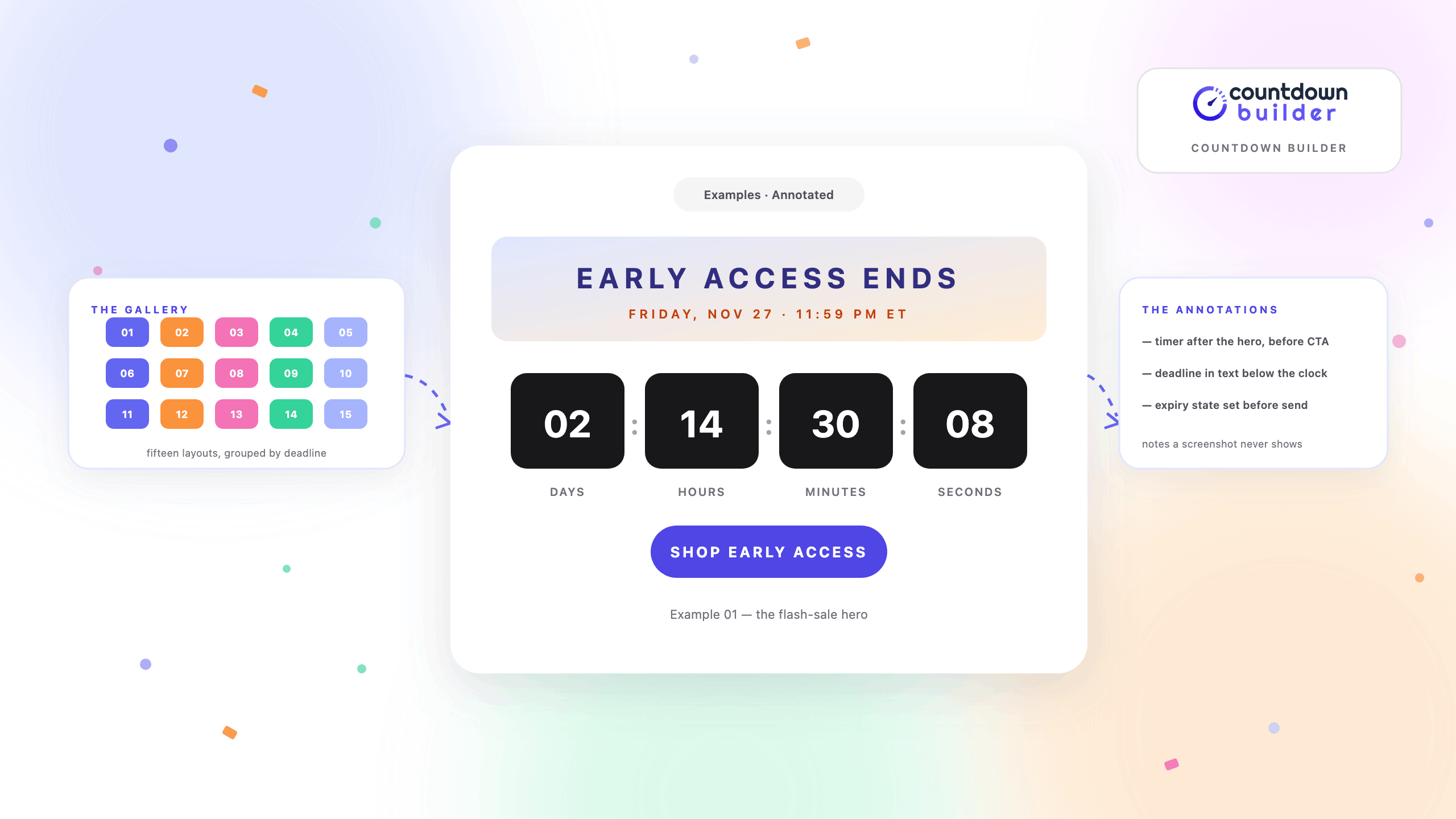
A screenshot of someone else's countdown email tells you what a timer looks like. It doesn't tell you the three things that actually decide whether the layout works: what the timer counts to, where it sits in the email, and what it displays after the deadline passes.
This gallery takes the other approach. Fifteen annotated layouts — one for each common deadline — grouped by the kind of clock behind them. Every layout is built from the same 65+ template library, and each one can be reproduced on the free plan.
The Anatomy All Fifteen Share
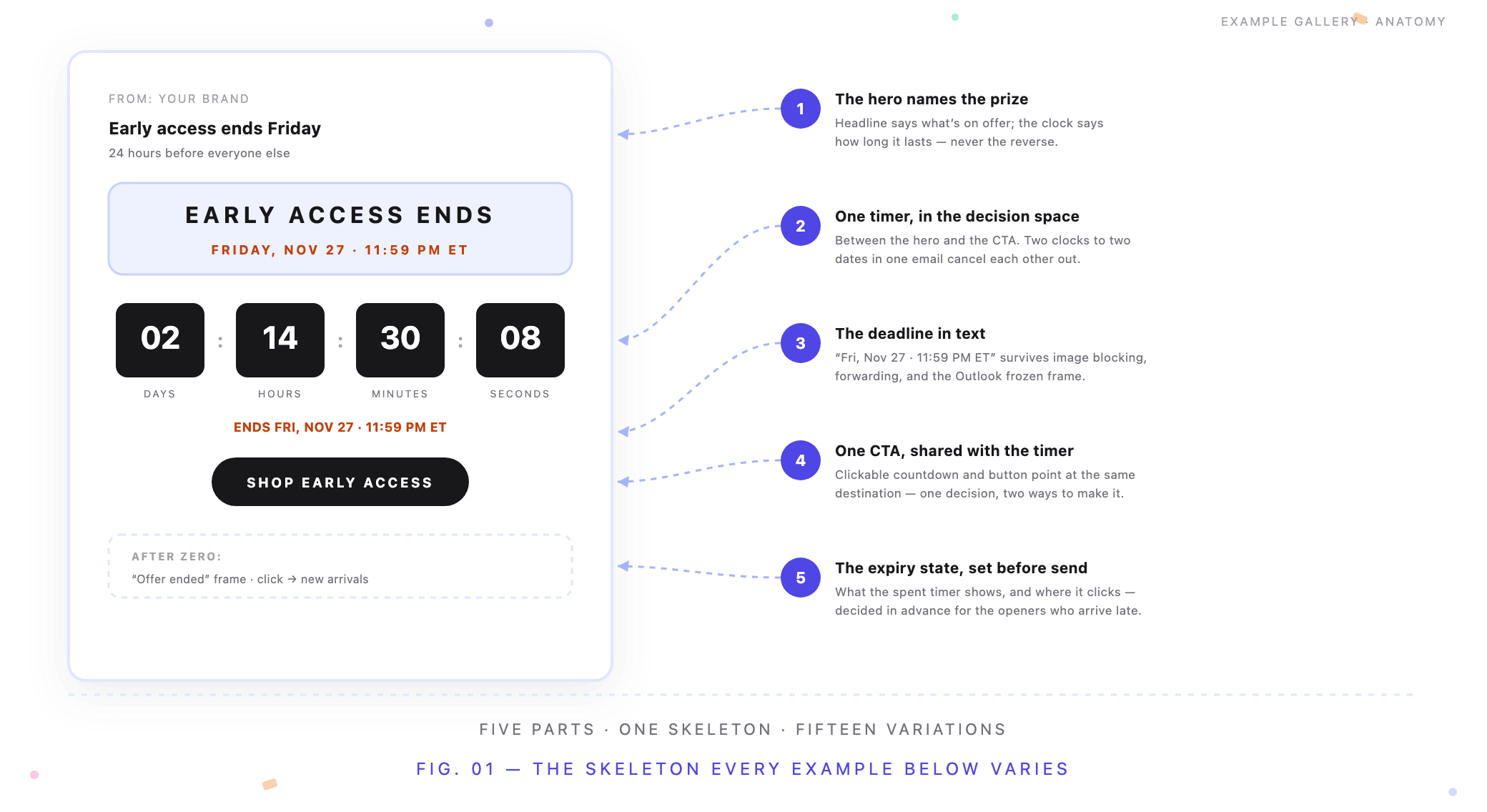
Five numbered parts, and every example below is a variation on them.
- The hero names the prize. A timer at the top of an email counts down to something the reader can't yet name. The headline says what's on offer; the clock says how long it lasts.
- One timer, between hero and CTA. The space after the reader knows what the offer is, before they decide. Two timers in one email, to two different deadlines, cancel each other out.
- The deadline in text. "Ends Friday, Nov 27 at 11:59 PM ET" survives image blocking, forwarding, and the Outlook frozen frame. The timer dramatizes the deadline; the text carries it.
- One CTA, shared with the timer. When the countdown image is clickable, it points at the same destination as the button. One decision, two ways to make it.
- The expiry state, configured before send. Deadline emails get reopened after the deadline. What the spent timer shows — and where it clicks — is decided in advance, not discovered later.
Everything below is this skeleton wearing fifteen different deadlines.
Examples 1–5: Sale and Seasonal Deadlines
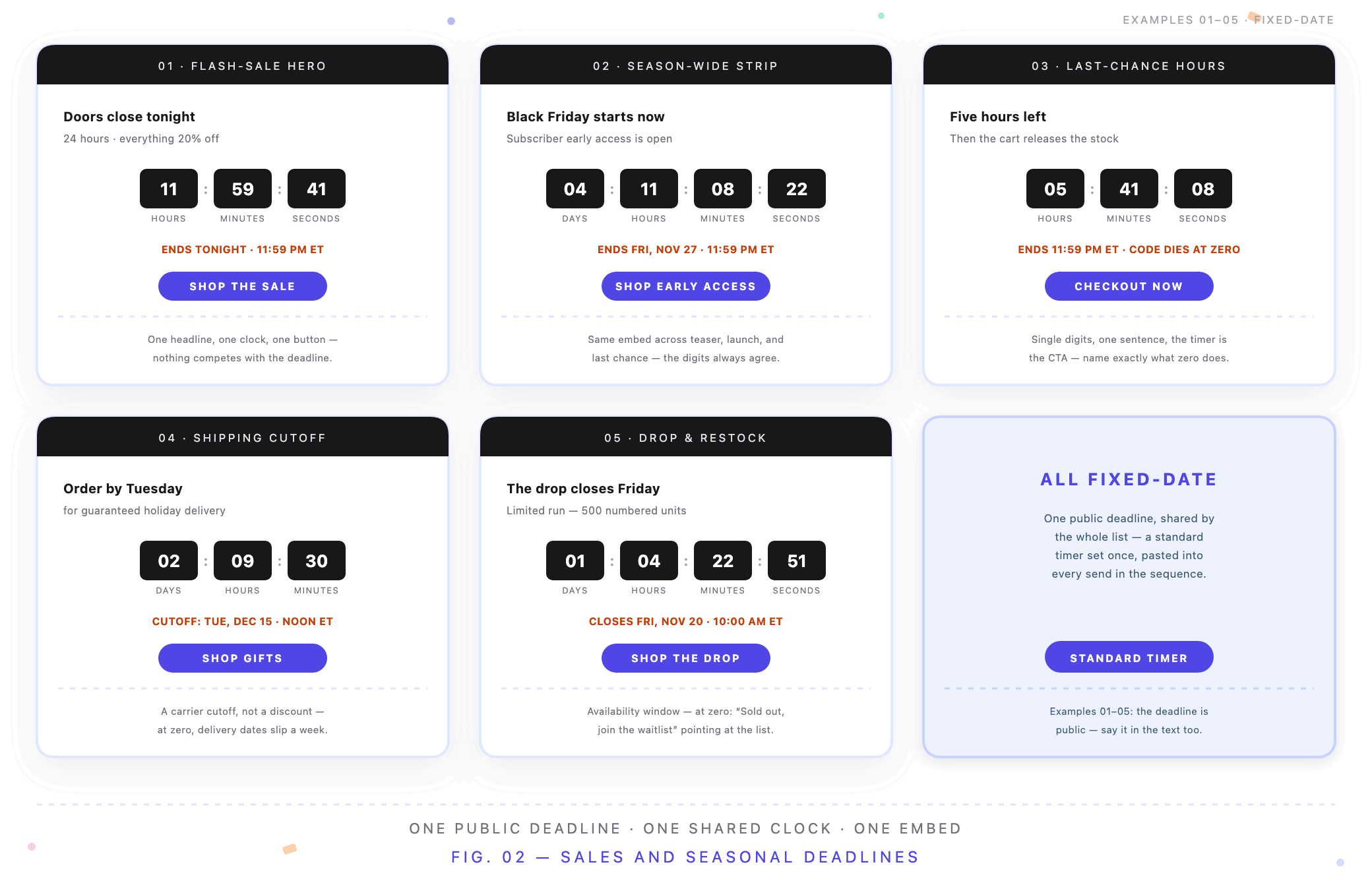
All five run on the same fixed date — one public deadline, one standard timer shared by the whole list.
1. The flash-sale hero. The whole list shares one deadline — tonight at 11:59 PM — and the email is built so nothing competes with the clock: one headline, one timer, one button. The flash-sale format only works when the deadline is real, which is why the flash-sale guide starts with the sale's actual end time, not the design.
2. The season-wide strip. Black Friday isn't one email. One timer — pointing at Friday, Nov 27 at 11:59 PM — is reused across the teaser, the launch, and the last-chance send. Mid-season it reads in days and stays calm; in the final send, the same embed reads in hours. No rebuild between sends, and every email in the sequence shows the same digits. The BFCM playbook covers the full cadence, including the Cyber Monday deadline switch.
3. The last-chance hours reader. The final send of any sequence: the timer reads single digits, the copy is one sentence, and the timer itself is the CTA. The discipline is in what the copy names — not "hurry!" but exactly what happens at zero: the cart releases, the code dies, the price goes back up. The end-time messages guide is about this email specifically.
4. The shipping-cutoff countdown. Here the deadline isn't a discount at all — it's a carrier cutoff: "order by Dec 15 for holiday delivery." The timer counts to a physical consequence, which makes it one of the most honest clocks in email. Note the expiry state: after zero, the right frame is "cutoff passed — see January delivery dates," not "offer ended." The holiday campaigns guide covers the seasonal calendar.
5. The drop and restock window. Availability, not price: the drop closes Friday at 10:00 AM and the stock is genuinely finite. The timer counts to the close, the expiry state says "Sold out — join the waitlist," and the click goes to the waitlist page, because that's the only useful destination after zero. The pre-orders and drops guide covers the announce-reminder-close sequence.
Examples 6–10: Cart Recovery and Lifecycle Clocks
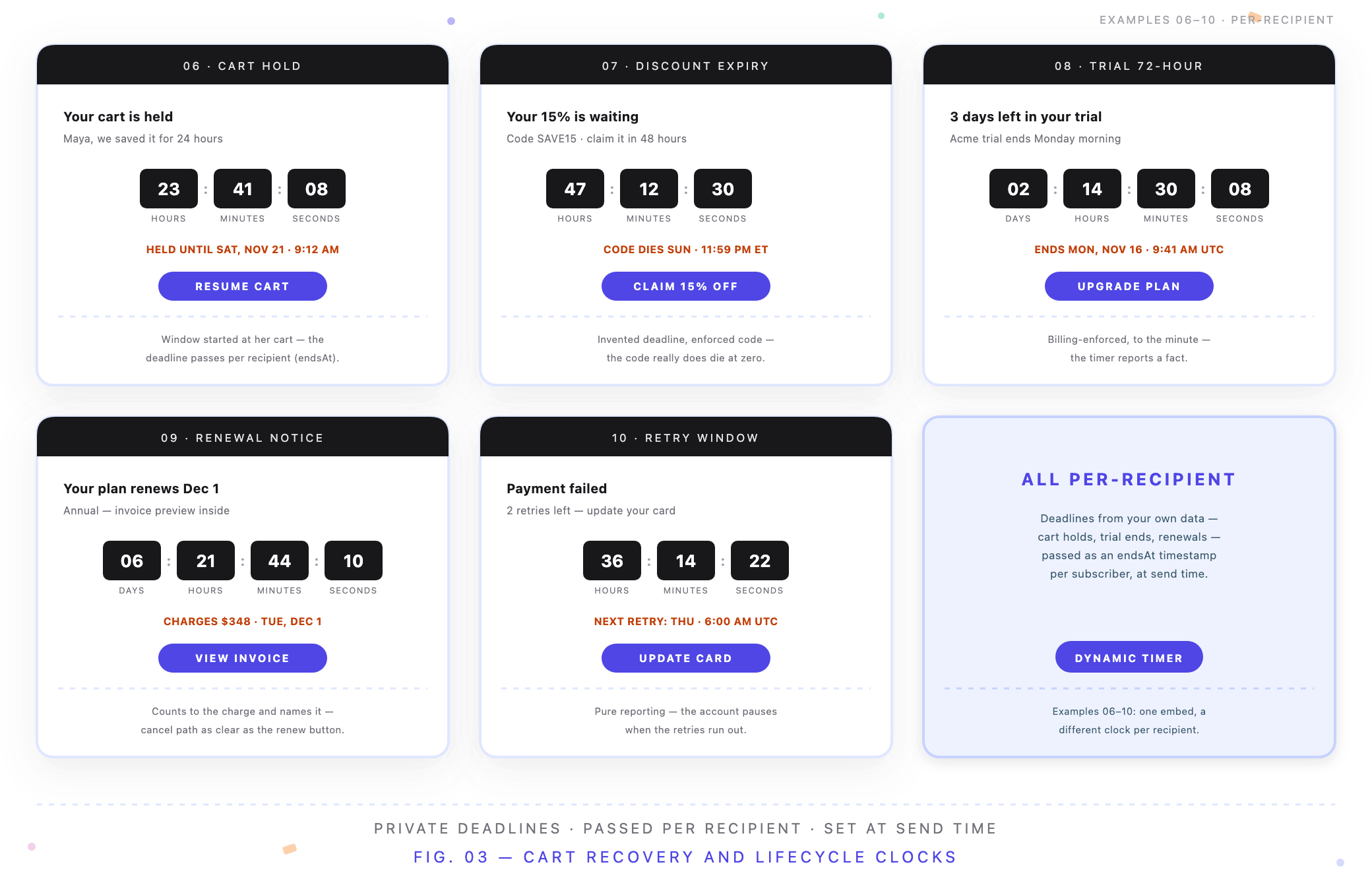
None of these deadlines are shared — each recipient's clock comes from your own data, passed per subscriber.
6. The abandoned-cart hold. "Your cart is held for 24 hours." Each recipient's window started at their abandonment, so a fixed date would misstate almost everyone — the deadline has to arrive per recipient. The copy names the hold, the timer reports it, and the expiry state points back at the cart. The full wiring — store data to per-recipient timestamp — is in the Shopify abandoned cart guide, with the WooCommerce version covering the same pattern.
7. The discount-expiry incentive. "15% off, expiring 48 hours from now." The deadline is invented — you chose it — but it's enforced: the code really dies at zero. That enforcement is the whole difference between an incentive and a trick, and it's the pattern the personalized coupon guide builds on.
8. The trial 72-hour warning. The timer doesn't create urgency here; it reports a fact. The trial ends Monday, Nov 16 at 9:41 AM — signup minute plus fourteen days, enforced by the billing system — and the countdown reads down to that exact minute. This is the send where the timer stops being decoration and becomes the argument. The SaaS trial guide covers the full trial arc.
9. The renewal notice. Counts to the next charge, and the copy says the amount: "Your card will be charged $348 on Tuesday, Dec 1." A renewal countdown that never mentions the charge is a countdown hiding its own headline — and the cancel path stays as easy to find as the renew button.
10. The failed-payment retry window. "Update your card before Thursday's retry." Pure reporting: the retries run on a schedule the billing system enforces, and the account really does pause when they run out. The click goes to the billing page, not a generic support form. Examples 9 and 10 are both covered in the renewal and dunning half of the SaaS guide.
Examples 11–15: Events, Launches, and Evergreen Windows
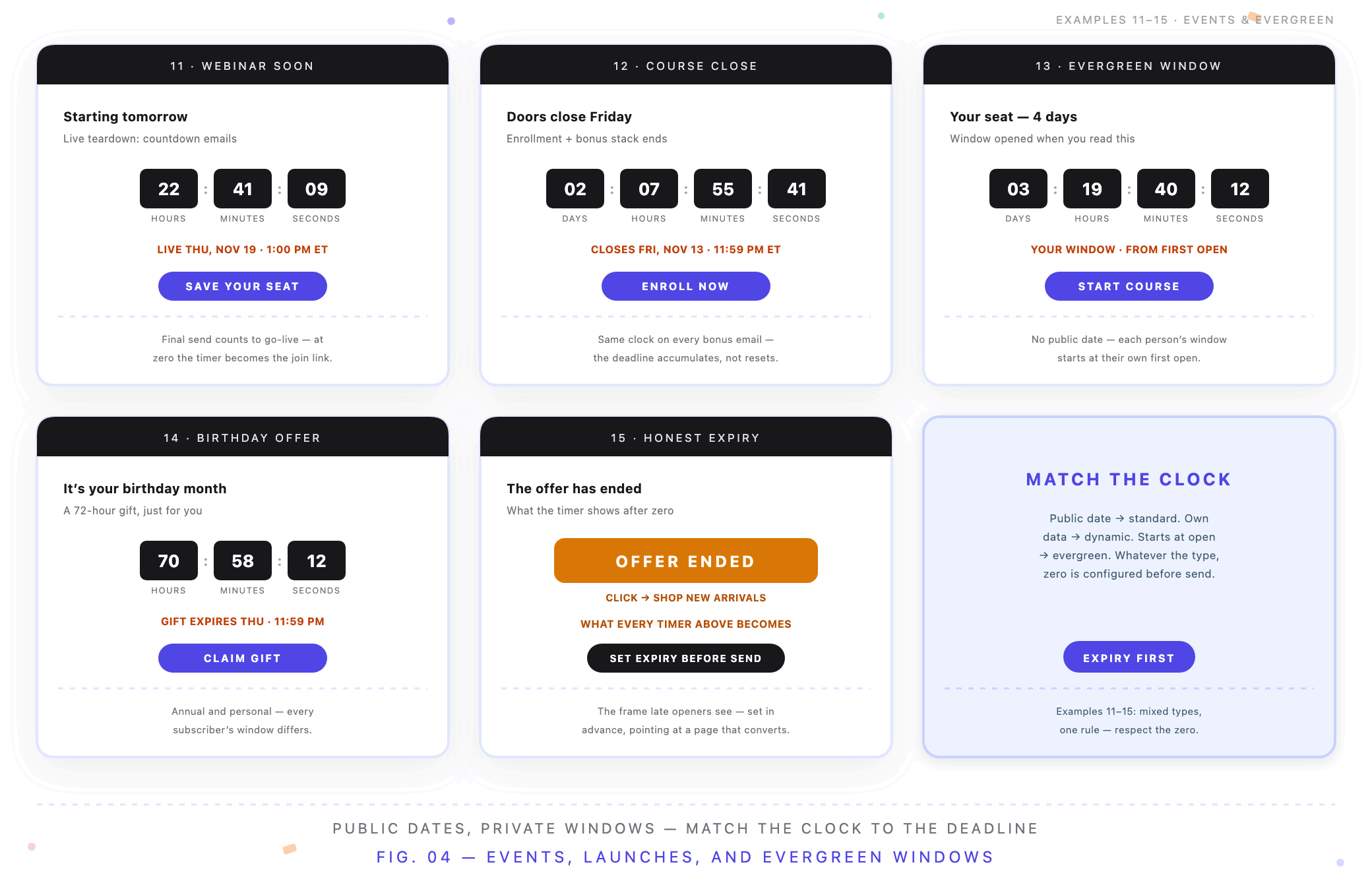
A mixed group: event deadlines are public and fixed; evergreen windows are private, one per subscriber.
11. The webinar starting-soon send. Two deadlines in a webinar sequence: registration closes, then the webinar starts. The final send counts to go-live — "Thursday at 1:00 PM ET" — and at zero the timer becomes the join link, the rare expiry state people click at the deadline rather than after it. The webinar guide walks the whole registration ladder.
12. The course cart-close. Cart-open, bonus stack, doors close. The close email's timer runs to Friday at midnight, and the mid-sequence bonus emails carry the same clock so the deadline accumulates instead of resetting. The course launch guide covers cart-open to cart-close, including the waitlist "doors closing" send.
13. The evergreen enrollment window. No public date at all: each person's four-day window starts at their first open. One email, thousands of private deadlines — someone who opens today and someone who opens next month both see an honest four days. The evergreen timer guide covers how the per-recipient window works.
14. The birthday offer. Annual, personal, and real: the 20% window genuinely expires 72 hours after it opened, and every subscriber's window opens on a different day. The timer reads each person's own birthday clock — the friendly end of the same per-subscriber machinery as the cart hold.
15. The honest expiry state. Not a send — the frame every timer above becomes. "Offer ended — shop new arrivals." "Trial ended — reactivate." "Sold out — join the waitlist." With the countdown image clickable, the spent timer still forwards somewhere useful. This is the example most senders skip and every late opener sees; the expiry settings page is where it's configured.
The Pattern Behind All Fifteen
Strip the use cases away and three patterns remain. Match the timer type to who owns the deadline:
| The deadline is owned by | Timer type | What zero must show |
|---|---|---|
| Everyone — a public sale, launch, or event date | Standard: one fixed date set once | An "ended" frame plus a destination that still converts — new arrivals, waitlist, replay |
| Each person's own data — cart hold, trial end, renewal, retry, birthday | Dynamic: a timestamp passed per recipient | The account, cart, or billing page — the one place that always reflects current state |
| A window that starts at each person's first open — onboarding, evergreen launches | Evergreen: a duration from first open | The same offer-expired state as any other deadline — the window is real, so its end is too |
And two rules cut across all three: one timer per email, and the deadline stated in text as well as digits — the timer is an image, and images get blocked.
Borrowing One of These Layouts
- Start from the closest template. The 65+ template library covers the layouts above — dark tiles for B2B inboxes, high-contrast circles for consumer sends, text-only frames that survive dark mode.
- Set the real deadline, to the minute. The timer is built from the end date and timezone you enter. If the offer doesn't actually end, pick a different example — the layouts above only work because their deadlines are enforced somewhere.
- Configure the expiry state before anything sends. Frame, message, click destination — decided in advance for the openers who arrive after zero. Example 15 is the template.
- Make the timer clickable and aim it well. Same destination as the button before the deadline; the expiry URL after it.
- Test the way you send. Gmail, Outlook, and Apple Mail cover most lists — Outlook on Windows renders a still frame, so check that the frozen moment still reads. The troubleshooting guide covers every client's behavior.
FAQ
Where can I see these as live timers?
The template library opens each layout as a working timer you can restyle — colors, fonts, labels — against your own deadline.
Which timer type do I need for a deadline each customer has their own?
The dynamic timer. Each send carries that recipient's deadline as a timestamp in the embed URL, resolved at send time from your own data — cart holds, trial ends, renewal dates, and birthday windows all work this way.
Do these examples work in Outlook?
Yes, with one known behavior: Outlook on Windows renders the timer's first frame, frozen — accurate for the moment it was fetched, but not animating. Pick a template whose frozen frame still reads. Every other major client plays the animation, and the timer regenerates correctly on every open.
Can I combine two of these in one email?
Combine elements, not timers. One email, one deadline, one clock. Two timers counting to two different dates in the same message tell the reader that neither is real.
Final Thoughts
Fifteen examples, three timer types, one skeleton. The use cases look different — a flash sale and a dunning email share nothing except the five parts of the anatomy above: a hero that names the stakes, one timer in the decision space, the deadline in text, one destination, and a plan for zero.
Pick the example closest to your send, create an email countdown timer against its real deadline, and restyle from there — the free plan needs no credit card and adds no watermark.
Related Guides
- How to Boost Flash Sale Conversions with an Email Countdown Timer
- Shopify Abandoned Cart Emails with a Countdown Timer
- Black Friday Email Countdown Timer: The 2026 BFCM Playbook
- Trial-Expiry and Renewal Countdown Emails for SaaS
- Evergreen Email Countdown Timers
Last updated: October 2026. Example dates follow the 2026 calendar. Product features and pricing reflect Countdown Builder at the time of updating and can change; see the pricing page for current details.
Written by Mehedi Hasan
Writer & Developer. He writes about email marketing, countdown timers, and campaign design.
Connect on LinkedIn