
Webinar Countdown Timer Emails: The Full Registration Sequence
 By Mehedi Hasan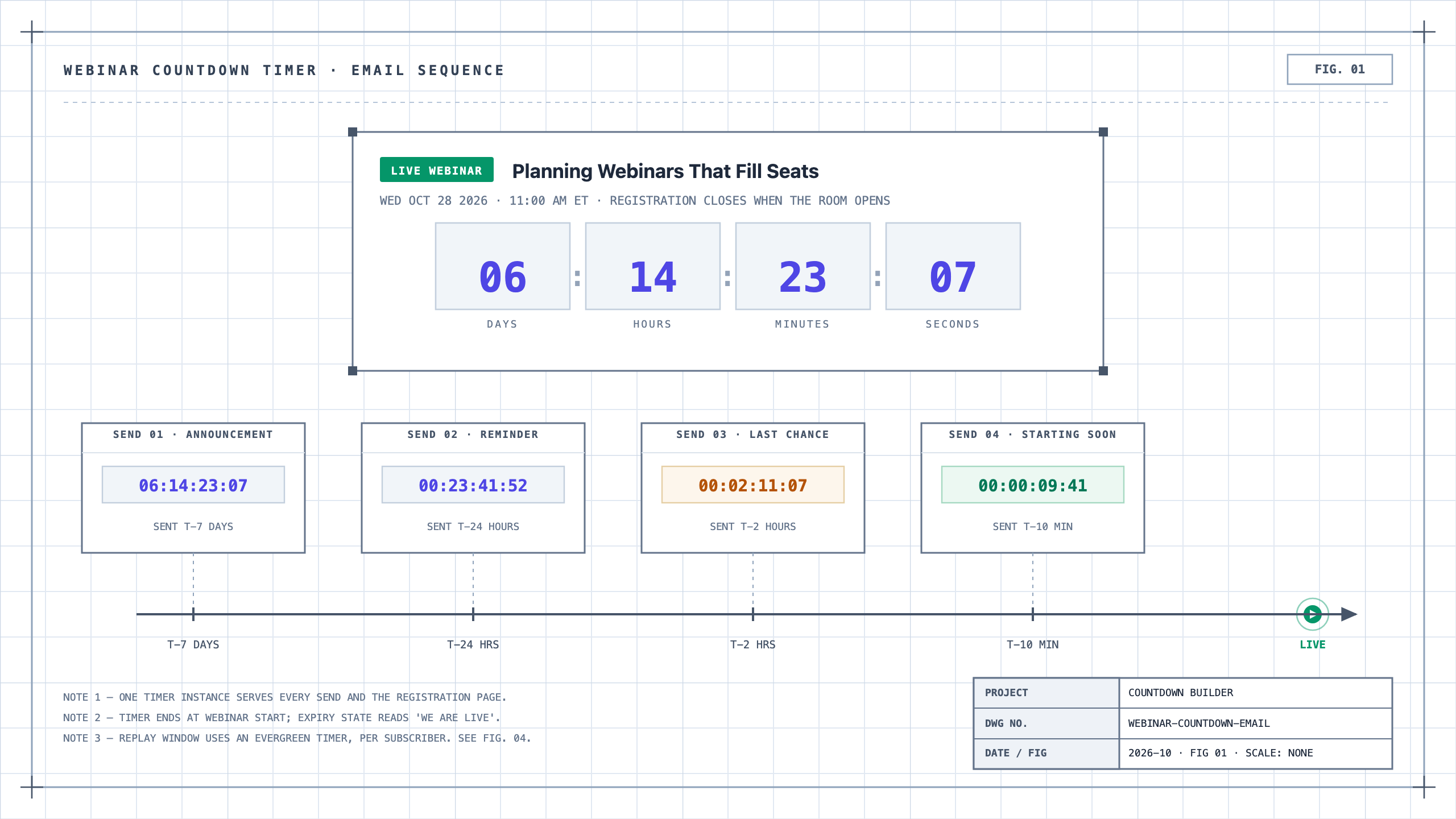
A webinar is the rare campaign where the deadline needs no dressing up. The event starts when it starts — known to the minute, weeks in advance, and impossible to extend without looking disorganized. A webinar countdown timer in your emails isn't manufactured urgency; it's the schedule, rendered live.
That is also why webinars are where countdown timers behave best. Nobody can dismiss the timer as a marketing trick, because the deadline it counts to is real and public. The timer just keeps the date in front of the subscriber in every send between announcement and go-live.
This guide covers the full pattern: the registration email sequence, how one timer serves every send, pairing the email timer with the registration page, the expiry state that takes over the moment the webinar starts, and the evergreen timer that puts a deadline on the replay.
Why Countdown Timers Fit Webinars
Three things make webinars a natural fit:
- The deadline is fixed and public. Unlike a "3-day sale" that quietly gets extended, a webinar starts at a published time. The timer counts to something everyone can verify, which is what makes it credible.
- Registration is procrastination-prone. "I'll sign up later" is the default response to an announcement email. A live timer shows later shrinking — and gives each reminder a reason to exist beyond "we sent this again."
- The deadline does double duty. Registration closes when the room opens. One countdown covers both messages: register before this hits zero, and show up when it does.
The Registration Sequence
Four sends, one timer, escalating density as the deadline approaches. You can add interim reminders — a three-day-out nudge, a morning-of resend to non-openers — but these four are the skeleton.
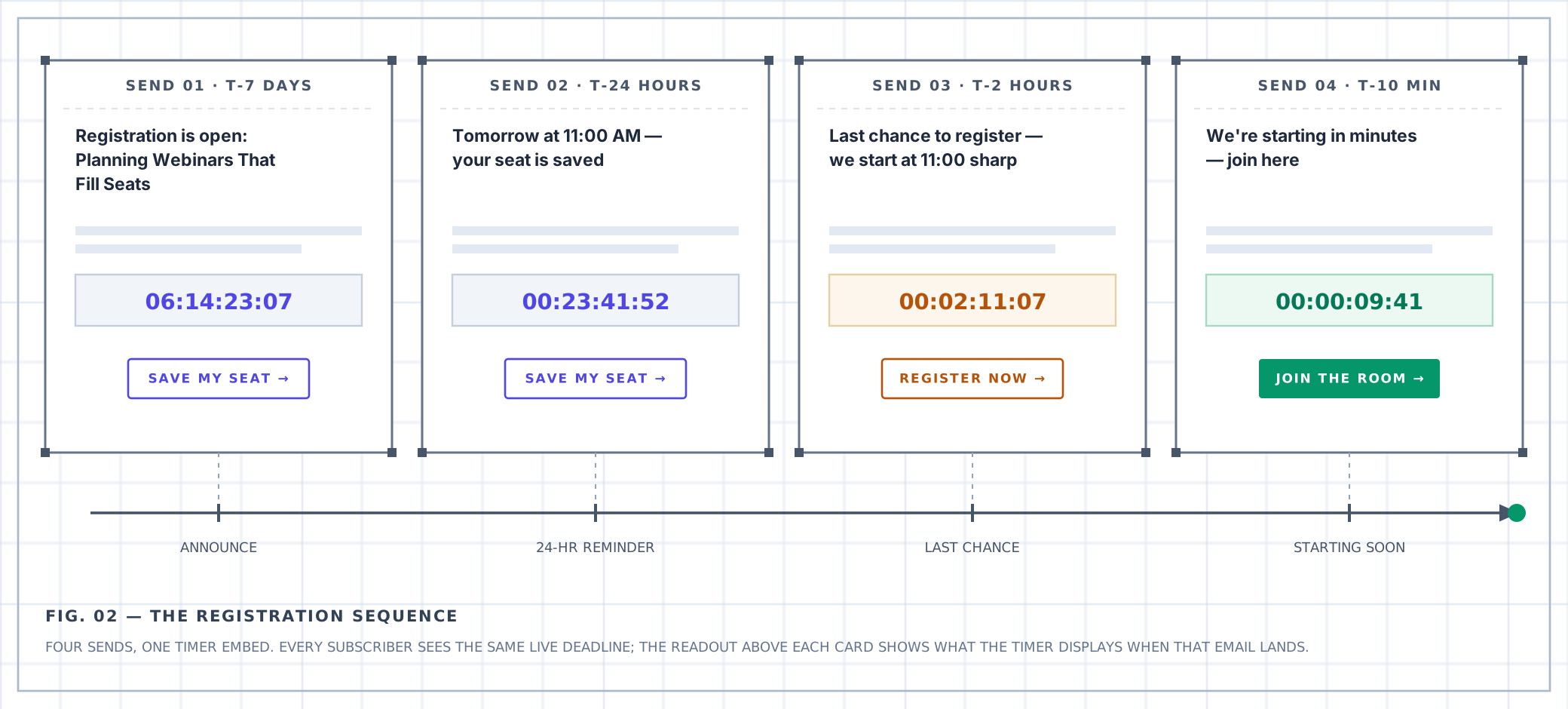
The four sends. Each card shows what the timer reads when that email lands — same embed, shrinking numbers.
1. Announcement (T-7 days)
The email that opens registration carries the timer from day one, when it still reads in days. This sets the visual language for the whole campaign: every later email shows the same timer, and subscribers learn to read it as "the countdown to the event."
Keep the first send simple: what the webinar covers, who it's for, when it starts, one registration button, and the timer directly above that button. The timer at T-7 is a date display; don't ask it to do more than anchor the deadline.
2. The 24-hour reminder
Sent the day before, to the full list or to non-registrants if you're segmenting. This is the send where the timer's readout changes character — it now counts hours, not days, and the subject line can quote it: "Tomorrow at 11:00."
For subscribers who already registered, swap the ask: this is a calendar-add / attendance email, not a registration email. The timer still belongs — it counts to the same start — but the button becomes "Add to calendar."
3. Last chance (T-2 hours)
Two hours out, send to non-registrants only. The timer reads minutes-by-then, the framing turns final, and the copy gets specific: "We start at 11:00 sharp. Registration closes when the room opens." The timer does most of the persuading; the copy's job is to state the cutoff rule plainly so nobody feels misled.
4. Starting soon (T-10 minutes)
The last send goes minutes before go-live, to registrants: "We're starting in minutes — join here." At this point the timer is a courtesy display counting its final seconds, and this email has a second life as the entry point latecomers scroll back to find. Which raises the one technical detail that matters here: what the timer shows after it hits zero. That's the expiry state, covered below.
Urgency Messages That Escalate With the Sequence
The sends escalate — and the timer can escalate with them. Countdown Builder supports urgency messages: short, time-triggered lines attached above or below the timer, each with its own threshold, text, color, and position. For a webinar registration ladder:
- 1 day out — "Only 1 day left to register"
- 1 hour out — "Doors close at 11:00"
- 5 minutes out — "Last chance to grab a seat"
When multiple thresholds have passed, the timer always shows the message closest to zero — an email opened at T-40 minutes never says "1 day left." Three starter triggers ship pre-configured, so the fastest path is to retext them for registration and adjust the timing.
Two fit notes: keep the ladder to two-to-four messages (more reads as noise), and let color weight the moment — green for awareness a day out, orange for urgency inside the final hour, red reserved for the last minutes.
One Timer, Every Send
You build the timer once and reuse it everywhere. The embed is an image URL (or a small HTML snippet wrapping it) — paste the same one into the announcement, the reminder, the last-chance email, and the registration page. Every touchpoint fetches the same image and renders the same live deadline.
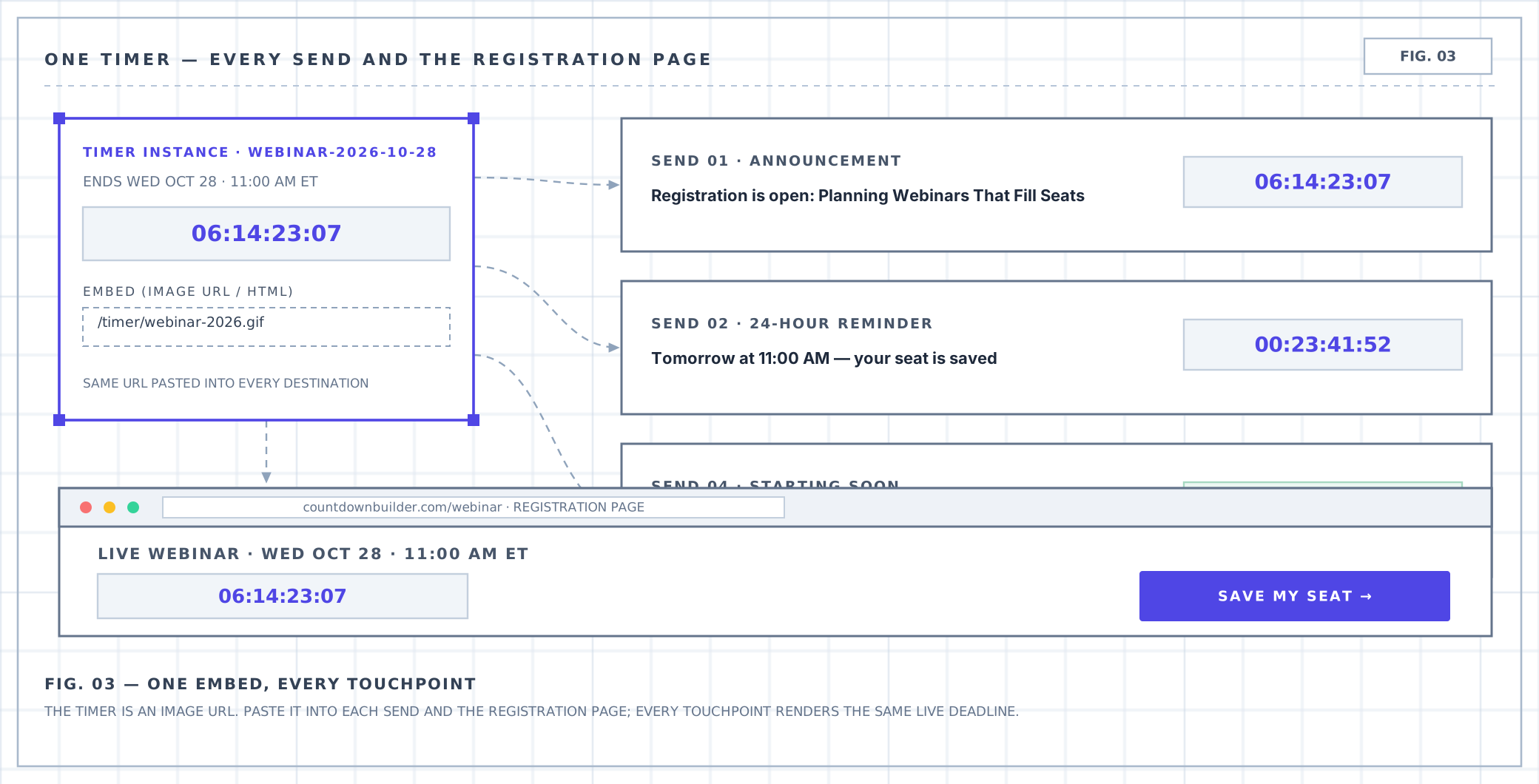
One embed, every destination — every touchpoint shows the same digits counting to the same moment.
This is the same pattern that carries seasonal sale campaigns, and it matters more for webinars, where the deadline is the event itself. If each email embedded its own timer with its own configuration, you'd eventually ship two emails disagreeing about the start time. One instance can't disagree with itself.
The email countdown timer tool is built around this workflow: design the timer, copy the embed code, paste it everywhere the campaign lives.
The Registration Page Should Count Down Too
The emails drive to a page, and that page should show the same countdown. Not a lookalike — the same embed.
When the email says two hours and the landing page says three, you've taught the subscriber the timer is decoration. When both show identical shrinking digits, the deadline feels like infrastructure. The website countdown timer uses the same timer object as the email embed, so the page and the emails share one deadline by construction. If you're adding it to an existing landing page or CMS, the website timer setup guide covers the embed options.
Building the Webinar Timer
The setup in Countdown Builder, start to finish:
- Create the timer and set the deadline to the start minute. If the webinar opens at 11:00 AM ET on Wednesday, October 28, set the timer to end at exactly that minute — and set the timezone to the event's timezone, not yours. A timer an hour off is worse than no timer, and timezone mismatches are the most common misconfiguration we see.
- Pick a template that reads at email width. The timer sits inside an email, often on mobile, so digits must stay legible small. Any of the 45+ templates works; box-style designs tend to survive shrinking best. For a professional audience, restrained beats urgent — you're announcing an event, not clearance pricing.
- Make the timer clickable. Enable the clickable countdown image and point it at the registration page. The timer becomes its own call-to-action, which matters most in the last-chance and starting-soon sends where it's the largest element on the screen.
- Set the expiry state and redirect. This is the webinar-specific step, and it does real work — see the next section.
- Copy the embed and paste it everywhere. Every send, the registration page, and your internal "it works" test email to yourself.
The Starting-Soon Send and the Expiry State
A webinar timer has an afterlife a sale timer doesn't. When a sale ends, the email is dead. When a webinar starts, the email comes alive — the starting-soon send is exactly the email people reopen at 11:02 to find the join link.
So configure what the timer becomes at zero. With expiry settings, the spent timer can display a custom text frame instead of frozen zeros: "We're live — join now." Combined with a clickable countdown image and an expiry URL that redirects to the live room, the timer itself becomes the late-entry door. Someone opening the announcement email a day late sees the redirect target instead of a stale countdown — point it at the room, or at the replay page once the replay is up.
An expired timer showing zeros under a "starting soon" subject line is the one configuration worse than no timer. It takes about a minute to avoid: set the expiry text and the expiry URL before the announcement goes out.
One rendering caveat, since the starting-soon send gets opened in every client your audience owns: Outlook on Windows desktop displays a GIF's first frame rather than its animation, and Apple Mail's privacy protection can cache a prefetched copy. Neither breaks the deadline — the displayed time is simply the moment of that fetch — but if a large share of your audience is on Outlook, pick a template whose frozen frame still reads cleanly. The troubleshooting guide covers each client's behavior in detail.
After the Webinar: The Replay Window
Most webinars end with a replay available "for a limited time." A countdown timer makes that limit visible — but a standard fixed-date timer is the wrong tool here, because the window should start when each subscriber engages, not when you hit send.
Say the replay is available for 72 hours:
- Subscriber A opens the replay email Wednesday night. Their window closes Saturday night.
- Subscriber B opens it Friday morning. Their window closes Monday morning.
An evergreen countdown timer handles this automatically: the clock starts at each subscriber's first open, and everyone gets a full 72 hours regardless of when they got around to reading. The timer in the replay email counts to their deadline, and a final "your replay disappears tonight" send — also evergreen — closes the loop.
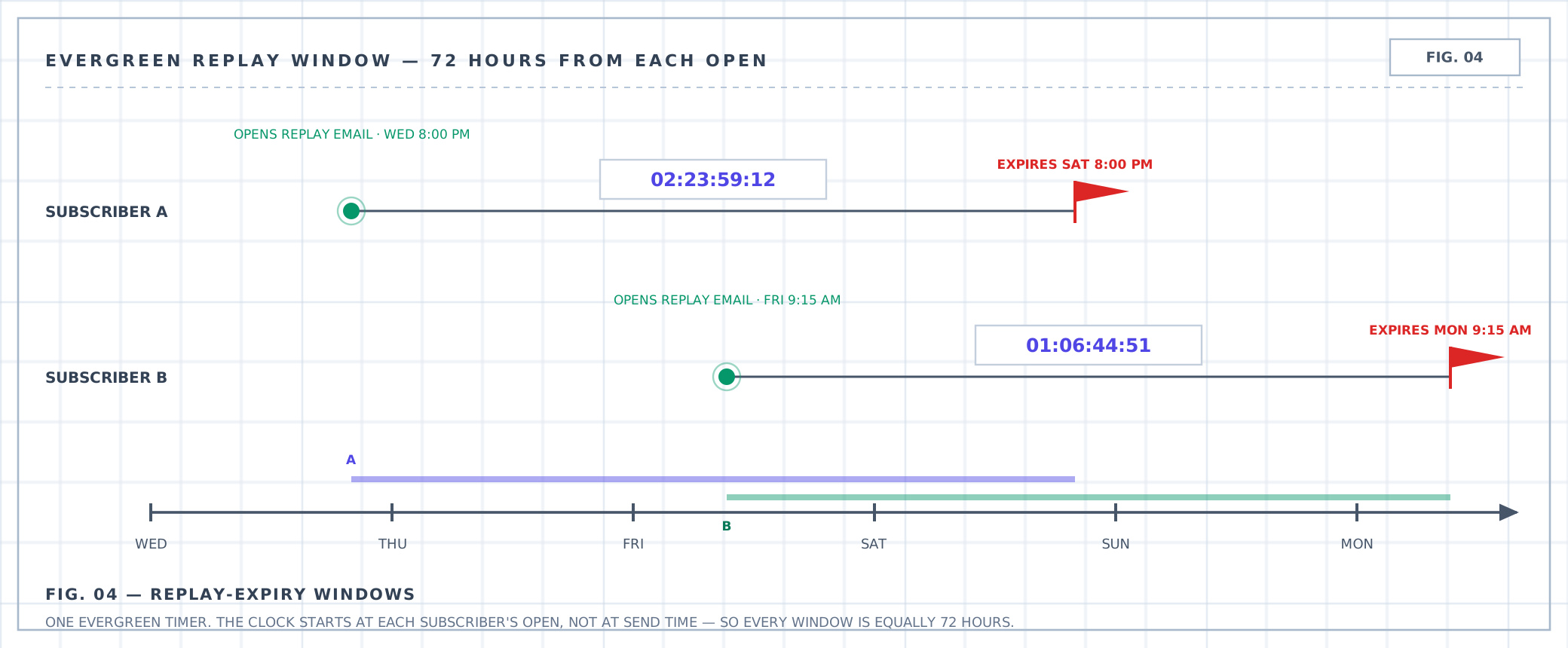
Same 72 hours, different clocks: each window opens at that subscriber's open, not at send time.
This is the honest version of a replay deadline. A fixed "replay expires Friday" timer punishes the Friday opener with a zero-hour window — and a deadline that expires before someone's window even began teaches them your timers are noise.
Subject Lines for Webinar Countdown Emails
A starting bank, by send. Bracketed text is the webinar title or date:
Announcement
- Registration is open: Webinar title, Wed Oct 28
- We're going live on date — save your seat
24-hour reminder
- Tomorrow at 11:00: Webinar title
- 24 hours until Webinar title starts
Last chance
- Last chance to register — we start at 11:00
- Registration closes when we go live (2 hours)
Starting soon
- We're live in 10 minutes — join here
- The room is open: Webinar title
Replay
- The replay is up — 72 hours only
- Your replay disappears tonight
Common Mistakes
- Copy and timer disagreeing on the cutoff. If the timer ends at webinar start but the body says "registration closes 24 hours before," pick one rule and make both say it. The mismatch reads as sloppiness exactly when attention peaks.
- A timezone slip. The classic: the timer ends at 11:00 in the marketer's timezone, the webinar starts at 11:00 in the audience's. Set the timer's timezone to the event's, then verify the readout against a calendar.
- No expiry state. Covered above — frozen zeros under a live-event email is the worst-reading failure mode, and it's a one-minute fix.
- Sale styling on a professional event. Deep red, all-caps urgency templates read as clearance pricing. For a B2B or educational webinar, a calm template with clean digits converts the room faster than a shouting one.
- Forgetting the page. Emails carry the timer, but the registration page is where the decision happens. Same embed, same deadline, no exceptions.
Countdown Builder for Webinar Campaigns
The free plan covers the full sequence — no credit card, no watermark — so you can build the timer, embed it in a test send, and watch the readout in your own inbox before the announcement goes out. Countdown Builder works with the tools webinar teams already send through: Keap broadcasts, GetResponse campaigns, Mailjet, Iterable, and any platform that accepts an image or HTML block.
When the next event is on the calendar, you can create your webinar countdown timer and have the embed in your announcement draft before the invite copy is written.
Last updated: October 2026. Example dates in this guide follow the 2026 calendar. Product features and plans reflect Countdown Builder at the time of updating and can change; see the pricing page for current details.
Written by Mehedi Hasan
Writer & Developer. He writes about email marketing, countdown timers, and campaign design.
Connect on LinkedIn