
How to Add a Countdown Timer to Your Website (2026)
 By Mehedi Hasan
Countdown Builder now supports website countdown timers in addition to email timers. You create the timer in the same builder, then embed it on any site with a single line of HTML — no coding required.
This guide covers when a website timer makes sense, how the two timer types differ, and the steps to create and embed one.
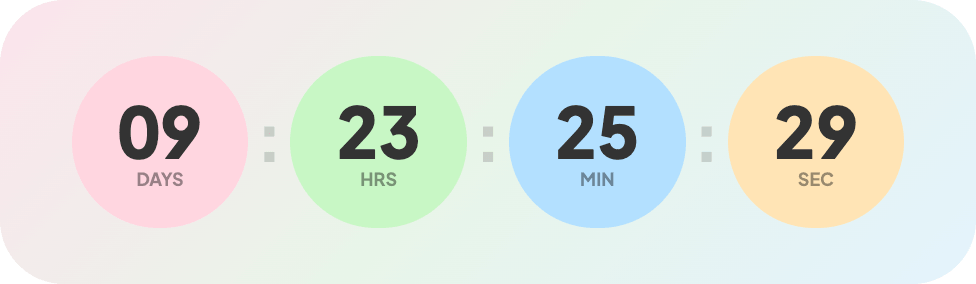 Example of a rectangular website countdown timer embedded on a homepage.
Website Timer or Email Timer?
The two formats serve different campaigns:
- Email timers live inside a message. They suit broadcast campaigns and automated sequences tied to a deadline.
- Website timers live on a page. They keep counting down on every visit, which matters when the deadline is days away (a product launch next week) or when the page is the destination of an ad or email.
A website timer is a reasonable choice when:
- A sale or promotion has a fixed end date, and the landing page should show it
- You're announcing a launch or event and want the homepage or waitlist page to display the time remaining
- An offer expires per visitor (evergreen), and the page needs to reflect each visitor's personal deadline
As with email timers, the deadline should be real. A countdown on a page that never actually expires loses its effect on repeat visitors quickly.
What the Website Timers Offer
Two Timer Types
- Standard Countdown — a fixed end date and time with full timezone support, suited to global launches and events.
- Evergreen Countdown — the countdown starts per visitor, suited to evergreen offers and personalized deadlines.
Appearance Options
- Light, Dark, or Auto mode, where Auto adapts to the visitor's system preference.
Customization
The visual builder gives you control over:
- Container style (padding, background, border radius, custom images)
- Timer font, size, weight, color, and animation
- Individual segments (day, hour, minute, second) with custom backgrounds
- Separators (enable/disable, pulsing animation, custom character)
- Labels in any language, with a custom text case and styling
All changes update live in the preview.
Performance
- Real-time updates
- Premade templates
- A single-line embed code
- Works on WordPress, Webflow, Wix, HTML sites, Shopify pages, and any site that accepts HTML
Step-by-Step: Adding a Countdown Timer to Your Website
From account to live countdown on your site:
flowchart TD
    A["Create a free account on the dashboard"] --> B["Website Countdown, then Create"]
    B --> C["Choose Standard or Evergreen"]
    C --> D["Set end date, time, and timezone"]
    D --> E["Customize the design"]
    E --> F["Copy the one-line embed code"]
    F --> G["Paste it into your site HTML"]
    G --> H["The countdown goes live immediately"]
- Go to the dashboard. Visit app.countdownbuilder.com and create a free account (no credit card needed).
- Create your timer. Click Website Countdown → Create. Give your timer a name, choose a template, and hit the Create button.
- Configure the basics. Choose Standard or Evergreen, then set the end date, time, and timezone.
- Customize the design.
Use the visual builder to adjust colors, fonts, labels, backgrounds, separators, and expiry messages. The preview updates as you go.
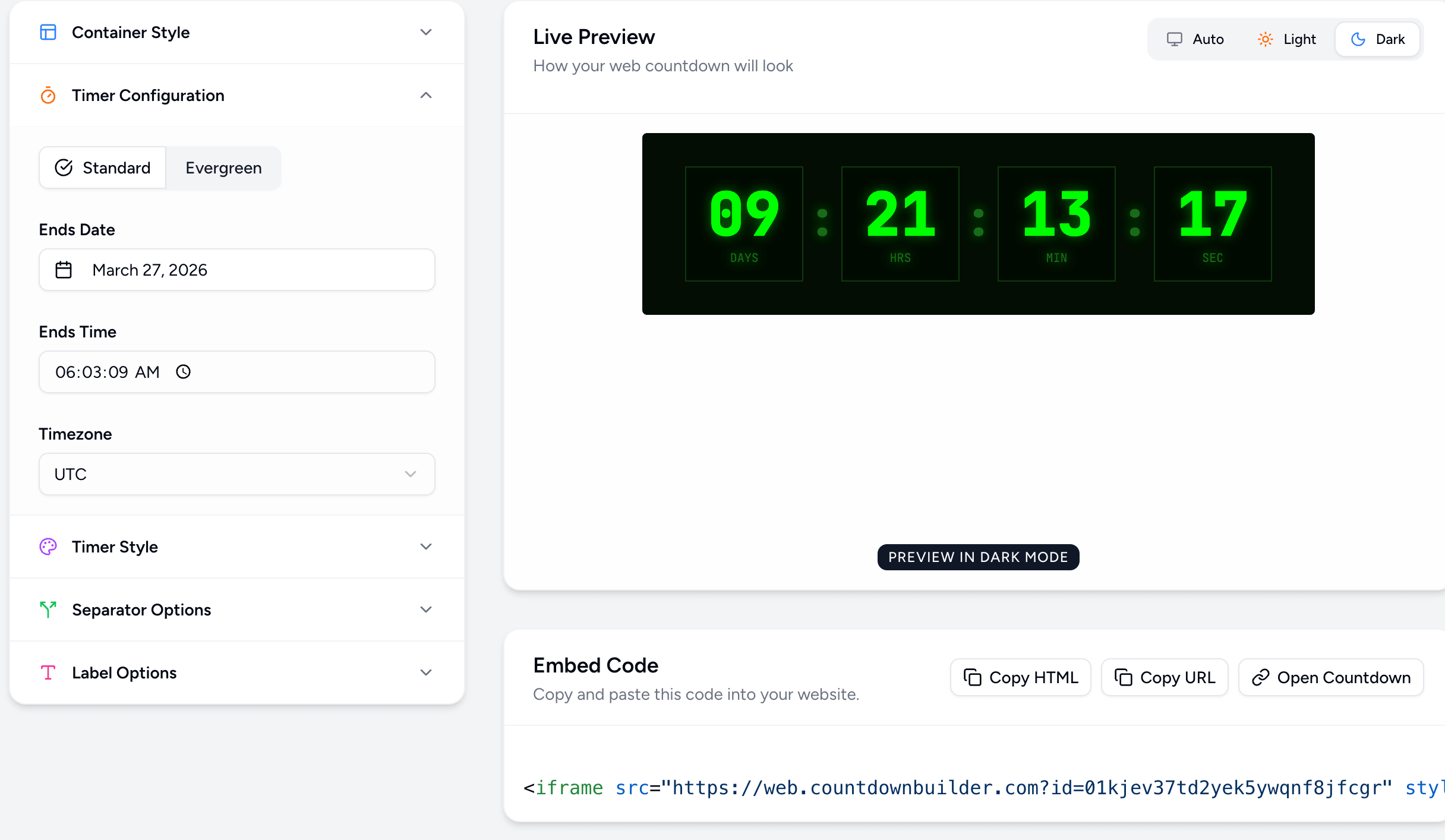
- Copy the embed code. A single line of code is generated automatically.
- Paste it on your website. Add the code anywhere in your HTML — header, body, or a specific section. The countdown goes live immediately.
Real-World Use Cases for Website Countdown Timers
- Ecommerce stores: flash sale banners on the homepage
- SaaS landing pages: "Beta access ends in..." counters
- Event websites: countdown to conference start
- Agency portfolios: project deadline teasers
- Blogs and newsletters: registration deadlines for webinars
Pricing
A free plan is available with watermark-free timers; unlimited timers and views are included on paid plans. View full pricing here.
Frequently Asked Questions
Is the website countdown timer free?
You can start on the free plan, which includes watermark-free timers. Paid plans add unlimited timers and views.
Does it work with my website platform?
Any site that accepts HTML works — WordPress, Shopify, Webflow, custom-built sites, and others. For a Shopify storefront specifically — sale-bar and hero placements via a Custom Liquid section or theme code — see the Shopify store countdown timer guide.
Can I use different countdowns on different pages?
Yes. Paid plans include unlimited timers, so you can create as many as you need and embed each wherever you like.
Will it slow down my site?
The timer is a lightweight embed designed not to block page loading.
Get Started
If you have a page tied to a real deadline, you can create your first website countdown timer for free. Questions can go to [email protected].
Last updated: September 2026. Features and pricing reflect Countdown Builder at the time of updating and can change. See the pricing page for current details.
Written by Mehedi Hasan
Writer & Developer. He writes about email marketing, countdown timers, and campaign design.
Connect on LinkedIn