
Squarespace Countdown Timer: Add One With a Code Block (2026)
 By Mehedi Hasan
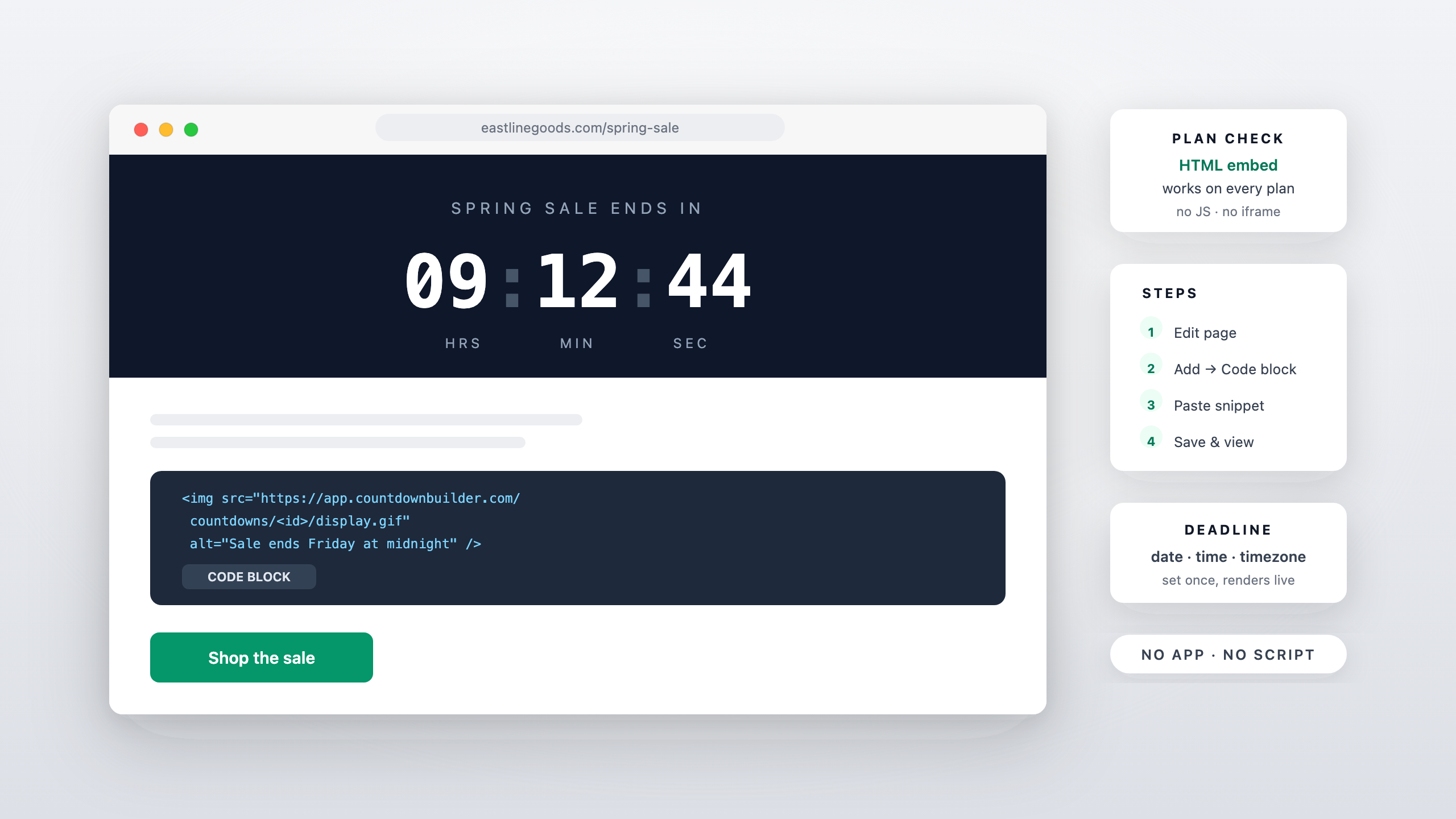
Short answer: Squarespace has no native countdown block, but a countdown timer doesn't need one — the embed is a plain HTML snippet, and Squarespace's Code Block accepts custom HTML on any plan. You add the block, paste the snippet, set the deadline in the builder, and the timer renders on the page like any image. This guide covers the steps, the plan details, and where a timer earns its place on a Squarespace site.
The approach is the same one covered for WordPress — the WordPress countdown timer guide walks that platform's block editor — with Squarespace-specific placement and plan notes.
No Native Feature — What the Options Actually Are
Squarespace doesn't ship a countdown element, and its template library doesn't hide one either. The two realistic routes:
- The app marketplace's countdown widgets. These are third-party apps: they add their own script to your site, and the design control lives in someone else's dashboard.
- A Code Block with an embed. The countdown renders from an image URL inside a snippet you paste. No app, no added script — Squarespace treats it as content, not code to execute.
The second route is what this guide covers. It keeps the timer's look under your control, works in every content area Squarespace gives a Code Block, and — because the snippet is HTML rather than JavaScript — it sidesteps the one plan restriction that matters.
The Plan Restriction, and Why the Embed Doesn't Hit It
Squarespace gates one thing about Code Blocks: per its own documentation, "to add JavaScript or an iframe to a code block, your site needs to be on the Core, Plus, or Advanced plan." Plain HTML isn't gated — code blocks render HTML and Markdown on any plan.
A countdown timer embed is plain HTML: an image tag pointing at the timer's URL, optionally wrapped in a link. No JavaScript, no iframe. That's the whole reason an email countdown timer works in email clients that strip scripts — and the same property is why it works in a Squarespace Code Block regardless of plan. If you can add a Code Block where you're reading this, the timer will render there.
One honest caveat: if you later want the same timer loaded site-wide (every page, in the header or footer), that's Squarespace's code injection feature, which is a separate tool with its own plan requirements — the per-page Code Block route has no such gate.
Building the Timer
- Create a standard countdown timer and set the end date, time, and timezone. The timer counts to the moment you configure, in the timezone you set — it does not compute each visitor's local time, so set the zone your audience lives in (the same rule as the New Year's Eve website countdown, where "midnight" only means something if you say whose midnight).
- Design it against the page. Pick a template, adjust labels and colors, and check the contrast on both light and dark sections. With 65+ templates, pick one whose look matches the section it will sit in.
- Copy the embed snippet. It's a few lines — an image tag and, if the timer is clickable, a link around it. The snippet is well under the Code Block's 400 KB limit; that limit is a non-issue here.
Adding It in Squarespace
Squarespace's own steps for the block:
- Edit the page (or post).
- Hover over the section, click Add Block (the + icon), and choose Code from the block menu.
- Open the block editor (the pencil icon) and paste the snippet into the text field.
The timer renders inside the block like any other content. Code Blocks can go in a page, a blog post, a sidebar, a footer, or other content areas — wherever the block menu is available.
Where a Squarespace Timer Earns Its Keep
- Sale or promo hero. A countdown above the fold on a landing page, counting to the offer's real end — the page-side twin of the deadline in your emails.
- Event pages. Workshops, launches, webinars: the timer anchors the date that matters. The coming-soon countdown guide covers the pre-launch variant.
- Seasonal moments. A fixed-date timer to a holiday midnight or a campaign start — the NYE guide is the worked example.
- Blog posts. A deadline inside a post ("this offer ends...") gets the same Code Block treatment as a page.
Pair It with the Email Countdown
If the campaign has an email side, the email embed and the site embed can point at the same countdown, so the deadline reads identically in both places. The email countdown timer setup covers the email side; keeping one deadline on both surfaces is also the simplest way to stay on the right side of the false-urgency rules — the clock and the checkout should never disagree.
FAQ
Does this work on every Squarespace plan?
The Code Block itself isn't plan-gated, and the timer embed is plain HTML — no JavaScript, no iframe — so the JavaScript restriction (Core plan and up) doesn't apply. If you can add a Code Block, the timer renders.
Does the timer animate on Squarespace?
Yes — it's an animated GIF served from a URL, so it animates exactly like any other image on the page. No script runs, which is why it renders everywhere.
What happens when the countdown ends?
Whatever you configure as the expiry state: zeros, a custom message, or an image — set before you publish, so a late visitor sees something intentional rather than a stale clock.
Will it slow the page down?
The embed is an image request, not an app payload — there's no third-party script loading on every visit.
Final Thoughts
The absence of a native countdown block in Squarespace matters less than it looks: a timer is an image with a deadline, and Squarespace renders images inside Code Blocks on every plan. Build the timer, paste the snippet where the deadline belongs, and keep the expiry state honest.
You can create a countdown timer in a few minutes — the free plan needs no credit card and adds no watermark — and have the snippet pasted before the page ships.
Related Guides
- WordPress Countdown Timer: Add One Without a Plugin (2026 Guide)
- Wix Countdown Timer: The Embed-Code Alternative to Apps
- New Year's Eve Countdown for Your Website (Embed, No Code)
- Coming-Soon and Waitlist Pages with a Live Countdown
- Are Fake Countdown Timers Legal? False-Urgency Rules for Email Marketers
Last updated: November 2026. Squarespace's plan terms and editor steps can change — the plan statements above quote Squarespace's documentation as of this date. Product features reflect Countdown Builder at the time of updating; see the pricing page for current plans.
Written by Mehedi Hasan
Writer & Developer. He writes about email marketing, countdown timers, and campaign design.
Connect on LinkedIn