
Wix Countdown Timer: The Embed-Code Alternative to Apps (2026)
 By Mehedi Hasan
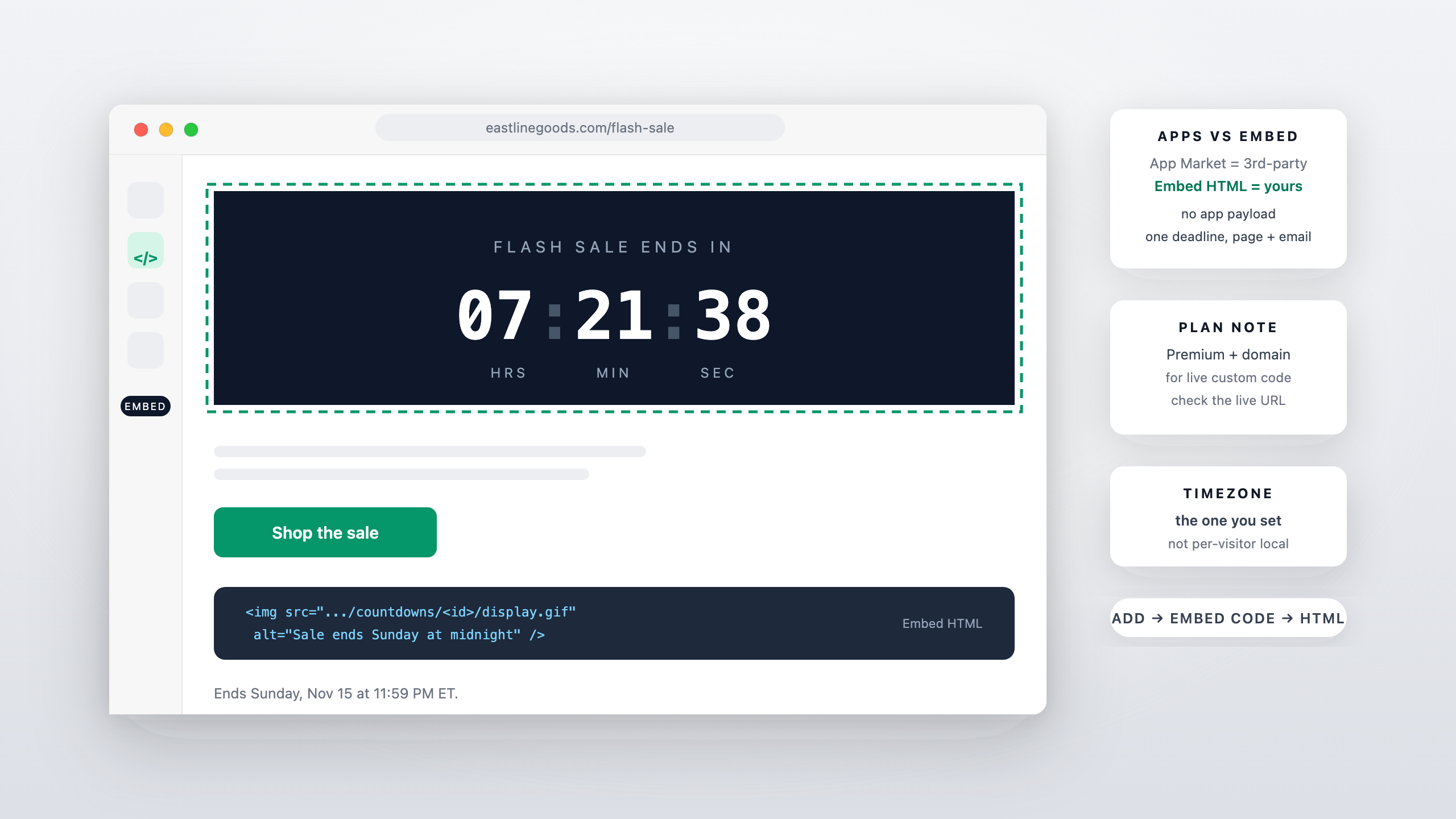
Short answer: Wix doesn't ship a countdown element of its own — the countdown apps in its App Market are built by third-party developers — but Wix's Embed HTML element takes any code snippet, and a countdown timer embed is one of the lightest snippets there is: an image URL, optionally a link around it. You paste it where the deadline belongs, set the end date in the builder, and the timer renders like any other image. This guide covers the routes, the steps, and the plan note for live sites.
The same approach is covered for WordPress and Squarespace — see the WordPress countdown timer guide and the Squarespace countdown timer guide for those platforms' specifics.
Your Options on Wix, Honestly
Three routes exist, and they're not equivalent:
- Third-party App Market apps. The countdown listings in Wix's App Market — countdown bars, per-visitor timers, flip-clock designs — are all third-party developer apps. Some are free to install, others charge monthly or gate features behind plans. What they have in common: they add an app (and usually a script) to your site, and the design control lives in the developer's dashboard, not your editor.
- Wix Events' built-in countdown. If your deadline is an event run through Wix Events, its event-list layout can show a countdown to the event date. That's real, but it lives inside the Events app — it isn't a general-purpose countdown element you can drop on any page.
- The Embed HTML element. Wix's own element for displaying a code snippet as a widget. A timer snippet fits it exactly, renders as an image, and keeps design control in the timer builder rather than an app's settings.
If the app route gives you a design you love at a price you like, it's a legitimate choice. The embed route is for when you want the timer to match your brand exactly, load without an app payload, and share one deadline with your emails.
Adding It in Wix
Wix's own steps for the element:
- Click Add Elements on the left side of the editor.
- Click Embed Code.
- Click Popular Embeds, then choose Embed HTML — Wix describes it as embedding "a code snippet to display a widget on your site pages."
- Paste the timer snippet into the code field and apply.
The timer renders inside the element's frame. Resize and position the element like any other Wix element — give it enough room that the timer reads at the size your page needs.
The Plan Note for Live Sites
Wix's documentation for the Embed HTML element doesn't state a plan requirement for the element itself. What Wix does document is that its broader custom-code surfaces — custom elements and header-code snippets — need a Premium plan and a connected domain to appear on the live site; the custom element article states it plainly, and the same requirement shows up across Wix's custom-code pages. Free Wix sites also carry Wix branding and don't support connected domains, so any production deadline page is realistically on a paid plan already.
The practical advice: add the embed, publish, and check the timer renders on the live URL — not just the editor preview — before you build a campaign around it.
Building the Timer
- Create a standard countdown timer and set the end date, time, and timezone. The timer counts to the moment you configure, in the timezone you set — it doesn't compute each visitor's local time, so state whose midnight or whose closing time the clock represents when it matters.
- Design it against the page. Pick from the 65+ templates and adjust labels, colors, and size so the timer reads as part of the section, not an add-on. Check contrast on both light and dark backgrounds.
- Copy the embed snippet and paste it into the Embed HTML element. The snippet is a few lines — far under any size limit that matters — and renders on every visit with the correct time remaining, since the image is regenerated each time it's requested.
Where a Wix Timer Earns Its Keep
- Sale and promo heroes. A countdown above the fold, counting to the offer's real end — the page-side twin of the deadline in your email sequence.
- Launch and event pages. Webinars, workshops, product drops: the timer anchors the date the page exists for. The coming-soon countdown guide covers the pre-launch version.
- Seasonal moments. A fixed-date timer to a holiday midnight or a campaign opening — the New Year's Eve website countdown is the worked example.
- Booking and service pages. "Slots close in…" is a real deadline when the booking window genuinely closes.
Pair It with the Email Countdown
The embed and the email countdown timer can point at the same countdown, so the deadline is identical on the page and in the inbox — one clock, two surfaces. That consistency is also the simplest way to stay inside the false-urgency rules: the page, the email, and the checkout should never disagree about when the offer ends.
FAQ
Does Wix have a native countdown element?
No. The countdown apps in the App Market are third-party developer apps, and Wix Events' countdown lives inside its event-list layout. For a general page countdown, the routes are an app or the Embed HTML element.
Do I need a Premium plan?
Wix's Embed HTML article doesn't gate the element itself, but Wix's custom-code features (custom elements, header code) require a Premium plan and a connected domain to display on the live site. Add the embed, publish, and confirm it renders on the live URL before launch.
Does the timer animate on Wix?
Yes — it's an animated GIF served from a URL, so it animates like any image. No script runs on the page, which is also why it adds no app payload.
What happens when the countdown ends?
Whatever you configured as the expiry state: zeros, a custom message, or an image. Set it in the builder before you publish the page.
Final Thoughts
Wix's app market solves countdowns by installing someone else's code; the Embed HTML element solves it by rendering yours as an image. Set the real deadline, paste the snippet where the clock belongs, and keep the expiry state honest — the same rules as every platform, just different editor steps.
You can create a countdown timer in a few minutes — the free plan needs no credit card and adds no watermark — and have the snippet ready to paste before the page is even finished.
Related Guides
- Squarespace Countdown Timer: Add One With a Code Block
- WordPress Countdown Timer: Add One Without a Plugin (2026 Guide)
- New Year's Eve Countdown for Your Website (Embed, No Code)
- Coming-Soon and Waitlist Pages with a Live Countdown
Last updated: November 2026. Wix's editor steps and plan terms can change — the statements above reflect Wix's documentation as of this date. Product features reflect Countdown Builder at the time of updating; see the pricing page for current plans.
Written by Mehedi Hasan
Writer & Developer. He writes about email marketing, countdown timers, and campaign design.
Connect on LinkedIn