
HTML Countdown Timer for Email (No JavaScript Needed)
 By Mehedi Hasan
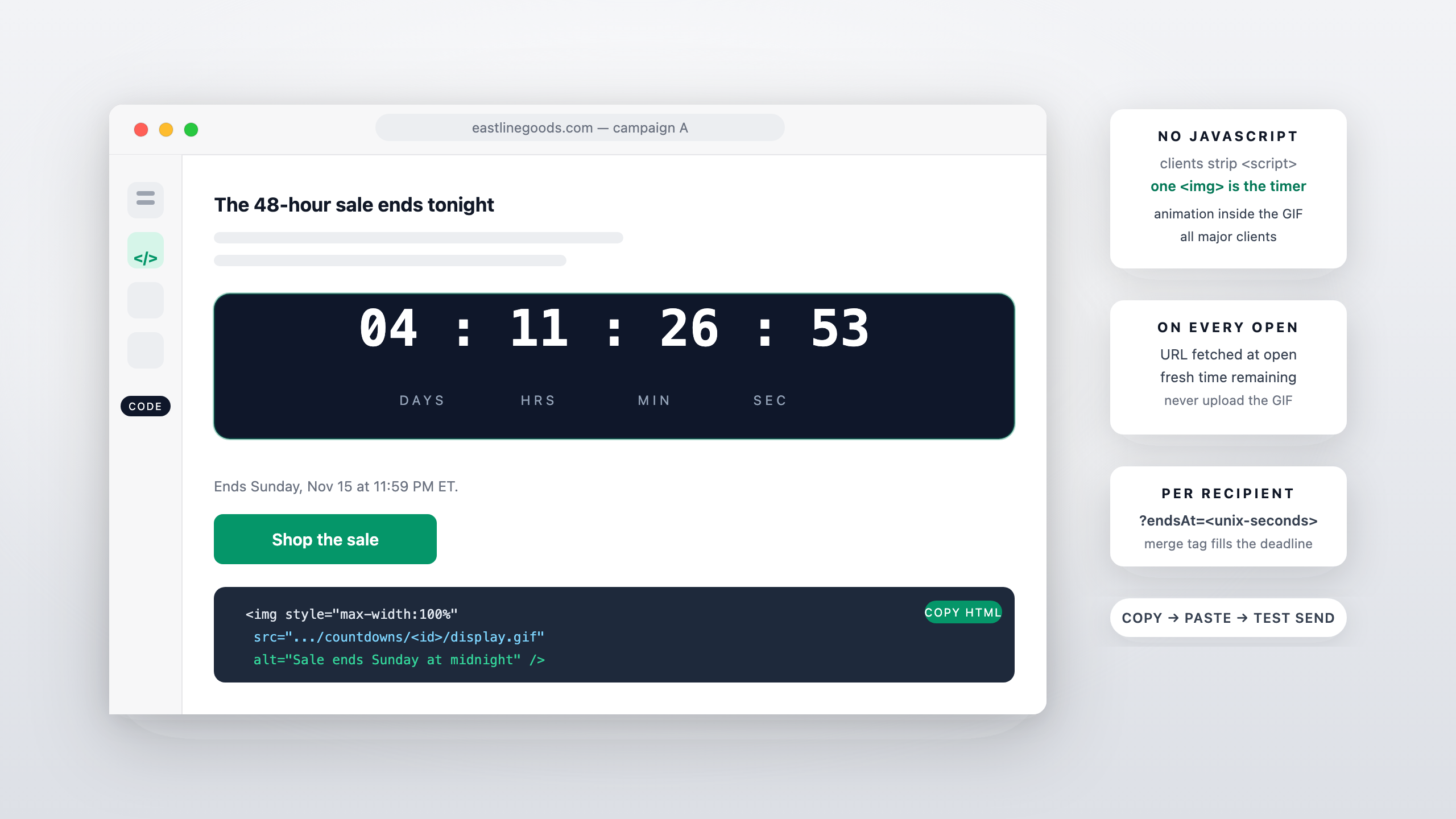
Short answer: an HTML countdown timer for email needs exactly one piece of HTML — an <img> tag whose src points at a timer URL that serves an animated GIF. There's no JavaScript to write, because email clients strip <script> from every message, and nothing about the countdown requires it: the animation lives inside the image file, and the timer service regenerates that image with the correct time remaining on every open. Copy the snippet, paste it into your ESP's code or HTML block, position it near your call to action, and send a test.
This guide annotates the snippet line by line, then covers where to paste the two code formats the builder gives you, the per-recipient variant of the snippet, and what the format genuinely can't do. If you want the mechanics behind the snippet — frames, caching, prefetching — the email countdown GIF explainer covers those separately.
What "HTML" Means When the HTML Is Email
On a website, "HTML countdown timer" can mean a script: a setInterval loop, digits recomputed every second. In email, that meaning evaporates. Every client — Gmail, Outlook, Apple Mail, Yahoo — removes <script> tags before rendering, and the Can I Email support index doesn't list script execution as a feature at all. It does list the <img> element, supported essentially everywhere going back decades.
That asymmetry is the whole design constraint. The one element a timer can rely on is the image, so the timer becomes an image — an animated GIF whose animation is baked into the file, counting down toward whatever deadline the src URL carries. The service does the work a script would do, just at request time instead of view time: when a subscriber opens the email, the client fetches the URL, the server renders fresh frames for that moment, and the image plays.
Which means a "HTML countdown timer for email" is honest about being two things:
- HTML — the few lines you paste into your email code block.
- A URL — the live part, doing everything the HTML can't.
The email countdown timer page walks the full create-and-embed flow; the rest of this guide is about the paste side of it.
The Snippet, Line by Line
Here is the complete embed code, straight from the builder's Copy HTML button — it is the entire "HTML countdown timer":
<div style="text-align: center">
  <img
    style="display: inline-block; padding-bottom: 5px; padding-top: 5px; max-width: 100%"
    src="https://app.countdownbuilder.com/countdowns/<timer-id>/display.gif"
    alt="Sale ends Sunday at midnight"
  />
</div>
Four parts, each with a reason:
- The
<div>wrapper centers the timer with a single inline style. Some ESPs center content at the block level; when one doesn't, the wrapper does it in a way every client honors. - The
<img>is the timer.display: inline-blockkeeps it flowing with the surrounding content; thepaddingkeeps it off the buttons it usually sits above;max-width: 100%is the mobile line — on a narrow screen the timer shrinks with its container instead of overflowing the layout. - The
srcis the deadline.app.countdownbuilder.com/countdowns/<timer-id>/display.gif— swap in your own timer ID — requests an image that is regenerated at fetch time. The URL is what makes it a countdown rather than a picture of one. - The
alttext carries the deadline in words. Some share of every list blocks images; for those readers the alt text is the timer: "Sale ends Sunday at midnight."
Notice what isn't in the snippet: a <script>, a <style>, a media query, any dependence on the client's rendering engine. That absence is the compatibility. The same four lines paste into any platform that accepts a custom HTML or code block — the platform-specific guides call the block something different in each editor (Code block, custom HTML, code your own), but the snippet itself never changes.
Where to Paste It: Code Block vs Image Block
The builder offers two copy buttons, and they map to two different editor blocks:
- Copy HTML → paste into a code block or custom HTML block. Use this when you want the snippet as-is, and when you plan to wrap the
<img>in a link to the offer page — the timer is an ordinary image, so an<a>around it makes it clickable. - Copy Image URL → paste the bare URL into an image block's URL field. Use this when your ESP's image block is the easier surface and you don't need the wrapper. Visually the result is the same GIF; the block owns the sizing.
One rule holds for both: the email must contain the URL, not a copy of the GIF. Downloading the image and uploading it to the ESP's media library freezes it at the moment of download — every subscriber sees the time remaining when you exported, forever. The embed's whole job is to keep the URL live.
How to Make It Count Down per Recipient
The snippet above counts one deadline down for the whole list — right for a sale end, an enrollment close, a launch moment. Automated sequences need the deadline to differ per subscriber: a trial that ends 14 days after signup, a coupon window that starts when each person enters. Same HTML; one parameter added to the src:
<img
  src="https://app.countdownbuilder.com/countdowns/<timer-id>/display.gif?endsAt=<unix-seconds>"
  alt="Your offer ends soon"
/>
At send time, an ESP merge tag fills <unix-seconds> with each recipient's real deadline. The service still renders frames at open time — the parameter only tells it which moment to count to, and it falls back to the timer's default date when the field is empty. The dynamic timer page covers the setup, and the merge-tag syntax varies by ESP, so it's worth a test send with two fake contact records before building the sequence around it.
What the Snippet Can't Do
The format earns a fair description of its limits, and the limits are general — every email countdown timer, from every service, shares them:
- No live ticking mid-view. The countdown is accurate per open, not per second of a viewing session. It won't recount while the reader watches. Nothing in email does; that's the client-imposed ceiling, not a product gap.
- No start-on-open behavior from the HTML. Because there's no script in the message to detect the open, a "timer starts when each subscriber opens" design can't be built by the snippet. If a service offers something like it at all, the service is doing the open-tracking work — the HTML is the same
<img>either way. - One deadline per snippet. The
srccarries exactly one end moment. A sale-end timer and a shipping cutoff in the same email are two snippets counting two clocks — each tells the reader the other is decoration. One email, one deadline. - The timer counts to the timezone configured with it, not each reader's local midnight. Set the timer's timezone to match the copy ("ends Sunday 11:59 PM ET") so the words and the clock agree — the localization settings explain the options.
- No pixels below the deadline. Configure what the timer shows at zero — zeros, a custom message, or an image — in the expiry settings, so a late opener sees an honest end instead of a paused clock pointing at a dead offer.
None of these are fixable by editing the HTML. They're the edges of what an image in an email can be, and any snippet that promises otherwise is promising script execution email clients won't allow.
FAQ
Does an HTML countdown timer need JavaScript?
No. Email clients strip scripts, so a correct timer doesn't contain any. The animation is pre-rendered into the GIF; the countdown accuracy comes from the service regenerating the image each time the URL is fetched. The same snippet works in every client that displays images.
Can I write my own HTML countdown timer from scratch?
Not the accuracy part. You can hand-write an <img>, but the URL has to point at something that renders fresh frames per request — that's the service's half. A self-made static GIF shows the time remaining when you made it, to every reader, permanently.
Why does my timer appear as literal code in some emails?
The snippet was pasted into a rich-text or content block, which prints the characters instead of rendering them. Paste it into the platform's code, HTML, or custom-code block instead. The troubleshooting guide walks that error and the other common failure modes.
Can the timer be clickable?
Yes — wrap the <img> in an <a href> when you use Copy HTML in a code block. The image setting in some editors turns the whole block into a link as well; just keep the destination the real offer page, which should also agree on the deadline.
What happens when the timer reaches zero?
Whatever you configured: fixed zeros, a custom message, or a replacement image, optionally with the CTA landing on an expiry URL. Set it before the first send — late openers are guaranteed, and an expired state is the difference between an honest ending and a broken clock.
Final Thoughts
The search term promises more than email can deliver, and the snippet is the honest version: a few lines of HTML that do almost nothing, delegating everything real to a URL that regenerates on request. Keep the deadline stated in text as well as pixels, keep the expiry state configured, and the same one-deadline embed can carry the offer from inbox to landing page.
You can create a free email countdown timer — no credit card, no watermark — and have the snippet ready to paste into your next campaign in a few minutes.
Related Guides
- How Do Email Countdown Timers Work? The Animated GIF, Explained
- Email Countdown Timer Not Working? 7 Causes and Fixes
- Email Personalization Beyond First Name: Dynamic Countdown Timers
- Countdown Timer Expiry Settings
- How Email Countdown Timers Work (Step-by-Step)
Last updated: November 2026. Product features reflect Countdown Builder at the time of updating and can change — see the pricing page for current plans.
Written by Mehedi Hasan
Writer & Developer. He writes about email marketing, countdown timers, and campaign design.
Connect on LinkedIn