
Email Personalization Beyond the First Name
 By Mehedi Hasan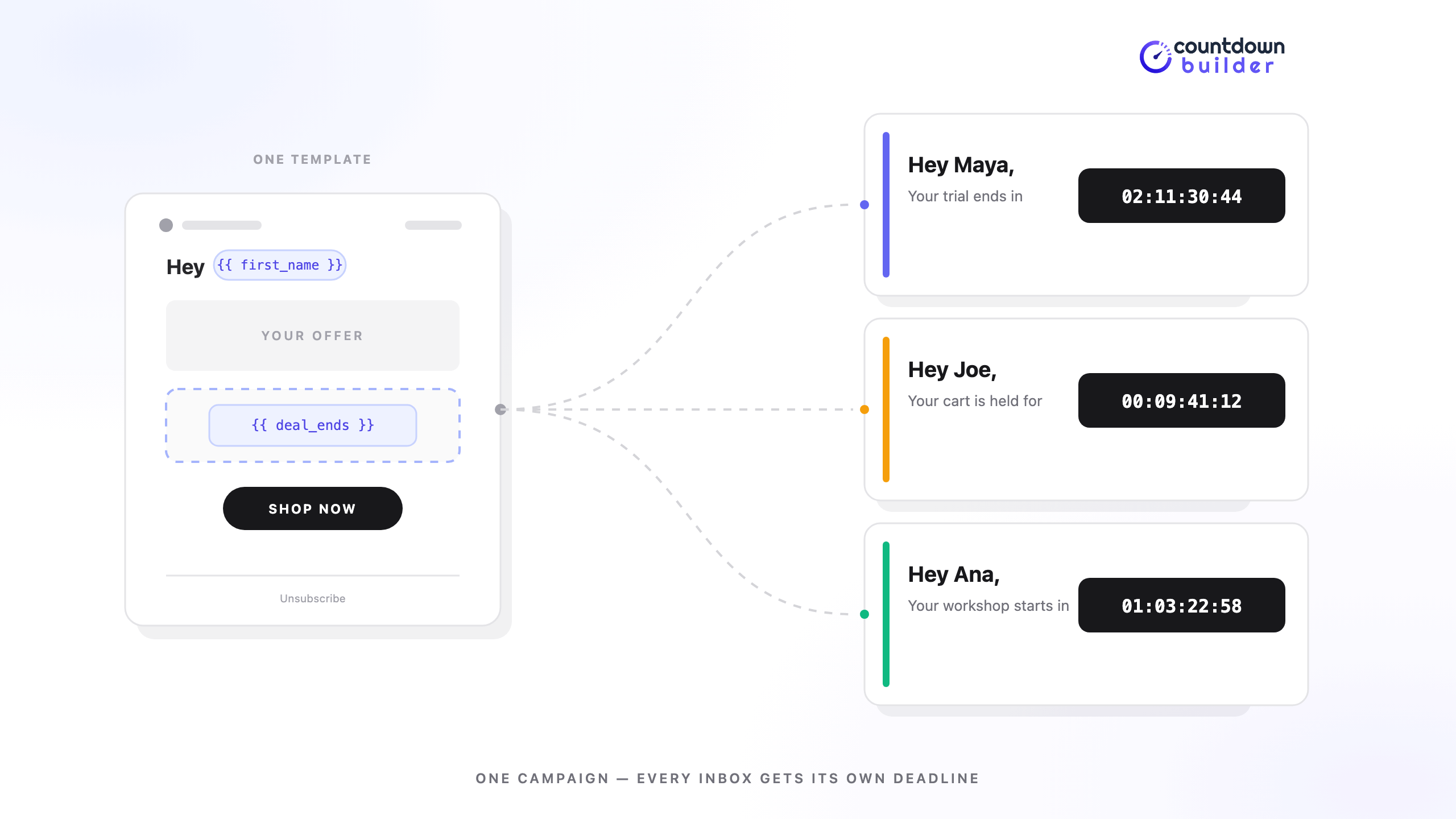
"Hey {FirstName}" was personal once. Today every inbox has seen it, every tool supports it, and most readers skim straight past it. The greeting is no longer personalization — it's table stakes.
Real personalization changes what the email does: what it shows, when it arrives, or — the version almost nobody uses — what it counts down to. This guide covers what email personalization actually means, a ladder of tactics from basic to advanced, and how a dynamic countdown timer turns the deadline itself into something unique to each subscriber. The last part uses Countdown Builder, the timer service this blog is published by.
What Email Personalization Actually Means
Email personalization is using what you know about a subscriber to change the email itself — the greeting, the content, the offer, the send time, or the deadline. If two subscribers can open the same campaign and see the same thing, the email isn't personalized. It may still be good; it just isn't personal.
It's worth separating two things that often get merged:
- Segmentation splits your list into groups and sends each group a different email. Three segments, three campaigns.
- Personalization keeps one campaign and adapts it per person — one send, many versions, decided by data rather than by you building each one.
Segments are easier to start with. Personalization scales further. Most mature programs use both.
Why the First Name Stopped Feeling Personal
A first-name swap fails a simple test: does the personalization change what the reader can do with the email? Knowing your name doesn't make an offer more relevant, more urgent, or better timed. It changes one word.
It can even backfire. A missing data field renders "Hey ,". A stale one greets you by the name you signed up with a decade ago. When personalization is thinner than the reader expects, it reads as automated — the opposite of the intent.
None of this means drop the name. It means the name is the floor, not the ceiling.
The Personalization Ladder
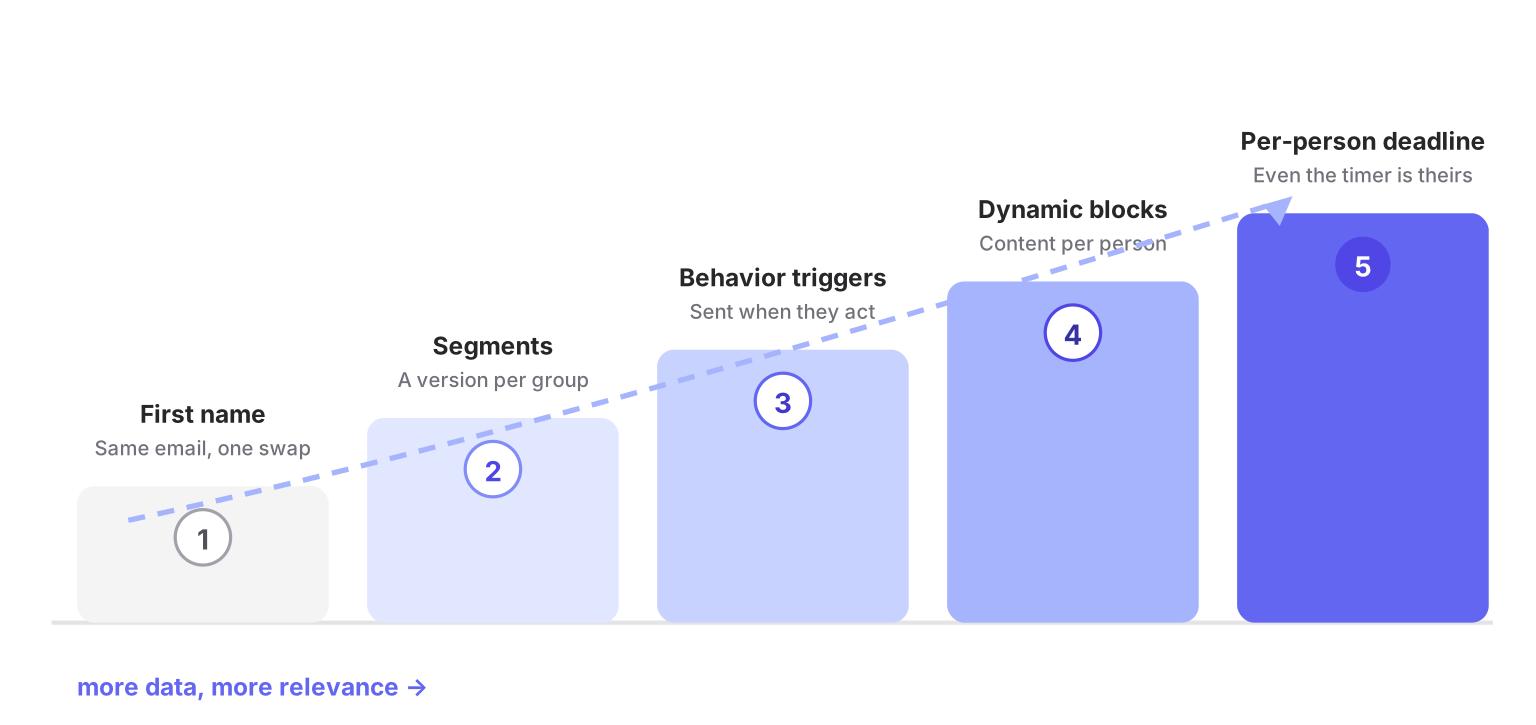
Each rung needs a little more data than the one below it, and each changes the email a little more deeply. Climb them in order.
1. First name
The merge-tag greeting. Keep it, set a clean fallback for contacts without a name, and don't expect it to carry results on its own.
2. Segment-level content
Different hero, offer, or imagery per audience. Pet owners see the dog version; lapsed subscribers see the win-back offer. You're still building a handful of emails, but each one fits its audience.
3. Behavioral triggers
The email sends because of something the subscriber did: signed up, abandoned a cart, browsed a category, hit a milestone. The personalization isn't inside the email — it's the timing. A cart reminder three hours after abandonment beats a batch campaign every time, with the same content.
4. Dynamic content blocks
One campaign, blocks that swap per recipient: product recommendations from purchase history, location-aware store hours, content matched to stated interests. This is where personalization starts to scale — you maintain pieces, and the email assembles itself.
5. Per-recipient deadlines
The timer itself is personal. Every subscriber counts down to their moment — the end of their trial, the expiry of their cart hold, their renewal date. It's the rarest rung because teams assume it's hard, which is a shame, because the data usually already exists.
The Rung Most Teams Skip: Time
Almost every personalization tactic changes what the email shows. Almost none change when it expires. Yet the deadlines in most lifecycle emails are already per-person:
- A free trial started on Tuesday ends for that subscriber on a different date than everyone else's
- A held cart expires per cart, not per campaign
- A renewal, an appointment, a class or webinar start time — all stored per contact, all different
Send those emails with a fixed countdown to one shared date, and the timer is quietly wrong for most of the list. Personalize the deadline, and the timer is exactly right for everyone — which matters, because a deadline is only persuasive when it's believable. (The psychology behind why visible deadlines move decisions is covered in The Psychology of Scarcity.)
How a Dynamic Countdown Timer Works
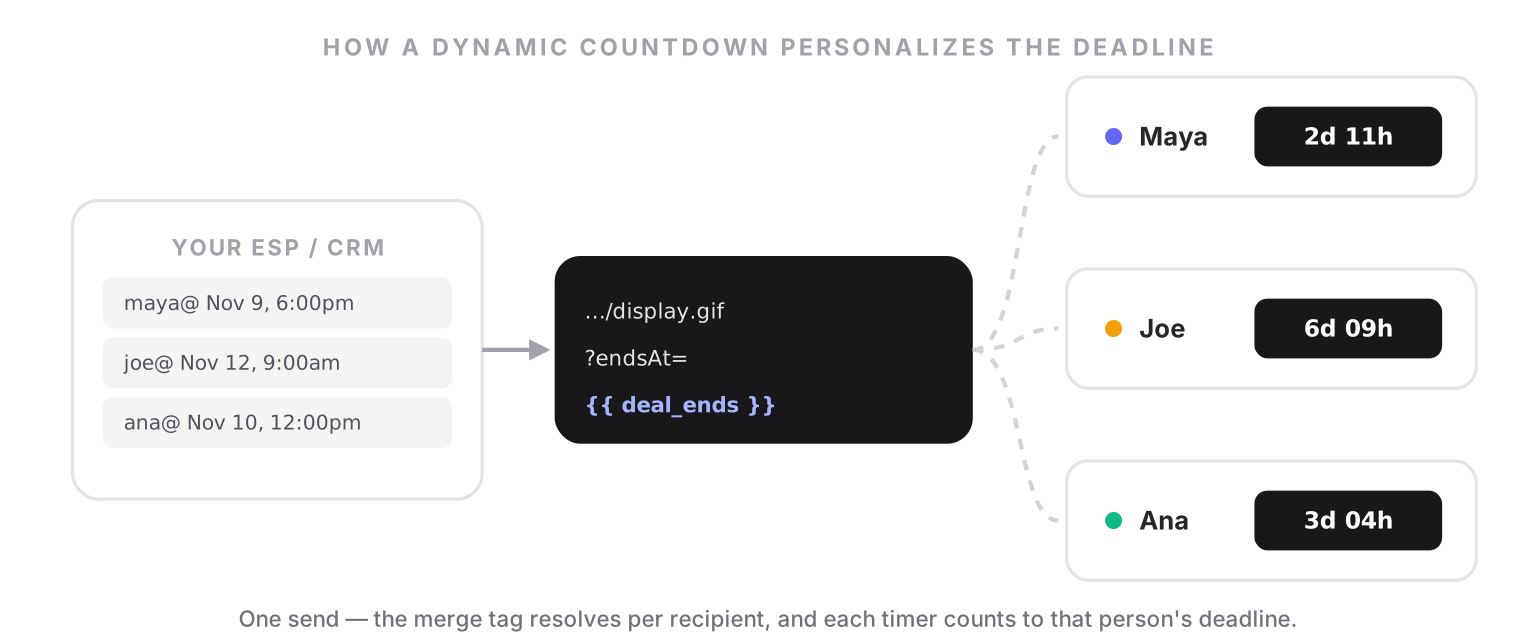
Countdown Builder ships three timer types, and the difference is the deadline:
- Standard — one fixed date for the whole list. Right for public sales.
- Evergreen — a duration that starts when each recipient opens. Right for "48 hours from now" offers, no data needed. (How it works)
- Dynamic — an exact, unique deadline per recipient, computed in your ESP or CRM and passed into the timer as a timestamp. Right for trials, holds, renewals, appointments.
Setting up a dynamic timer takes four steps:
- Create the timer and choose the Dynamic type, then set a fallback end time — what contacts see if their record has no deadline field.
- Design the timer as you would any other.
- Copy the embed snippet and swap the timestamp placeholder for your ESP's merge tag, so the timer URL carries
endsAt={{ your_deadline_field }}. - Paste the snippet into your email. At send time, the merge tag resolves per recipient, and each timer counts down to that person's exact moment.
No cookie, no dependency on when the email is opened — the deadline is fixed at send, which keeps it honest. The full walkthrough is on the dynamic countdown timer page.
Seven Ideas You Can Ship This Week
- Subject line with their deadline. "Maya, your trial ends Friday" — the merge tag that feeds the timer also feeds the subject line. Suddenly the subject is personal and urgent.
- Trial and onboarding emails that count to the exact trial end, computed from the signup timestamp.
- Abandoned cart reminders with the cart-hold expiry as the countdown, so the timer states the real policy.
- Renewal notices counting to each customer's actual renewal moment, not a generic "soon."
- Appointment and event reminders where every attendee's timer counts to their own slot — critical for multi-session events.
- Welcome series offers that expire a set window after signup. The deadline is computed at send from the subscribe date, so every cohort sees an honest timer — the same shape as an evergreen course launch enrollment window.
- Cohort-based webinars or classes where each recipient's countdown reflects their enrolled session, not the first one on the schedule.
None of these need data you don't already collect. The signup date, cart timestamp, and renewal date are sitting in your ESP right now.
Personalize Without Getting Creepy
The line between helpful and unsettling is usually the source of the data, not the amount:
- Prefer data the subscriber gave you — signing up, buying, booking. Personalizing on someone's own actions reads as service.
- Be careful with inferred data. Targeting by life stage or health signals can feel like surveillance even when it's accurate.
- Let people set preferences. A simple preference center is zero-party data: they tell you what they want, you personalize on it, nobody is surprised.
- When unsure, personalize on behavior, not on identity.
How to Tell It's Working
Compare, don't assume. Send the same campaign with a static shared deadline to one cohort and a per-recipient deadline to another, and watch three numbers: clicks on the timer, click-through to the offer, and conversions per cohort. Personalized deadlines should also reduce support replies asking "when exactly does this end?" — a small but real signal that the email finally answers the question.
FAQ
What is email personalization?
Using what you know about a subscriber to change the email itself — the greeting, content, offer, send time, or deadline. If every subscriber sees the same email, it isn't personalized, whatever the subject line says.
What's the difference between segmentation and personalization?
Segmentation sends different emails to different groups; you build each version. Personalization adapts one campaign per recipient automatically, using data such as name, purchase history, or deadline. Segments are simpler to start; personalization scales to one-to-one.
How do you personalize an email beyond the first name?
Layer in segment-specific content, behavior-triggered sends, dynamic content blocks that swap per recipient, and per-recipient timing — including countdown timers that count to each subscriber's own deadline.
Can a countdown timer be personalized?
Yes. A dynamic countdown timer takes a per-recipient timestamp via a merge tag, so each subscriber's timer counts down to their own deadline — a trial end, cart-hold expiry, renewal, or appointment. A fallback date covers contacts with no deadline stored.
What data do I need for a dynamic countdown timer?
One timestamp per contact — trial start, signup date, renewal date, appointment time — plus an ESP that can output it as a merge tag. That's it. Everything else about the timer is shared.
Final Thoughts
The first name is where personalization starts, not where it ends. The ladder climbs from one swapped word to emails whose content, timing, and even countdown are built per person — and the highest rung, the personalized deadline, is usually sitting unused in a field your ESP already has.
If you want to try that rung, you can create a dynamic timer free — the free plan needs no credit card and adds no watermark.
Related Guides
- How to Increase Email Urgency with Countdown Timers and End-Time Messages
- The Psychology of Scarcity: Why Countdown Timers Actually Increase Sales
- How to Boost Flash Sale Conversions with an Email Countdown Timer
- Countdown Timers for Holiday Campaigns: A Practical Guide
- Product Promotion Email Template with Countdown Timer
Last updated: October 2026. Countdown Builder features described above reflect the product at the time of publication and can change — see the pricing page for current plans. The dynamic timer walkthrough reflects the flow on the dynamic timer page as of this date.
Written by Mehedi Hasan
Writer & Developer. He writes about email marketing, countdown timers, and campaign design.
Connect on LinkedIn