
Course Launch Emails with a Countdown Timer: Cart-Open to Cart-Close
 By Mehedi Hasan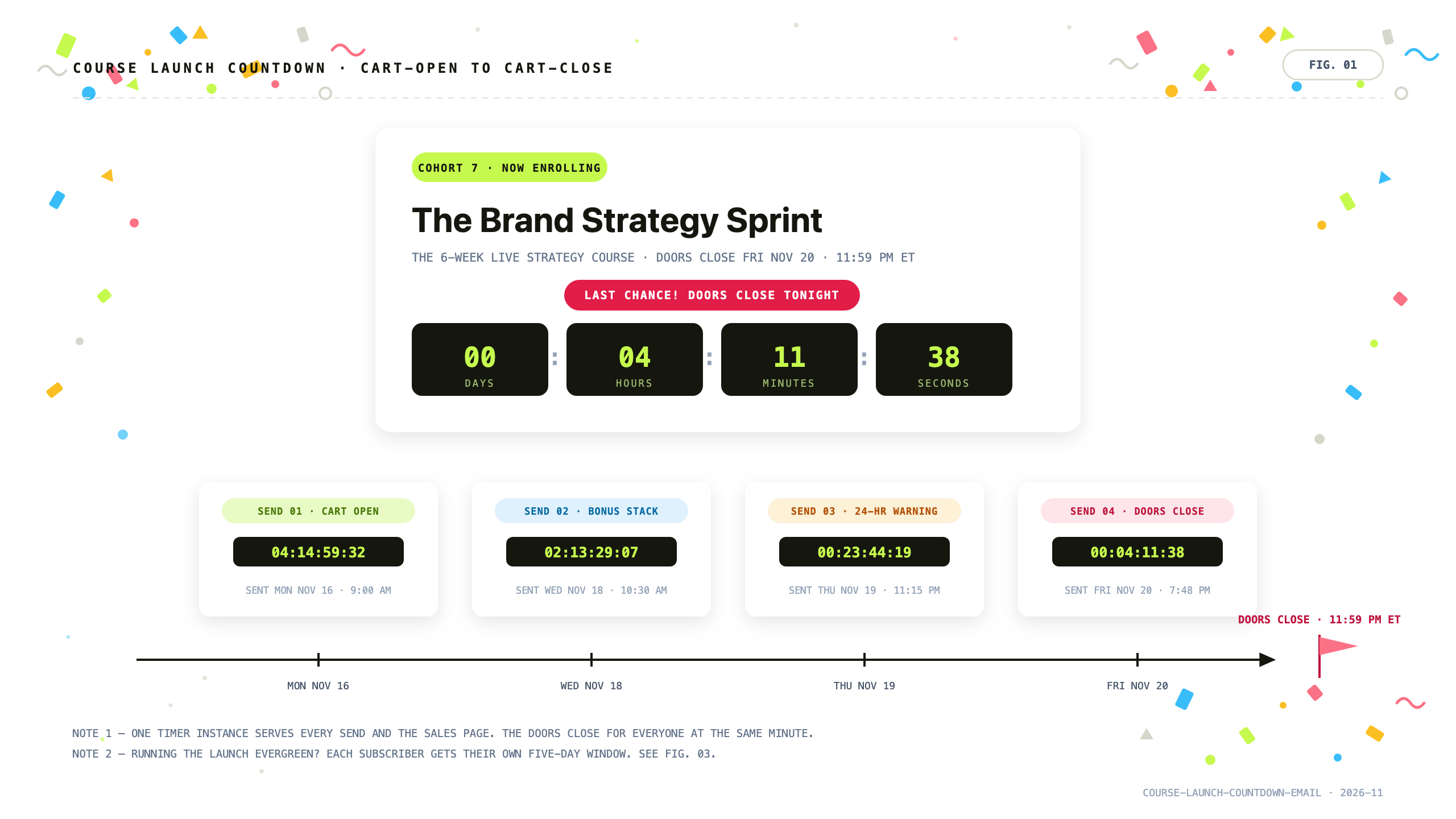
A course launch runs on a deadline that isn't metaphoric. The cart opens Monday morning and closes Friday night, and after that the doors genuinely shut — no extensions, no "one last spot." A course launch countdown timer in the emails is just that schedule, rendered live in every send between the two.
That's also what makes launch timers credible. Creators sometimes worry a countdown reads as pressure tactics, but a closing enrollment date isn't manufactured scarcity — it's how cohorts work. The timer's job is narrower than persuading: it keeps the one non-negotiable fact of the launch in front of the subscriber, in every email, until it stops being true.
This guide covers the full pattern: the cart-open to cart-close sequence, one timer reused across every send and the sales page, the setup steps, the evergreen version that gives each subscriber their own enrollment window, and what the timer should become the moment the doors close.
Why Countdown Timers Fit Course Launches
- The close is fixed and public. Cohort deadlines are announced in advance and enforced by the checkout itself. When the timer hits zero Friday at 11:59 PM, enrollment actually ends — so the timer never has to apologize for itself.
- Enrollment is a procrastination decision. "I'll think about it this weekend" kills course sales more reliably than pricing objections — except the close is Friday night, and there is no weekend. A live timer shows the window shrinking while the deliberating happens.
- One deadline carries the whole launch. Cart-open, bonus reminders, final warnings — every send points at the same moment. One timer instance, reused everywhere, keeps all of that messaging physically attached to the same clock.
The Launch Sequence: Cart-Open to Cart-Close
A five-day window — say Monday 9:00 AM to Friday 11:59 PM ET — is the classic shape. Four sends carry it, with room for extras (a mid-week case study, a resend to non-openers) that reuse the same timer and the same deadline.
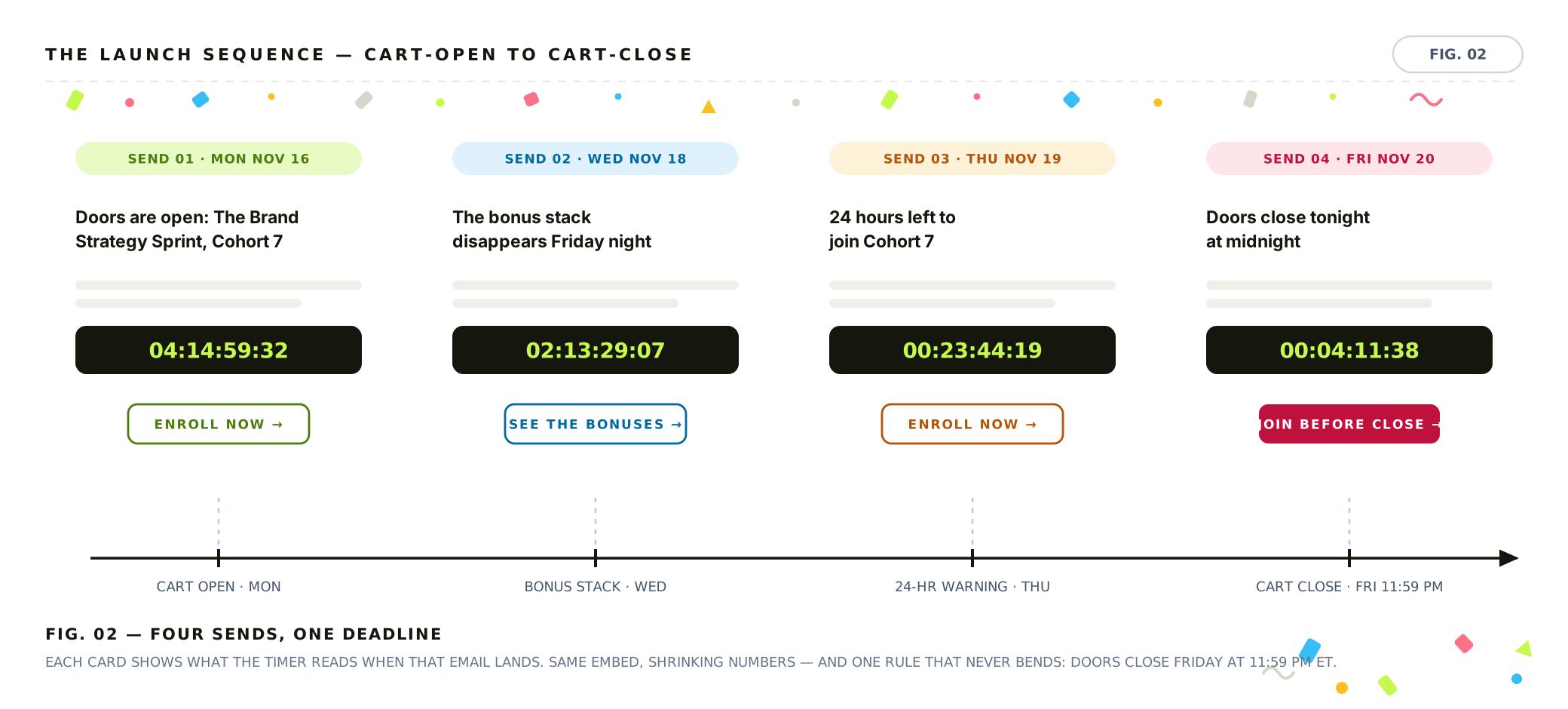
Four sends, one deadline. Each card shows what the timer reads when that email lands.
1. Cart open (Monday morning)
The announcement email opens the window, and the timer enters at its widest readout — four-plus days, counting in days and hours. This send does the explaining: what the course covers, who it's for, what cohort you're joining, and the close date in plain text as well as in the timer.
Set the visual language here and every later email inherits it. The timer sits directly above the enroll button, so the deadline and the action it gates occupy the same glance.
2. The bonus-stack send (Wednesday)
Mid-window, the persuasive job shifts from "what's in the course" to "what disappears." If enrollment bonuses expire with the window — the template pack, the live critique session, the cohort-only Q&A — this is the email that itemizes them, with the timer showing roughly two days left.
One rule keeps this send honest: the bonus deadline and the cart deadline must be the same moment. Two different countdowns in one launch ("bonuses end Thursday, cart closes Friday") split attention and teach readers that at least one of your timers is negotiable. If a bonus really does end early, it needs its own timer and its own email — never both dates in one send.
3. The 24-hour warning (Thursday night)
Sent when the timer crosses into its final day. The subject line can quote the readout — "24 hours left to join Cohort 7" — and the copy restates the cutoff rule plainly: doors close Friday at 11:59 PM ET, and closing means closing.
This is also the natural place for the timer's built-in escalation. Countdown Builder supports urgency messages: short, time-triggered lines attached to the timer, each with its own threshold and color. For a launch, two or three cover it — "The bonus stack disappears tomorrow" a day out, "Doors close tonight" inside the final hours. The timer shows whichever threshold is closest to zero, so an email opened Thursday night never claims there's a day left.
4. Doors close (Friday evening)
The last send goes out when the timer reads single-digit hours. This email is short by design — a restatement of what closes, the timer reading its final hours, and the enroll button. No new arguments; at T-4 hours, persuasion is a rounding error and the deadline is the message.
One Timer, Every Send and the Sales Page
You build the timer once and reuse it everywhere. The embed is an image URL (or a small HTML snippet wrapping it) — the same one goes into the cart-open email, the bonus send, the warnings, and the sales page. Every touchpoint fetches the same image and renders the same live deadline; when a subscriber opens Monday's announcement on Thursday, the readout says Thursday.
If each email embedded its own separately configured timer, a launch would eventually ship two emails disagreeing about when the doors close — and a deadline that contradicts itself doesn't survive contact with a skeptical reader. One instance can't disagree with itself. When you're ready to build an email countdown timer, the workflow is: design it once, copy the embed, paste it everywhere the launch lives.
The sales page matters most, because that's where the decision actually happens. When the email says four hours and the page says four hours — same embed, same digits, same shrinking — the deadline reads as infrastructure rather than decoration. The website countdown timer uses the same timer object as the email embed, so the page and the sends share one deadline by construction; the website setup guide covers the embed options for common page builders.
Building the Launch Timer
The setup in Countdown Builder, start to finish:
- Set the deadline to the closing minute. Doors close Friday at 11:59 PM ET — so the timer ends at 11:59 PM in the deadline's timezone, not yours. A launch timer an hour off is worse than no timer, and timezone slips are the most common misconfiguration we see. Then verify the readout against a calendar before anything is sent.
- Pick a template that reads at email width. The timer lives inside emails opened mostly on phones, so the digits must stay legible small. Any of the 45+ templates works; box-style designs survive shrinking best. For a premium course, restrained beats urgent — a calm template sells a $1,500 cohort better than a clearance-styled one.
- Make the timer clickable. Enable the clickable countdown image and point it at the sales page. In the final-hours sends the timer is the biggest element on the screen; letting it carry the click is the difference between a display and a CTA.
- Set the expiry state and redirect before the cart opens. The launch-specific step — covered next, because at 11:59 PM Friday this timer has a second job.
- Copy the embed and paste it everywhere. Every send, the sales page, and the test email you send yourself to watch it count.
The Evergreen Version: Per-Subscriber Enrollment Windows
Everything above describes a live launch: one public window, everyone on the same clock. The evergreen funnel runs the same sequence automatically — but each subscriber enters at a different time, so a shared deadline describes nobody's situation.
The fix is an evergreen countdown timer: the clock starts at each subscriber's own entry into the campaign, and everyone gets the full window regardless of when they joined.
Say the enrollment window is five days:
- Subscriber A joins the list Monday at 9:00 AM. Their doors close Saturday at 9:00 AM.
- Subscriber B joins Wednesday at 2:40 PM. Their doors close the following Monday at 2:40 PM.
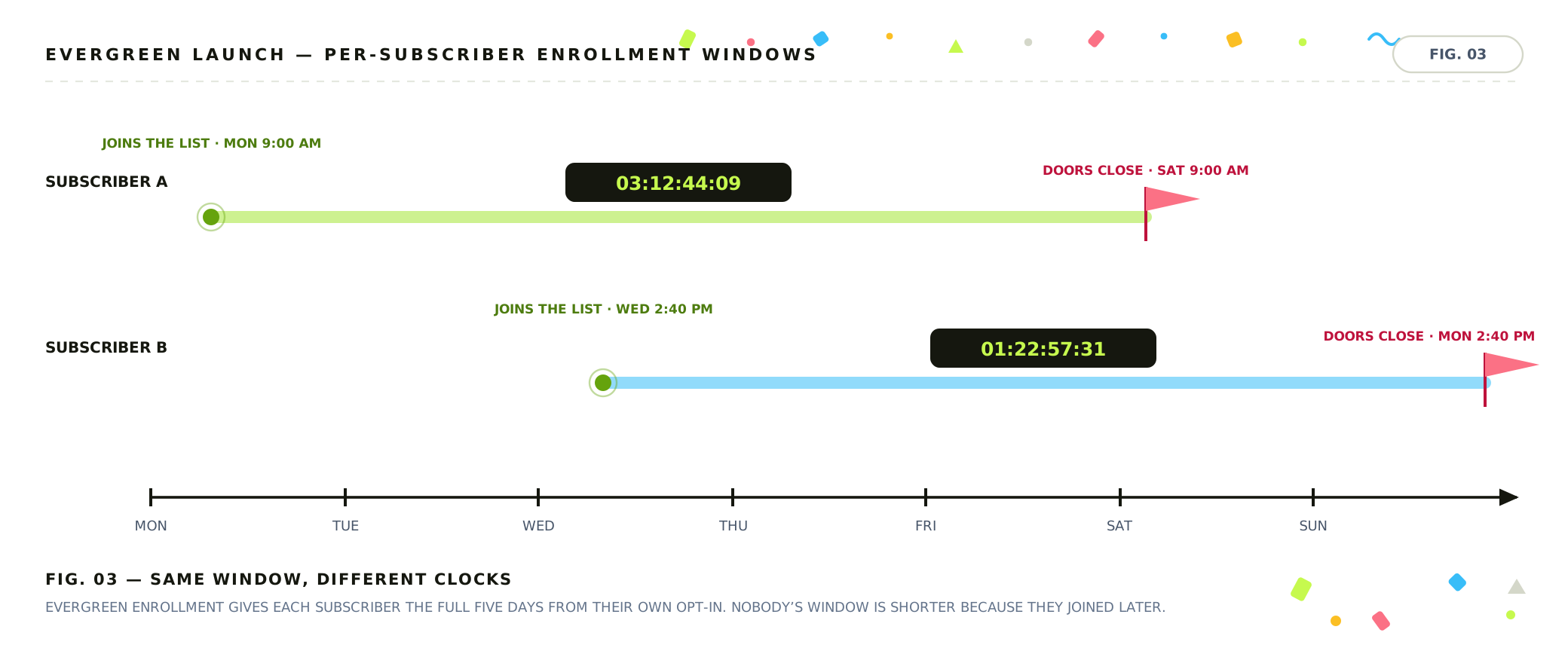
Same five days, different clocks: each window opens at that subscriber's opt-in, not at send time.
The automated sequence behaves like the live one — announcement, bonus send, warning, close — but each send's timer counts to that subscriber's deadline. This is the honest version of an evergreen close. A fixed-date timer inside an automated funnel eventually shows a Tuesday joiner a deadline that ended Sunday: a zero-hour window that teaches them your timers are noise.
One honesty note that's older than any timer tool: if your "evergreen close" secretly reopens for anyone who asks, stop calling it a close. Evergreen windows work because the deadline is enforced by the checkout, same as a live launch.
After the Close: The Expiry State and the Waitlist Loop
At 11:59 PM Friday, the launch has thousands of live emails in inboxes — announcement, bonuses, warnings — and every one of them now holds a timer. What those timers become in the last minutes of the launch is configuration, not accident.
With expiry settings, the spent timer can show a custom text frame instead of frozen zeros: "Enrollment is closed." And because the countdown image is clickable, the expired timer can forward to a page of your choosing — which is where the launch loops.
The highest-value redirect isn't the homepage. It's the waitlist for the next cohort:
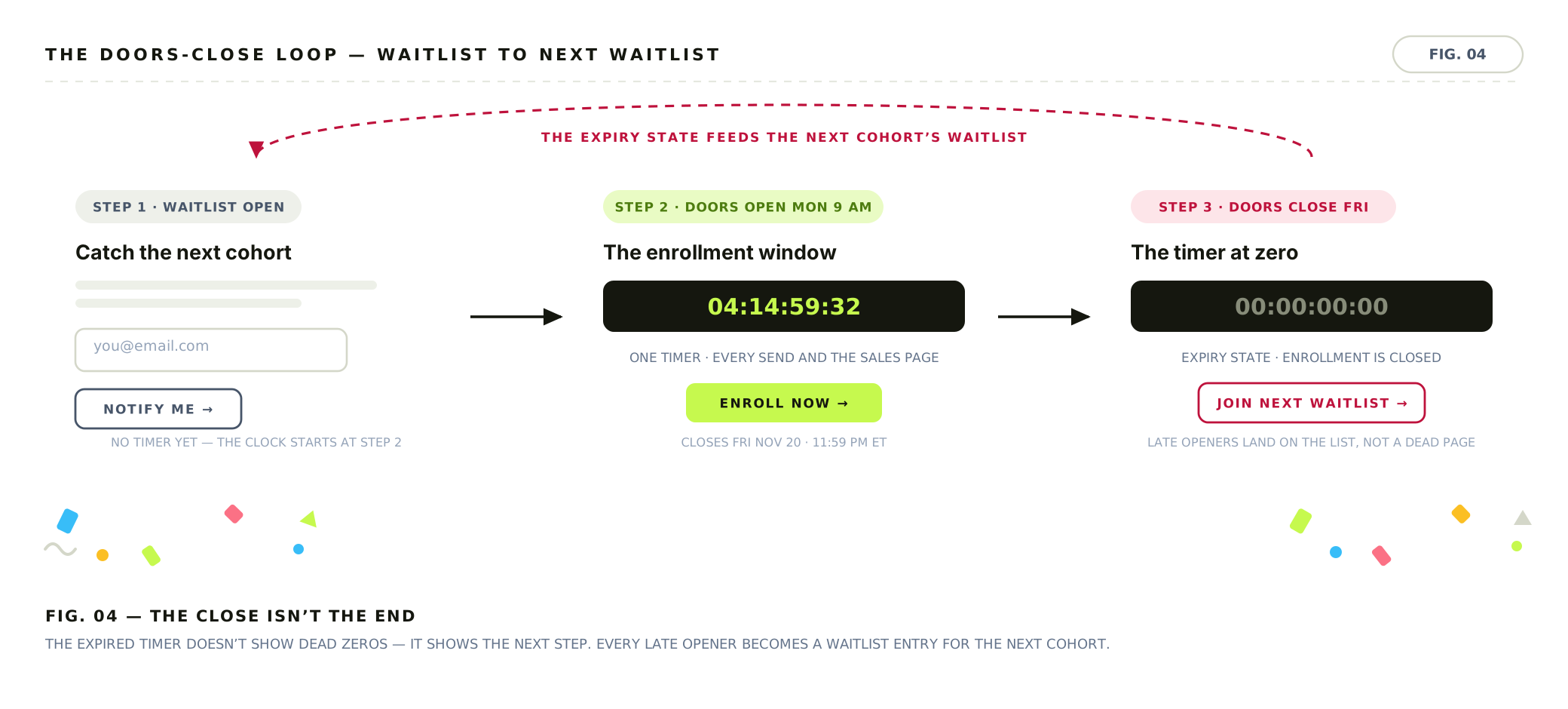
The close isn't the end: the expired timer routes late openers to the next cohort's waitlist instead of a dead page.
Someone who opens Saturday's inbox and clicks a launch email is not a lost sale — they're a demonstrably interested non-buyer. An expired timer showing "Enrollment is closed — join the waitlist for Cohort 8" converts that click into the seed of your next launch, instead of a page that shrugs. Frozen zeros under a "doors close tonight" subject line is the one configuration worse than no timer; the expiry text and redirect take about a minute to set before the cart opens.
Subject Lines for a Course Launch
A starting bank, by send. Bracketed text is the course or cohort name:
Cart open
- Doors are open: Course, Cohort N
- Enrollment for Course is open — closes Friday
Bonus stack
- The bonus stack disappears Friday night
- Two bonuses you lose if you wait
24-hour warning
- 24 hours left to join Course
- Cohort N closes tomorrow night
Doors close
- Doors close tonight at midnight
- Last call: Course closes in a few hours
After the close (waitlist)
- Cohort N is closed — waitlist for Cohort N+1
- You missed the window. The next one's here.
Common Mistakes
- Extending the close. The single most damaging move. A deadline that bends by 48 hours converts this launch's stragglers and teaches the whole list that next time's deadline is decorative. If the window moved, own it in copy — and don't move it twice.
- Checkout cutoff ≠ timer deadline. If the timer ends at 11:59 PM but the checkout stops accepting payments at 11:00, eleven buyers spent their final hour on a door that was already locked. Test the checkout inside the last hour before the launch, not after.
- Two deadlines in one email. Bonus-ends-Thursday plus cart-closes-Friday in a single send splits the launch's one fact into two negotiable ones. One launch, one clock.
- No expiry state. Covered above — after 11:59 PM Friday, every send in the sequence is still being opened. Zeros sell nothing; the waitlist redirect sells the next cohort.
- Clearance styling on a premium course. Red countdowns and flashing urgency templates read as discount retail. A $1,500 cohort sells to a different buying posture than a $29 flash sale — the timer should look like the course's price tag, not a liquidation notice.
Countdown Builder for Course Creators
The free plan covers the full launch — no credit card, no watermark — so you can build the timer, embed it in a test send, and watch the readout in your own inbox before the cart opens. Countdown Builder works with the tools creators already send through: Kit campaigns and sequences (the natural home for launch emails), ActiveCampaign automations for evergreen funnels, Mailchimp, MailerLite, and any platform that accepts an image or HTML block.
When the next cohort's dates are on the calendar, you can set up the countdown timer for email campaigns and have the embed in the cart-open draft before the launch copy is written.
Last updated: October 2026. Example dates in this guide follow the 2026 calendar. Product features and plans reflect Countdown Builder at the time of updating and can change; see the pricing page for current details.
Written by Mehedi Hasan
Writer & Developer. He writes about email marketing, countdown timers, and campaign design.
Connect on LinkedIn