
How to Add Countdown Timers in ActiveCampaign Email Campaigns
 By Mehedi Hasan
ActiveCampaign's email builder includes an HTML block, so a countdown timer generated by a timer service can be added to any campaign.
This guide walks through the process with Countdown Builder, the timer service this blog is published by, and closes with troubleshooting and the metrics worth tracking.
When to Use Countdown Timers in ActiveCampaign
Timers fit campaigns with a real expiration:
- Flash sales and limited-time promotions
- Event registration deadlines
- Product launches
- Cart abandonment with a time-limited incentive
A timer shows the reader the time remaining; it doesn't create urgency on its own. The deadline has to be real.
How to Add a Countdown Timer in ActiveCampaign
The flow in ActiveCampaign:
flowchart LR
    A["Create the timer in Countdown Builder"] --> B["Open Campaigns, then Email Campaigns"]
    B --> C["Drag an HTML block into the layout"]
    C --> D["Edit HTML and paste the code"]
    D --> E["Preview and send"]
Step 1: Create Your Countdown Timer
- Visit Countdown Builder: Open app.countdownbuilder.com and sign in or create an account.
- Open the create page: Click the Create button to start a new timer.
- Set your end date and time:
- Choose when the promotion or offer expires.
- Use the time zone your deadline is communicated in — the same one your landing page uses.
- Ending the timer slightly before the actual cutoff leaves a margin for late clickers.
- Customize the timer design:
- Colors: match your brand palette for consistency.
- Fonts: consistent with your brand typography.
- Size: fits the email layout without crowding the content around it.
- Style: pick from the available timer designs.
- Generate and copy the HTML code: Once you're satisfied with the design, click Copy HTML. Keep this code handy for the next step.
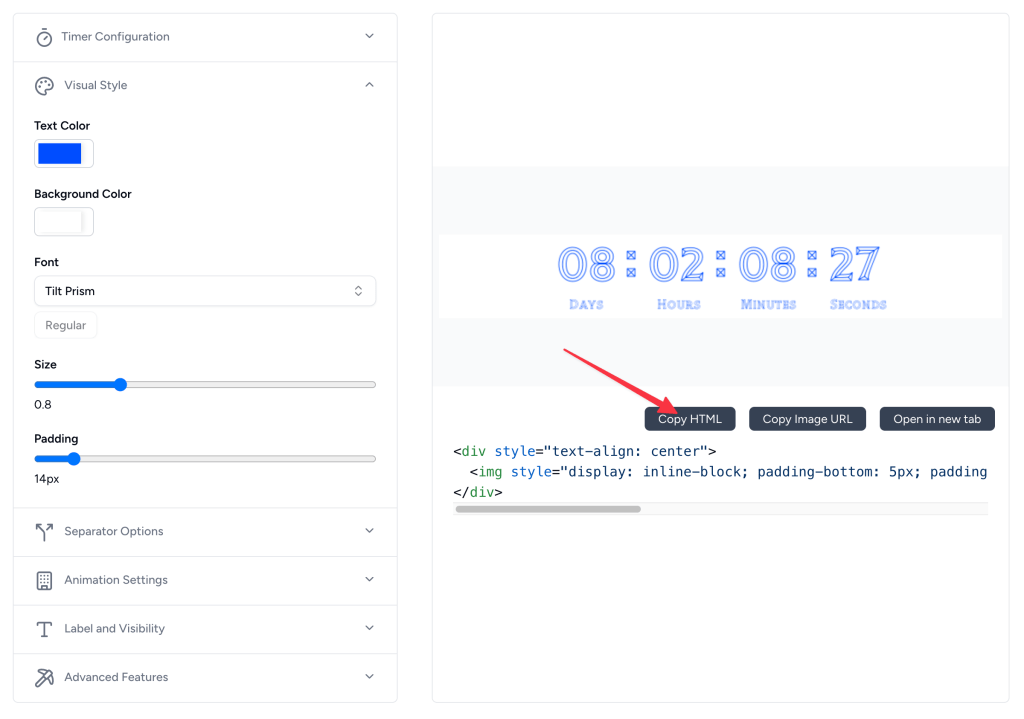
Step 2: Implement the Timer in ActiveCampaign
- Open the ActiveCampaign email builder: Log in to your account and go to Campaigns > Email Campaigns. Create a new campaign or edit an existing one.
- Add an HTML block: In the email builder, drag and drop an HTML block to where the timer should appear in the email.
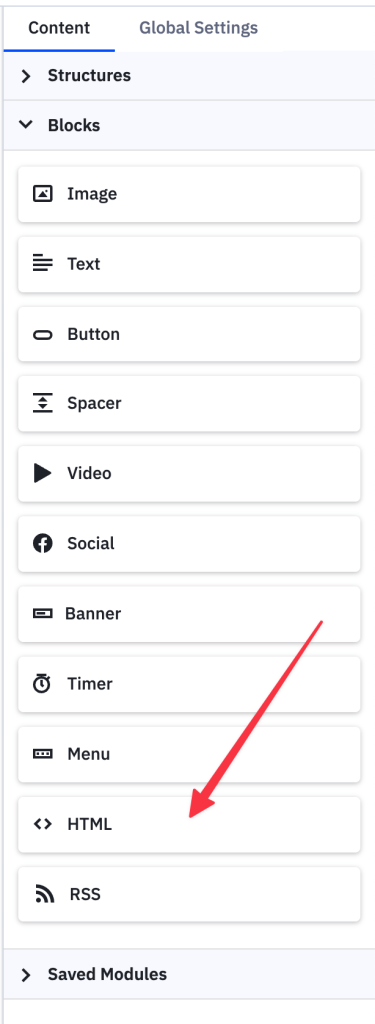
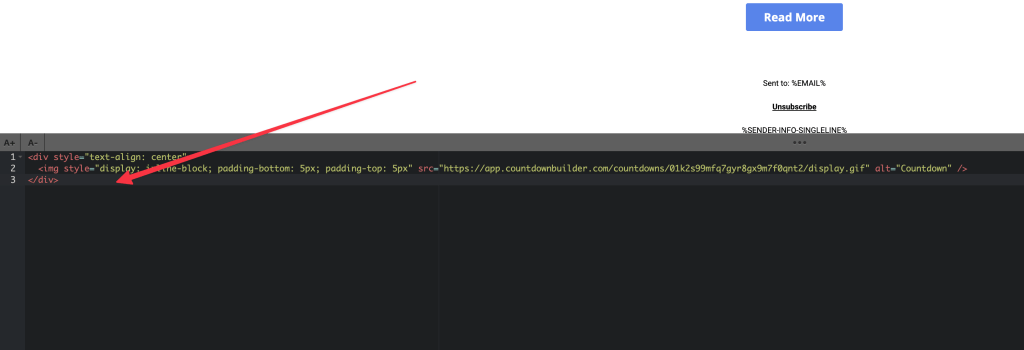
- Insert the countdown timer code:
- Click the HTML block you just added.
- Select Edit HTML, or click the code editor icon.
- Delete any existing placeholder code.
- Paste the HTML you copied from Countdown Builder.
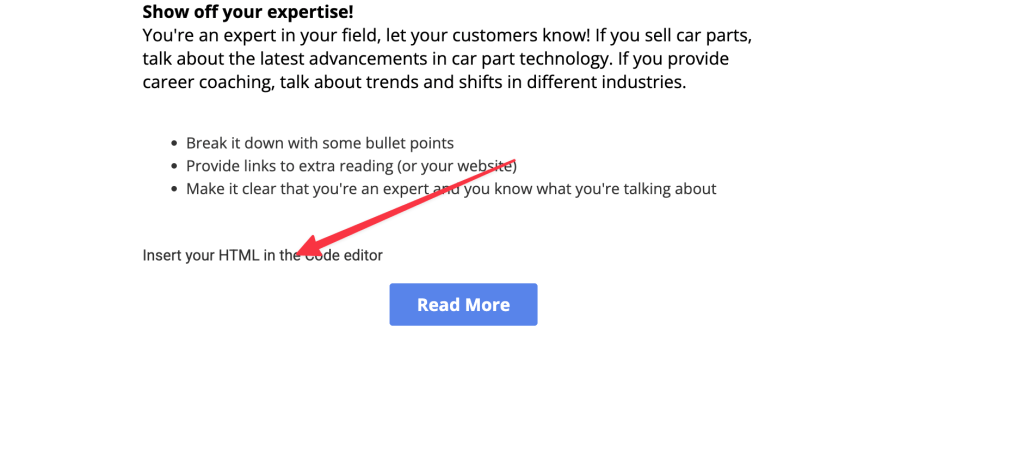
- Save and preview:
- Save your changes.
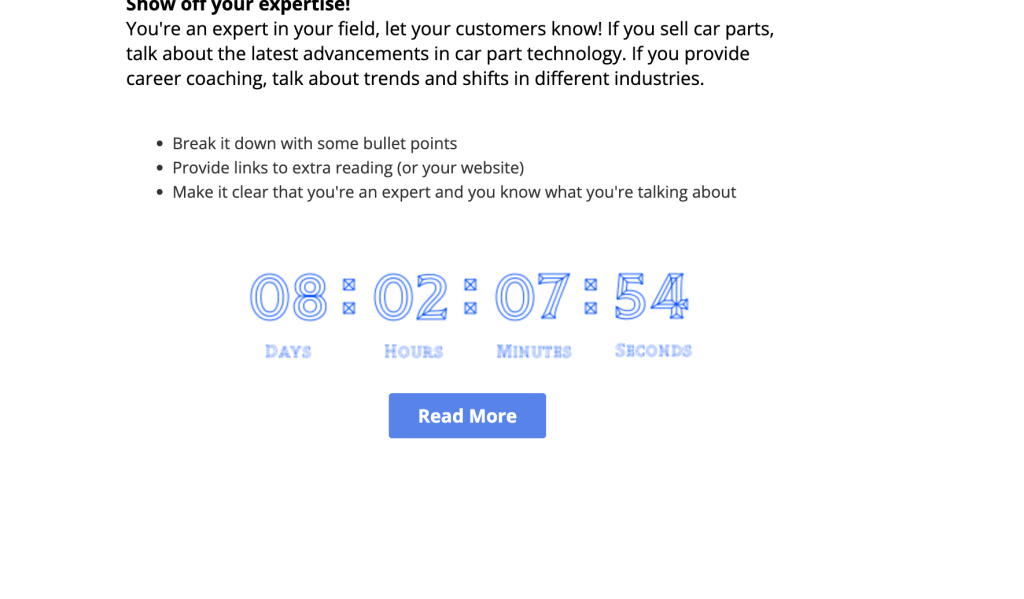
- Use the preview to see how the timer appears in the layout.
- Send a test and open it on the devices and clients your subscribers use.
Best Practices for Countdown Timers in ActiveCampaign
Design Considerations
- Mobile optimization: check the timer at phone width; it should be readable without zooming.
- Brand consistency: colors and fonts matching the campaign.
- Size appropriately: large enough to read, small enough not to dominate the layout.
- Strategic placement: position timers near your call-to-action buttons.
Content Strategy
- Clear messaging: state what happens when the timer expires.
- Plain-text copy: pair the timer with text such as "Only 24 hours left," so image-blocked readers still see the deadline.
- Multiple touchpoints: timers can appear in more than one email of a sequence.
- Honest deadlines: honor your countdown deadlines to maintain trust.
Technical Tips
- Test thoroughly: preview in multiple email clients before sending.
- Fallbacks: decide what readers see if the timer image doesn't load — alt text plus body copy.
- Accessibility: include alt text describing the deadline, for example "Sale ends Friday at 11:59 PM."
- Apple Mail MPP: Apple Mail Privacy Protection pre-fetches and caches remote images, which can freeze the animated timer at its cached frame. Countdown Builder serves a static fallback in that case.
Common Use Cases for Countdown Timers in ActiveCampaign
Flash Sales and Promotions
Create a visible deadline around limited-time discounts and special offers.
Product Launches
Show when a new product releases or when early access ends.
Event Registration
Encourage registration before a webinar, workshop, or conference starts.
Cart Abandonment Recovery
Remind customers about items in their cart with a time-limited incentive.
Seasonal Campaigns
Add time-sensitive messaging to holiday and seasonal campaigns.
Troubleshooting Common Issues
Timer Not Displaying
- Check the pasted HTML for truncation or formatting changes
- Confirm the timer service is reachable
- Check the recipient's image settings — timers are images, and blocked images hide them
Incorrect Time Zones
- Double-check your audience's primary time zones
- Consider separate timers for different regions if the deadline differs
- Test with recipients in various locations
Mobile Display Issues
- Use a responsive timer design
- Test on multiple mobile devices
- Simplify the design if the numbers are too small to read
Segmentation, Testing, and Automation
ActiveCampaign's automation features combine well with timers:
- Segmentation: create different timer campaigns for different audience segments, with end times adjusted by behavior or location.
- Dynamic content: ActiveCampaign's dynamic content blocks can vary the copy around the timer.
- Behavioral triggers: start an automation when a subscriber interacts with the timer email.
- A/B testing: test timer vs. non-timer variants, placements, designs, and urgency copy.
- E-commerce tracking: attribute revenue to your timer campaigns.
Metrics to Track
- Open rates — timer emails vs. comparable emails without one
- Click-through rates — the timer's effect on engagement
- Conversion rates — purchases or other desired actions
- Revenue per email — the overall impact of timer campaigns
- Unsubscribe rates — watch for urgency fatigue across a sequence
Final Thoughts
The mechanical part of adding a countdown timer in ActiveCampaign — create the timer, add the HTML block, paste, preview — takes minutes. What decides whether it works is the deadline: real, honored when it passes, and matched to how long the decision actually takes.
If you'd like to try it, you can create a free timer. The free plan doesn't require a credit card and doesn't add a watermark.
Last updated: September 2026. The ActiveCampaign steps above reflect the campaign builder as of this date; ActiveCampaign's interface changes over time, so the exact labels may differ. Countdown Builder features and pricing reflect the product at the time of updating and can change — check the pricing page for current details.
Written by Mehedi Hasan
Writer & Developer. He writes about email marketing, countdown timers, and campaign design.
Connect on LinkedIn