How Do Email Countdown Timers Work? The Animated GIF, Explained
 By Mehedi Hasan
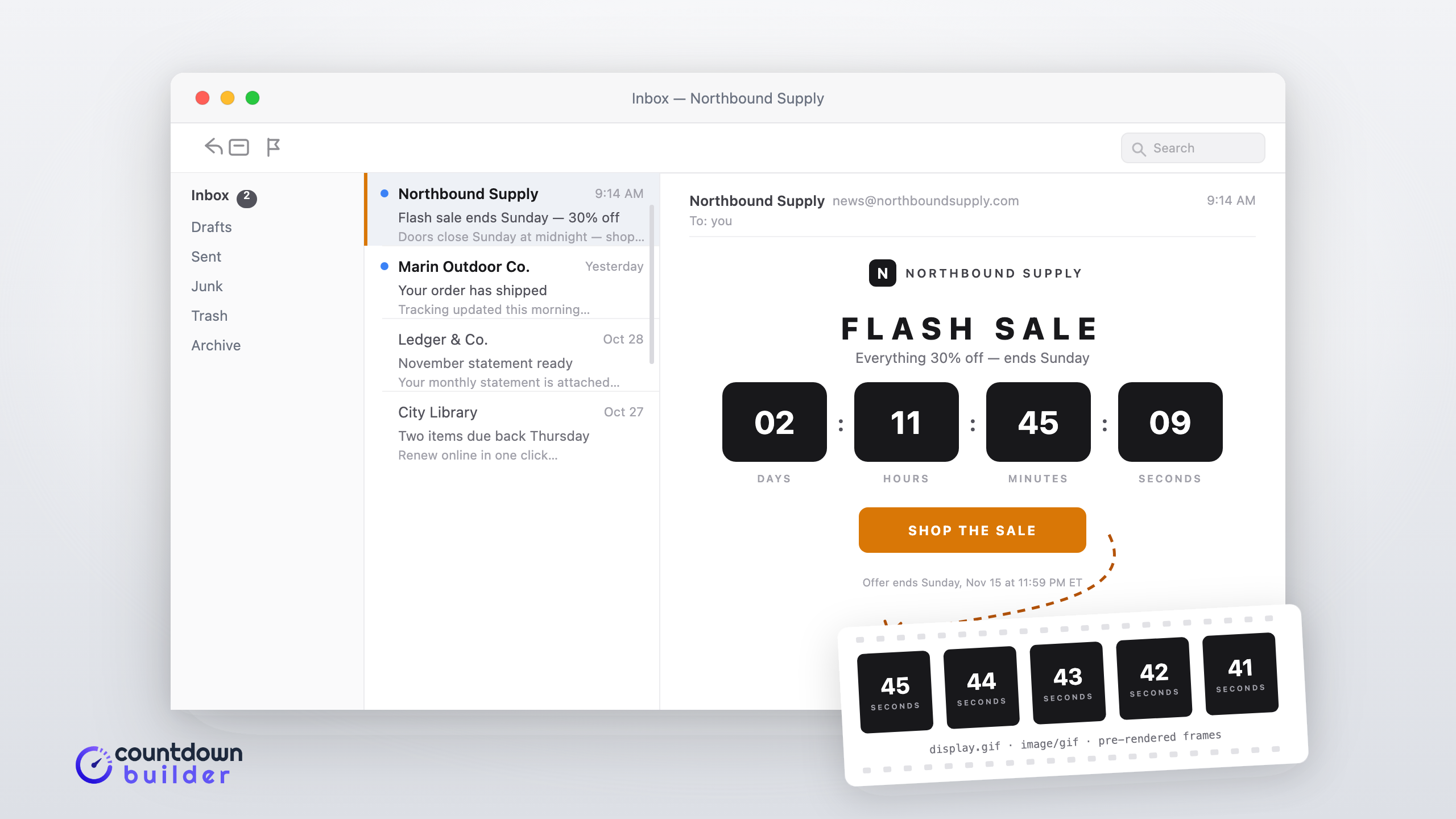
An email countdown timer looks like a small piece of software running inside a message: digits ticking down, a layout that updates, a deadline that always looks current. None of that is code. Email clients don't execute scripts, so the timer is a picture — specifically an animated GIF, served from a URL, and regenerated with the correct time remaining each time the email is opened.
That one sentence carries most of this guide. The rest explains why it has to work this way, what's actually inside the file, why the countdown is accurate without being live, and where the model bends — Outlook's frozen frame, Apple's image prefetching, blocked images. If you'd rather skip the mechanics and just build one, the how-it-works page covers the create-and-embed flow in three steps.
Why Not Just Use JavaScript (or CSS Animations)?
Because email is not the web. Browsers run JavaScript; email clients strip it. Every major client — Gmail, Outlook, Apple Mail, Yahoo — removes <script> tags before rendering, for the same reason they quarantine attachments: email is untrusted input rendered in a trusted app. There is no setting, no embed trick, and no snippet that changes this. The Can I Email project, which tracks HTML and CSS support across clients, doesn't even list JavaScript as a feature — the only interactive framework any client sanctions is AMP for Email, and only a subset support that.
CSS animations seem like the next best option, and they half-work: @keyframes support across email clients is partial and inconsistent. Some webmail clients support it, some clip it, Outlook's desktop engine largely ignores it — and even where it runs, a CSS clock only starts counting when the message renders, with no idea what the actual deadline is. An animation that looks like a countdown but isn't counting to anything real is worse than no timer at all.
What every email client does reliably display is images — and the GIF format carries its own animation inside the image file, no code required. That's the opening every countdown timer service uses.
What's Actually Inside the File
An animated GIF is not one image; it's a stack of them. The GIF89a specification lets a single file hold multiple frames, each with its own delay — "show this frame for one second, then this one" — and viewers play them in order, looping back to the start. A countdown GIF is built exactly that way: the service renders a sequence of frames covering the span of the countdown, labels and all, and stacks them into one file.
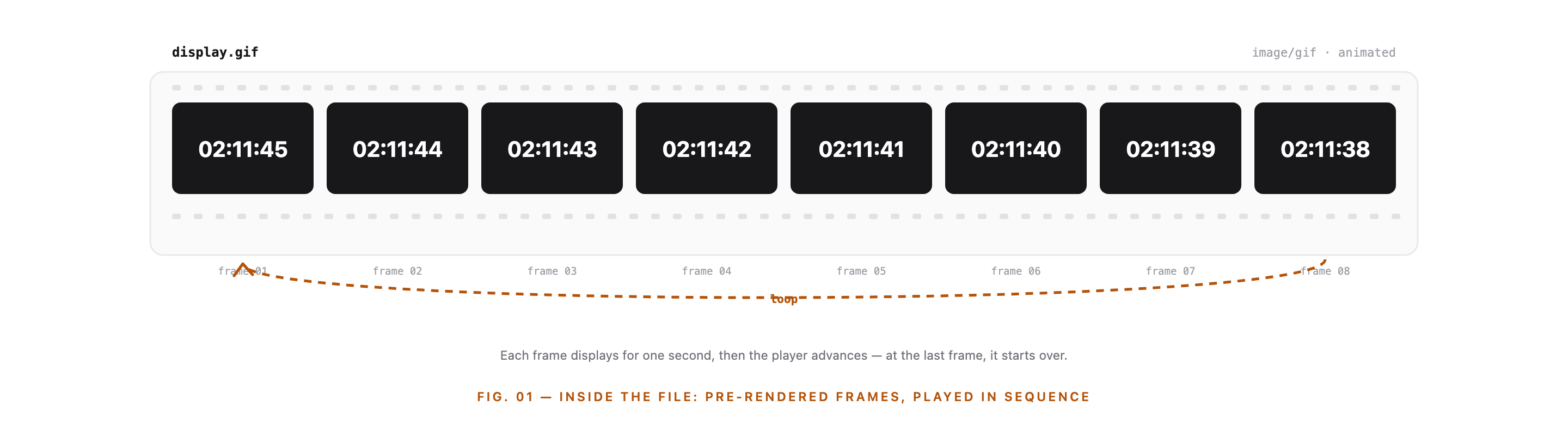
The animation is baked in at render time. Nothing inside the file computes anything.
Three practical consequences follow from the frame-stack design:
- The countdown lives in the pixels, not in logic. Days, hours, minutes, and seconds are drawn into each frame. That's why custom labels, fonts, and languages are design choices rather than code hooks — the rendering service draws whatever you configured into every frame.
- File size scales with frames and colors. More frames and richer colors mean a bigger file, and heavy GIFs load slowly on mobile data. Timer services manage this on the rendering side; on your side, it's one reason to prefer clean, high-contrast designs over photographic backgrounds.
- A frozen frame is still a valid frame. Where a client shows only the first frame — Outlook on Windows, covered below — what the reader sees is a real snapshot of the remaining time, not a broken image.
Why the Timer Is Right Every Time You Open the Email
Here's the part that does the real work. The email doesn't contain the GIF; it contains an <img> tag pointing at a URL — something like display.gif on the timer service's server. The file itself is fetched when the email is opened.
So the sequence on every open is:
- The reader opens the email (or it re-renders in a preview pane).
- The client requests the timer's URL.
- The service renders a fresh GIF for that moment — the frames now start at the current time remaining, not the time remaining when the email was sent.
- The client plays the loop; caches hold their copy until it expires.
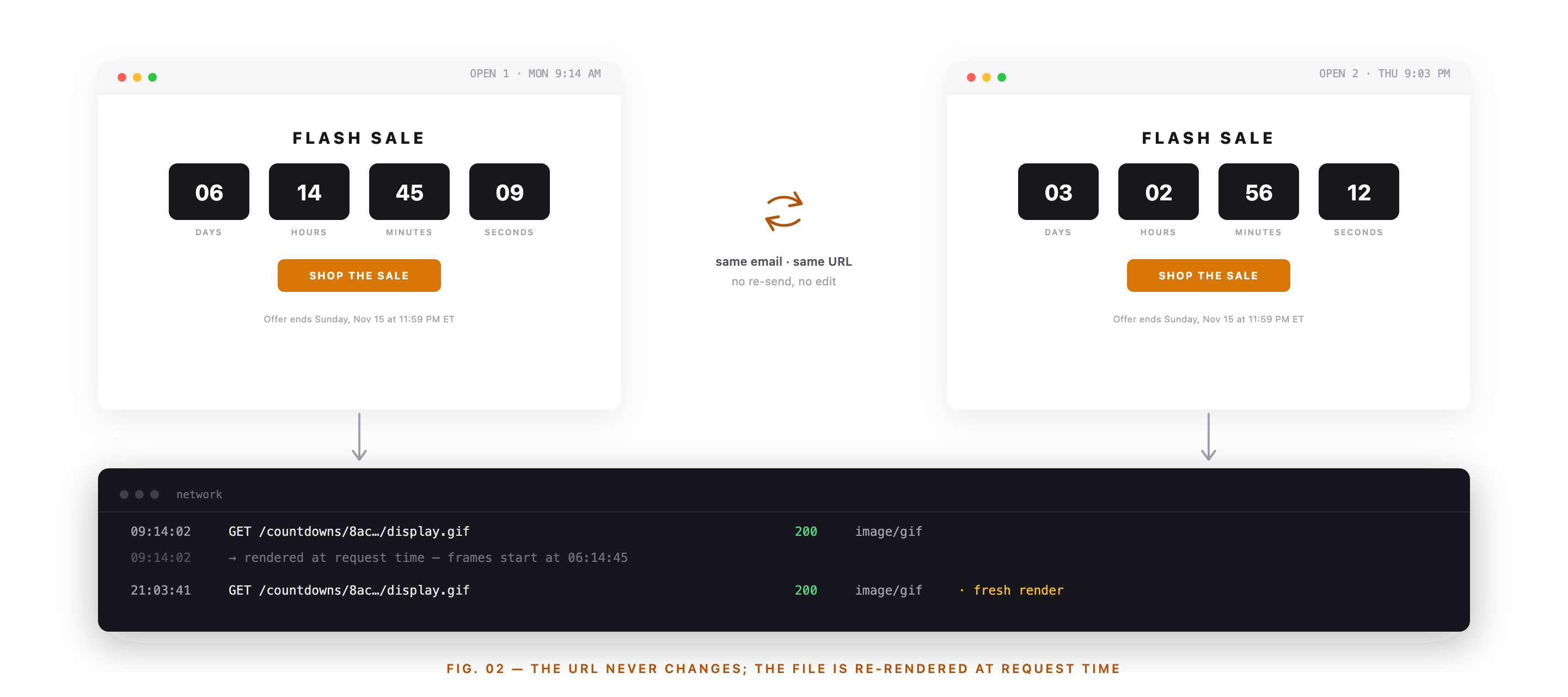
Same email, two opens, two different images — because the email only ever stored the URL.
This is what "regenerates on every open" means, and it's the difference between a timer and a picture of a timer. A subscriber who reads the email three days after sending sees the countdown as of three days after sending — seconds lower, maybe a different day number — without anyone re-sending anything. It is accurate per open, not a live clock: the digits animate through their loop, but the countdown isn't re-computed mid-view. No email client allows that, and any tool claiming otherwise is describing this same mechanism with better marketing.
The same mechanism is why you must embed the timer by its URL rather than uploading the GIF to your ESP's image library. An uploaded copy is one frozen rendering — the time remaining when you downloaded it, shown to every subscriber, forever. The troubleshooting guide covers this and the other ways timers go wrong: email countdown timer not working.
One GIF, Many Deadlines
Everything above shares one deadline across the whole list. For deadlines that differ per subscriber — a trial that expires 14 days after signup, an enrollment window that closes 72 hours after the cart-open email — the same GIF mechanics apply with one addition: a parameter in the URL.
The timer's endsAt parameter takes a Unix timestamp in seconds, and ESP merge tags can supply it per recipient at send time:
<img src="https://app.countdownbuilder.com/countdowns/<timer-id>/display.gif?endsAt=<unix-seconds>" alt="Your offer ends soon" />
The service still renders frames at open time — the parameter just tells it which deadline to count to. If the field is empty on a subscriber, the timer falls back to the default date saved with it, so nobody gets a broken image. The dynamic timer page covers the full setup, and Email Personalization Beyond First Name shows the pattern applied across campaign types.
Where the Model Bends
Three client behaviors bend the open-and-regenerate model, and all three have established answers:
- Outlook on Windows shows the first frame. Outlook's desktop rendering engine doesn't animate GIFs; it displays the first frame and stops. Because the service controls which frame leads the stack, that frame carries the correct remaining time — a still, accurate snapshot rather than a ticking clock. Design implication: pick a template whose frozen first frame still reads cleanly, which is a matter of label size and contrast. The evergreen timer page shows the design options you can adjust.
- Apple Mail prefetches images. Mail Privacy Protection downloads remote images before you open the message, so the frame Apple cached can predate the actual read. Apple documents the behavior in its guide to protecting your Mail activity; Countdown Builder's answer is a set of Mail Privacy Protection fallback modes that control what prefetched opens display.
- Some recipients block images entirely. No image, no timer. The mitigation is redundancy: state the deadline in text ("Offer ends Sunday, Nov 15 at 11:59 PM ET") and give the timer meaningful alt text. A reader with images off still gets the deadline; a reader with images on gets the clock.
Dark mode is a lesser cousin: a timer designed against white can glare in a dark inbox, so check contrast both ways before sending. All of these — plus caching oddities and wrong-timezone symptoms — are diagnosed individually in the troubleshooting guide.
What to Look For in a Timer Service
The mechanics above suggest a short checklist, and it's not about animation quality:
- Regeneration on open, with the deadline taken from the URL — not a static export.
- A first frame that works frozen, since every Outlook on Windows reader sees only that.
- Expiry states — zeros, a message, or a custom image — so late openers land somewhere true instead of a false 00:00:00. The expiry settings cover what to configure.
- Per-recipient deadlines via a URL parameter, if your campaigns ever run evergreen windows.
- The same timer on the web. A GIF URL works in a browser too, so one deadline can drive both the email and the website countdown timer on the page it clicks through to.
FAQ
Is an email countdown timer a video?
No. It's an animated GIF — a stack of pre-rendered images inside one file, played in sequence by the email client. Video attachments and embeds are blocked or unsupported across most clients; the GIF's self-contained animation is what makes it work in email.
Does the timer keep ticking while the reader watches?
Within its loop, yes — the frames animate. But the countdown isn't recalculated live during the view; it's rendered for the moment of the open. It's accurate every time the email is opened, which is the closest thing to a live clock email allows.
Why does my test email show the wrong time?
Usually caching or prefetching. The client may serve a recently cached copy of the GIF, or — for Apple Mail — Mail Privacy Protection may have fetched the image before you opened it. A fresh open after the cache expires shows the correct time. The troubleshooting guide walks through the diagnosis.
Do countdown GIFs work in Outlook?
Yes, with a caveat: Outlook on Windows desktop shows the first frame of the animation rather than playing it. That frame is rendered with the correct remaining time, so the information survives — it just doesn't move. Outlook on the web and Mac play the animation.
Final Thoughts
A countdown timer in an email is a URL pretending to be a clock, and it works because of two facts: email clients trust images far more than code, and the GIF format carries its own animation. The service renders the frames for whoever is asking, whenever they ask — which is why the countdown is always current, why the timer must be linked and never uploaded, and why Outlook's frozen frame and Apple's prefetching are manageable rather than fatal.
If you want to see it from the other side, you can build an animated countdown timer — the free plan needs no credit card and adds no watermark — and watch a test email regenerate across opens.
Related Guides
- Email Countdown Timer Not Working? 7 Causes and Fixes
- Email Personalization Beyond First Name: Dynamic Countdown Timers
- Evergreen Email Countdown Timers
- How to Boost Flash Sale Conversions with an Email Countdown Timer
- Black Friday Email Countdown Timer: The 2026 BFCM Playbook
Last updated: November 2026. The mechanics above reflect how Countdown Builder serves timers as of this date; the format-level behavior of GIFs, Outlook, and Apple Mail Privacy Protection is stable, but client rendering details can change — the troubleshooting guide tracks the current edge cases.
Written by Mehedi Hasan
Writer & Developer. He writes about email marketing, countdown timers, and campaign design.
Connect on LinkedIn