
Email Countdown Timer Not Working? 7 Causes and Fixes
 By Mehedi Hasan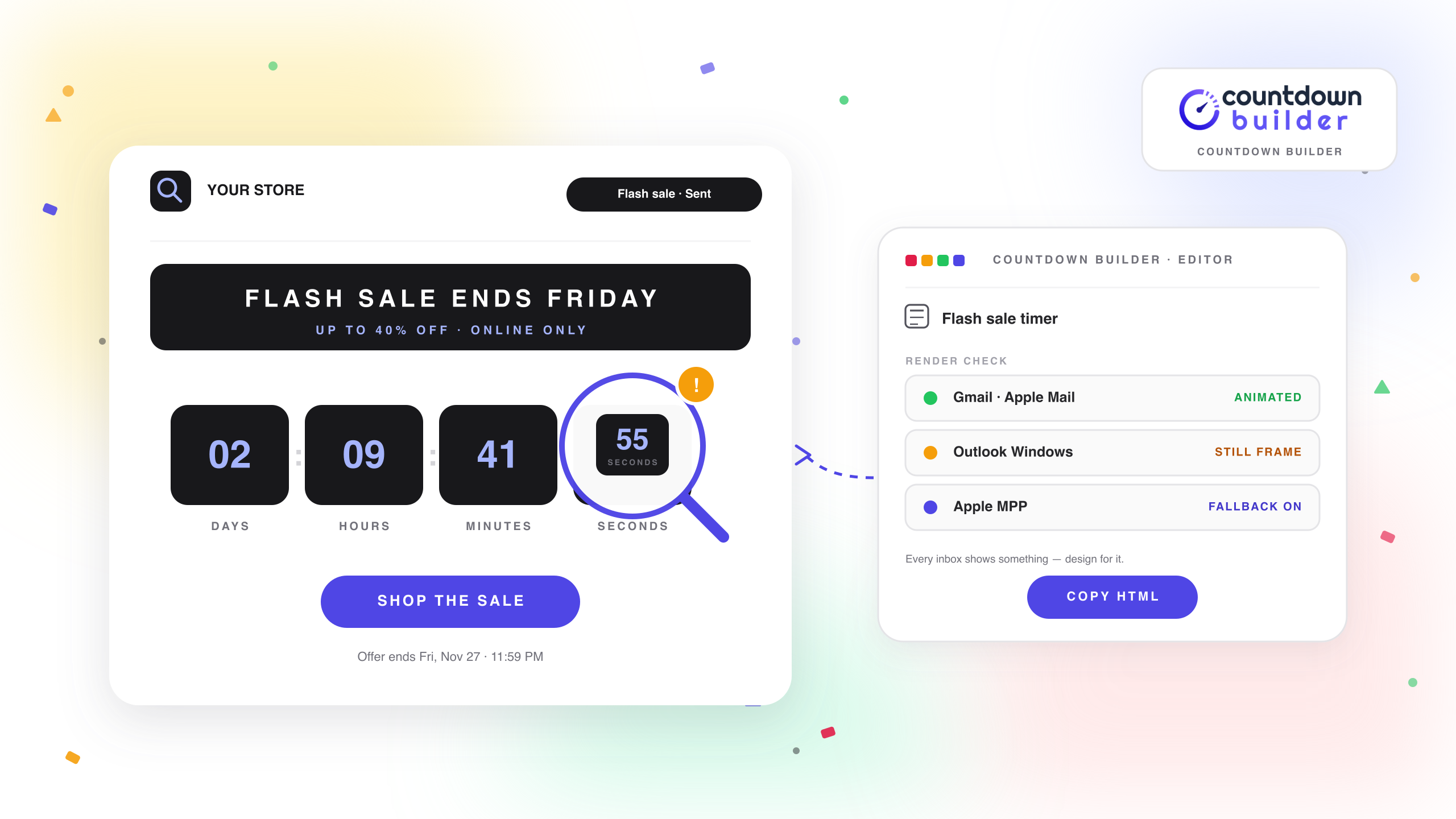
You built the timer, previewed the email, and hit send. Then the reports start: the countdown isn't moving in Outlook. It's blank in a colleague's inbox. It says two days left when the sale ends tonight.
Before you rebuild anything — an email countdown timer that appears broken is almost always one of seven things. Most of those seven are email clients behaving exactly as they were designed to, not the timer failing. Only a couple are configuration mistakes, and those take minutes to fix.
This guide covers all seven: what each one looks like in the inbox, why it happens, and what to do about it. The examples name Countdown Builder's settings where relevant, but the mechanics apply to any timer service, because every countdown timer in email works the same way. That is where we start.
How Email Countdown Timers Actually Work
Thirty seconds of mechanics explains nearly every failure mode below.
Email clients do not run JavaScript — none of them, for security reasons. So a timer in an email cannot be a live clock in the HTML sense. It is an image: an animated GIF served from a URL, embedded in the email as an ordinary image tag. When the email is opened, the client fetches the image (or serves a copy from its cache), and Countdown Builder regenerates the GIF on every fresh fetch so it shows the correct remaining time at that moment.
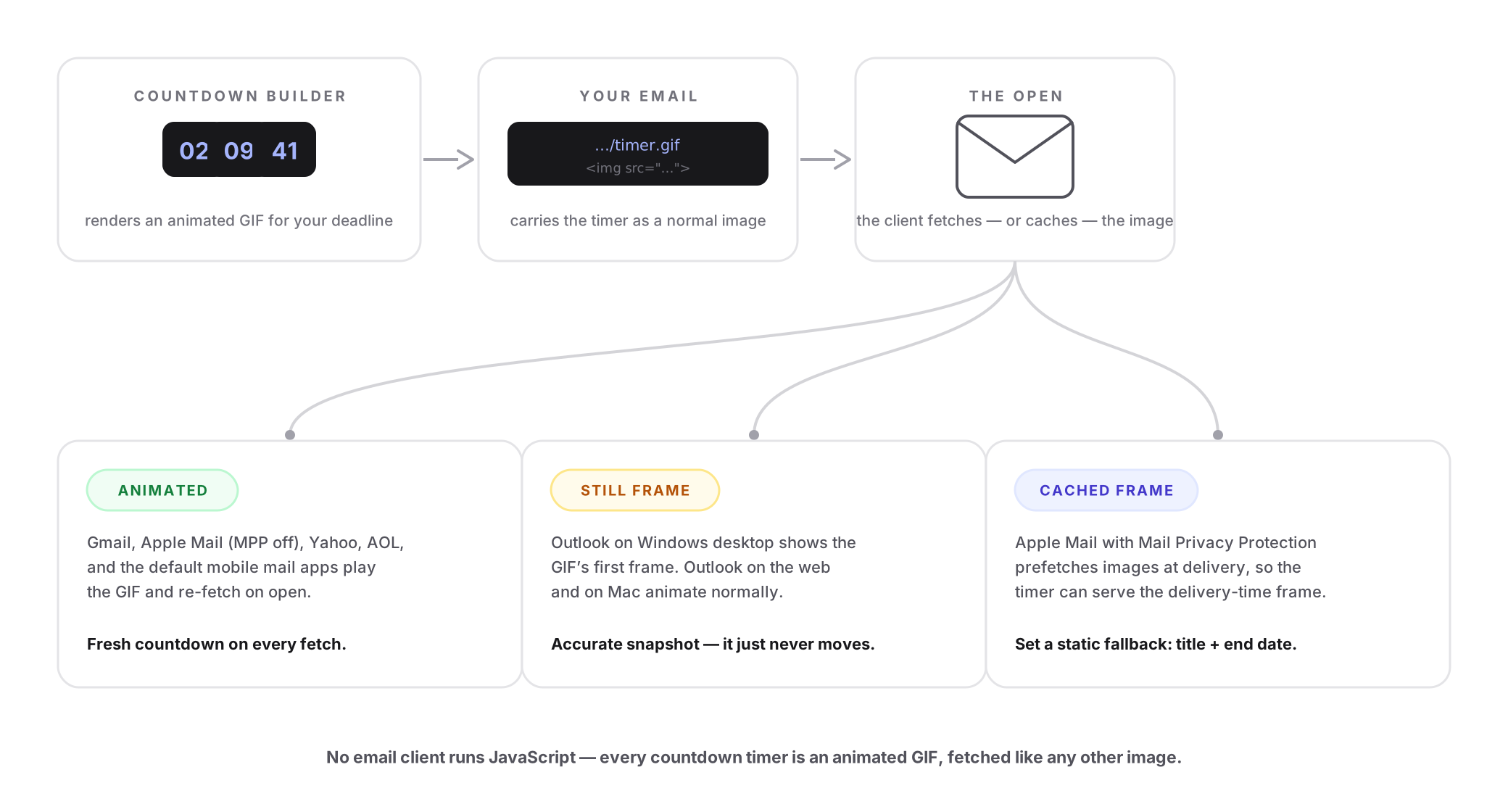
One animated GIF, fetched by the client — and every difference between inboxes follows from how each client fetches, caches, and animates it.
Three consequences account for almost every "not working" report:
- The timer is only as current as the client's image fetch. A newly fetched image shows the correct time. A cached copy shows the time it was cached. (Causes 3 and 4 below.)
- Animation depends on the client's GIF support. Most clients play animated GIFs. Outlook on Windows desktop does not — it displays the first frame. (Cause 1.)
- When images are blocked, the timer is the first thing to go. A timer is a remote image, so any client that blocks remote images blocks the timer. (Cause 2.)
Find Your Symptom
| What you see | What it usually means | Covered in |
|---|---|---|
| The timer renders but never moves (Outlook) | Outlook on Windows desktop shows a GIF's first frame | Cause 1 |
| Blank space or a broken-image icon | The client blocks remote images | Cause 2 |
| The embed code appears as literal text | The snippet was pasted into a text block, not an HTML block | Cause 2 |
| A time that never updates in Apple Mail | Mail Privacy Protection prefetches images at delivery | Cause 3 |
| Stale time when an email is reopened | Client-side image caching | Cause 4 |
| The countdown ends too early or too late | A timezone or deadline mismatch | Cause 5 |
| Zeros frozen under "last chance" copy | No expiry state configured | Cause 6 |
| Faint or invisible digits at night | Dark-mode inversion | Cause 7 |
Three Checks Before You Diagnose
- Reproduce it in the same email client. "Not working" almost always means "not working in Outlook" or "not working on one particular phone." Gmail, Apple Mail, and Outlook on Windows are three different rendering environments; before diagnosing, open the same email in the client where the problem was reported.
- Compare the timer against the words. If the copy says the sale ends Friday and the timer is counting to Thursday, you have a configuration problem (Cause 5). If they agree and the timer simply looks odd, you have a rendering behavior to design around.
- Check whether the deadline has already passed. A timer showing zeros after the deadline is working as configured — the question is what it displays at zero (Cause 6).
There is also one shortcut that separates client behavior from timer configuration: open the embed URL directly in a browser. The browser shows the timer's live render, with no email client involved. If it is correct there but wrong in the inbox, the client is caching or blocking the image. If it is wrong in the browser too, the timer's own settings need fixing.
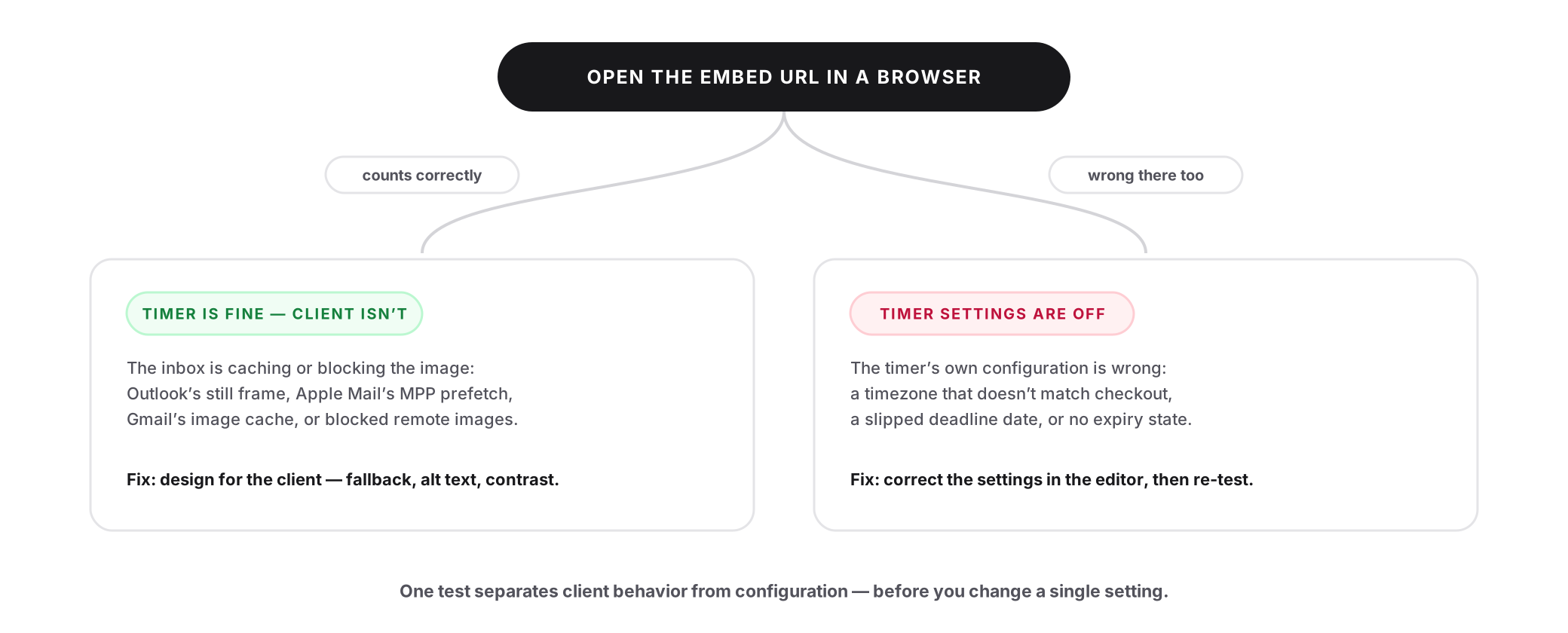
One test separates the two families of "not working" — and tells you which side of this guide you are on.
Cause 1: The Timer Doesn't Animate in Outlook on Windows
What you see. The timer renders with plausible digits, but it never ticks. A subscriber reports it "stuck" at a specific time.
What's happening. Outlook on Windows desktop — the versions built on Word's rendering engine — does not animate GIFs. It displays the first frame and stops there. This is not the timer failing; the client never plays animation for any animated image, from any sender. Outlook on the web and Outlook for Mac play the animation normally.
The still frame is a snapshot of the time remaining at the moment the image was fetched, so the number shown is accurate for that moment — it just never moves.
The fix. Nothing is broken, so the fix is design, not repair:
- Pick a template whose frozen frame still communicates. High-contrast tiles with clear labels read fine as a still image. Delicate designs that depend on motion do not.
- Anchor the still frame with copy. "Ends Friday, Nov 27 at 11:59 PM" in the email body gives the frozen number its meaning.
- If your list is Outlook-heavy — common in B2B — treat the still frame as the primary presentation, not a degraded one, and let the subject line and copy carry the urgency.
For the full client-by-client picture, see the compatibility table on our homepage: the timer animates in Gmail, Apple Mail, Yahoo, AOL, and the default mobile mail apps, and shows a still frame only in Outlook on Windows desktop.
Cause 2: The Timer Doesn't Appear at All
What you see. An empty gap where the timer should be, a broken-image icon — or, in a different failure, the embed code itself printed in the email as literal text.
What's happening. Two different problems share this symptom:
- Literal code in the email means the HTML snippet was pasted into a plain text or content block instead of a custom HTML block, so the platform printed the characters instead of rendering them.
- A blank gap or broken-image icon means the recipient's client is blocking remote images — a default setting in some clients and corporate mail filters, and an option many privacy-conscious users switch on deliberately.
The fix. For the literal code, re-paste the snippet into a custom HTML or code block — every major ESP has one (here is the walkthrough for adding a countdown timer in Mailchimp, and other platforms work the same way).
For blocked images, you cannot force an image through a client that refuses remote content — and you should not try. Instead, make the email work without the image:
- Write alt text that carries the deadline, such as "Sale ends Friday, Nov 27 at 11:59 PM." Image-blocked readers see that text where the timer would be.
- State the deadline in the body copy anyway. Some portion of every list blocks images. The subject line, the offer, and the CTA button do not depend on images, so the email still converts.
Cause 3: The Timer Is Frozen at the Wrong Time in Apple Mail
What you see. An Apple Mail user reports a countdown that shows a time from hours ago — and re-opening the email never refreshes it.
What's happening. Apple Mail Privacy Protection (MPP). To prevent senders from tracking opens, Apple Mail pre-fetches remote images when the email arrives, before the recipient reads it. The frame your subscriber sees can be the one cached at delivery, not a fresh render.
The fix. Countdown Builder has a dedicated Mail Privacy Protection setting with three modes:
- Disable — serve the normal animated GIF (the default).
- Show Image — when the animated GIF cannot be refreshed, serve a styled static fallback showing your title and the end date, in your fonts and colors. There are 20+ date formats, so the fallback can read "Ends Nov 27, 11:59 PM" exactly as your copy does.
- Hide — collapse the countdown area entirely.
If a meaningful share of your list reads in Apple Mail, switch to Show Image before the campaign, on every plan including free. And one testing note: if your own test account has MPP enabled, the timer you see there will look cached too — that is the privacy feature doing its job, not a bug.
Cause 4: The Timer Shows Old Time When an Email Is Reopened
What you see. A subscriber re-opens the email hours later, and the countdown has not advanced since they last looked at it.
What's happening. Client-side image caching. Gmail, for example, proxies remote images through its own servers; a re-open can be served the cached frame from the earlier fetch rather than triggering a new one. The embed URL itself serves the current countdown on every fresh fetch — new emails and new image requests get new renders.
The fix. This is expected caching behavior, not a defect, so the fixes are campaign habits:
- State the exact end time in text — "ends tonight at 11:59 PM ET" — so the copy, not the cached frame, is the source of truth.
- Send a new email for final-hours pushes. A new send is a new fetch. Don't rely on subscribers re-opening an old email and seeing a fresh countdown; the last-chance email exists precisely because re-opens are unreliable.
For more on how Gmail handles timer images, see the Gmail countdown timer guide.
Cause 5: The Timer Counts to the Wrong Moment
What you see. The timer ends an hour (or several) before or after the deadline you advertised — or the days remaining doesn't match your own math.
What's happening. Usually one of three configuration slips:
- The timer's timezone doesn't match the one your checkout or landing page uses, so "midnight" means two different moments.
- The deadline was entered with an AM/PM or calendar-date slip — 11:59 AM instead of PM, or the 27th instead of the 26th.
- The deadline was edited after sending to "fix" an earlier mistake — which silently changes what already-sent emails show, trading one inconsistency for a worse one.
The fix.
- Set the timer's timezone deliberately, to the timezone your customers experience at checkout. Don't leave it on the default.
- Write the deadline with its timezone in the copy — "Friday, Nov 27, 11:59 PM ET" — so readers in other zones can do the math.
- Test against the landing page. Send yourself the email and compare the timer's implied end with the countdown or text on your sale page. They must agree to the minute.
- Never re-point a live timer after the campaign is sent. Create the correct timer for future sends instead. The Black Friday guide covers this trap in detail — the rule is one deadline per timer, one timer per deadline.
Cause 6: The Timer Hit Zero and Now Looks Wrong
What you see. A timer frozen at 00:00:00 underneath copy that still says "final hours." Or a blank space, or timer clicks that go nowhere.
What's happening. The deadline passed — timers do that — and no expiry behavior was configured. Every email you sent is still sitting in inboxes, and late openers are looking at a finished clock under an urgent headline. That combination tells the reader the urgency was never real.
The fix. Configure what happens at zero before the campaign, using expiry settings:
- Freeze at zeros — the classic; unambiguous when the copy around it has also expired.
- Custom text — "Offer ended" or "Sale over," fully styled.
- Custom image — a designed end card for the campaign.
- An expiry URL — clicks on the expired timer redirect to the next live page, so late openers land somewhere useful instead of a dead offer.
Emails get opened late — on planes, on the weekend, a week after sending. Deciding the after-zero experience in advance is what separates a campaign that ends cleanly from one that quietly erodes trust.
Cause 7: The Timer Is Invisible in Dark Mode
What you see. The timer looks fine during the day and vanishes at night — digits faint or invisible, or the colors inverted into something muddy.
What's happening. Dark-mode clients recolor or invert email backgrounds. A timer designed as dark digits on a light block can become dark-on-dark once the client darkens the surrounding email. Different clients invert differently, and some force it regardless of your email's design.
The fix.
- Use dark tiles with bright digits. A dark timer block survives both modes: it already matches a dark-mode inbox, and it stays a high-contrast island in a light one.
- Avoid designs that depend on a light background — thin light digits on a transparent background are the first casualty of inversion.
- Test in dark mode before sending, on a phone with the inbox set to dark. The desktop preview will not show you this.
Background behavior — solid versus transparent — changes how a timer reacts to inversion; the background options guide covers the trade-offs.
Prevent All Seven Before You Send
Every cause above has a pre-send check that catches it:
- Send a test to inboxes you control: Gmail, Apple Mail, and Outlook on Windows cover the three rendering environments that matter.
- Confirm the timer deadline, email copy, and landing page agree to the minute, timezone included.
- Write alt text that carries the deadline.
- Set the MPP fallback to Show Image if any meaningful share of the list reads in Apple Mail.
- Configure the expiry state and expiry URL before launch, not after the first confused reply.
- Check the timer in dark mode on a phone.
- Confirm the embed went into a custom HTML block and that no raw code appears in the test.
Countdown Builder Settings That Prevent These
Most of this guide reduces to four settings, all in the timer editor:
- Mail Privacy Protection modes — keep the animation, serve a styled static fallback with your title and end date, or hide the timer. Included on every plan, free included.
- Expiry settings — zeros, custom text, or a custom image at zero, plus an expiry URL so late clicks land somewhere live.
- A timezone per timer — set it to match checkout, and state it in your copy.
- 45+ templates — including high-contrast designs that hold up as an Outlook still frame and in dark-mode inboxes.
You can create an email countdown timer on the free plan — no credit card, no watermark — and run the pre-send checklist above in a single sitting.
The MPP modes are included on every plan, free included, and the free plan adds no watermark — so the pre-send checklist above costs nothing to run before a campaign. Current plan details are on the pricing page.
FAQ
Why is my countdown timer not moving in Outlook?
Outlook on Windows desktop doesn't animate GIFs — it displays the first frame of the animation, which for a timer is a snapshot of the time remaining when the image was fetched. Outlook on the web and Outlook for Mac animate normally. Choose a template that reads clearly as a still image and keep the deadline in the copy.
Do email countdown timers work in every email client?
Every major client displays the timer image; all of them animate it except Outlook on Windows desktop, which shows the still frame. Apple Mail with Mail Privacy Protection may serve a cached frame instead of a live one, which is why a static fallback matters. In every client, the deadline should also exist in text so the email works even where images don't.
Why is my countdown timer showing the wrong time?
Three usual suspects: a timezone mismatch between the timer and your checkout, a cached image frame served by the client, or a deadline entered incorrectly. Open the embed URL directly in a browser — if the live render is correct there, the client is caching; if it's wrong there, fix the timer's settings.
How do I test a countdown timer before sending?
Send tests to inboxes you control across Gmail, Apple Mail, and Outlook on Windows, and compare the timer's implied end time against your landing page. To see the expiry behavior, set a test timer's deadline a few minutes out and watch what it displays — and where its click lands — after zero.
What should the timer show after the deadline passes?
Anything you configure: frozen zeros, a custom "Offer ended" message, or a designed end image — plus an expiry URL that redirects clicks to the next live page. The one thing it should never do is sit at 00:00:00 under copy that still says hurry.
Final Thoughts
A "broken" email countdown timer is almost always one of two things: an email client behaving as designed — the Outlook still frame, MPP caching, image caching — which you design around, or a setting you control — the HTML block, the timezone, the expiry state, dark-mode contrast — which you fix in the editor. The browser test tells you which: correct at the embed URL means client behavior; wrong there means configuration.
If you want to run the whole checklist on a real campaign, you can build a free email countdown timer in a few minutes and test it in every inbox you have access to before a single subscriber sees it.
Related Guides
- The Complete Guide to Countdown Timer Emails
- How to Add a Countdown Timer in Gmail
- How to Add a Countdown Timer in Mailchimp
- Email Countdown Timer Background Options
- Black Friday Email Countdown Timer: The 2026 BFCM Playbook
Last updated: October 2026. Features described reflect Countdown Builder at the time of publication and can change — see the pricing page for current plans.
Written by Mehedi Hasan
Writer & Developer. He writes about email marketing, countdown timers, and campaign design.
Connect on LinkedIn