
How to Add a Countdown Timer in Gmail Emails (2026 Guide)
 By Mehedi Hasan
Gmail does not natively support countdown timers. Email clients don't run scripts, so there is no timer widget you can embed the way you would on a web page. What Gmail does support is animated GIF images, and that is the workaround: countdown timer services generate the timer as a hosted image that is rendered with the current time remaining each time the email is opened.
This guide shows how to create a timer with Countdown Builder and insert it into a Gmail email by URL. The same timer image also works in an ESP if you send campaigns from one instead of a personal Gmail account.
How Countdown Timers Behave in Gmail
- GIF support: Gmail displays animated GIFs, so a hosted timer animates on desktop and mobile.
- Per-open rendering: the timer image is generated on the server when the email is opened, so it shows the time remaining at that moment.
- Image caching: Gmail caches images, so a recipient who re-opens an email may see the frame cached from the earlier open rather than a fresh countdown. For the other ways a timer can appear broken — and the fix for each — see the email countdown timer troubleshooting guide.
- Image blocking: if the recipient has external images disabled, the timer won't appear. Include the deadline in the email text as well.
Step-by-Step: How to Add a Countdown Timer in Gmail Using Countdown Builder
Gmail has no HTML block, so the timer goes in as an image by URL:
flowchart TD
    A["Create the timer in Countdown Builder"] --> B["Copy the GIF image URL"]
    B --> C["Compose a new email in Gmail"]
    C --> D["Click the Insert photo icon"]
    D --> E["Switch to the Web Address, URL tab"]
    E --> F["Paste the GIF URL and insert"]
    F --> G["Send yourself a test first"]
Step 1: Create Your Countdown Timer on Countdown Builder
- Go to Countdown Builder and sign up for a free account (or start designing without one).
- Click Create in the dashboard.
- Choose a template or start from scratch.
- Set your timer type:
- Fixed-date: for sales or events ending at a specific time.
- Evergreen: starts for each recipient (used for cart abandonment emails and other automated sends).
- Customize:
- Colors, fonts, labels
- Background images, animations (like pulsing separators)
- Time zone and end date/time
- Post-expiration message (for example, "Offer Ended") or a custom image
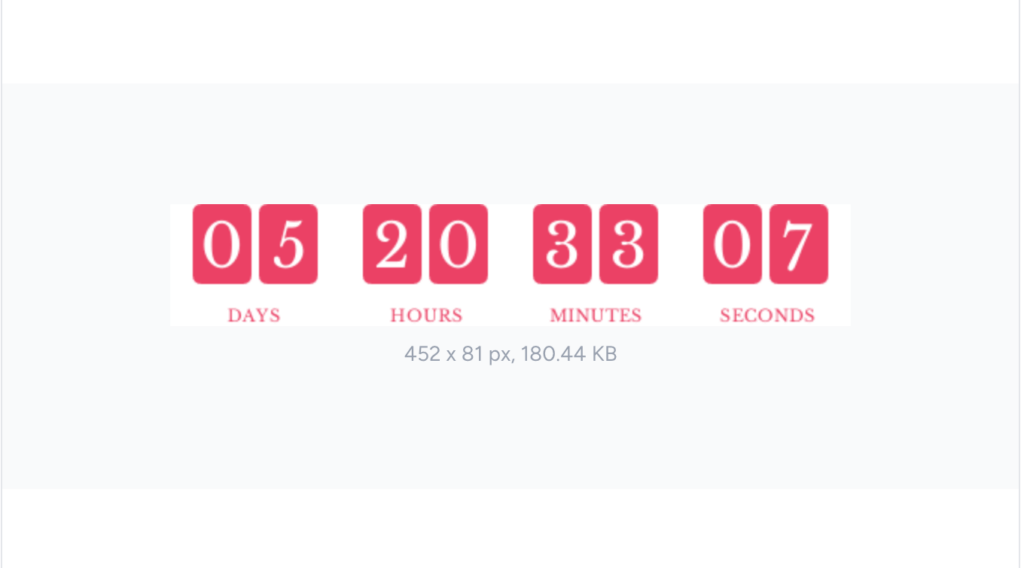
- Preview and generate the timer.
Step 2: Get the GIF Image URL
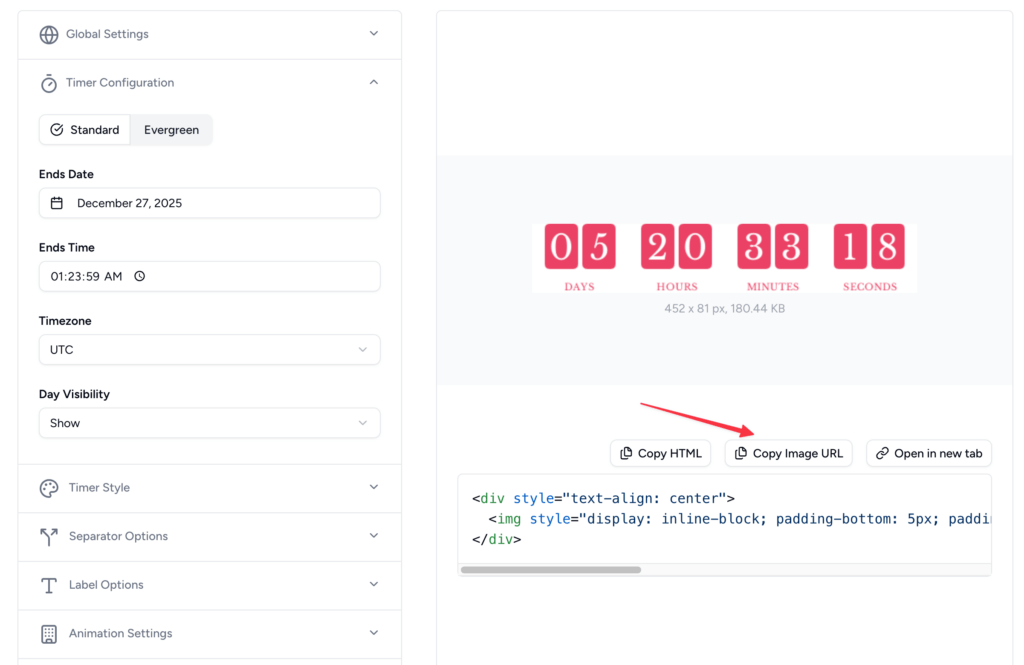
- After generating, locate the direct GIF URL in the embed section (it ends in .gif).
- Copy only the image URL (not the full HTML code).
Step 3: Insert the Countdown Timer in Gmail
Open Gmail in your browser and click Compose in the top-left corner to start a new email. Click anywhere in the email body where you want the timer to appear (you can move it later).
At the bottom of the compose window, click the Insert photo icon (it looks like a small mountain or landscape picture).
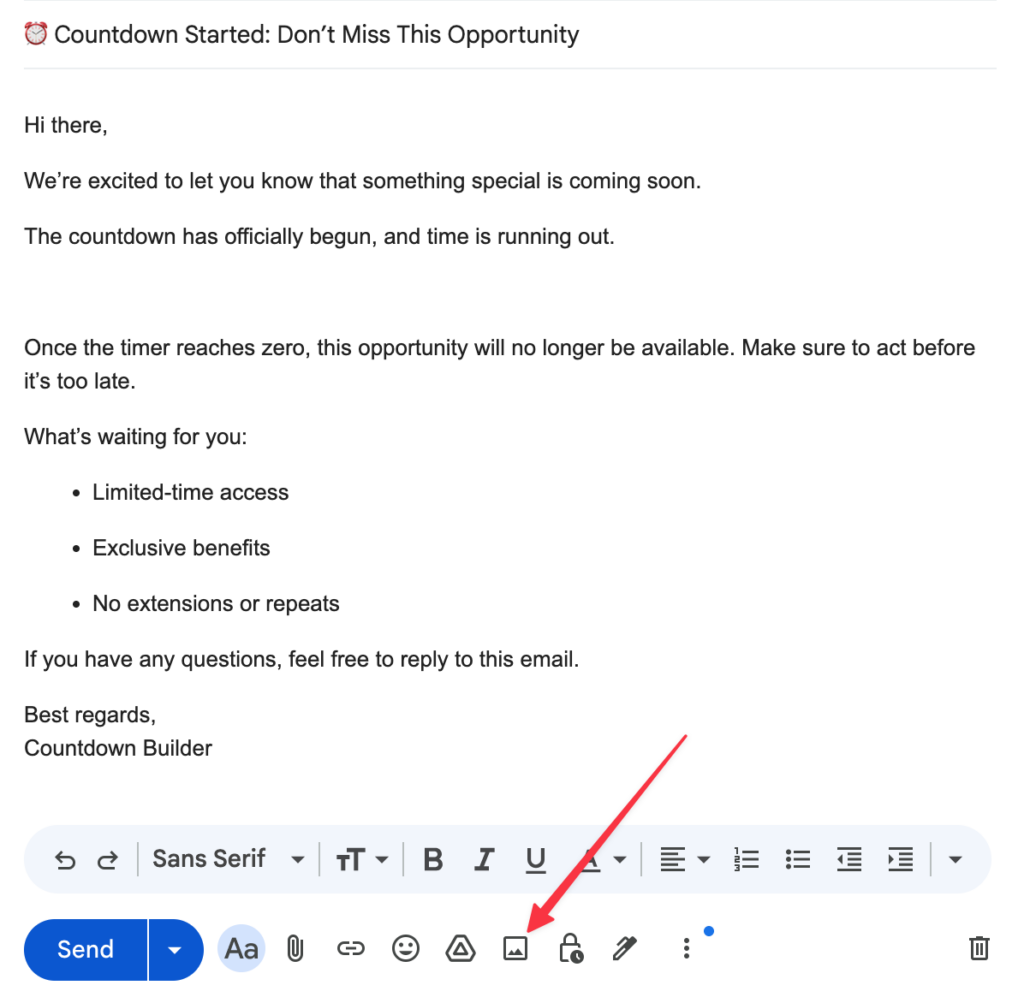
In the pop-up window that appears, switch to the Web Address (URL) tab (instead of uploading from your computer). Paste the direct GIF URL you copied from Countdown Builder. Click Insert.
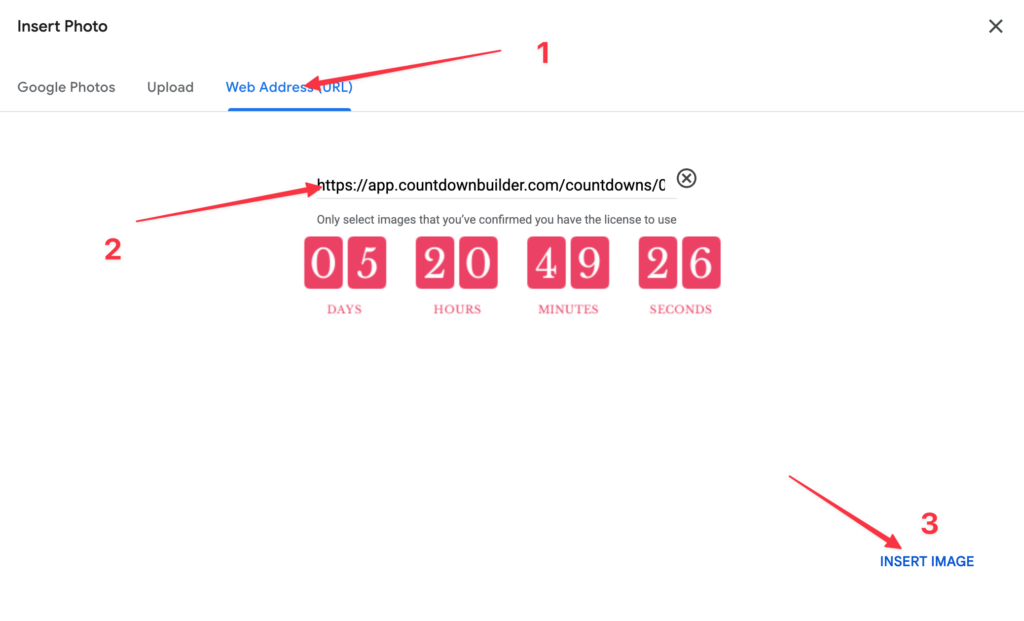
The timer now appears in the email body and animates when the images load.
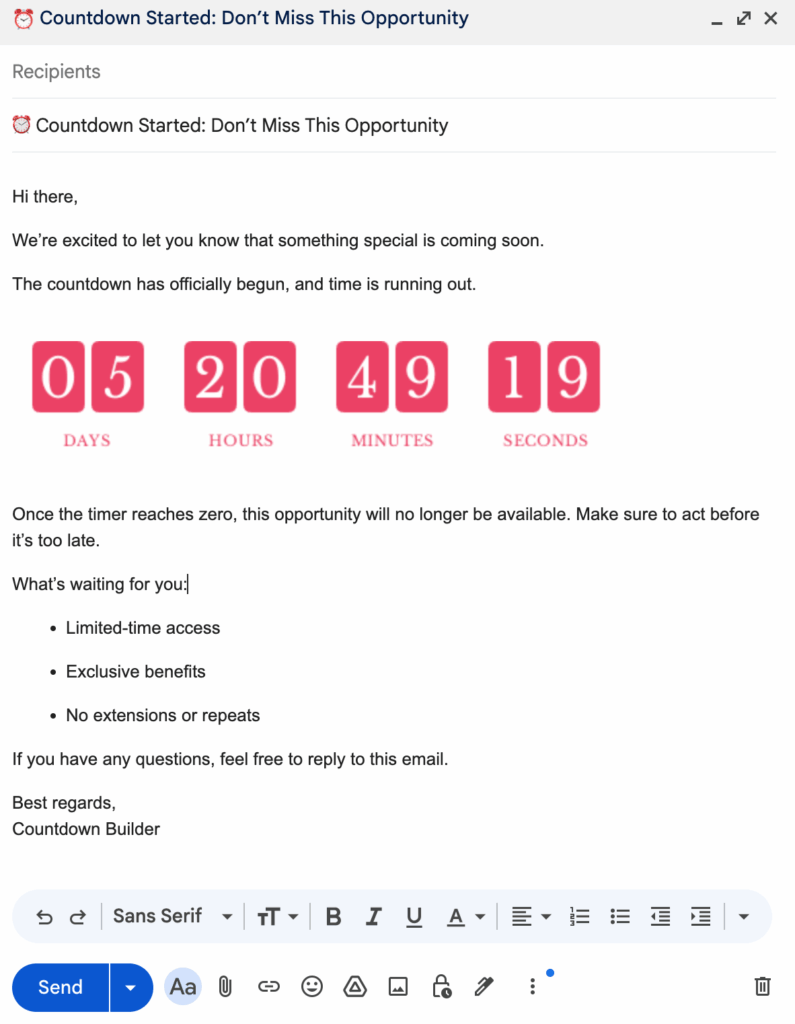
Step 4: Test and Send
- Send a test email to yourself.
- Open it on different devices and clients (Gmail app, web, and others) to verify the animation.
- Ensure images are enabled (Gmail loads external images by default for most users).
Best Practices for Countdown Timers in Gmail
- Placement: put the timer near your CTA (for example, "Shop Now") so the deadline and the action sit together.
- Design: match your brand colors and keep the design simple.
- Fallback: set a post-expiration message to handle late opens.
- Copy: state the deadline in the subject line and body text ("24 hours left"), not only in the image.
- Deadlines: use real deadlines only. If the timer resets or the offer doesn't expire, readers notice and trust drops.
Trying It From Gmail
The free plan has no watermark and doesn't require a credit card — enough to insert a timer by URL, send yourself a test, and watch it render before anything goes to a real recipient. Current plans are on the pricing page.
If you'd like to try it, you can create a free timer at Countdown Builder.
Last updated: September 2026. The steps above reflect Countdown Builder and Gmail at the time of updating. Gmail's interface and image handling can change, so verify current behavior if a step looks different.
Written by Mehedi Hasan
Writer & Developer. He writes about email marketing, countdown timers, and campaign design.
Connect on LinkedIn