
Email Countdown Timer Background Options: Complete Guide
 By Mehedi Hasan
The background you choose for an email countdown timer affects how well the timer fits your email template and how readable the digits are. The email countdown timer generator at Countdown Builder offers four background options: transparent, solid color, color with effects, and custom background images.
This guide covers what each option does, when each one is appropriate, and how the GIF transparency limitation affects fully transparent timers.
Why the Background Matters
Countdown timers are delivered as images, so the timer's background is one of the design elements you control. A suitable background can:
- Match your email template's color scheme
- Separate the timer visually from the surrounding content
- Add depth without large file sizes
- Stay consistent with your brand's look
1. Transparent Background
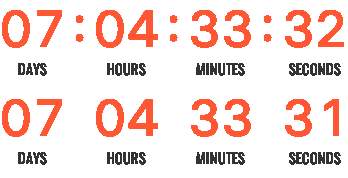
With a transparent background, the countdown timer sits directly on top of your email's background color or image — no box, no border.
Best for:
- Newsletters with a defined background color or texture
- Layouts where the timer should feel like a native part of the email
- Minimal, clean designs
How to use it: Select Transparent from the Background options. The timer inherits whatever sits behind it in your email template.
The GIF transparency limitation (and the box-style fix)
There is one limitation worth knowing about. Email countdown timers are delivered as animated GIFs, and the GIF format only supports 1-bit transparency — every pixel is either fully transparent or fully opaque. It can't store the semi-transparent pixels that anti-aliasing uses to smooth out curves and rounded corners.
In practice, this means a fully transparent timer can show slightly jagged or "haloed" edges on curves and rounded shapes when it sits over a background that contrasts with those edges. This is a limitation of the GIF format, not a flaw in the timer — and there is a workaround.
The fix: use a box-style template
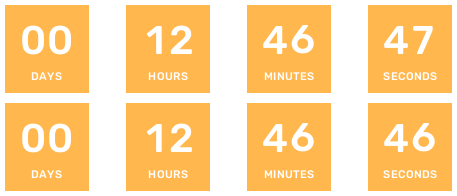
A box-style template places the digits and labels inside a solid colored box, while everything outside that box stays transparent. The box's edges are straight lines, which the GIF format renders crisply, so there are no jagged curves on the transparent boundary. The result is a solid timer block that sits cleanly over any email background.
When to use which:
- Box-style transparent — choose this when you need crisp edges over busy, high-contrast, or photographic email backgrounds. The colored box also carries your branding.
- Fully transparent (text-only) — suitable for minimal designs and relatively uniform backgrounds that match the digit edges. Check the edges when placing it over high-contrast backgrounds.
If a fully transparent timer looks rough over a particular background, switch to a box-style template. Matching the timer's digit and label colors to the background also softens the transition.
2. Background Color
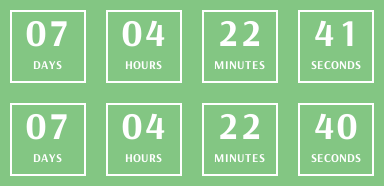
A flat, solid background color applied directly behind the countdown timer.
Best for:
- Professional and corporate emails
- Cases where you want clear visual separation between the timer and the rest of the email
- Quick setup with a predictable result
How to use it: Choose Background Color, then use the color picker to select any solid color. Use your brand's primary or accent color for consistency.
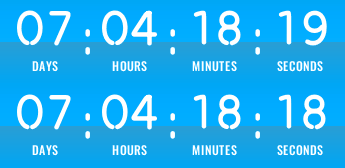
3. Background Color with Effects
This option layers one of 13 visual effects over a solid background color to add depth while keeping the file lightweight.
Available effects:
| Effect | What It Does |
|---|---|
reflective | Adds a subtle mirror-like sheen across the surface |
topToBottom | Gradient fades from a darker top to a lighter bottom |
bottomToTop | Gradient fades from a lighter top to a darker bottom |
centerSplit | Color radiates from the center outward to the edges |
radial | Soft circular glow emanating from the middle |
radialInverse | Dark center fades outward — a spotlight-in-reverse feel |
diagonal | A diagonal gradient sweep across the background |
vignette | Darkened edges focus attention on the center |
glossy | A bright highlight across the upper portion — like polished plastic |
overlayFade | A soft semi-transparent overlay that refines contrast |
dualTone | Two complementary tones blended across the background |
noise | Adds a subtle grainy texture for an organic, editorial feel |
sunburst | Radiating rays from the center, often used for sale emails |
How to use it:
- Select Background Color with Effects
- Choose your base color
- Pick an effect from the dropdown
- Preview the result and adjust the color
sunburst and vignette direct attention toward the center of the timer, which is why they are common choices for flash-sale and limited-time-offer emails.
4. Custom Background Image
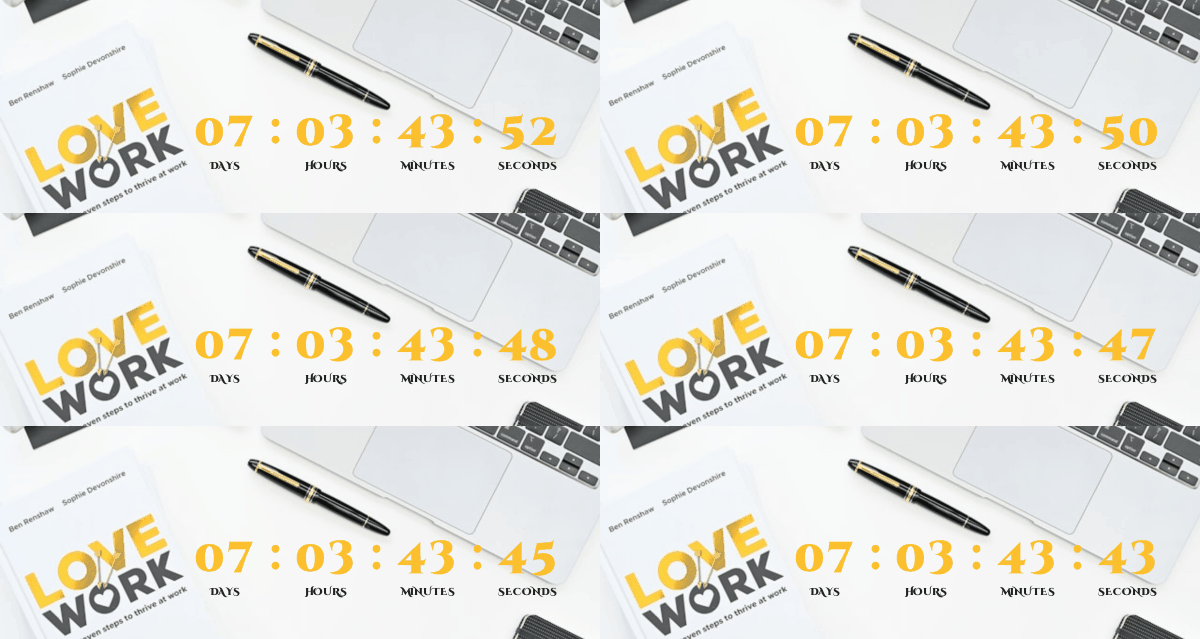
For more control, upload your own background image. This option has two display modes: No Repeat and Repeat.
4a. No Repeat
In this mode, your image is placed centered behind the countdown timer.
How cropping works: If your background image is larger than the countdown timer dimensions, the excess will be clipped. Only the central portion of the image will be visible within the timer boundaries.
Fitting a full image behind the timer: If you want your entire background image to be visible — for example, a product photo or a branded banner — use the padding controls (left, top, right, bottom) to expand the space around the countdown digits. This places the timer on top of your image rather than clipping it.
You can also adjust the size of the timer itself to match your background image dimensions.
Best for:
- Product photography as a backdrop
- Custom branded artwork or seasonal imagery
- A specific scene or visual you want the countdown to sit inside
How to use it:
- Enable Use Background Image
- Upload your image
- If your image is larger than the timer, adjust Padding (left, top, right, bottom) to expand the countdown area and reveal more of the image
4b. Repeat (Tiled Image)
In this mode, your background image is tiled — repeated both horizontally and vertically — to fill the entire countdown timer area.
Best for:
- Texture patterns (fabric, paper, noise, geometric shapes)
- Branded repeating patterns or logos
- Subtle background textures that add richness without a single focal point
How to use it:
- Select Background Custom Image → Repeat
- Upload a tileable texture or pattern image
- The image will automatically fill the timer by repeating in all directions
Small, seamless textures work best here. A 100×100px or 200×200px pattern tile gives a clean result.

Choosing the Right Background: A Quick Reference
| Your Goal | Recommended Option |
|---|---|
| Blend into email template | Transparent |
| Crisp edges over busy bg | Transparent (box-style template) |
| Clean brand-colored block | Background Color |
| Add depth without images | BG Color + Effect (try vignette or diagonal) |
| Sale or promotion emphasis | BG Color + sunburst effect |
| Product or branded photo | Custom Image → No Repeat (with padding) |
| Rich texture or pattern | Custom Image → Repeat |
Tips for Email-Safe Background Design
- Keep contrast high. Your countdown digits must remain legible against any background. Use dark text on light backgrounds and vice versa.
- Test across email clients. Countdown Builder generates image-based timers, which render consistently, but always preview in your ESP before sending.
- Use padding deliberately. Padding isn't just spacing — in No Repeat image mode, it's your primary tool for controlling how much of your background image is visible around the timer.
- Match your email theme. Pick a background style that complements your template rather than competing with it.
Start Building
Head to Countdown Builder and open the Background settings in the timer editor. Try the different modes, switch between effects, and preview your timer before adding it to your email campaign.
Last updated: September 2026. Background options and effects described in this article reflect Countdown Builder at the time of updating and can change.
Written by Mehedi Hasan
Writer & Developer. He writes about email marketing, countdown timers, and campaign design.
Connect on LinkedIn