
Countdown Timers in the AI-Summarized Inbox: Gmail, Apple Mail, and Outlook
 By Mehedi Hasan
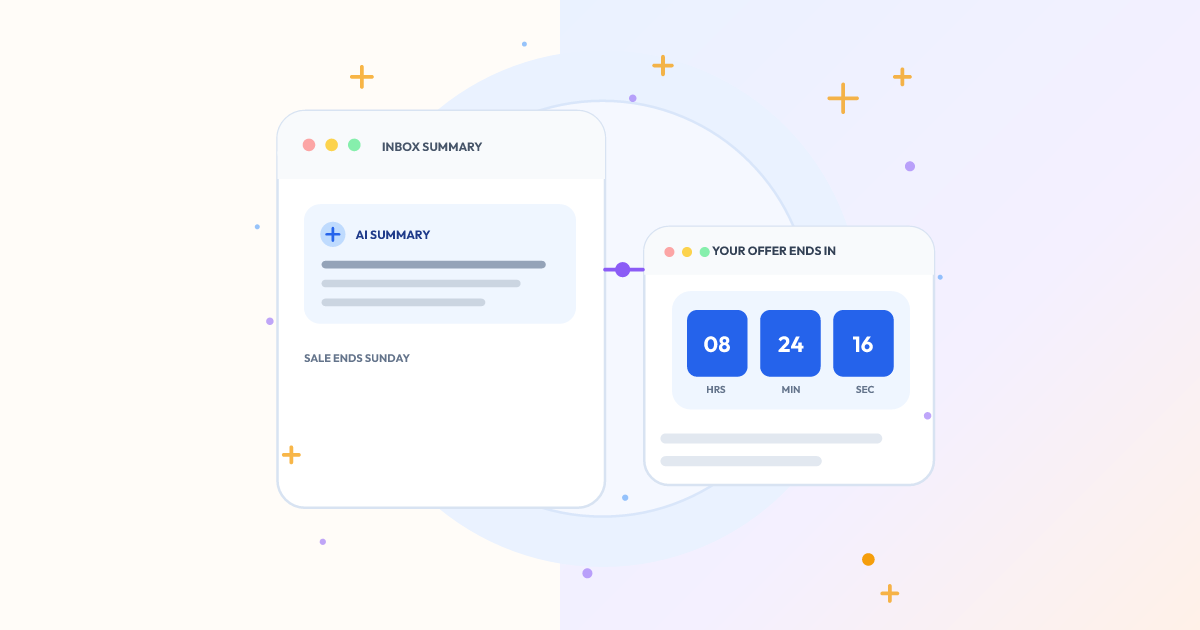
Short answer: yes — countdown timers still work in AI-summarized inboxes. The timer image renders when the email is opened on every major client. What changed in 2026 is the layer above the open: Gmail's Gemini summaries, Apple Intelligence's inbox summaries, and Outlook's Copilot summaries are all text, and none of them display your timer. So the deadline must also live as plain text — subject line, preheader, first sentence — or the summary will describe your email without it.
This isn't a hypothetical shift. Google announced Gmail's "Gemini era" in January 2026, with conversation summaries rolling out to everyone at no cost. Apple's Mail summaries have been appearing under emails in the inbox list since iOS 18.1. Microsoft's Copilot summarizes threads above the opened message. The inbox now has two surfaces — the summary a reader glances at, and the email they may never open — and a countdown timer that lives only in the second one is a countdown timer a lot of people will never see.
What Each AI Surface Does With Your Email
The three clients handle summarization differently, and the differences matter for how you write:
- Gmail. Google's January 2026 announcement put Gemini conversation summaries in front of everyone at no cost — a "concise summary of key points" synthesized from the thread, US and English first. Gmail can also answer questions about your inbox, but the summary is the surface most subscribers will meet first.
- Apple Mail. Short summaries appear automatically under each email in the inbox list on iPhone, and a Summarize button sits above the email once it's open on Mac. Apple's documentation describes where summaries appear, not exactly what they read — so treat the summary as text-only, because every summarizer so far has been.
- Outlook. "Summary by Copilot" appears above the message in the reading pane — it runs after the email is opened, analyzing the message and its thread, sometimes with numbered citations back to specific messages.
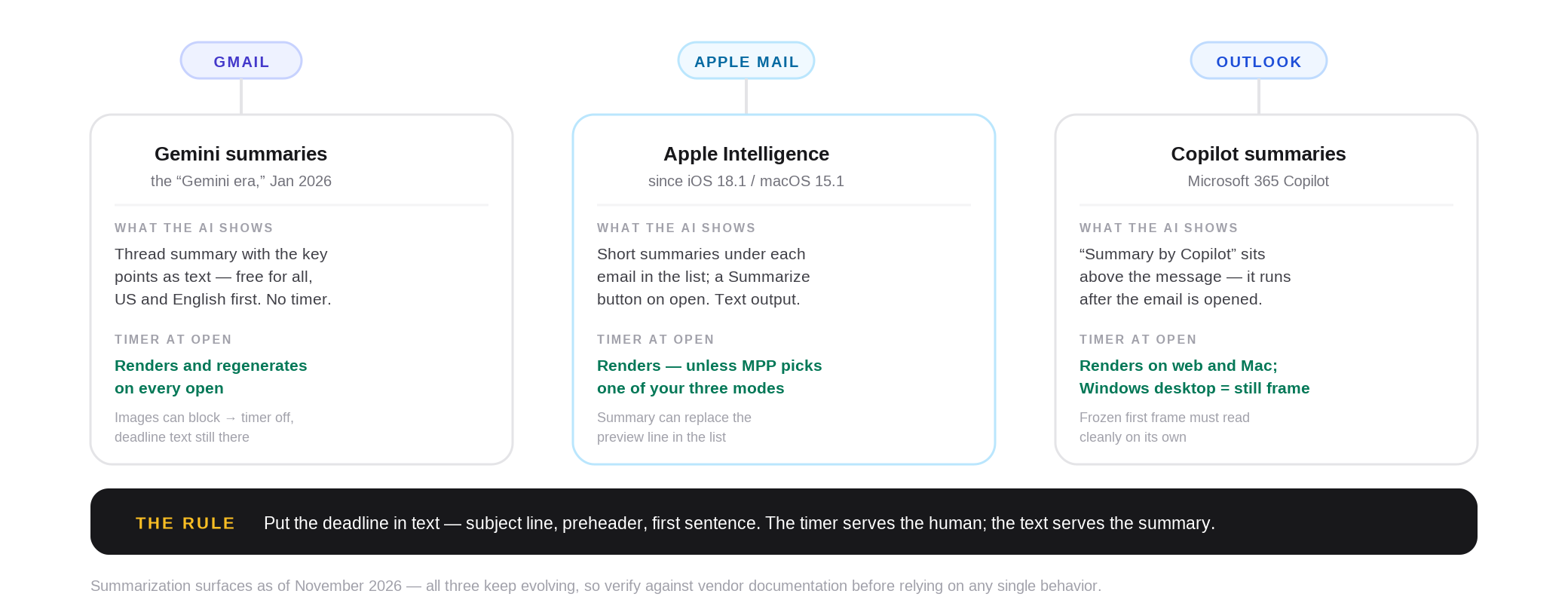
One more wrinkle on Apple: Mail Privacy Protection has always pre-fetched images through a proxy, which is why timer senders pick one of three MPP display modes — keep the animation, show a static card, or hide the timer. Summaries add a third Apple surface to plan for, on top of the two MPP already created.
Do Countdown Timers Still Work?
On open, nothing has changed. An email countdown timer is an image served from a URL, regenerated with the correct time remaining on every open — so the live clock still displays the moment a subscriber opens the email, in Gmail, Apple Mail, Outlook on web and Mac, Yahoo, AOL, and the mobile mail apps. The known client quirks are unchanged too: Outlook on Windows desktop shows a still frame of the current time remaining, and subscribers who've blocked images see whatever fallback you've set.
What the AI layer changes is who reaches the open. If the summary answers the subscriber's question — "what is this and does it matter to me" — without an open, your timer is scenery in an email that never gets displayed. That's not a reason to drop the timer. It's a reason to make sure the same email works in both places.
Why the Deadline Must Live in Text
This upgrades a rule the urgency playbook has always stated: state the deadline in words alongside the timer. The AI inbox turns that from good practice into structural necessity:
- The summary can only quote what you wrote. A summary is a text synthesis of your email. "Winter sale ends Sunday, Jan 17 at 11:59 PM ET" can appear in it almost verbatim. A deadline that exists only inside a timer image cannot.
- Subject lines and preheaders are summary fuel. They're the most concentrated text in the email, and the fields summarizers weight most naturally. Put the deadline and the consequence there: "Ends Sunday: 40% off, then prices go back."
- The first sentence is the new above-the-fold. If the first body sentence states the deadline in words, a summary that only lifts a line or two still carries it. If the first sentence is "Can you believe it's January?", the summary will carry that instead.
The mental model: the timer serves the human; the text serves the summary. You're not choosing between them — one email, both layers, every send.
What About AI Shopping Agents?
The same season brought the agentic-commerce story: shopping assistants that browse deals and refer traffic to retailers, with forecasts pointing to sharp growth in AI-referred shopping trips. Whatever happens to in-chat checkout, the direction is clear — some share of your audience's first look at an offer will be machine-mediated. A countdown timer's honest audience is the human; a machine parses your deadline the same way a summary does, from the text. Writing "ends Sunday, Jan 17 at 11:59 PM ET" in the subject and body serves the agent, the summary, and the subscriber who skims — one sentence, three jobs.
Building a Timer for the AI Inbox
The setup takes minutes on an email countdown timer builder:
- Set the real end date first. The timer is the messenger; the offer policy is the decision. Match the deadline the checkout actually enforces, in the timezone your audience shops in.
- Write the deadline into the text fields. Subject line, preheader, first body sentence — all three carry "ends Sunday, Jan 17 at 11:59 PM ET" in words. This is the part summaries and agents read.
- Pick a template whose frozen first frame reads cleanly. With 65+ templates, choose one that still communicates as a still image (Outlook on Windows desktop shows exactly that), then restyle the labels — "Sale ends in" beats "Time remaining."
- Set the expiry state before sending. When the deadline passes, the timer should show zeros, an "offer has ended" message, or a closing image — expiry settings cover all three, and an expiry URL can route late openers to an evergreen page. This matters more in an AI inbox: summaries surface old emails for longer, and a late reader deserves the same honesty as an early one.
- Reuse one timer URL across the sequence. Because the image regenerates on every open, the same embed shows the right countdown from launch to final hours — one consistent deadline everywhere, which is what keeps the campaign honest.
The free plan needs no credit card and adds no watermark; paid plans add unlimited timers and views.
Common AI-Inbox Timer Mistakes
- A deadline that exists only in the image. The timer says "02:14:22:08" and the copy never states the date. Summaries, agents, and image-blocking subscribers all get nothing. State it in words, everywhere.
- Vague text around a specific timer. "Ends soon" in the subject with "00:02:11:07" in the image wastes the one field the summary reads best. The text should be at least as specific as the timer.
- Assuming the AI read your design. Summaries lift text; they don't appreciate layout, brand colors, or your beautifully typeset countdown. Whatever matters must survive as a sentence.
- Letting summaries surface expired deadlines. An old email with no expiry state shows a frozen, wrong clock — and its summary may still advertise a deadline that passed. Expiry states and honest "this offer has ended" framing are the fix.
- Clone-trap dates. Copying last year's email means last year's deadline — in the image and in the text, where it's even easier to miss. Rebuild from this year's calendar.
FAQ
Do countdown timers still work in Gmail?
Yes. Gemini's summaries sit above or alongside the email, but the email itself still renders — and the timer image regenerates with the current time on every open. Only image-blocking settings change that, and your expiry fallback handles it.
Does the AI summary show my countdown timer?
No. Summaries are text — key points lifted from the words in your email. A timer image contributes nothing to them, which is why the deadline must also be written as text.
Why does Apple Mail show a summary instead of my email's preview?
Since iOS 18.1, Apple Mail can show a short AI summary under each email in the inbox list. Preview text still matters, but a deadline in the subject line is what survives into both the preview and the summary.
Do I still need MPP fallback modes?
Yes — MPP and AI summaries are separate Apple surfaces. The three MPP modes control what image-sensitive Apple Mail users see when the email opens; summaries control what appears before the open. Plan for both.
Where should the deadline text go?
Subject line, preheader, and the first body sentence — in that order of importance. All three can carry "ends Sunday, Jan 17 at 11:59 PM ET," and each one serves a different surface: list, preview, summary.
Does AI summarization hurt deliverability?
Summaries sit after spam filtering, so they don't change whether you reach the inbox. The practical risk is engagement: an email whose summary misrepresents or omits its offer gives readers fewer reasons to open. Specific text helps there too.
Final Thoughts
The AI-summarized inbox doesn't retire the countdown timer — it pairs it with a new job for your words. Set a real deadline, let the timer carry it to the human who opens, and write it plainly enough that the summary, the preview, and the agent can all quote you. One deadline, every surface, honestly.
You can create a free email countdown timer and have the embed — and its text twin — ready in minutes.
Related Guides
- How Do Email Countdown Timers Work? The Animated GIF, Explained
- Email Countdown Timer Not Working? 7 Causes and Fixes
- HTML Countdown Timer for Email (No JavaScript Needed)
- Countdown Timers for Holiday Campaigns: A Practical Guide
- Evergreen Countdown Timers for Automated Sequences
Last updated: November 2026. Summarization surfaces in Gmail, Apple Mail, and Outlook are evolving quickly — behaviors described here reflect vendor documentation and announcements as of this date. Product features reflect Countdown Builder at the time of updating and can change — see the pricing page for current plans.
Written by Mehedi Hasan
Writer & Developer. He writes about email marketing, countdown timers, and campaign design.
Connect on LinkedIn