
How to Add a Countdown Timer in Mailjet Emails
 By Mehedi Hasan
A countdown timer can be useful in a Mailjet campaign that has a real deadline — a flash sale, an event registration, a webinar countdown timer sequence, or a limited-time promotion.
Mailjet's email editor includes a built-in countdown block, but its design options are limited. If you need control over fonts, colors, labels, languages, and expiry states, you can generate the timer with an external service such as Countdown Builder and embed it in Mailjet using an HTML block.
This tutorial shows how to do that. The steps cover creating the timer, copying its HTML, embedding it in Mailjet's drag-and-drop editor, and testing before you send.

Why Use a Custom Timer in Mailjet?
Mailjet's native countdown block covers the basics. An externally generated timer adds:
- Design control: custom fonts, colors, backgrounds, and animations to match your brand.
- Flexible labels: rename "Hours" or translate labels into other languages.
- Timer types: fixed-date timers, or evergreen timers that start individually for each recipient.
- Expiry handling: choose what displays after the deadline passes — zeros, a message, or a custom image.
The timer renders as an animated GIF hosted by the timer service, and it is regenerated each time the email is opened, so it shows the current time remaining.
Step-by-Step: How to Add a Custom Timer in Mailjet Using Countdown Builder
Countdown Builder includes 65+ templates, customization options, evergreen timers, multilingual labels, and no watermark on the free plan.
The flow in Mailjet:
flowchart LR
    A["Create the timer in Countdown Builder"] --> B["Copy the HTML code"]
    B --> C["Drag an HTML Block in Mailjet"]
    C --> D["Paste the code in the editor popup"]
    D --> E["Save the block"]
    E --> F["Test and send"]
Step 1: Create Your Countdown Timer on Countdown Builder
Go to Countdown Builder and sign up for a free account (or start designing immediately).
Pick from 65+ templates – or build from scratch.
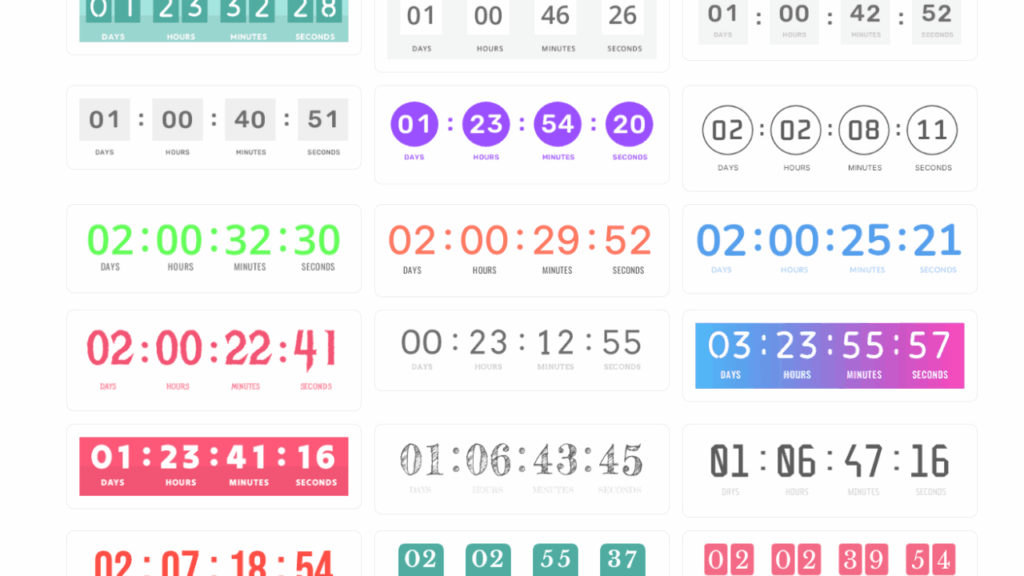
Customize everything to fit your brand:
- Set countdown type: Fixed-date or Evergreen (personalized reset per recipient).
- Adjust end date/time and time zone.
- Change colors, fonts, backgrounds, and animations (e.g., pulsing effects).
- Edit labels freely – use your own words like "Hours Left" or translate to any language.
- Add post-expiration message or image.
Preview your design in real-time.
Step 2: Copy the HTML Code
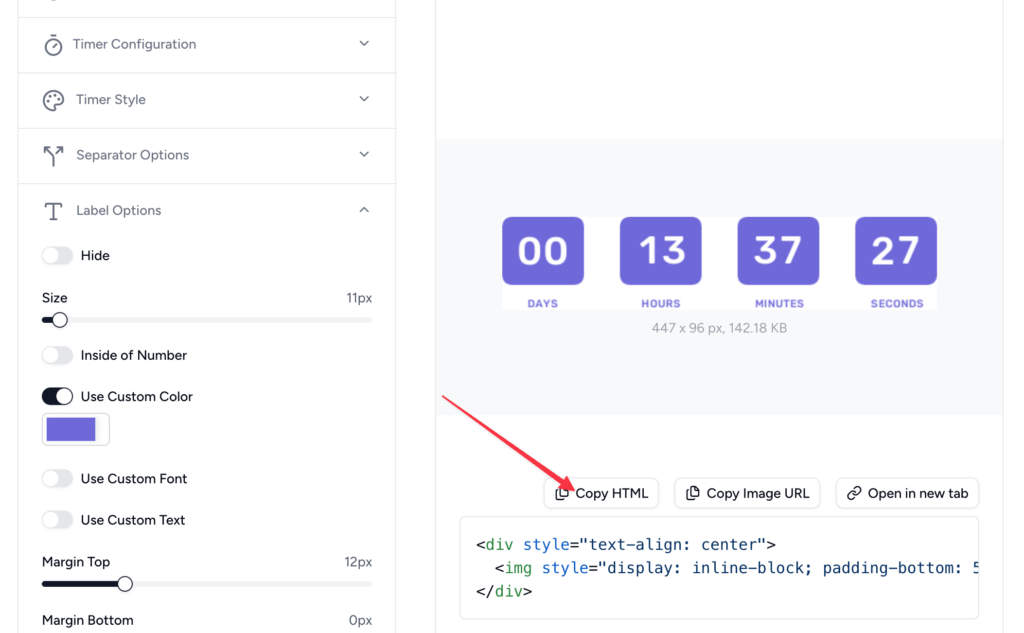
Once satisfied, click the Copy HTML button to copy the full embed code.
Step 3: Insert the Timer in Mailjet
Log into Mailjet and open your email campaign in the drag-and-drop editor.
Drag an HTML Block from the content panels into your email layout.
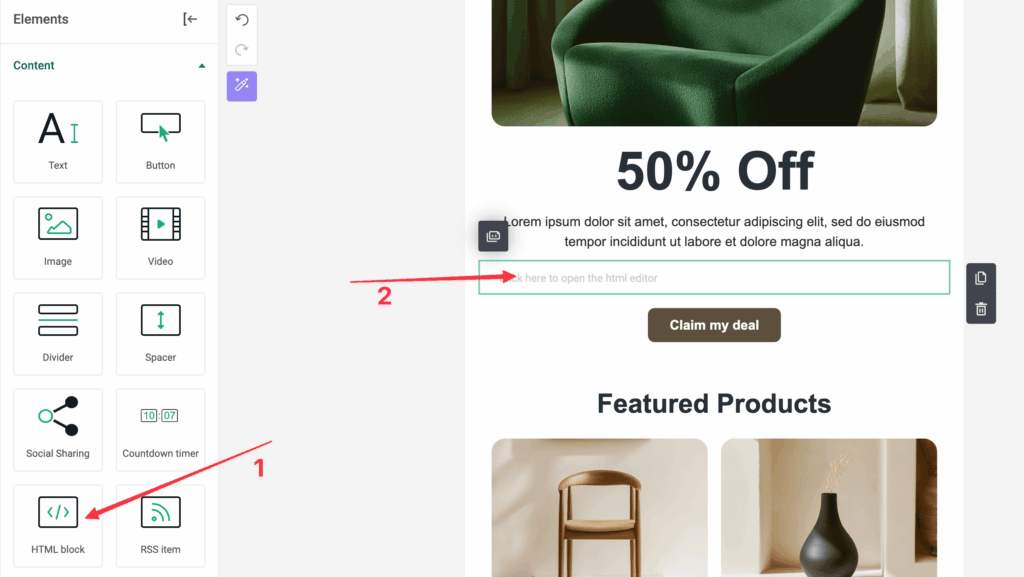
Click inside the HTML block – a code editor popup will appear. Paste the HTML code you copied from Countdown Builder. Click Save or Insert.
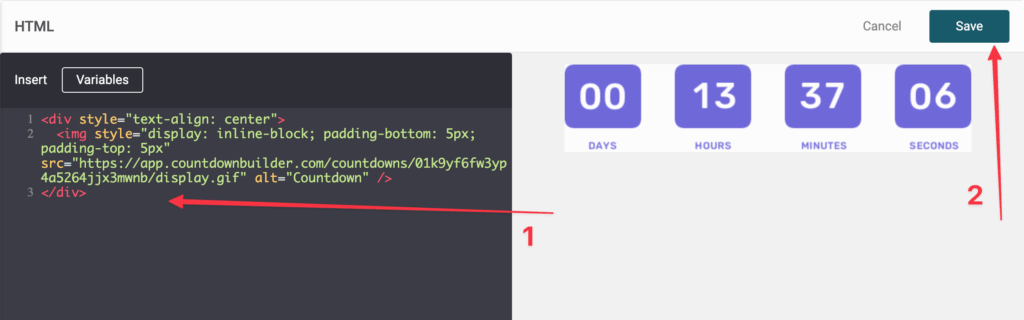
Your countdown timer is now part of your Mailjet email.
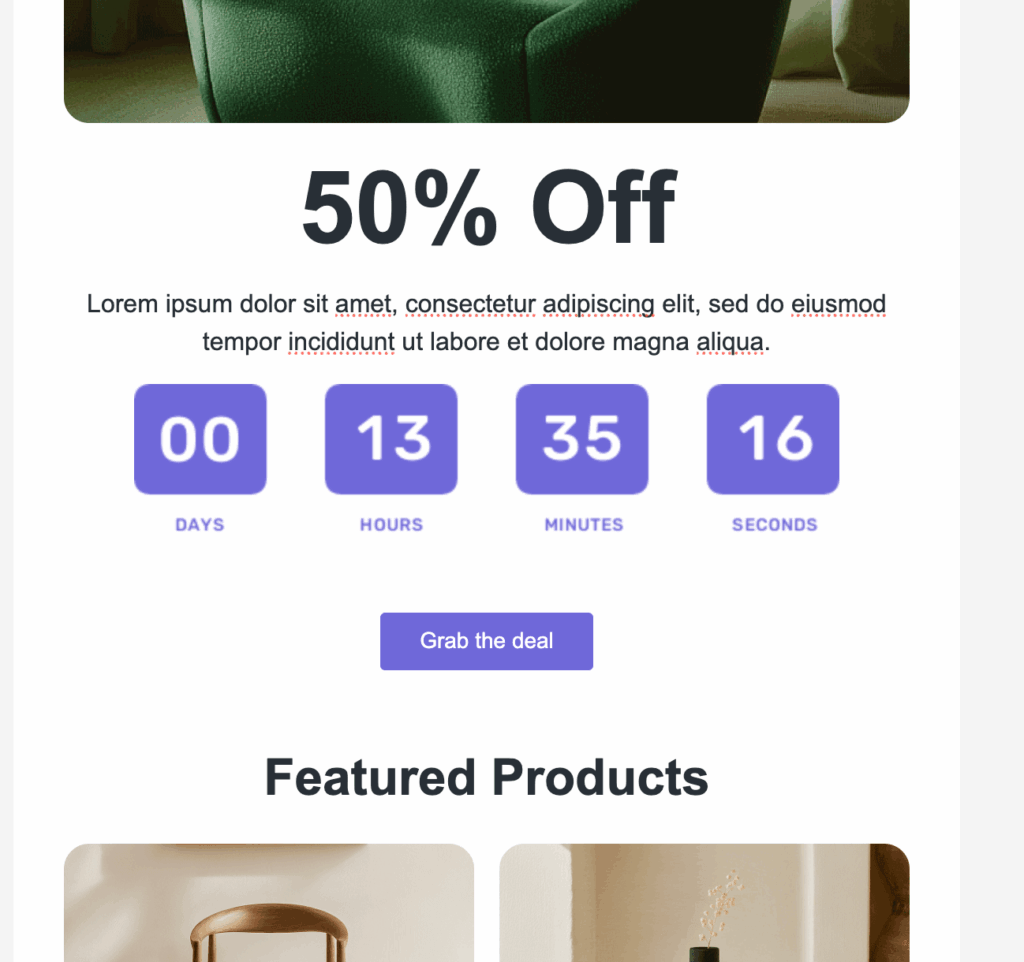
Step 4: Test and Send
- Preview the email in Mailjet.
- Send tests to yourself and check across devices and clients.
- Confirm the timer animates correctly.
Best Practices for Timers in Mailjet
- Placement: Position near your CTA.
- Design: Keep it brand-consistent and responsive.
- Copy: Reference the deadline in the subject line and body text.
- Fallback: Set expiry content for late opens.
- Image blocking: Some recipients block images by default, so include the deadline in plain text as well, and write alt text that carries the message.
Costs for Mailjet Senders
Whether a campaign goes to a small transactional list or the full marketing base, the timer costs the same flat per-account rate — no per-view billing to forecast around. The free plan has no watermark; paid plans add unlimited timers and views, and the Business plan a custom domain with SSL. Current plans are on the pricing page.
Related Guides
If you'd like to try it, you can create a free timer at Countdown Builder. The free plan doesn't require a credit card and doesn't add a watermark to the timer.
Last updated: September 2026. These steps reflect Mailjet's email editor and Countdown Builder as of this date. Email platform interfaces change over time, so the labels you see may differ slightly.
Written by Mehedi Hasan
Writer & Developer. He writes about email marketing, countdown timers, and campaign design.
Connect on LinkedIn