
How to Add a GetResponse Countdown Timer to Your Emails
 By Mehedi Hasan
A GetResponse countdown timer can be useful in a campaign that has a real deadline — a flash sale, a webinar email sequence, or a limited-time offer.
GetResponse's drag-and-drop email editor includes a Custom HTML block, so you can embed a timer generated by an external timer service. This tutorial shows how to create a timer in Countdown Builder and add it to a GetResponse email, step by step.
When a GetResponse Countdown Timer Helps
A countdown timer suits campaigns where the offer genuinely ends:
- Flash sales and limited-time discounts
- Webinar and event registration deadlines
- Course enrollment windows
- Free trial expiration reminders
If the offer doesn't actually expire, a timer reads as artificial pressure, which wears on subscriber trust over time.
Step-by-Step Guide to Adding a Countdown Timer in GetResponse
The workflow in GetResponse:
flowchart LR
    A["Create the timer in Countdown Builder"] --> B["Open your email in GetResponse"]
    B --> C["Drag a Custom HTML block from Basic Blocks"]
    C --> D["Paste the timer code"]
    D --> E["Preview and test"]
    E --> F["Send the campaign"]
Step 1: Create Your Countdown Timer
- Visit Countdown Builder and sign in or create an account.
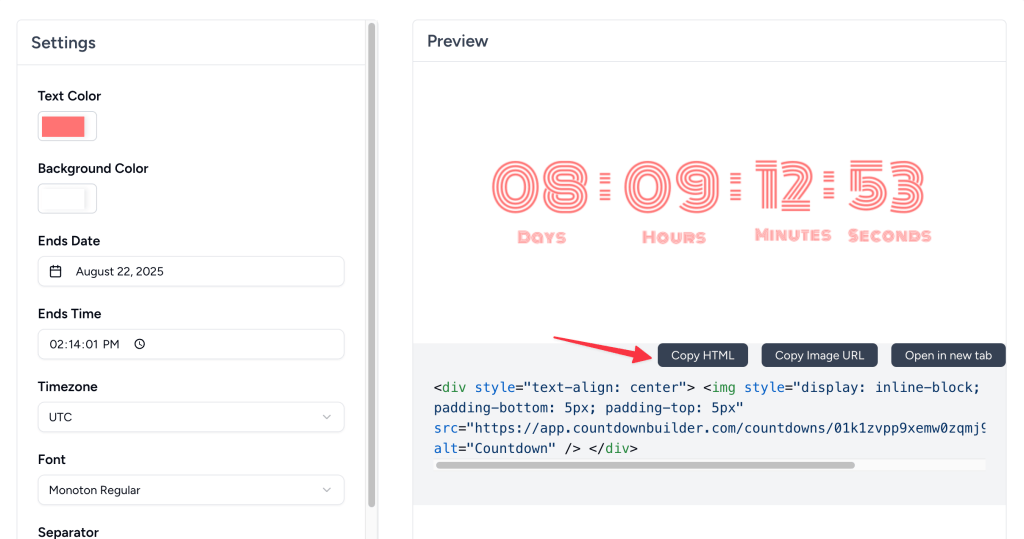
- Use the timer builder to design a countdown timer that matches your email's style. Customize colors, fonts, sizes, and the end date/time to fit your campaign's goals.
- Once satisfied with the design, click the Copy HTML button to copy the generated HTML code for your timer.
Step 2: Open Your Email in GetResponse
- Log in to your GetResponse account.
- Navigate to the Email Marketing section and select the campaign or newsletter you want to add the countdown timer to.
- Open the Drag-and-Drop Email Editor and choose or create an email template.
Step 3: Add a Custom HTML Block
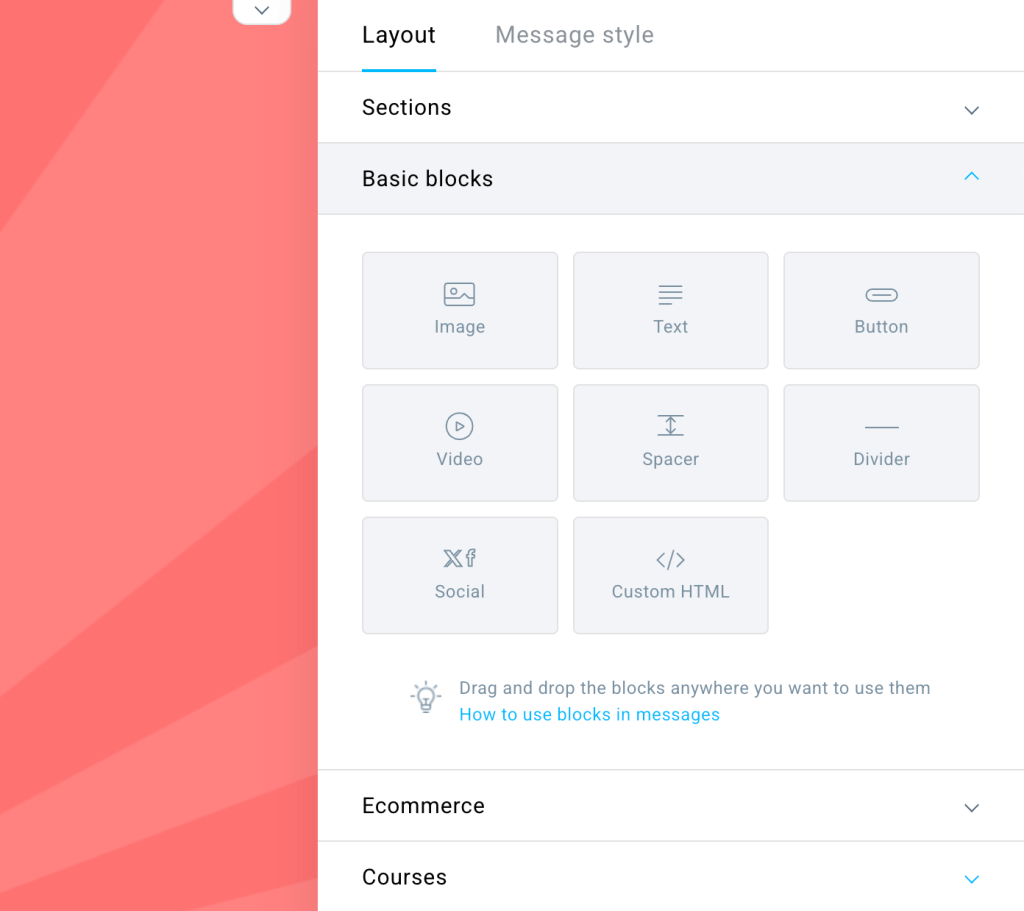
- In the GetResponse email builder, locate the Basic Blocks section in the right-hand toolbar.
- Drag and drop the Custom HTML block to your desired location in the email template (e.g., near your call-to-action).
Step 4: Paste the Countdown Timer Code
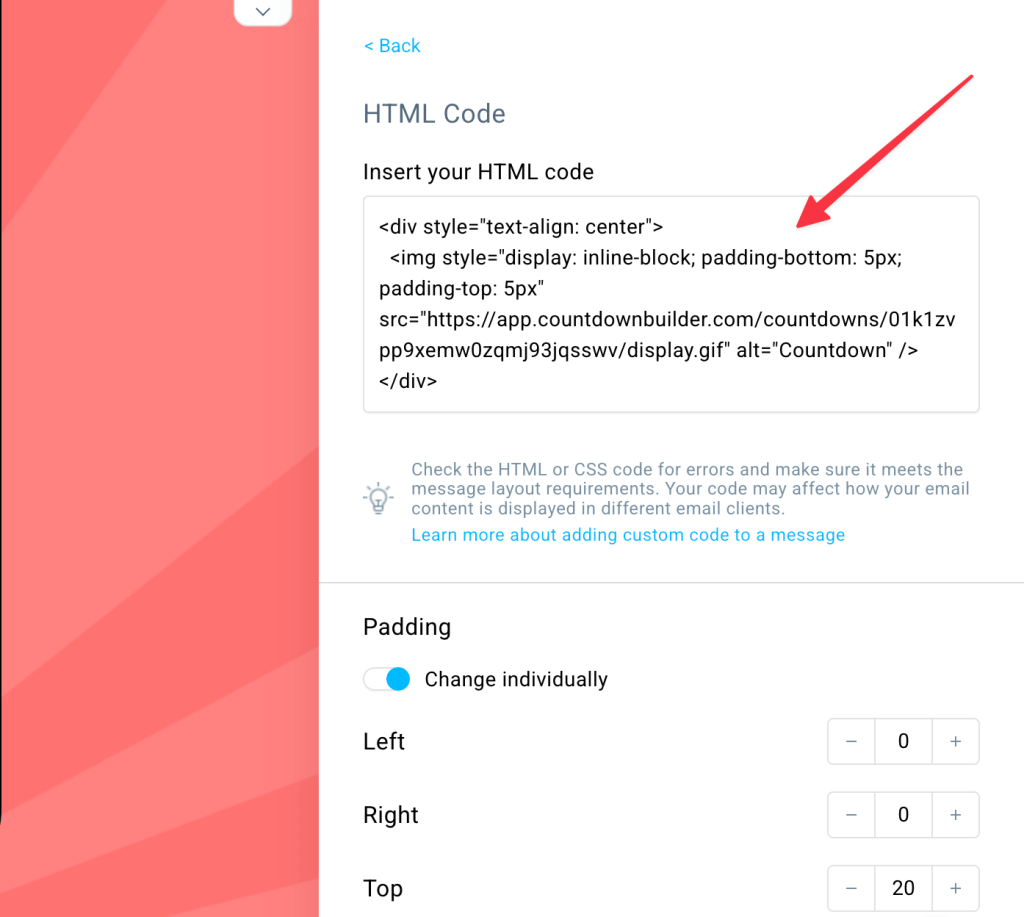
- Click on the Custom HTML block in the editor to open the Insert your HTML code textarea.
- Paste the HTML code you copied from Countdown Builder into the textarea.
- Save the changes by clicking outside the textarea or pressing the Save button.
Step 5: Preview and Test Your Email
- Use the Preview feature in GetResponse to confirm the countdown timer displays correctly and aligns with your email design.
- Send a test email to yourself to verify that the timer works across different devices and email clients.
- Adjust the timer's size or placement if needed.
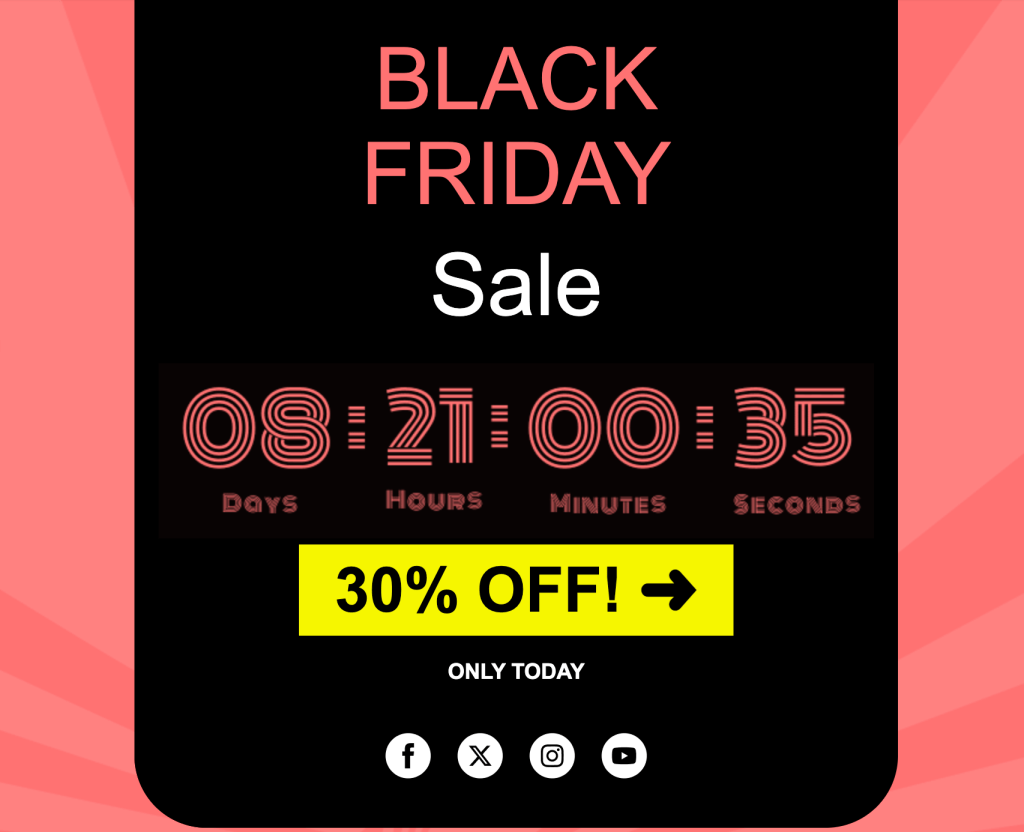
Step 6: Send Your Email Campaign
Once you're happy with the design and functionality, save your email and send it to your subscribers. Recipients who open the email see the current time remaining for your offer.
Best Practices for Using a GetResponse Countdown Timer
- Place strategically: Position the timer near your call-to-action (CTA) button.
- Match your brand: Customize the timer's colors and fonts to align with your email's design.
- Optimize for mobile: Check how the timer sizes on mobile screens, where many subscribers open email.
- Use for time-sensitive offers: Flash sales, webinars, and limited-time discounts are the natural fits.
- A/B test: Try different timer styles or placements to see which performs better.
- Plan for image blocking: Some recipients block images by default, so state the deadline in the email copy as well.
Costs for GetResponse Marketers
Flat per account rather than per contact or per view, so webinars, evergreen sequences, and one-off promotions can all carry a timer without moving the bill. The free plan has no watermark; paid plans add unlimited timers and views, and the Business plan a custom domain with SSL. You can manage your timers from the Countdown Builder dashboard, and current plans are on the pricing page.
If you'd like to try it, you can create a free timer at Countdown Builder. The free plan doesn't require a credit card and doesn't add a watermark to the timer.
Last updated: September 2026. These steps reflect GetResponse's email editor and Countdown Builder as of this date. Email platform interfaces change over time, so the labels you see may differ slightly.
Written by Mehedi Hasan
Writer & Developer. He writes about email marketing, countdown timers, and campaign design.
Connect on LinkedIn