
How to Add a Countdown Timer in Salesforce Marketing Cloud Emails (2026 Guide)
 By Mehedi Hasan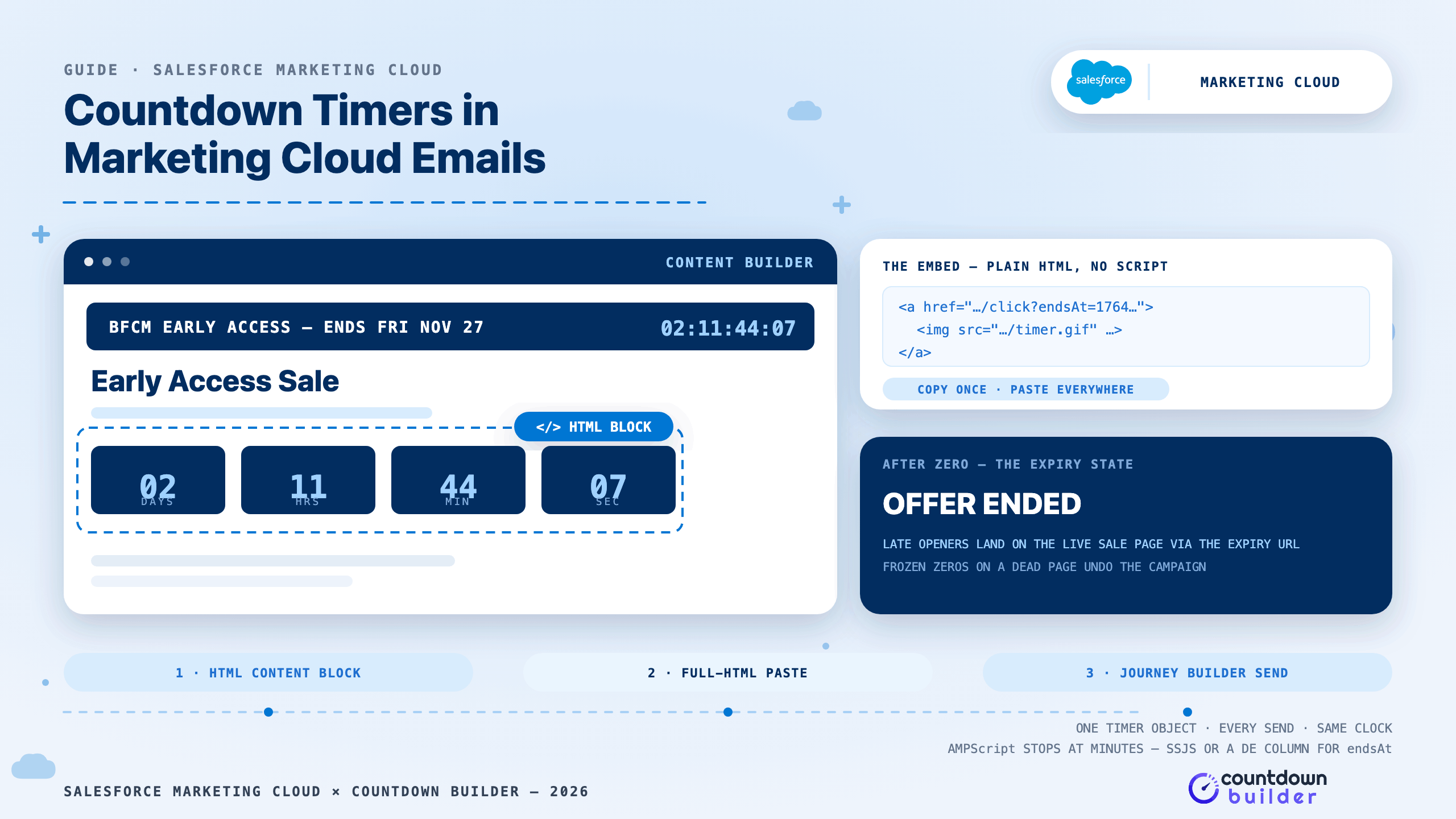
Salesforce Marketing Cloud senders run some of the most deadline-heavy email programs anywhere: seasonal campaign bursts to millions of subscribers, abandoned-cart journeys, welcome windows, renewal reminders. Most of those sends describe a deadline in words. A countdown timer shows it.
The timer itself is simple from Marketing Cloud's perspective: Countdown Builder generates it as an animated GIF hosted on our CDN, wrapped in a plain image-plus-link embed. There is no script to strip and nothing to install — an email client treats it exactly like any other externally hosted image. This makes it a good fit for enterprise senders, where getting new tags and scripts approved can take longer than the campaign itself.
This guide covers Marketing Cloud Engagement — the Email Studio, Content Builder, and Journey Builder product that most teams mean when they say "SFMC." It walks through building the timer, pasting the embed into each of the three places it can live, and the one genuine technical wrinkle SFMC has: computing per-recipient Unix timestamps, where AMPScript runs out of units.
Where the Timer Lives in Marketing Cloud
An email in Marketing Cloud Engagement can be built three ways, and the embed works in all of them:
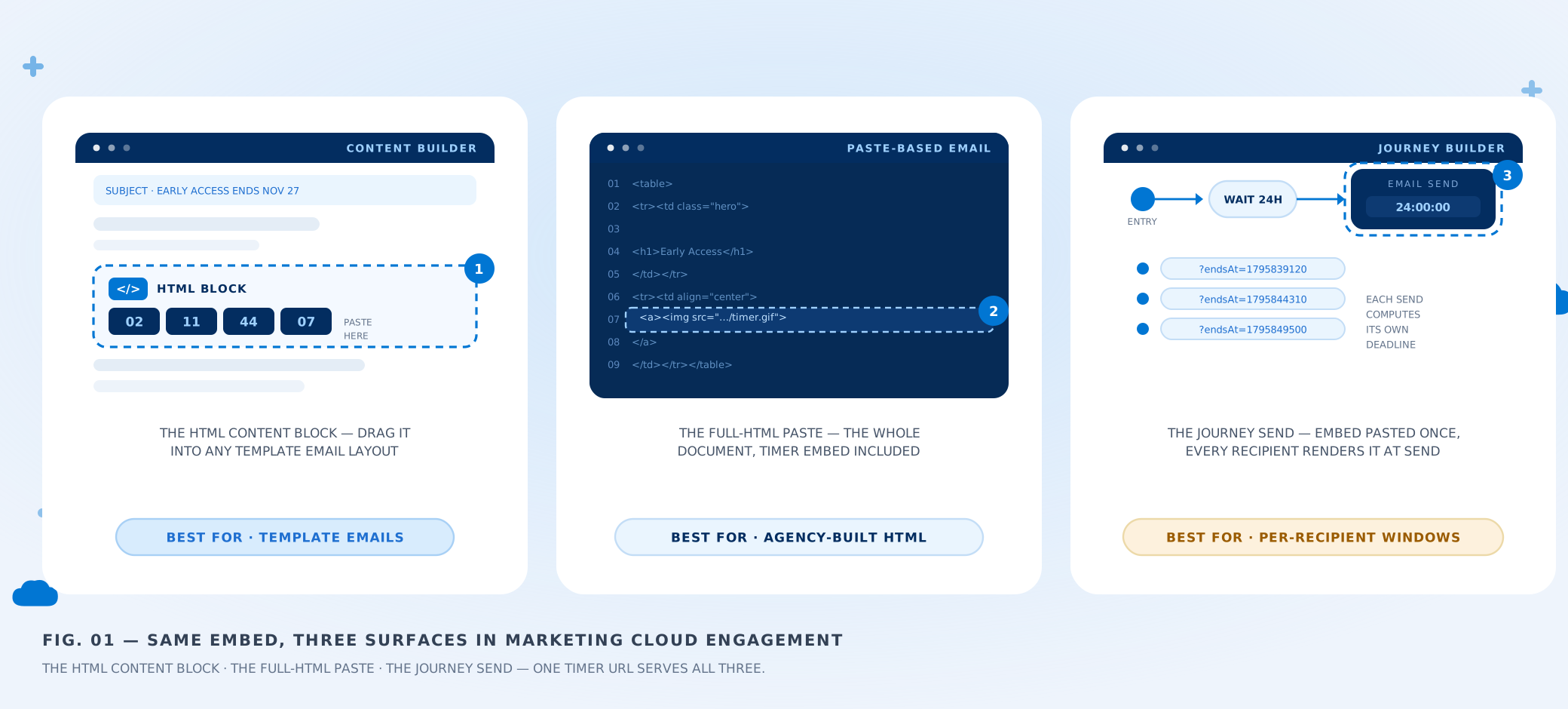
Same embed, three surfaces: the HTML content block in a template email, a full-HTML paste, and the Journey Builder sends that fire per recipient.
- Drag-and-drop template email. The standard Content Builder route — Content Builder is where Marketing Cloud Engagement stores and assembles content. Drag an HTML content block into the layout where the timer should appear and paste the embed into it.
- A pasted-HTML email. Teams that build email HTML outside Marketing Cloud — in a template system or an agency workflow — paste the whole document. Salesforce documents this as building an email from HTML with Content Builder tools; the timer embed drops into that HTML like any other image tag.
- A triggered Journey Builder send. Journeys fire per recipient on a trigger — abandoned cart, welcome, win-back. The embed is pasted into the journey's email once, and every recipient's send renders it. This is the surface where per-recipient deadlines matter, covered below.
If your instance still uses the classic Email Studio editor, the paste is the same: open the content area or template block and paste the embed where the timer belongs.
Step 1: Build the Timer in Countdown Builder
- Set the deadline to the exact minute, in the deadline's timezone. If early access ends Friday, Nov 27 at 11:59 PM ET, the timer ends exactly there. On a list measured in opens-per-minute, a timer an hour off is worse than no timer.
- Pick a template that reads at thumbnail size. Any of the 65+ templates works; high-contrast tiles survive both mobile widths and the enterprise-standard dark modes best.
- Make it clickable. Enable the clickable countdown image and point it at the destination — the sale page, the cart, the checkout. In a deadline email the timer is usually the largest element; let it carry the click.
- Configure the expiry state before anything sends. With expiry settings, the spent timer shows a text frame — "Offer ended," "Sale closed" — and the expiry URL sends late openers somewhere useful instead of a dead page. Enterprise sends live a long time in inboxes; the expiry state is not optional at volume.
- Copy the HTML embed. One snippet serves every send for that deadline — campaign, journey, and, if the landing page needs it, the website countdown timer sharing the same clock.
Step 2: Paste the Embed
Path A — template email: In Content Builder, open the email, drag an HTML content block into the layout, and paste the embed. Save, then use Preview and Test with real subscriber data to confirm the timer renders and sizes correctly in the layout.
Path B — full-HTML email: Paste your document into the HTML editor as Salesforce documents for the paste-based flow, and drop the timer embed into the source where the offer block lives. Because the embed is a plain linked image, nothing in the paste-based pipeline strips or rewrites it.
One nicety of the timer being externally hosted: if your org runs multiple business units, every BU can point its sends at the same timer URL. One embed, consistent digits across every unit's sends, no content duplication.
The Decision That Shapes the Embed: Shared Deadline or Per-Recipient Window
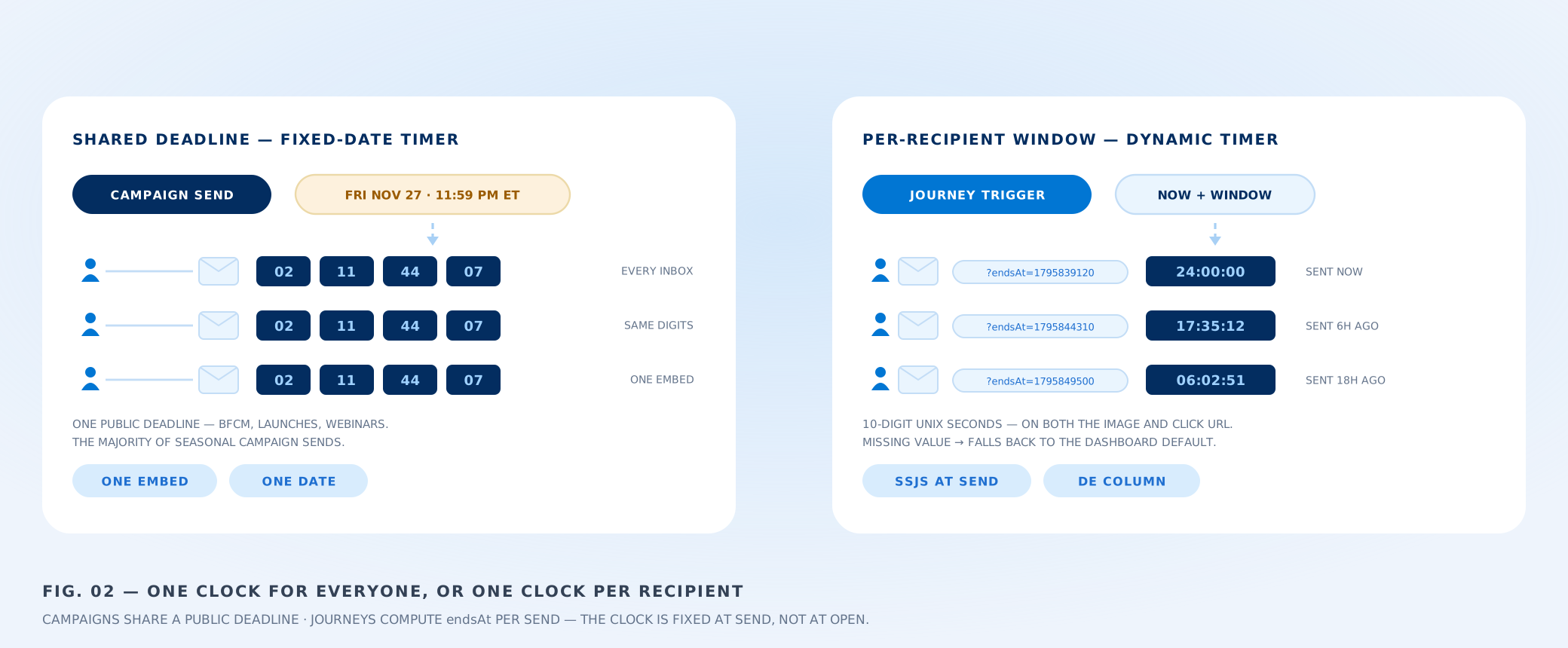
Left: the campaign case — one public end date, one embed. Right: the journey case — each recipient's send computes its own endsAt.
- Shared deadline → fixed-date timer. A campaign announcing "early access ends Friday, Nov 27" has one honest deadline. Every recipient should see the same countdown. Build one timer, paste it everywhere, done — this is the majority of seasonal sends.
- Per-recipient window → the dynamic timer. "Your cart is held for 24 hours," "your discount expires 48 hours from now" — a journey send where each recipient's window starts at their own trigger. A fixed date is the wrong instrument: someone whose email fires an hour after their cart and someone whose fires two days later would see the same countdown, and one of them is being misled.
The dynamic timer carries an ?endsAt=<unix-timestamp> parameter — on both the image URL and the click URL. Two details that matter:
- The timestamp is 10-digit Unix seconds. A 13-digit millisecond value pushes the deadline centuries into the future.
- Swap it on both URLs. A late click on a link missing its timestamp can land on the wrong page.
If a recipient's value is missing, the timer falls back to the default date saved in your Countdown Builder dashboard — the email still renders.
Computing endsAt: the AMPScript Catch
This is the one place Marketing Cloud differs from every other major ESP, and it's worth understanding before your team scripts the dynamic embed.
AMPScript — the native personalization language — has solid date functions: DateAdd shifts a date, DateDiff measures between two. But DateDiff's smallest unit is minutes (Y, M, D, H, MI, per the official reference). There is no seconds unit, so AMPScript alone can't produce the Unix-seconds timestamp the endsAt parameter needs. Two patterns teams use instead:
Pattern 1 — SSJS at send time. Marketing Cloud also runs Server-Side JavaScript, evaluated per recipient at send — and JavaScript dates speak epoch natively. A block like this computes a 24-hour window and writes the embed (the two URLs are placeholders — take them from your Countdown Builder embed):
<script runat="server">
  var endsAt = Math.floor((new Date().getTime() + 24 * 60 * 60 * 1000) / 1000);
  Write('<a href="https://your-timer-link.example/click?endsAt=' + endsAt + '">');
  Write('<img src="https://your-timer-image.example/timer.gif?endsAt=' + endsAt + '" width="480" height="120" alt="Your cart is held for 24 hours" />');
  Write('</a>');
</script>
Pattern 2 — precompute into the send Data Extension. If your journeys are fed by Automation Studio, a query activity can stamp each row's deadline as a plain number — SQL Server's DATEDIFF(second, ...) has no such unit shortage:
SELECT SubscriberKey,
       DATEDIFF(second, '1970-01-01', DATEADD(hour, 24, EventDate)) AS endsAt
FROM   TriggerSource
The journey email then references the endsAt column in the HTML block like any other personalization field. This pattern has an operational bonus: the deadline is data, so your analytics team can audit windows after the fact.
Either way, the clock is fixed at send, not at open — a recipient who opens three days late sees the correctly expired timer, not a restarted one. That behavior matches what shoppers experience in our Shopify abandoned cart guide, which covers the same wiring on the commerce side.
A Journey That Uses the Timer Well
Whether the trigger is an abandoned cart, a lapsed subscriber, or a trial nearing expiry, the shape that works is the same three-send ladder:
| Send | When | Timer |
|---|---|---|
| Reminder | ~1 hour after trigger | None — plain reminder, cart or status contents, recovery link. A timer here needs a real expiry to point at. |
| Incentive | ~24 hours | Dynamic timer on the 24-hour window, clickable to the recovery or checkout page |
| Final call | 48–72 hours | Same deadline, shortest window, expiry state configured — some recipients only open this one after zero |
Subject lines that fit the ladder:
- Send 1: "You left something behind" / "Your cart is waiting"
- Send 2: "Your cart — plus 15% off, for the next 24 hours"
- Send 3: "Last call: your cart and your discount end tonight"
Keep it to two or three sends. Recovery journeys work because they are few and useful; past that, they train shoppers to wait for the incentive email.
Rendering Notes for Enterprise Sends
- Outlook on Windows shows a still frame. The timer regenerates as a fresh GIF on every open, but classic Outlook desktop renders the first frame, frozen. Pick a template whose frozen frame still reads — the digits and label legible at a glance. The troubleshooting guide covers every client's behavior.
- Apple Mail prefetching. Mail Privacy Protection can serve a cached copy, so the displayed moment may lag the open time. The deadline is unaffected; don't build logic that depends on exact displayed seconds.
- State the deadline in text as well. Image blocking is common in enterprise environments. A line like "Early access ends Friday, Nov 27 at 11:59 PM ET" carries the fact the timer shows — and alt text covers the timer itself.
- Test the way you send. Use Preview and Test with real subscriber data, then seed-send to inboxes your team controls — Gmail, Outlook, Apple Mail, desktop and mobile — before the campaign goes to the full list. Confirm the countdown reads, the click lands on the right page, and the expiry state displays once the deadline passes.
Costs for Marketing Cloud Programs
Enterprise volume swings hard — a quiet week and a Black Friday burst to the full list look nothing alike — and the timer bills the same either way: a flat rate per account, not per view. A campaign sending to millions doesn't change the cost, and the free plan carries the full setup with no watermark. Current plan details are on the pricing page.
Final Thoughts
Marketing Cloud gives you the sends; the timer gives them a visible deadline. For campaigns, it's a fixed-date embed pasted into an HTML content block — five minutes of work. For journeys, it's the dynamic timer with endsAt computed at send: SSJS in the email, or a timestamp column in the send Data Extension. Give every timer an expiry state, test across clients before the big send, and one embed keeps every business unit's digits in agreement.
When the next campaign is on the calendar, you can make an email countdown timer on the free plan — no credit card, no watermark — and have it pasted into Content Builder before the copy is approved.
Related Guides
- How to Add an Email Countdown Timer in Iterable
- Add a Countdown Timer to Braze Emails
- Dynamic Timer: Per-Recipient Deadlines
- Black Friday Email Countdown Timer: The 2026 BFCM Playbook
- Email Countdown Timer Not Working? 7 Causes and Fixes
Last updated: October 2026. Salesforce renames and reorganizes Marketing Cloud surfaces periodically — the menu names above reflect Marketing Cloud Engagement at the time of updating and may drift. Countdown Builder features and pricing can change; see the pricing page for current details.
Written by Mehedi Hasan
Writer & Developer. He writes about email marketing, countdown timers, and campaign design.
Connect on LinkedIn