
How to Add a Countdown Timer to a Braze Email
 By Mehedi Hasan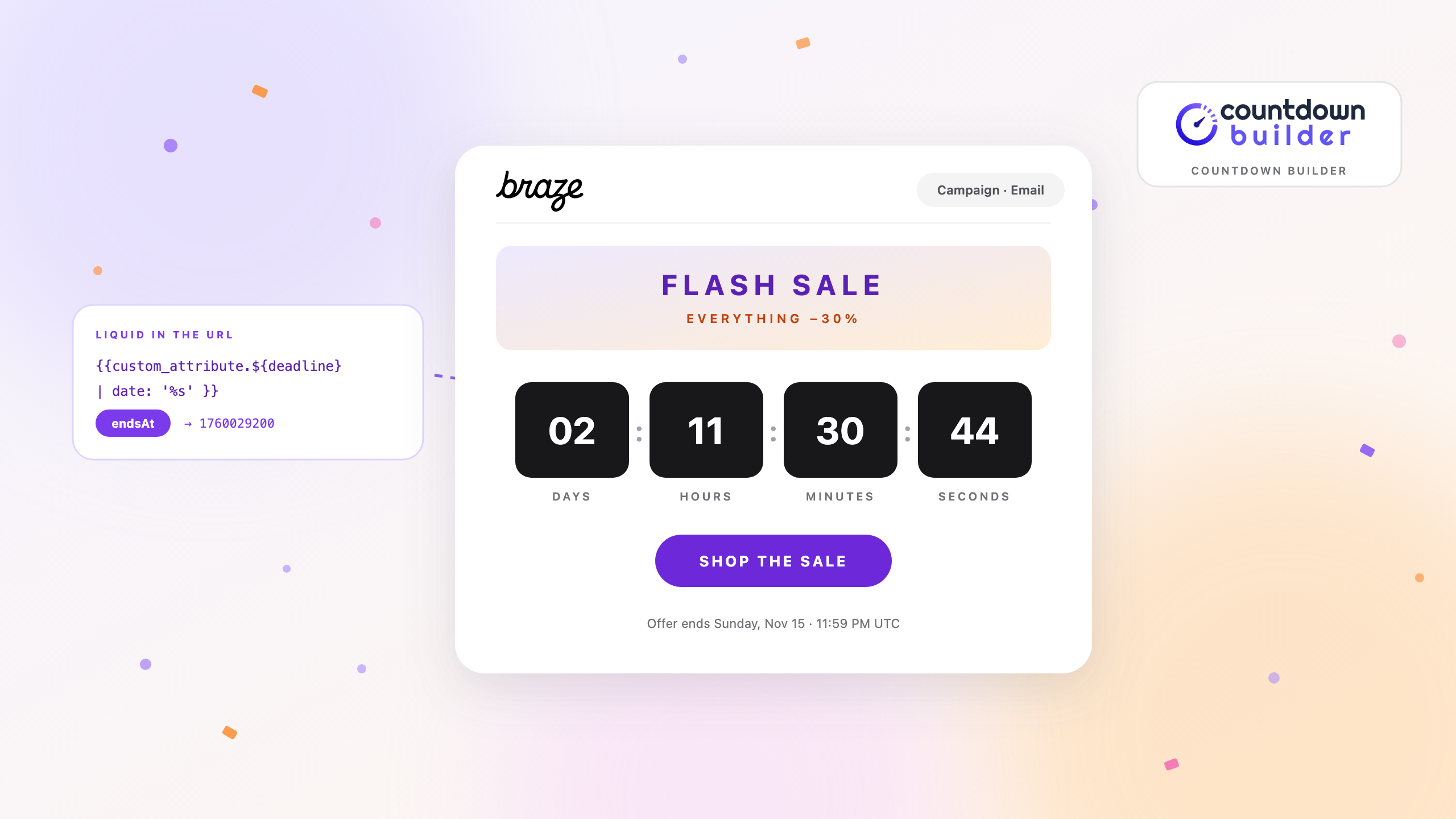
Braze gives you two email editors — the drag-and-drop editor and the standard HTML editor — and neither ships a countdown component. What both of them can do is load an image from a URL: the drag-and-drop editor's image block has a URL property, and the HTML editor takes any markup you paste. An image countdown timer lives at a URL. That's the whole opening.
This tutorial covers the rest: building the timer, getting it into a Braze campaign through either editor, giving each recipient their own deadline with Liquid, and testing the result before it goes out. The examples use Countdown Builder, the timer service behind this blog.
How Email Countdown Timers Work
No email client runs JavaScript, so nothing ticks live inside the inbox. Countdown timers work around this by being animated images: a service renders the countdown as a GIF at a URL, and each time the email is opened, the image regenerates with the correct time remaining at that moment.
Two things follow. The end date and time zone you set on the timer are what the image is built from, so they have to be the campaign's real deadline. And the email has to load the image from the timer's URL — not from a copy stored inside Braze. Step 3 explains what goes wrong when that rule gets broken.
What You Need
- A Braze account with a campaign (or a Canvas with an email step) you're building
- A Countdown Builder account (the free tier works) with a timer set to your real end date
- The timer's GIF URL or HTML embed code, copied from the timer's page
The Flow at a Glance
Four steps, start to send:
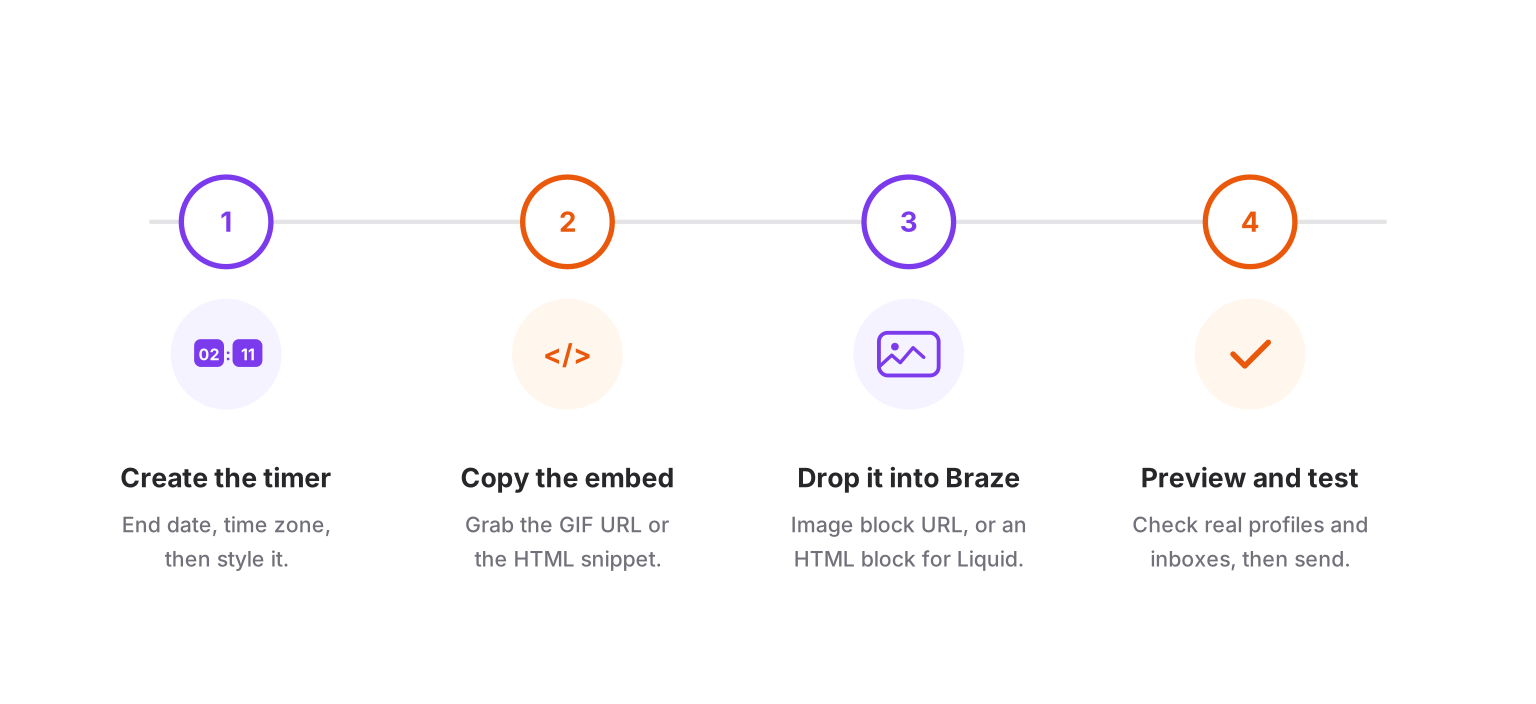
Build the timer once outside Braze — from there it's a single paste in the campaign editor.
Step 1: Create the Timer in Countdown Builder
- Go to app.countdownbuilder.com and create a timer, or sign up free if you don't have an account yet.
- Set the end date, time, and time zone to the campaign's actual deadline. If the offer doesn't really end, leave the timer out — a countdown that resets or lies trains readers to ignore the next one.
- Design it. Pick a starting point from the 65+ templates, then adjust colors, fonts, and labels to match the campaign.
- Set expiry behavior — zeros, a message like "Offer ended," or a custom image for after the deadline. Details are on the expiry settings page.
- Copy both the GIF URL and the HTML embed. Which one you use depends on the route in Step 3.
Step 2: Create the Email in Braze
- In Braze, go to Messaging > Campaigns, create a campaign, and choose Email (or open a Canvas and add an email message step).
- After picking your template starting point, choose your editing experience: the drag-and-drop editor or the HTML editor for full custom markup. Braze recommends sticking with one per campaign — the two don't mix well.
If you hand-build emails as complete HTML documents, the HTML editor is your route: paste or upload the template, and drop the timer's embed code wherever the countdown goes. Everyone else will be faster in the drag-and-drop editor, which is where Step 3 starts.
Step 3: Add the Timer to the Email
The drag-and-drop editor's Content panel has two blocks that matter here, and they're not interchangeable:
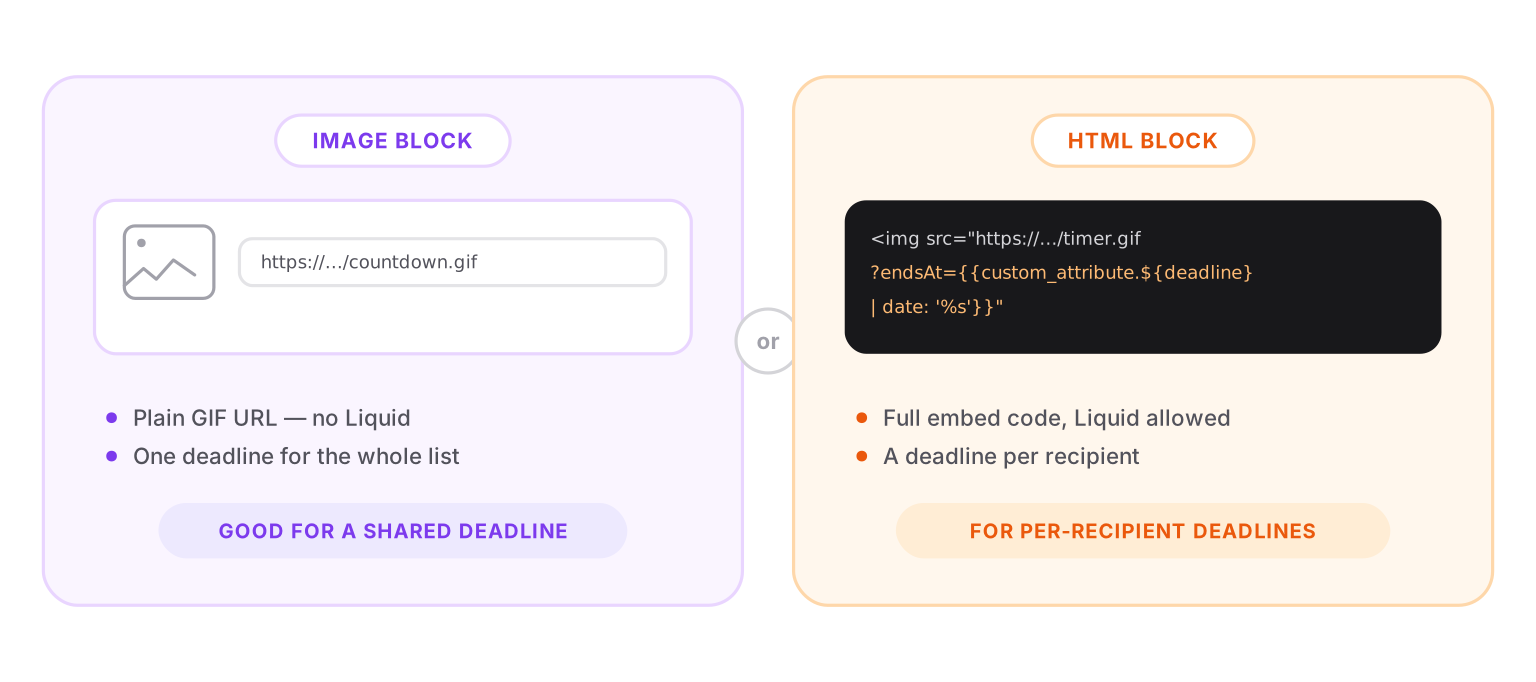
Two ways in: the image block for one deadline shared by the whole list, the HTML block when each recipient gets their own.
Route A — the image block (shared deadline):
- Drag an Image block from the Media section into the email where the timer belongs.
- In the block settings, use the URL property and paste the timer's GIF URL. It has to start with
https://. - Set alt text (something like "Sale ends Sunday at midnight") and, if the timer should be clickable, give the block a link to your sale page.
Route B — the HTML block (Liquid allowed):
- In the Content panel, scroll to the Advanced section and drag the HTML block into the email. Braze describes this block as "inserts raw HTML — recommended for Liquid."
- Paste the embed code from Countdown Builder. It arrives ready to use: the image, its alt text, and the click link are all in the snippet.
The difference is Liquid. Braze's docs note that Liquid personalization isn't supported in image blocks — so once you want a per-recipient deadline merged into the timer's URL (next section), the HTML block is the one that can do it.
One thing to avoid: downloading the GIF and re-uploading it to Braze's media library. A library copy is a frozen frame — it shows the time remaining when you downloaded it, on every open, forever. Linked by URL, the timer regenerates on every open, so a subscriber reading the email two days later still sees the correct countdown.
One Deadline Per Recipient: the Liquid Route
Everything above gives the whole list the same countdown. Braze can do better: store each person's deadline as a date custom attribute — deadline, say — and merge it straight into the timer's URL.
Countdown Builder's dynamic timers accept an endsAt parameter with a Unix timestamp, and Braze's Liquid date filter converts a date to exactly that with '%s'. Put together, the image URL in your HTML block becomes:
https://.../countdown.gif?endsAt={{custom_attribute.${deadline} | date: '%s'}}
At send time, Braze resolves the tag per recipient — a trial end, a cart-hold expiry, a renewal date — and each person's timer counts down to their own moment. If the attribute is missing on a profile, the parameter comes out empty and the timer falls back to the default date you saved with it, so nobody gets a broken image. One prerequisite: the attribute has to exist on the profile before the message step sends, so write it via the API or a CSV import earlier in the flow. The full setup is on the dynamic timer page, and the broader pattern is covered in Email Personalization Beyond First Name. Salesforce teams can run the same pattern in Marketing Cloud — with one wrinkle, since AMPScript can't produce Unix seconds — via SSJS or a Data Extension column; the SFMC timer guide shows both. Customer.io goes one further: Liquid works in the image block's URL itself via its Dynamic image toggle, so the image-block route survives intact — the Customer.io timer guide covers it.
What about Connected Content? You don't need it here. Connected Content makes an HTTP call at send time to pull data into the message — useful for recommendations or balances, but it adds a two-second timeout and rate limits to worry about. The timer's URL is already dynamic at open time by design; point the src at it directly and skip the extra machinery.
Where to Place the Timer in the Email
- Between the hero and the CTA. After the reader knows what the offer is, before they decide. A timer at the very top counts down to something the reader can't yet name.
- State the deadline in text as well. Some recipients block images. A line like "Offer ends Sunday, Nov 15 at 11:59 PM UTC" survives without them, and the alt text covers the timer itself.
- One timer per email. Two clocks to two different deadlines in one email say only one thing: nothing here is real.
Step 4: Preview and Test
- Use the Preview & Test tab before sending — and preview as a random user or a specific test profile, not just the default. With Liquid in the URL, this is the only way to see the timer resolve against a real
deadlinevalue. - Send tests to inboxes you control: Gmail, Outlook, and Apple Mail cover most lists. Apple Mail Privacy Protection prefetches images at delivery, so those opens may cache an earlier frame — Countdown Builder serves a static fallback for Apple MPP, so check how it reads. Outlook on Windows shows a GIF's first frame, which for a timer is a correct frozen snapshot.
- Confirm the countdown shows the right time remaining, and look at what the expiry setting will display once the deadline passes.
- Review, pick your audience, and send or schedule.
FAQ
Does Braze have a built-in countdown timer?
No. Neither the drag-and-drop editor nor the HTML editor includes one. The standard approach is what this guide covers: a timer service generates an animated image at a URL, and the email pulls it in through the image block's URL property or raw HTML.
Will the countdown update live?
It regenerates on every open, so each view shows the correct time remaining at that moment. It isn't a running clock inside the inbox — no email client allows that. Outlook on Windows renders the GIF's first frame; the count shown there is still accurate.
Can I use Liquid with the timer?
Yes — in an HTML block or the HTML editor. Braze notes that Liquid isn't supported in image blocks, so per-recipient URLs like the endsAt example above belong in raw HTML. For one shared deadline, the image block's plain URL is fine.
Do timers work in Braze Canvases?
Yes. Canvas email steps use the same editors, so both routes work there too. The one Canvas-specific caution: if you're merging a deadline attribute into the URL, make sure the attribute is written to the profile before the message step fires — an empty value falls back to the timer's default date.
Final Thoughts
A countdown timer in a Braze email is one paste: the image block's URL property for a deadline the whole list shares, the HTML block when Liquid gives every recipient their own. Build the timer against the real deadline, link it by URL — never re-upload the GIF — place it between the hero and the button, and test against a real profile before sending.
If you want to try it, you can create a free timer — the free plan needs no credit card and adds no watermark.
Related Guides
- How to Increase Email Urgency with Countdown Timers and End-Time Messages
- How to Boost Flash Sale Conversions with an Email Countdown Timer
- Email Personalization Beyond First Name: Dynamic Countdown Timers
- Countdown Timers for Holiday Campaigns: A Practical Guide
- The Psychology of Scarcity: Why Countdown Timers Actually Increase Sales
- How to Add a Countdown Timer to a Campaign Monitor Email
Last updated: October 2026. The Braze steps above reflect the campaign and email editors as of this date; Braze evolves its interface, so exact labels may drift. Countdown Builder features and pricing reflect the product at the time of publication and can change — see the pricing page for current plans.
Written by Mehedi Hasan
Writer & Developer. He writes about email marketing, countdown timers, and campaign design.
Connect on LinkedIn