How to Add a Countdown Timer to a Campaign Monitor Email
 By Mehedi Hasan
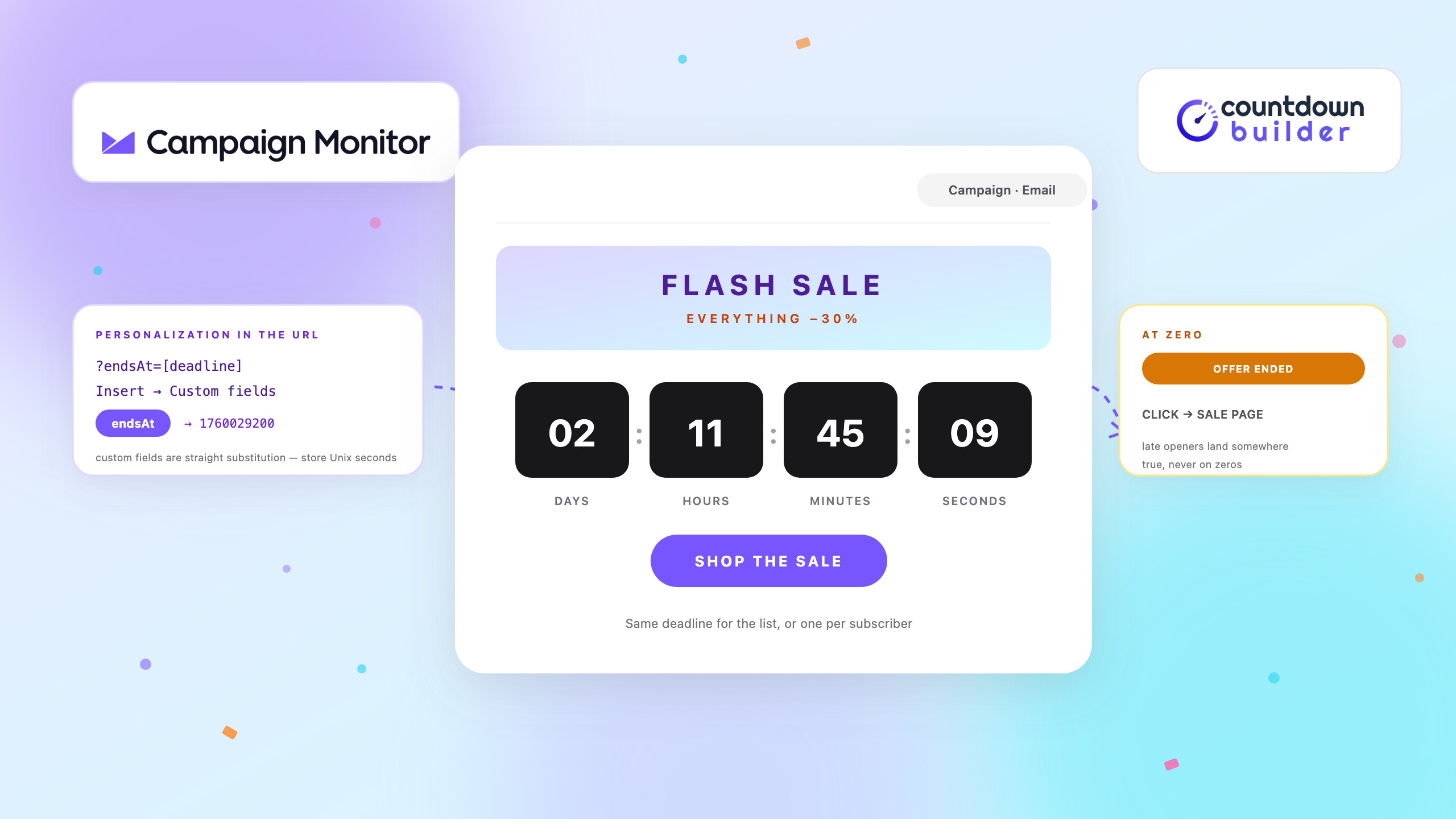
Campaign Monitor builds emails two ways: the drag-and-drop email builder most campaigns start with, and a custom-HTML path where you import a file you coded yourself. The split between them matters more here than in most tools, because Campaign Monitor draws a hard line — once an email is made in the builder, its HTML can't be viewed or edited at all. What neither path ships is a countdown element.
What both paths can do is load an image from a URL, and an animated countdown timer lives at a URL. That's the whole opening: build the timer outside Campaign Monitor, then hand the email a link to it. This guide covers both routes (the image block's URL field for builder emails, Import HTML for hand-coded templates), per-subscriber deadlines with custom fields, and the tests to run before the send. The examples use Countdown Builder, the timer service behind this blog.
How Email Countdown Timers Work
No email client runs JavaScript, so nothing can tick live inside the inbox. Every countdown timer you've seen in an email is a workaround: a service renders the countdown as an animated GIF at a URL, and the image is re-requested every time the email opens, so each open renders with the time remaining at that moment. The mechanics of the animated GIF — frames, delays, regeneration — are covered in a separate guide.
Two consequences shape everything below. The timer's end date and time zone are the source the image is drawn from, so they must match the campaign's real deadline. And the email must reference the timer's URL — if you upload the GIF as a file, the upload is a single frozen frame, and that frame is what every subscriber sees no matter when they open. Campaign Monitor's image gallery is a fine home for your logo; it's the wrong home for a timer.
What You Need
- A Campaign Monitor account with a campaign or journey email you're building
- A Countdown Builder account (the free tier works) with a timer set to your real end date
- The timer's GIF URL, or the HTML embed if you're importing your own template
The Flow at a Glance
Four steps, create to send:
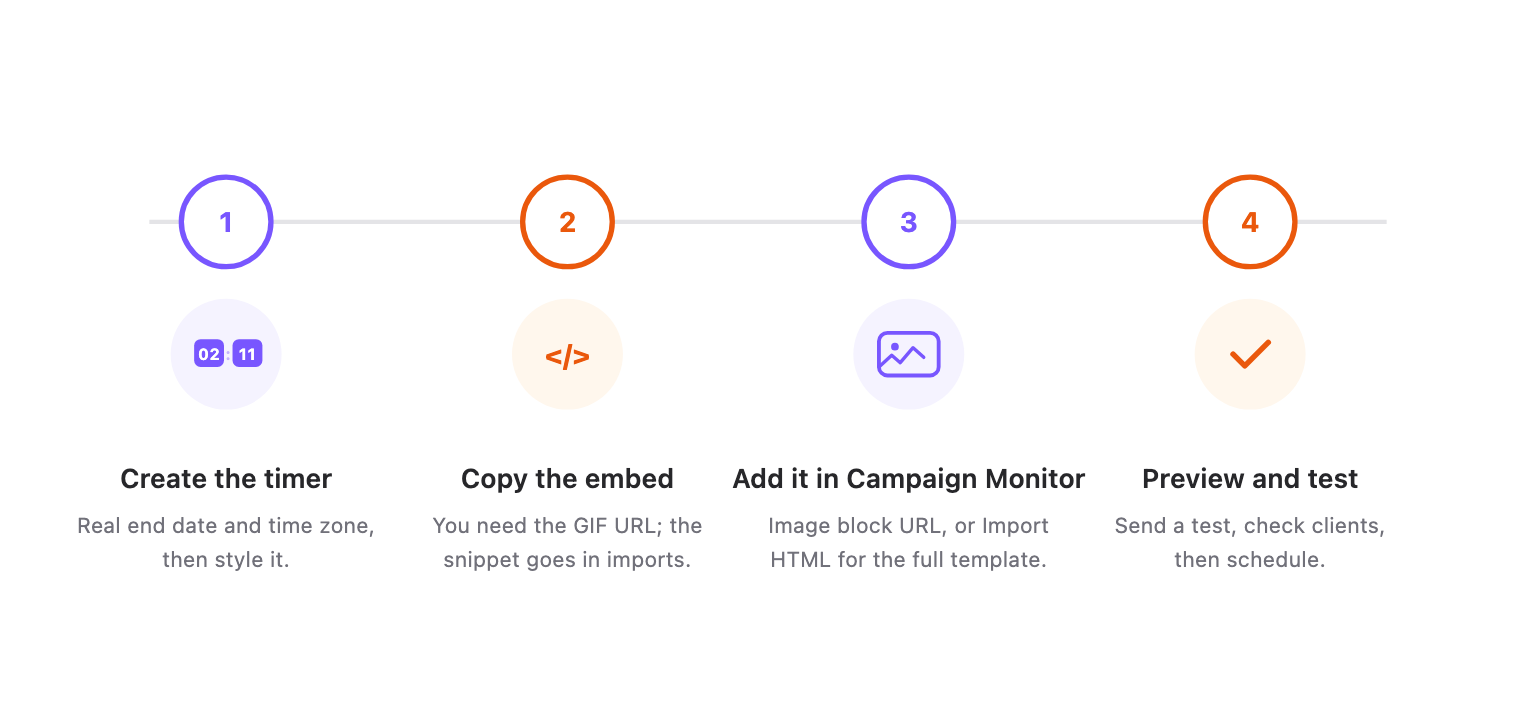
Build the timer once outside Campaign Monitor — the email side is one URL paste or one import.
Step 1: Create the Timer in Countdown Builder
- Go to app.countdownbuilder.com and create a timer, or sign up free if you don't have an account yet.
- Set the end date, time, and time zone to the campaign's actual deadline. The image is generated from these values, so a placeholder date becomes a wrong countdown in every inbox.
- Design it. Start from one of the 65+ templates, then match colors, fonts, and labels to the email.
- Set expiry behavior — what shows at zero: zeros, a short message like "Sale ended," or a custom image, optionally linked to a page that makes sense after the deadline. The expiry settings page covers the options.
- Copy the GIF URL (and the HTML embed if you'll take Route B). Both live on the timer's page.
Step 2: Create the Email in Campaign Monitor
Where you start depends on the send:
- A regular campaign — create a new campaign and click Design email.
- A journey (automated) email — create the journey and get to the Choose a starting point screen.
Both screens offer the same two doors: start from a template in the email builder (Route A), or click Import HTML and bring in a file you coded (Route B). Smart transactional emails take imports too, with an Edit HTML option under Content. Pick by how much of the email you want to own — the timer works in either.
Step 3: Add the Timer to the Email
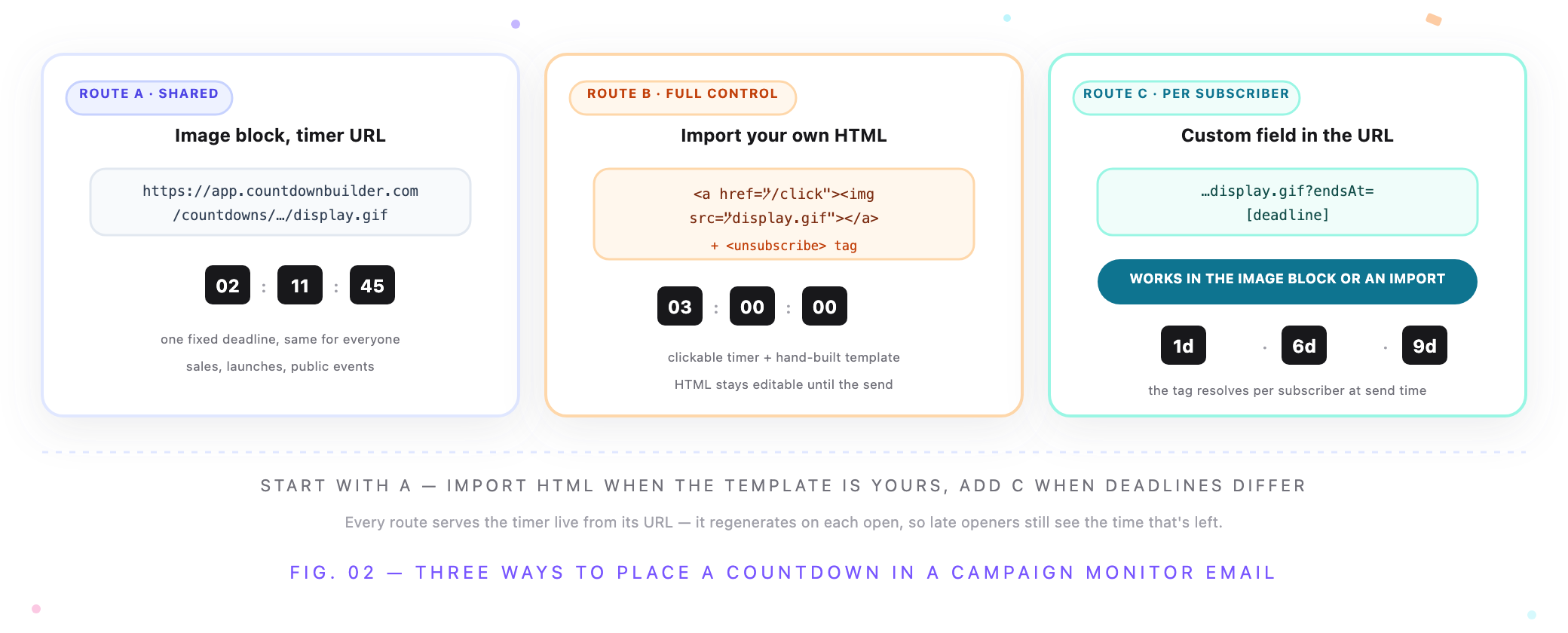
Route A is the builder's native path; B is for hand-coded templates; C layers a per-subscriber deadline onto either.
Route A — the Image block, timer URL (builder emails):
- Drag an Image block into the email where the countdown belongs.
- In the block's image settings, choose the image-from-URL option and paste the timer's GIF URL — the
https://link exactly as copied, not an upload of the file. - Set the alt text ("Sale ends Sunday at midnight" — this is what image-blocking inboxes show) and point the image's link at your offer page.
Campaign Monitor's help center lists "images from a URL" as one of the places personalization tags work, which tells you two useful things at once: the field exists in the builder, and it accepts dynamic values — that's the hook Route C hangs on. What the builder can't do is accept the timer's HTML embed, because builder emails expose no HTML to edit. The URL field is the builder's timer path.
Route B — Import HTML (full templates):
- On the Design email (or Choose a starting point) screen, click Import HTML → From my computer.
- Under HTML page, click Select file and choose your template. If your images and CSS live alongside it, add the optional ZIP — imports are capped at 20MB. (You can also import from a hosted URL.)
- Leave Move my CSS inline selected — Campaign Monitor recommends it because some clients strip
<style>blocks. - Click Start import.
Your template carries the timer wherever it belongs:
<a href="https://app.countdownbuilder.com/countdowns/<timer-id>/click">
  <img src="https://app.countdownbuilder.com/countdowns/<timer-id>/display.gif" alt="Sale ends Sunday at midnight" />
</a>
The anchor makes the timer clickable — before the deadline the click forwards to your page, and after it, to the expiry URL you set in Step 1. One requirement Campaign Monitor enforces on hand-coded email: a working unsubscribe link in every campaign and journey email. If you build your own template, wrap the link in the <unsubscribe> tag — imports without one get flagged, and the fix is either adding it yourself or letting Campaign Monitor append a footer link for you.
After the import, the HTML editor opens next to a live preview, and the Assistant flags code problems (JavaScript or Flash, for instance, which it will ask you to remove — a timer needs neither). You can re-open and edit that HTML any time before the send; once the email has sent, the code is locked and your options are duplicating it or importing the file again.
One Deadline Per Subscriber: the Custom-Field Route
Routes A and B give the whole list one countdown. For deadlines that differ per subscriber — a trial's last day, a cart hold, an enrollment window — the dynamic timer accepts an endsAt parameter holding a Unix timestamp in seconds, and Campaign Monitor custom fields can supply it:
- Store each subscriber's deadline in a custom field as Unix seconds —
1760029200, not a formatted date. Campaign Monitor personalization is straight substitution: the tag outputs whatever the field holds, with no date math at send time. - Append the parameter to the timer's image URL, using the field's tag — inserted via the toolbar's Insert → Custom fields menu, or typed as
[deadline]:
<img src="https://app.countdownbuilder.com/countdowns/<timer-id>/display.gif?endsAt=[deadline]" alt="Your access ends soon" />
- If the timer is clickable, give the click link the same parameter so late clicks stay consistent with what the image showed.
- If a subscriber's field is empty, the tag resolves to nothing usable and the timer falls back to the default date saved with it — nobody gets a broken frame. Send yourself the test with the field blank as well as filled, so you've seen both.
The same mechanic works in the builder's image-URL field and inside an imported template — the personalization fields article confirms tags resolve in both places. The prerequisite is the same as in Customer.io and Braze: the field has to exist on the subscriber before the email sends. The broader pattern is covered in Email Personalization Beyond First Name.
Where to Place the Timer
- After the offer, before the button. The reader should know what they're counting down to before the clock appears — hero first, timer second, call to action third.
- Say the deadline in words too. A line like "Doors close Friday, Nov 27 at 11:59 PM ET" reaches subscribers who block images, and it's also what the timer's alt text is for.
- One clock per email. Two timers showing different deadlines in one email undermine each other; pick the one that matters.
- In journeys, reuse one timer across the sequence. The announcement, the reminder, and the last-chance email can all point at the same URL — each open regenerates the image, so every email in the flow shows the time its reader actually has left.
Step 4: Preview and Test
- In the builder, use the device previews to check the timer's width against your template's content column; after an import, check the live preview beside the HTML editor.
- Click Send a test email to inboxes you actually check — Gmail, Outlook, and Apple Mail between them cover most lists. Two known behaviors: Apple Mail Privacy Protection prefetches images at delivery, so some opens may show an earlier frame (Countdown Builder serves a static fallback for those), and Outlook on Windows renders a GIF's first frame — for a timer, that frozen frame still shows a correct moment.
- Keep the GIF itself under about 1MB, which is also the size Campaign Monitor's own guidance suggests for animated GIFs in email; the timer service handles the frame count and dimensions for you.
- With an
endsAttag in the URL, a test only proves the tag resolves. Send to a seeded address on the list with the field populated and confirm the countdown matches that subscriber's deadline — then the blank-field case from the section above. - Schedule the campaign, or let the journey send it on cue.
If the timer comes out wrong in every client — a still frame everywhere, a frozen count, the wrong numbers — work through Email Countdown Timer Not Working? 7 Causes and Fixes before re-sending anything.
FAQ
Does Campaign Monitor have a built-in countdown timer?
No. The email builder has no countdown block, and imported templates are yours to code — so the standard approach is what this guide covers: a timer service renders an animated GIF at a URL, and the email loads it through the image block's URL field or your own imported HTML.
Can I paste embed code into a builder email?
Not directly. Builder emails and templates don't expose their HTML — Campaign Monitor's own documentation states there's no way to edit or export it. Your options are the image-from-URL field (Route A) or importing a hand-coded template where the embed lives (Route B). See accessing and editing email HTML for the boundary.
Will the countdown update live in the inbox?
It regenerates on every open, so each view shows the time remaining at that moment. It isn't a running clock — no email client allows that. The Outlook-on-Windows first frame is a real snapshot of the remaining time, not an error.
Can I use a countdown timer in a Campaign Monitor journey?
Yes. Journeys take imported HTML through the same Import HTML flow as campaigns, and the image-URL route works in journey emails built in the builder. Combined with a custom field in the endsAt parameter, each subscriber sees the countdown to their own deadline — which is usually the point of an automated email.
Final Thoughts
A countdown timer in a Campaign Monitor email comes down to one URL: paste it into an Image block when the builder has the rest of the email, or import your own template with the embed in it. Build the timer against the real deadline, never upload the GIF as a file, give subscribers with different deadlines their own endsAt value, and send the test before the campaign.
If you want to try this on your next send, you can build one with a free email timer generator — no credit card, and no watermark on the free plan.
Related Guides
- How to Add a Countdown Timer to a Customer.io Email
- How to Add a Countdown Timer to an AWeber Email
- How to Add a Countdown Timer in Iterable Emails
- Email Personalization Beyond First Name: Dynamic Countdown Timers
- Email Countdown Timer Not Working? 7 Causes and Fixes
Last updated: November 2026. The Campaign Monitor steps above reflect the email builder and import flow as of this date; Campaign Monitor evolves its interface, so exact labels may drift. Countdown Builder features and pricing reflect the product at the time of publication and can change — see the pricing page for current plans.
Written by Mehedi Hasan
Writer & Developer. He writes about email marketing, countdown timers, and campaign design.
Connect on LinkedIn