
How to Add a Countdown Timer in Brevo Email Marketing
 By Mehedi Hasan
A countdown timer can be useful in a Brevo campaign that has a real deadline, such as a limited-time offer, an event registration, or a product launch.
Brevo's email builder supports custom HTML blocks, so you can embed a timer generated by an external timer service. This tutorial walks through creating a timer in Countdown Builder, copying its HTML code, and adding it to a Brevo email step by step.
When a Countdown Timer Helps in Brevo
A countdown timer shows recipients how much time remains for an offer or event. It suits campaigns with an actual expiry — flash sales, early-bird pricing, registration deadlines — and works as a visual reminder of a deadline that already exists.
If the campaign has no real deadline, a timer adds little. Use one only when the offer genuinely ends.
Step-by-Step Guide to Adding a Countdown Timer in Brevo
The flow from timer to sent Brevo email:
flowchart LR
    A["Create the timer in Countdown Builder"] --> B["Open the Brevo Email Builder"]
    B --> C["Drag an HTML block into the layout"]
    C --> D["Paste the timer code"]
    D --> E["Preview and test"]
    E --> F["Send the campaign"]
Step 1: Create Your Countdown Timer
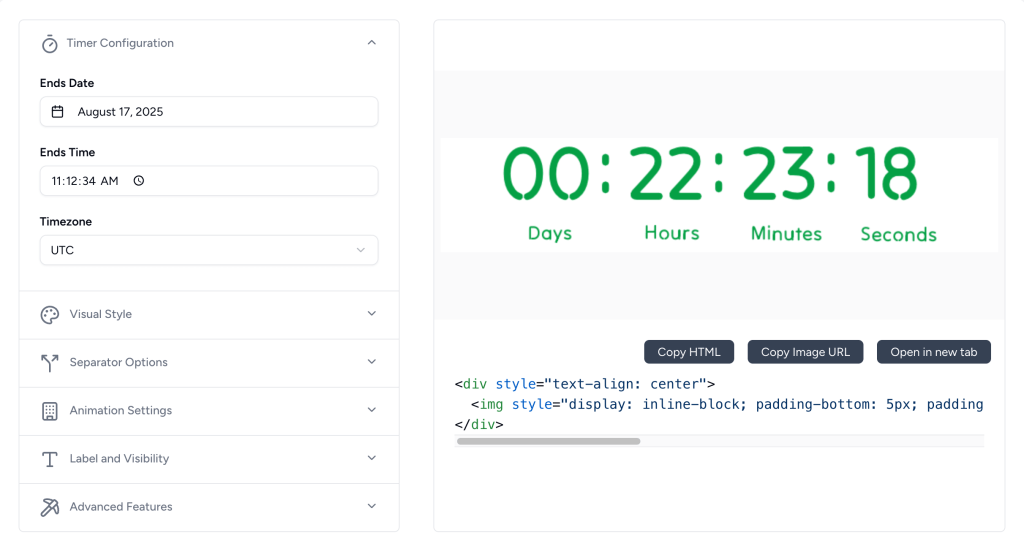
- Visit Countdown Builder to create a customized countdown timer.
- Customize the timer's appearance, including colors, fonts, and the end date/time, to match your email campaign's branding.
- Once satisfied with the design, click the Copy HTML button to copy the timer's HTML code.
Step 2: Add the Timer to Brevo Email Builder
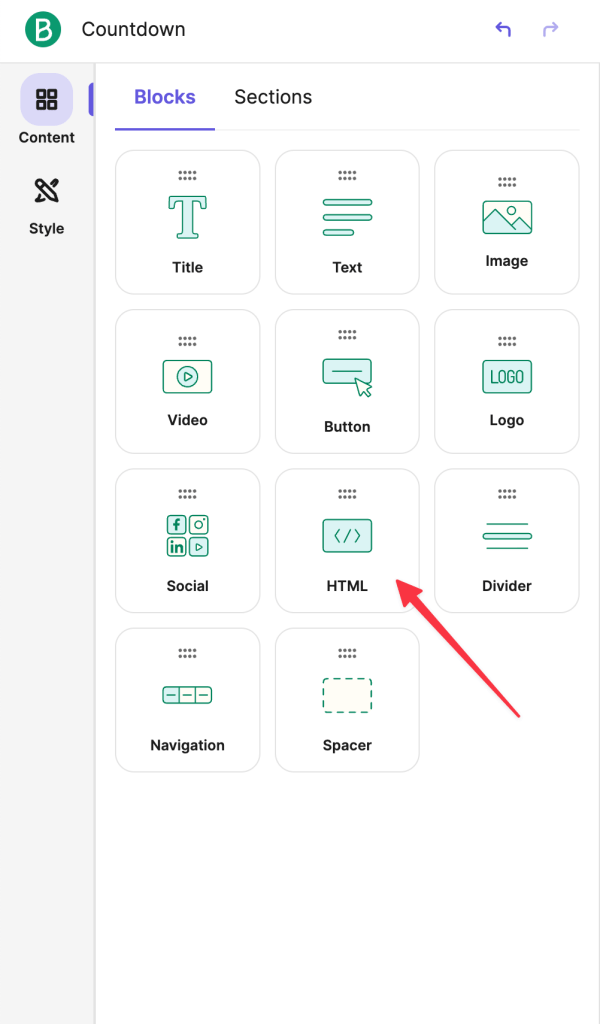
- Log in to your Brevo account and navigate to the Email Builder to create or edit an email campaign.
- Drag and drop an HTML block into the desired section of your email template.
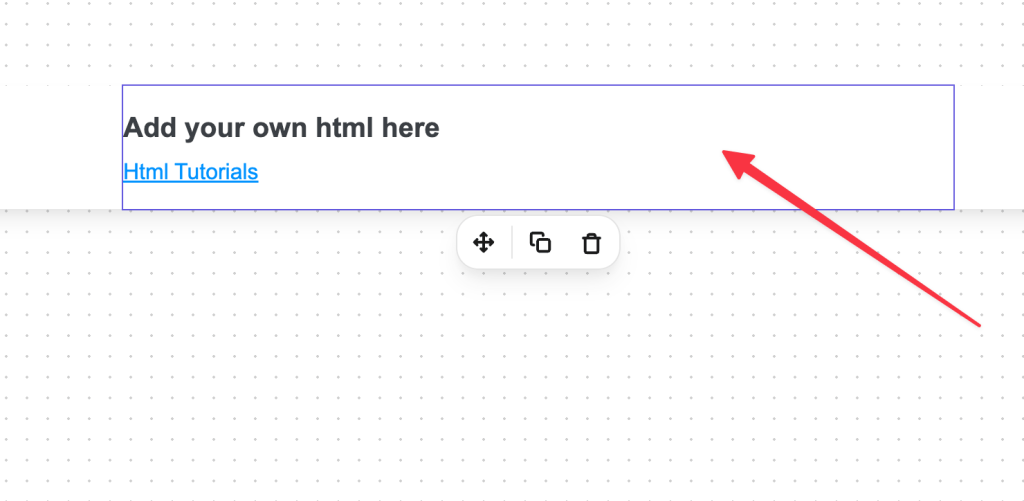
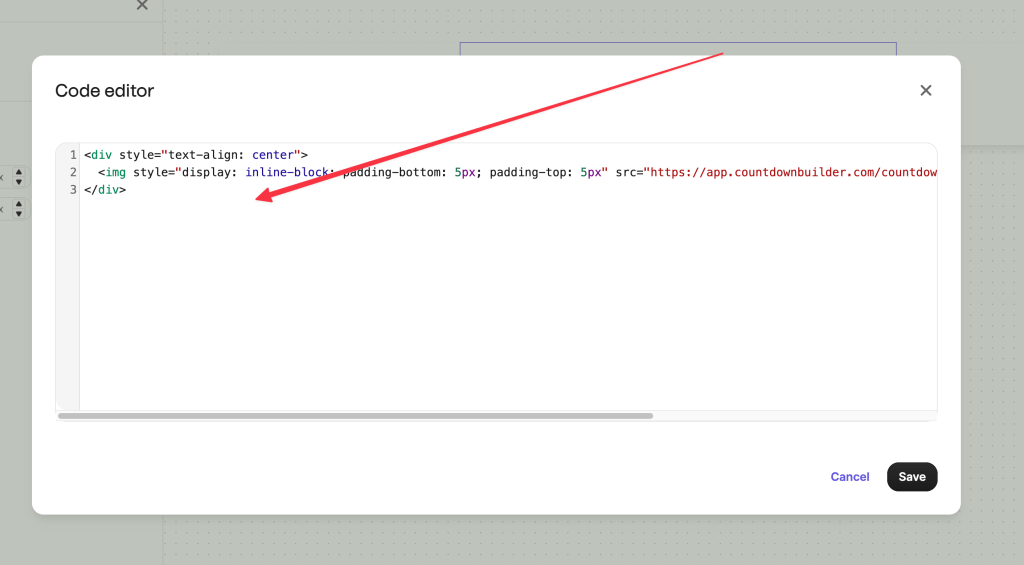
- Click on the HTML block to open the code editor.
Step 3: Paste the Countdown Timer Code
- In the code editor, paste the HTML code you copied from Countdown Builder.
- Save the changes by clicking OK or Apply in the editor.
Step 4: Preview and Test
- Preview your email to ensure the countdown timer displays correctly.
- Send a test email to verify that the timer works across different email clients and devices.
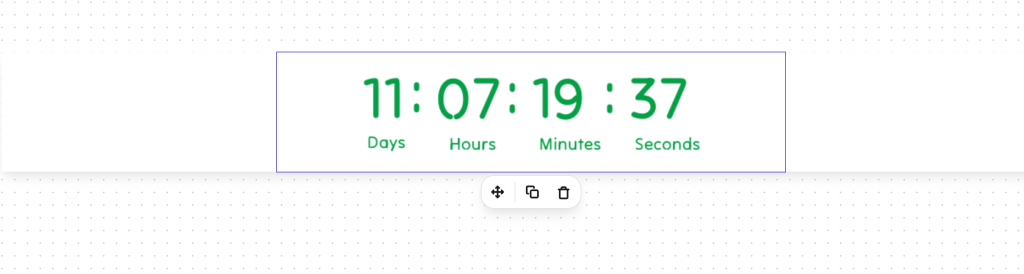
Your Countdown Timer Is Live
That completes the setup: the timer is now part of your Brevo email campaign. Recipients who open the email see the current time remaining for your offer.
Tips for Using Countdown Timers in Brevo
- Match your design: Customize the timer's colors, fonts, and animations to fit your email's branding.
- Suit the campaign: Use timers for flash sales, early-bird discounts, or event reminders — campaigns with a genuine end date.
- Supporting copy: Include the deadline in the subject line and body text, not only in the timer image.
- Image blocking: Some recipients block images by default, so state the deadline in plain text as well.
- Test thoroughly: Check how the timer renders across devices and email clients before sending.
Why Brevo Works for Timer Emails
Brevo's email builder supports custom HTML blocks and renders external images, which is what an embedded countdown timer needs. The timer itself is generated and hosted by the timer service; Brevo displays it like any other image in your campaign.
Costs: A Flat Rate for Brevo Campaigns
Countdown Builder is priced per account, not per contact or per send — so the bill stays flat however large the Brevo list behind the campaign is. The free plan has no watermark and doesn't require a credit card; paid plans add unlimited timers and views, and the Business plan serves timer images from your own domain with SSL. Current plans are on the pricing page.
If you'd like to try it, you can create a free timer at Countdown Builder.
Last updated: September 2026. These steps reflect Brevo's email builder and Countdown Builder as of this date. Email platform interfaces change over time, so the labels you see may differ slightly.
Written by Mehedi Hasan
Writer & Developer. He writes about email marketing, countdown timers, and campaign design.
Connect on LinkedIn