
How to Add a Countdown Timer to Your HubSpot Marketing Email with Countdown Builder
 By Mehedi Hasan
HubSpot's email editor includes an HTML module, so a countdown timer generated by a timer service can be embedded in a marketing email without custom development.
This guide walks through the steps with Countdown Builder, the timer service this blog is published by: create the timer, copy the HTML, add the module, preview, and send.
When to Use a Countdown Timer in HubSpot Emails
A countdown timer suits emails with a real expiration — flash sales, event registration, limited-time offers, product launches. It places the deadline in the email itself, next to the action you want readers to take.
Once the campaign is running, HubSpot's reporting covers the rest: open rates, clicks, and conversions for the email that carries the timer.
How to Add a Countdown Timer in HubSpot Emails
The process looks like this:
flowchart LR
    A["Create the timer in Countdown Builder"] --> B["Open the HubSpot email editor"]
    B --> C["Add tab, More, then the HTML Email module"]
    C --> D["Paste the timer HTML"]
    D --> E["Preview, then send"]
Step 1: Create the Timer in Countdown Builder
- Visit Countdown Builder: Go to Countdown Builder and sign in or create an account.
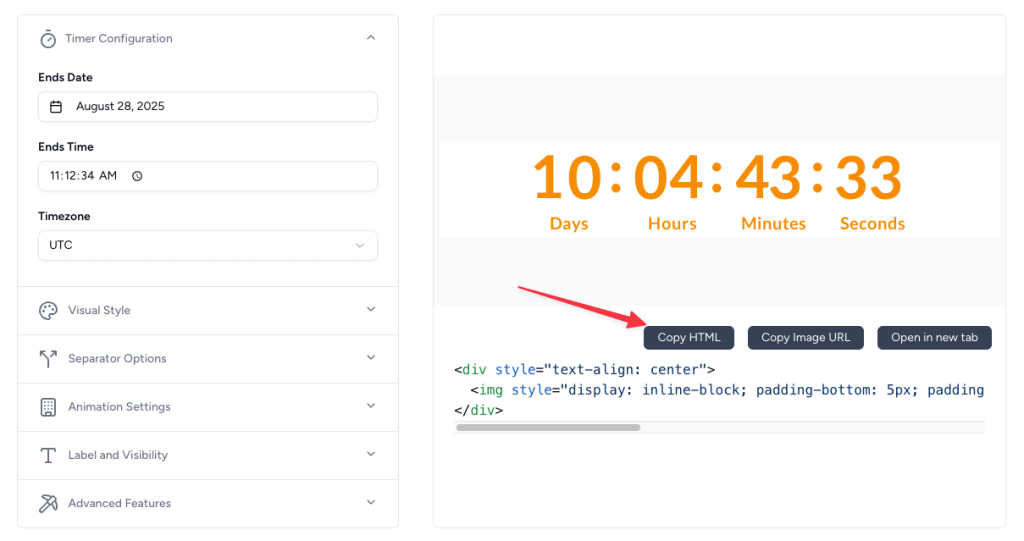
- Create a new timer and set the end date and time for your campaign — for example, the end of a sale or event.
- Customize the design: adjust the font style, size, background color, and text color to match the email's design.
- Copy the HTML code: click Copy HTML to copy the embed code to your clipboard.
Step 2: Add the Timer to Your HubSpot Email
Open the HubSpot email builder: Log in to your HubSpot account and go to Marketing > Email. Create a new email or edit an existing template.
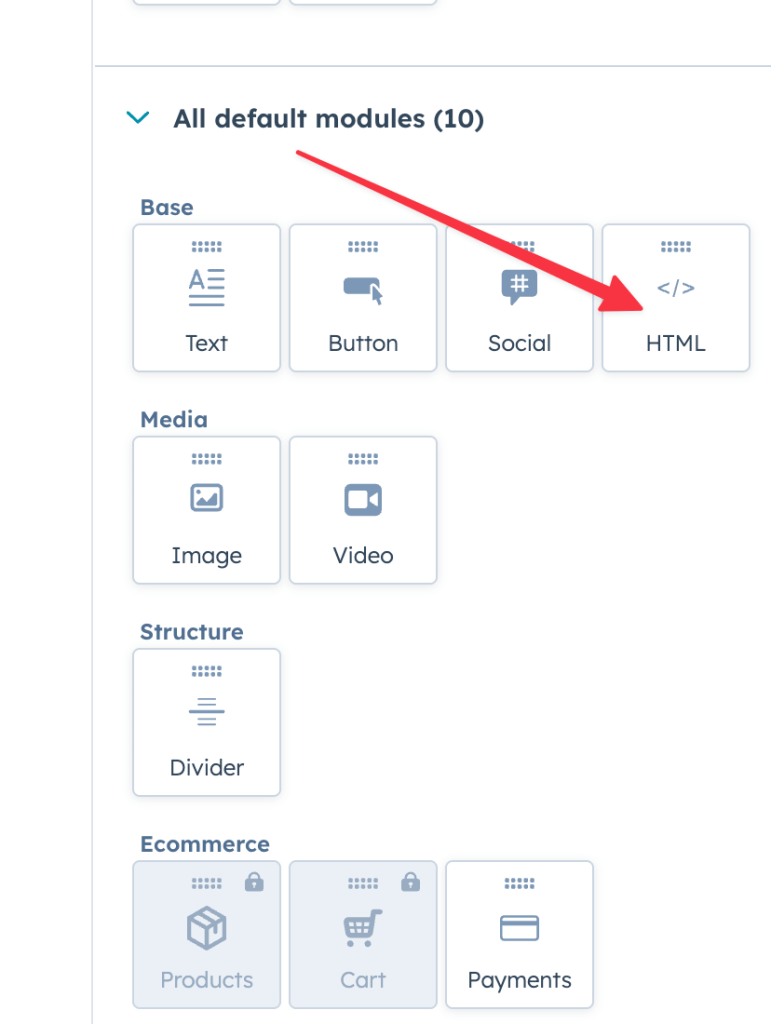
Add an HTML module: In the email editor, open the Add tab in the left sidebar, click More, and locate the HTML – Email block. Drag the module to where the timer should appear in the layout.
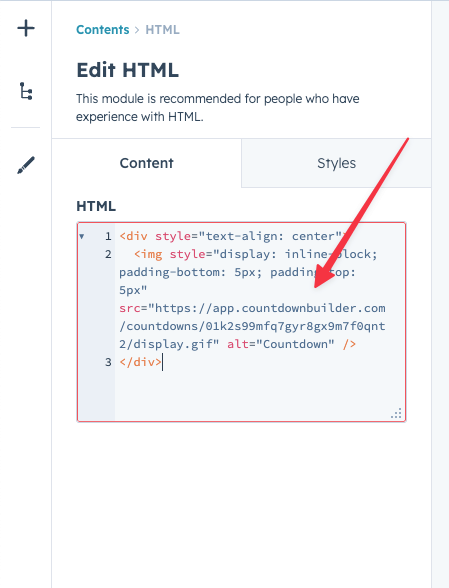
Paste the HTML code: Click the HTML module to open the editor, and paste the code you copied from Countdown Builder into the HTML text box.
Save and preview: Save your changes, then use HubSpot's preview and send a test email to check the timer on desktop and mobile.
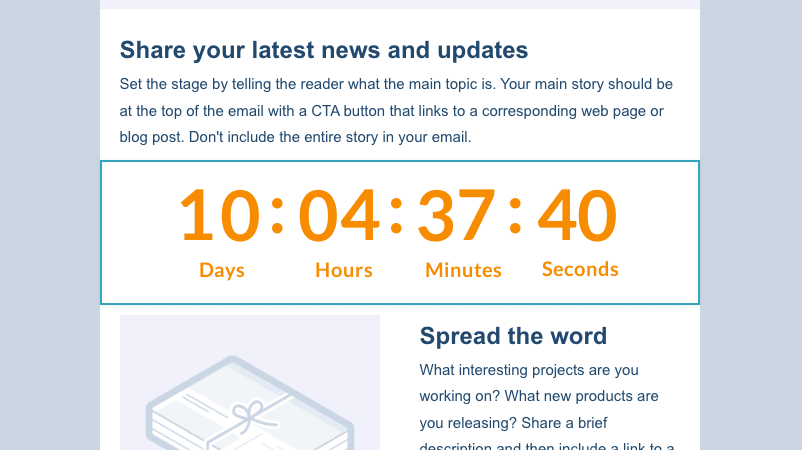
The timer is now part of the email. Each open loads a fresh timer image with the current time remaining.
Best Practices for Countdown Timers in HubSpot Emails
- Place near CTAs: position the timer next to the call-to-action button so the deadline and the action sit together.
- Match your branding: timer colors and fonts consistent with the rest of the email.
- Test across devices: use HubSpot's preview and test-send features before the real send.
- Image blocking and Apple Mail: some readers block images, so state the deadline in plain text as well. Apple Mail Privacy Protection can freeze the animation; Countdown Builder serves a static fallback in that case.
- Track results: compare the timer email's opens, clicks, and conversions against a similar email without one, using HubSpot's email reporting.
- A/B test designs: HubSpot's A/B testing can compare placements, colors, or timer vs. no timer.
Countdown Builder at a Glance
Countdown Builder (countdownbuilder.com) builds the timer and provides the HTML snippet used above:
- Fixed-date, evergreen, and dynamic timer types
- 65+ templates, with customization for colors, fonts, labels, and expiry states
- Timers regenerate on each open as animated GIFs
- The same HTML works in other ESPs and in website pages
- Free plan with no watermark; paid plans from $5.99/month with unlimited timers and views
Other Countdown Timer Guides
- Adding a Countdown Timer to Brevo Email Marketing
- How to Add a Countdown Timer in Mailchimp
- How to Add a GetResponse Countdown Timer
Final Thoughts
The HubSpot setup is one HTML module and a pasted snippet. What the timer does from there depends on the campaign — it communicates a deadline, and it's worth using when that deadline is real.
If you'd like to try it, you can create a free timer. The free plan doesn't require a credit card and doesn't add a watermark.
Last updated: September 2026. The HubSpot steps above reflect the marketing email editor as of this date; HubSpot's interface changes over time, so the exact labels may differ. Countdown Builder features and pricing reflect the product at the time of updating and can change — check the pricing page for current details.
Written by Mehedi Hasan
Writer & Developer. He writes about email marketing, countdown timers, and campaign design.
Connect on LinkedIn