
How to Add a Countdown Timer in Gmail Emails (2026 Guide)
In today's fast-paced digital world, creating urgency in your emails can significantly boost open rates, clicks, and conversions. One of the most effective ways to do this is by adding a countdown timer in Gmail. Whether you're promoting a flash sale, webinar, or limited-time offer, a live countdown timer in Gmail emails grabs attention and encourages immediate action.
Gmail doesn't natively support dynamic countdown timers, but you can easily add one using animated GIF-based tools like Countdown Builder. These timers update in real-time when the email is opened, thanks to server-side rendering delivered via a hosted GIF image.
Countdown Builder makes it simple to create customizable, professional countdown timers that work seamlessly in Gmail and other email clients.
Why Use a Countdown Timer in Gmail?
Adding a countdown timer in Gmail is a proven email marketing tactic:
- Creates Urgency: Visual ticking clocks trigger FOMO (fear of missing out), prompting quicker decisions.
- Boosts Engagement: Animated elements stand out in crowded inboxes.
- Increases Conversions: Studies show countdown timers can lift click-through rates by 20-30% for time-sensitive campaigns.
- Works in Gmail: Gmail fully supports animated GIFs, ensuring your timer displays and animates correctly on desktop and mobile.
Unlike static images, real-time countdown timers in Gmail emails update automatically, showing the exact remaining time for each recipient.
Step-by-Step: How to Add a Countdown Timer in Gmail Using Countdown Builder
Countdown Builder is an easy-to-use tool that generates dynamic countdown timers compatible with Gmail. It offers 30+ templates, full customization, evergreen options, and works without watermarks on free plans.
Step 1: Create Your Countdown Timer on Countdown Builder
- Go to Countdown Builder and sign up for a free account (or start designing without one).
- Click "Create" in the dashboard.
- Choose a template or start from scratch.
- Set your timer type:
- Fixed-date: For sales or events ending at a specific time.
- Evergreen: Resets for each recipient (great for cart abandonment emails).
- Customize:
- Colors, fonts, labels
- Background images, animations (like pulsing separators).
- Time zone and end date/time.
- Post-expiration message (e.g., "Offer Ended" or custom image).
- Preview and generate the timer.
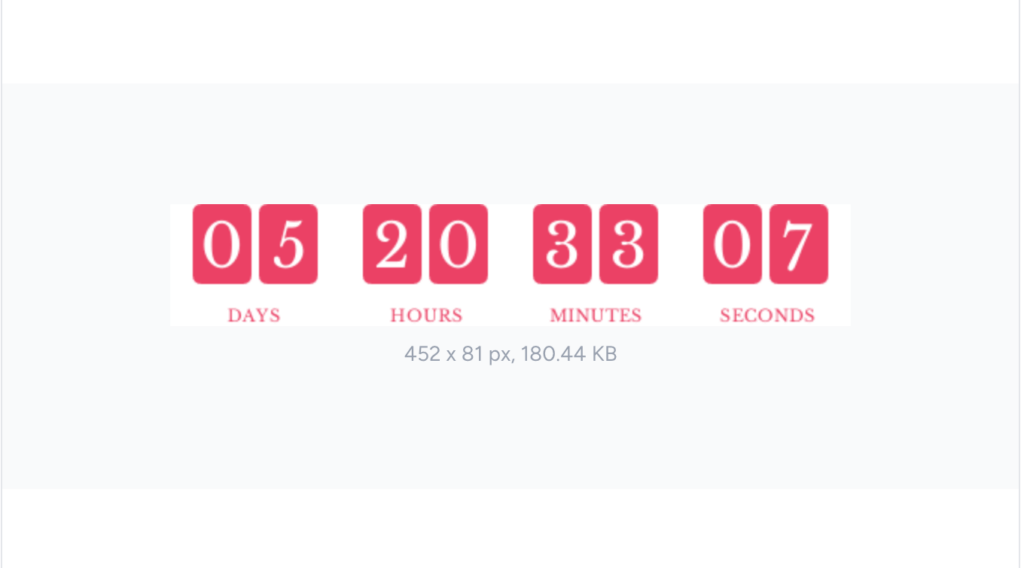
Step 2: Get the GIF Image URL
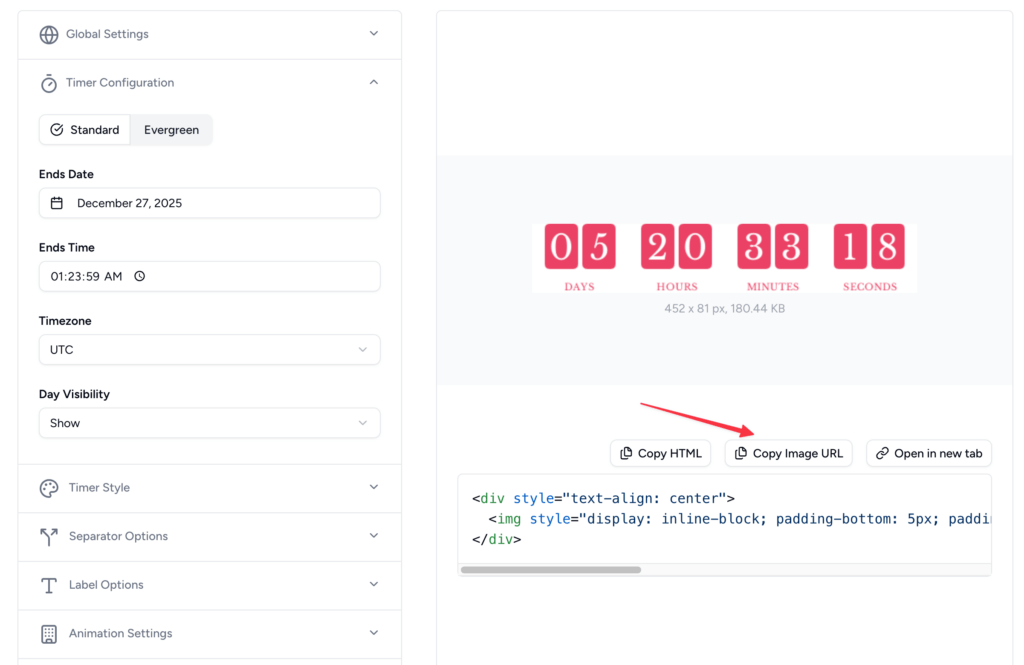
- After generating, locate the direct GIF URL in the embed section (it ends in .gif).
- Copy only the image URL (not the full HTML code).
Step 3: Insert the Countdown Timer in Gmail
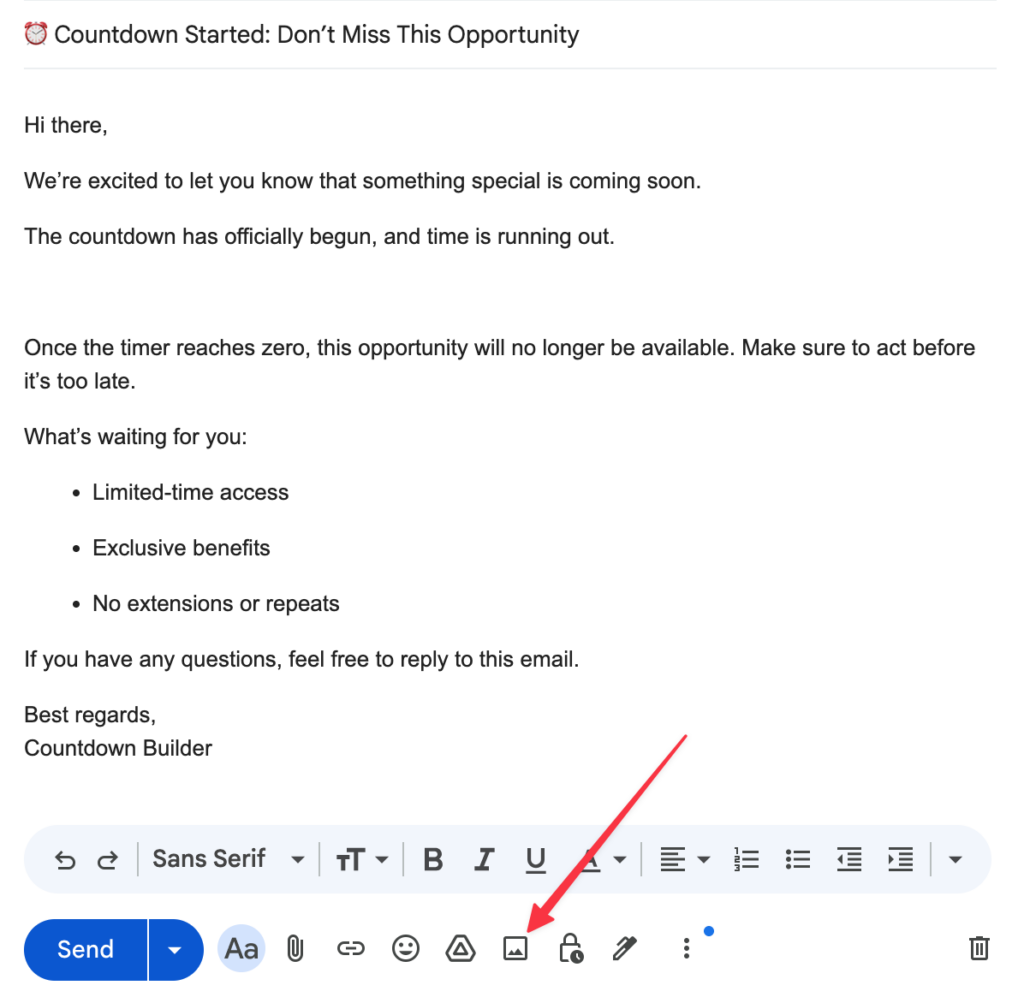
Open Gmail in your browser and click the big blue Compose button in the top-left corner to start a new email. Click anywhere in the email body where you want your countdown timer to appear (you can always move it later).
At the bottom of the compose window, find and click the Insert photo icon (it looks like a small mountain or landscape picture).
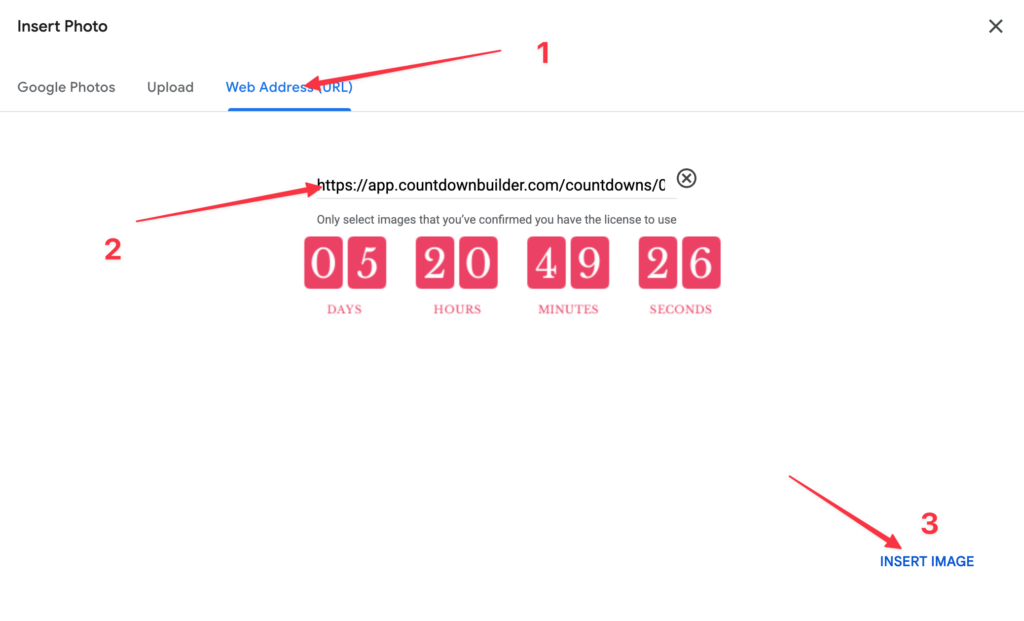
In the pop-up window that appears, switch to the Web Address (URL) tab (instead of uploading from your computer). Paste the direct GIF URL you copied from Countdown Builder (it will end in .gif). Click Insert Image – the animated countdown timer will instantly appear in your email and start ticking down in real time!
The animated countdown timer will now appear and tick down in real-time!
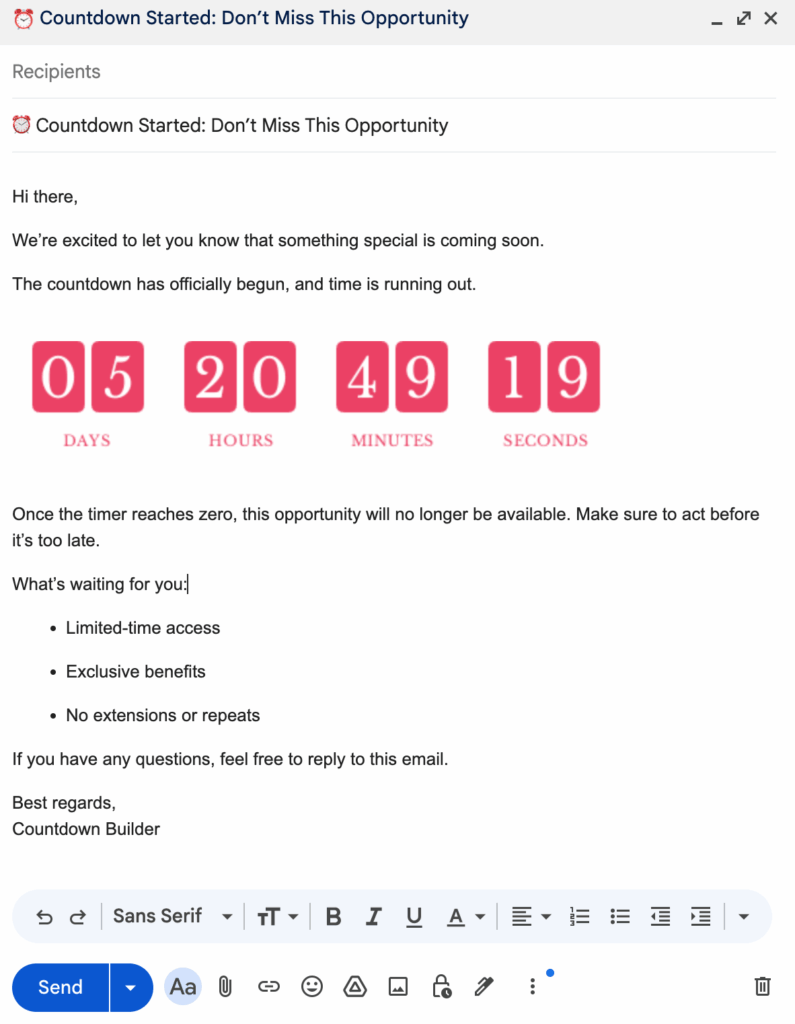
Step 4: Test and Send
- Send a test email to yourself.
- Open it in different devices/clients (Gmail app, web, etc.) to verify animation.
- Ensure images are enabled (Gmail loads external images by default for most users).
Best Practices for Countdown Timers in Gmail
- Placement: Put the timer near your CTA (e.g., "Shop Now") for maximum impact.
- Design: Match your brand colors and keep it simple—avoid overwhelming animations.
- Fallback: Set a post-zero message to handle late opens.
- Combine with Urgency Copy: Use subject lines like "24 Hours Left – Don't Miss Out!" and body text like "Hurry! This offer ends soon."
- Compliance: Only use real deadlines to build trust.
Why Choose Countdown Builder for Your Gmail Countdown Timer?
Unlike basic GIF generators, Countdown Builder offers:
- Unlimited views on paid plans.
- Advanced analytics.
- Seamless compatibility with Gmail
- No coding required.
Ready to add a countdown timer in Gmail and skyrocket your email performance? Start free at Countdown Builder today!