
How to Add a Countdown Timer in Drip Email Campaigns (2026 Guide)
Creating urgency is essential for high-converting ecommerce email marketing. Adding a timer in Drip email campaign builds FOMO, encouraging subscribers to act fast on flash sales, cart reminders, product launches, or exclusive offers.
Drip doesn't have a built-in dynamic countdown timer, but you can easily add a real-time animated one using Countdown Builder's hosted GIF images. These timers update automatically when the email opens and work perfectly in Drip's visual email builder.
Countdown Builder offers customizable, professional timers that integrate seamlessly with Drip.
Why Use a Timer in Drip Email Campaigns?
Incorporating a timer in Drip email campaign is a top tactic for ecommerce marketers:
- Drives Urgency: Ticking clocks trigger immediate purchases.
- Boosts Clicks & Sales: Animated timers can increase conversion rates by 20-30%.
- Enhances Engagement: Stands out in inboxes with movement.
- Full Compatibility: Drip supports external GIF images, ensuring animation on desktop and mobile.
Countdown Builder's timers are server-rendered for accurate real-time countdowns.
Step-by-Step: How to Add a Timer in Drip Email Campaigns Using Countdown Builder
Countdown Builder provides 30+ templates, advanced customization, evergreen options, and no watermarks on free plans.
Step 1: Create Your Countdown Timer on Countdown Builder
- Visit Countdown Builder and sign up for a free account (or start instantly).
- Browse and select from over 30+ beautiful template designs, then click Create.
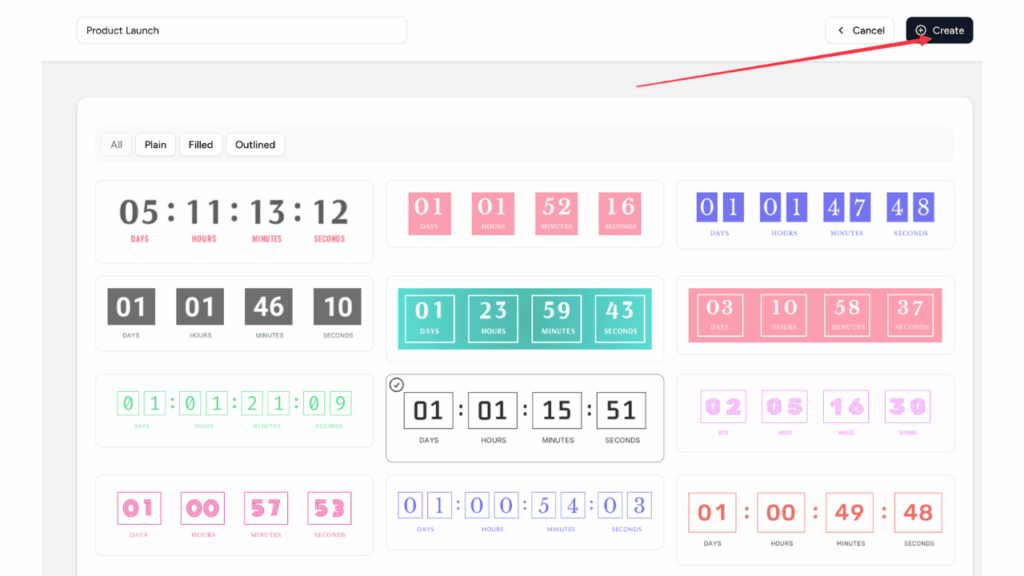
Customize to match your brand:
- Set end date/time and time zone.
- Choose fixed-date or evergreen (resets per recipient – ideal for workflows).
- Adjust colors, fonts, labels (multilingual support), backgrounds, and animations.
- Add post-expiration message or image.
Step 2: Copy the Image URL
Once ready, click Copy Image URL to copy the direct countdown image link
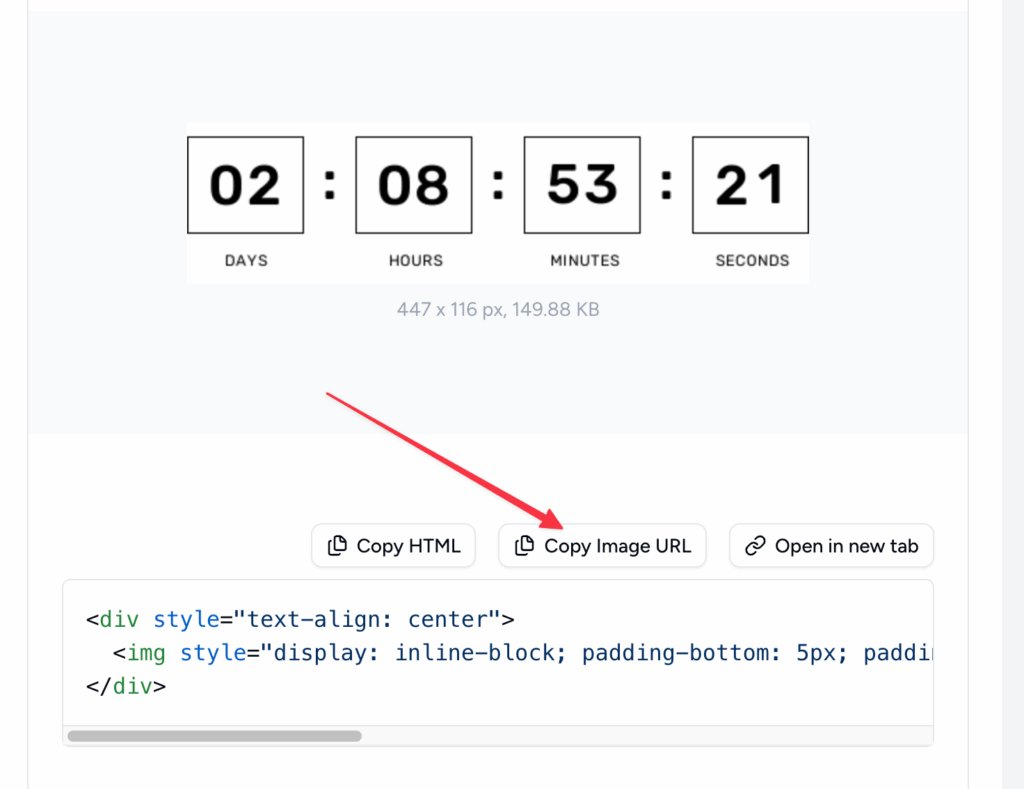
Step 3: Insert the Timer in Drip
- Log into Drip and open your email campaign in the visual builder.
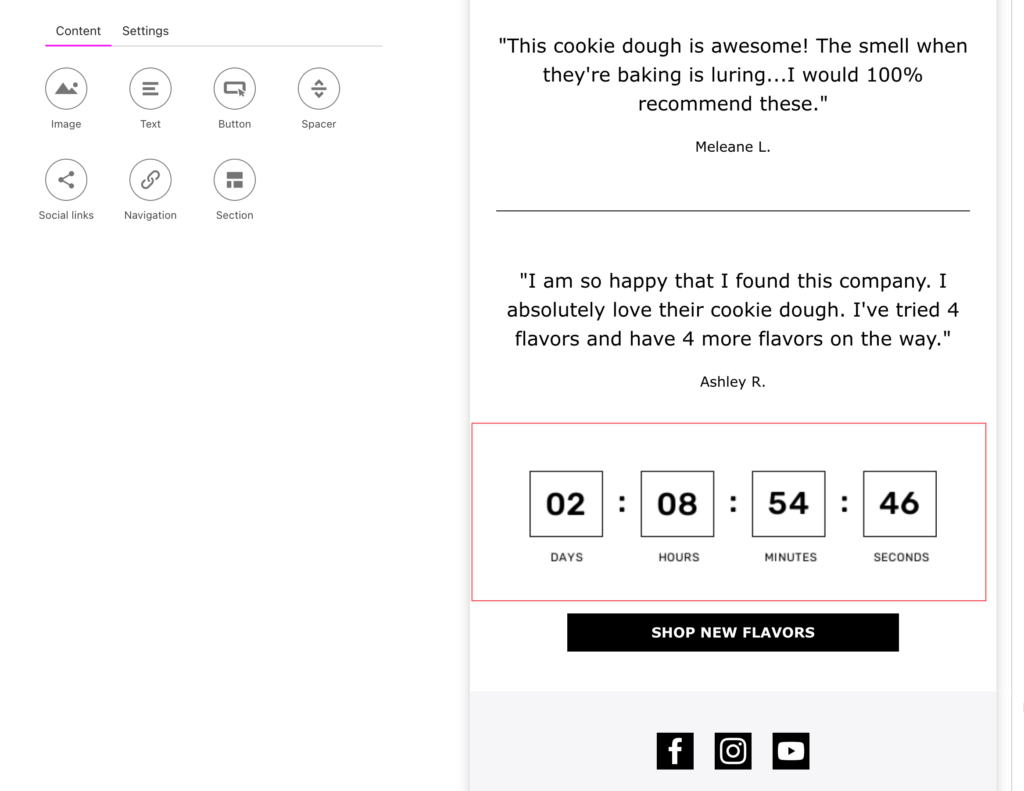
- Drag an Image element from the sidebar into your email layout.
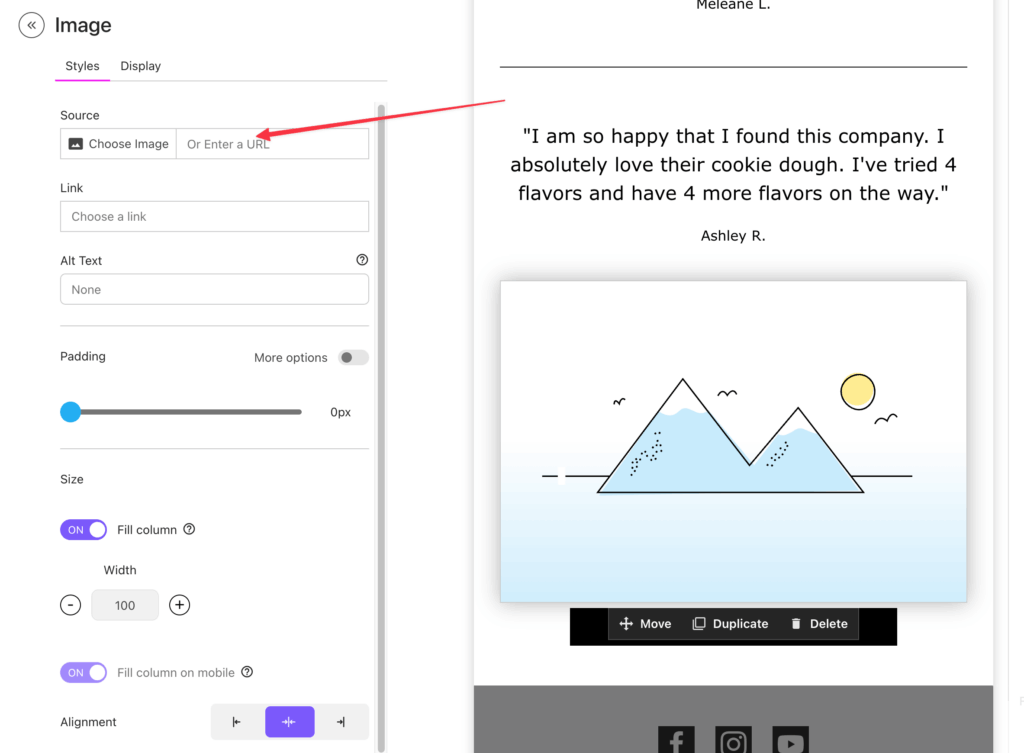
- Click the image block to edit.
- In the Source (or URL) field, paste the GIF URL you copied.
- Adjust size, alignment, or add a link to your offer.
- Save and preview.
Step 4: Test and Send
- Preview in Drip.
- Send tests to check animation across devices.
- Confirm images load properly.
Best Practices for Timers in Drip Email Campaigns
- Placement: Near your CTA button.
- Design: Brand-matched and responsive.
- Mobile Optimization: Countdown Builder timers work everywhere.
- Urgency Copy: Use subject lines like "Flash Sale Ends Soon!"
- Evergreen for Workflows: Perfect for abandonment or nurture sequences.
- Analytics: Track performance in Drip.
Why Countdown Builder for Drip Timers?
Countdown Builder shines with:
- Deep customization beyond basic tools.
- Real-time analytics and unlimited views on paid plans.
- Easy integration with Drip and 100+ platforms.
- Free to start.
See our other guides:
Ready to add a powerful timer in Drip email campaign and drive more sales? Get started free at Countdown Builder!