
How to Add a Countdown Timer in Mailjet Emails
Boosting urgency in your email campaigns can dramatically improve open rates, clicks, and conversions. Adding a timer in Mailjet is a proven way to create FOMO for flash sales, event registrations, webinars, or limited-time promotions.
While Mailjet has a built-in countdown block in its email editor, it offers limited design flexibility. For fully branded, highly customizable timers, use Countdown Builder – it generates dynamic HTML-based timers that integrate perfectly via Mailjet's HTML block.
Countdown Builder provides real-time, animated countdowns with advanced styling options that go far beyond Mailjet's native tool.

Why Add a Custom Timer in Mailjet?
Using a customizable timer in Mailjet gives you:
- Maximum Urgency: Real-time ticking creates powerful scarcity.
- Higher Engagement: Stand out with branded, animated designs.
- Better Conversions: Custom timers can increase clicks by 20-30%.
- Full Design Control: Unlike Mailjet's basic block, match your exact brand colors, fonts, and style.
- Compatibility: Works seamlessly on desktop and mobile clients.
Countdown Builder's timers update dynamically for each recipient.
Step-by-Step: How to Add a Custom Timer in Mailjet Using Countdown Builder
Countdown Builder features 30+ templates, deep customization, evergreen options, multilingual support, and no watermarks on free plans.
Step 1: Create Your Countdown Timer on Countdown Builder
Go to Countdown Builder and sign up for a free account (or start designing immediately).
Pick from over 30 professional templates – or build from scratch.
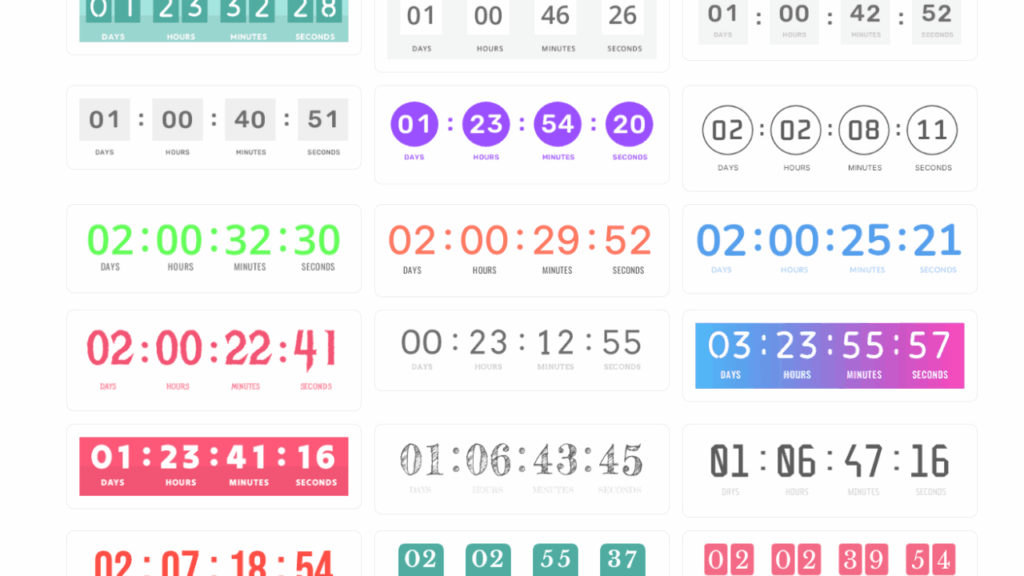
Customize everything to fit your brand:
- Set countdown type: Fixed-date or Evergreen (personalized reset per recipient).
- Adjust end date/time and time zone.
- Change colors, fonts, backgrounds, and animations (e.g., pulsing effects).
- Edit labels freely – use your own words like "Hours Left" or translate to any language.
- Add post-expiration message or image.
Preview your design in real-time.
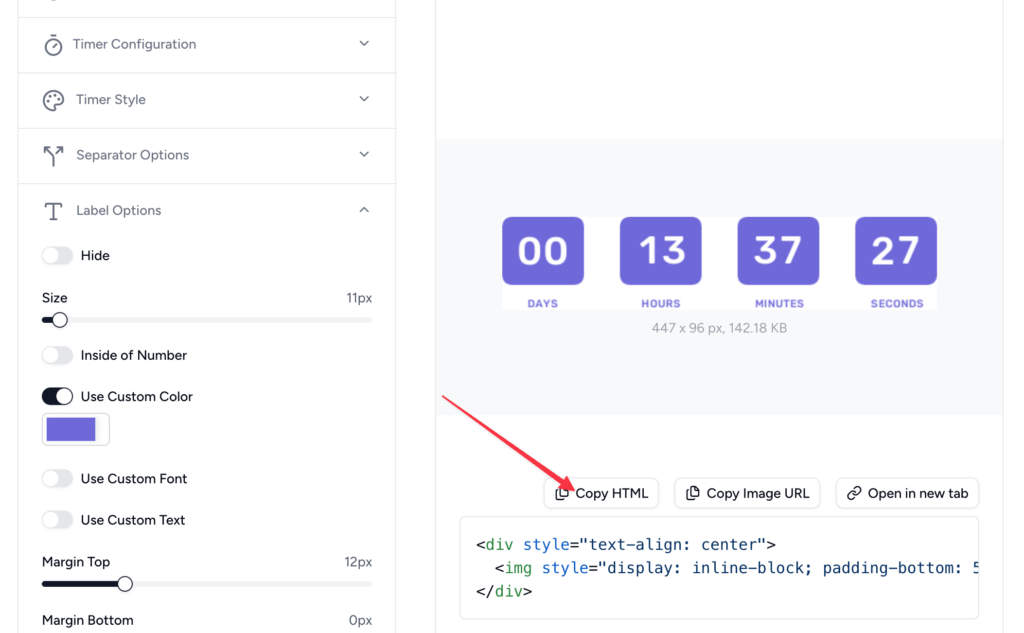
Step 2: Copy the HTML Code
Once satisfied, click the Copy HTML button to copy the full embed code.
Step 3: Insert the Timer in Mailjet
Log into Mailjet and open your email campaign in the drag-and-drop editor.
Drag an HTML Block from the content panels into your email layout.
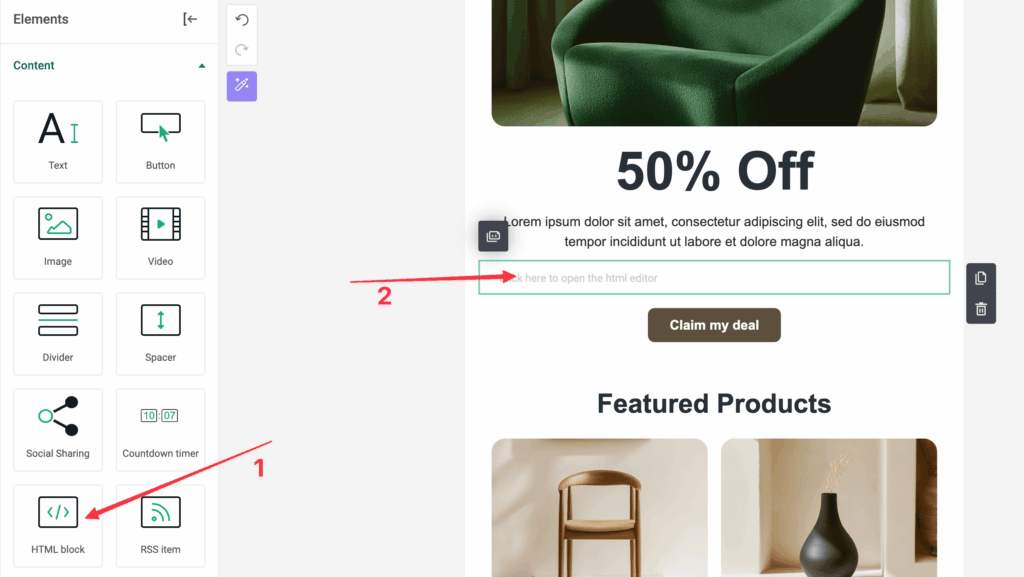
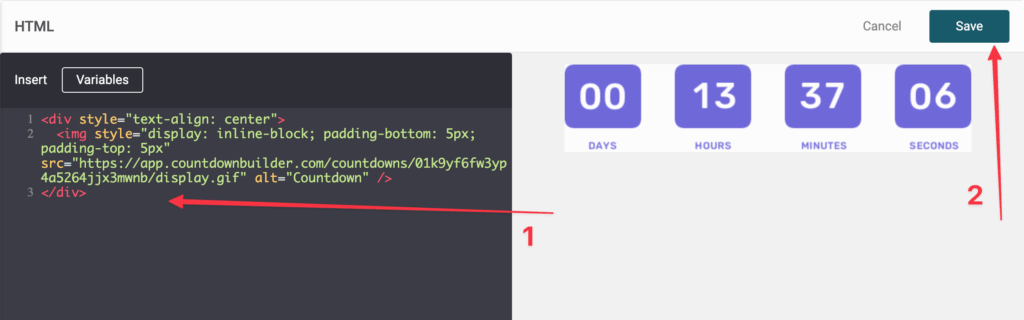
Click inside the HTML block – a code editor popup will appear. Paste the HTML code you copied from Countdown Builder. Click Save or Insert.
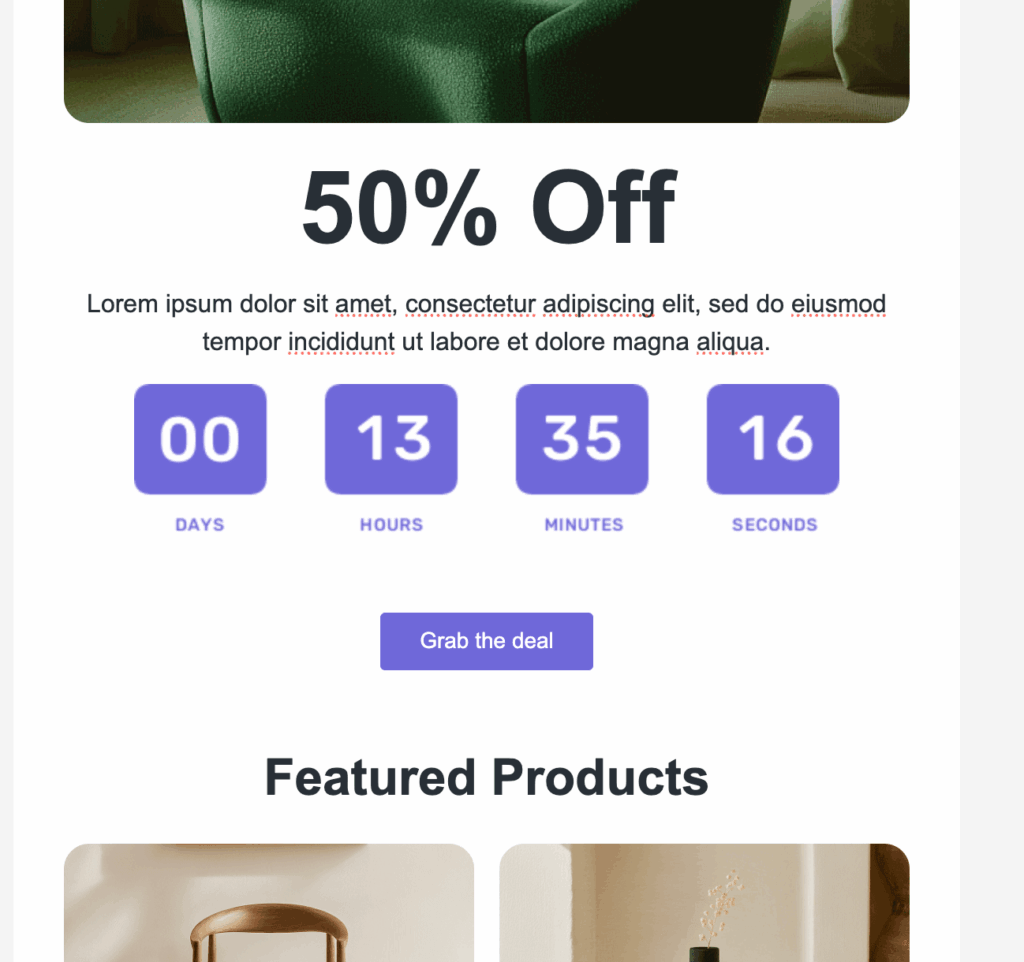
Hooray! Your fully custom, animated countdown timer is now live in your Mailjet email.
Step 4: Test and Send
- Preview the email in Mailjet.
- Send tests to yourself and check across devices/clients.
- Ensure the timer animates correctly.
Best Practices for Timers in Mailjet
- Placement: Position near your CTA for impact.
- Design: Keep it brand-consistent and responsive.
- Copy: Pair with urgent subject lines like "Only Hours Left!"
- Fallback: Set expiry content for late opens.
- Testing: Always preview in multiple email clients.
Why Countdown Builder Over Mailjet's Native Timer?
Countdown Builder offers:
- 30+ templates with unlimited customization (fonts, animations, labels, backgrounds).
- Evergreen and fixed timers with analytics.
- Perfect integration via HTML for full control.
- Free to start, no watermarks.
Explore our other guides:
Ready to add a stunning timer in Mailjet and supercharge your campaigns? Start free at Countdown Builder today!