
How to Add a Countdown Timer in Keap Broadcast Emails (2026 Guide)
Creating urgency in your Keap broadcast emails is one of the fastest ways to boost opens, clicks, and conversions — whether you're promoting a limited-time offer, webinar, flash sale, or seasonal campaign. Adding a timer in Keap broadcasts triggers FOMO and gets your contacts to act now.
Keap (formerly Infusionsoft) has a native Timer block, but it offers limited design flexibility. With Countdown Builder, you get full control: custom colors, fonts, multilingual labels, pulsing animations, evergreen options, and more — all embedded via a simple HTML block.
Countdown Builder now fully supports multilingual labels, so you can translate "Days", "Hours", "Minutes", "Seconds" into any language (or use your own custom wording) with zero effort.
Why Add a Custom Timer in Keap Broadcasts?
A branded timer in Keap broadcasts delivers:
- Real urgency that drives immediate action
- 20–30% higher click-through rates on time-sensitive campaigns
- Perfect brand alignment (no more generic-looking timers)
- Multilingual support for global audiences
- Evergreen timers that reset per recipient
- Advanced analytics and no watermarks (even on free plan)
Step-by-Step: How to Add a Timer in Keap Broadcasts Using Countdown Builder
Step 1: Create Your Countdown Timer on Countdown Builder
Go to countdown create page and log in (or start free instantly). Choose from 30+ stunning templates and click Create.
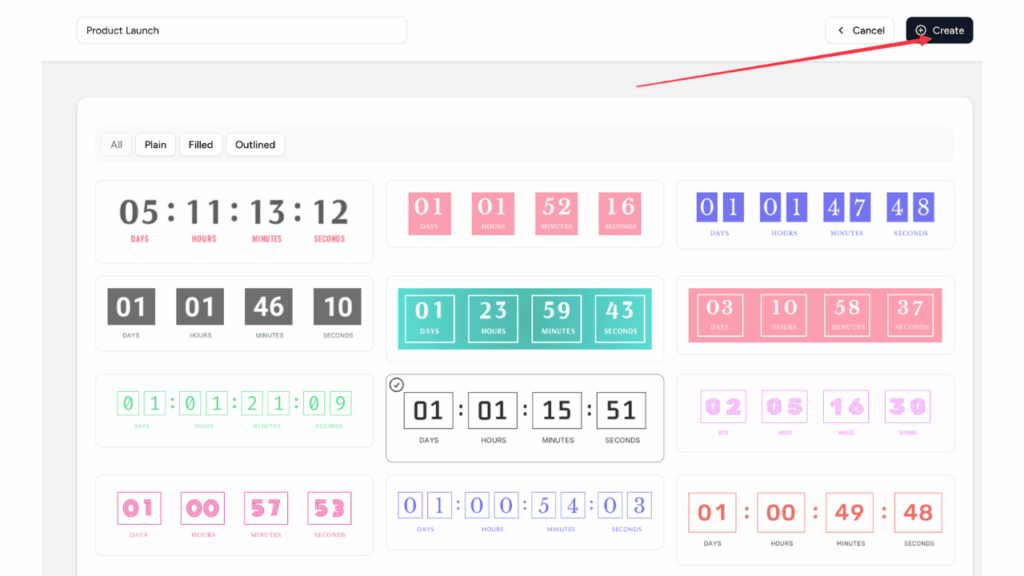
Customize everything:
- Set end date/time and time zone
- Pick fixed-date or evergreen (perfect for broadcasts sent over time)
- Change colors, fonts, background, and animations
- Multilingual labels → replace "Days" with "Tage", "Jours", "Días", or any custom text you want
- Add expiry message/image
Preview instantly.
Step 2: Copy the HTML Code
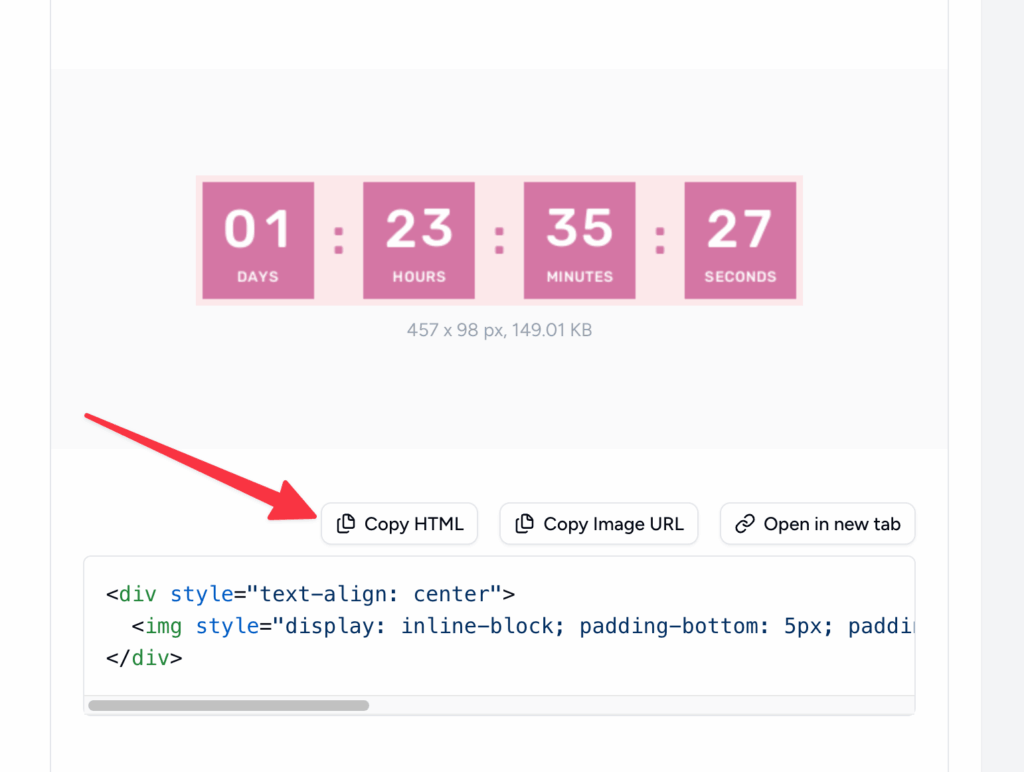
When it looks perfect, click Copy HTML — the full embed code is now in your clipboard.
Step 3: Add the Timer to Your Keap Broadcast
In Keap, go to Comms → Email Broadcasts and create/edit a broadcast using the New Email Builder. Drag an HTML block into your email layout.
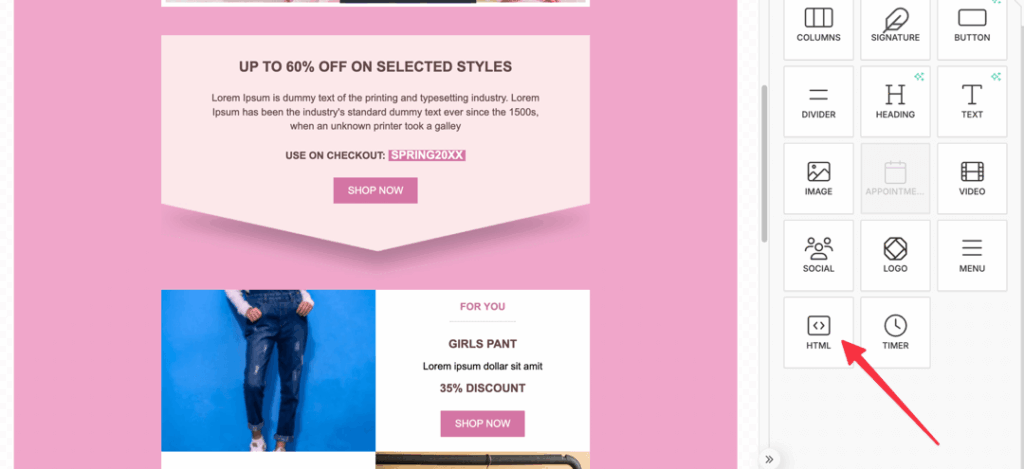
Paste the Countdown Builder HTML code. Save and preview.
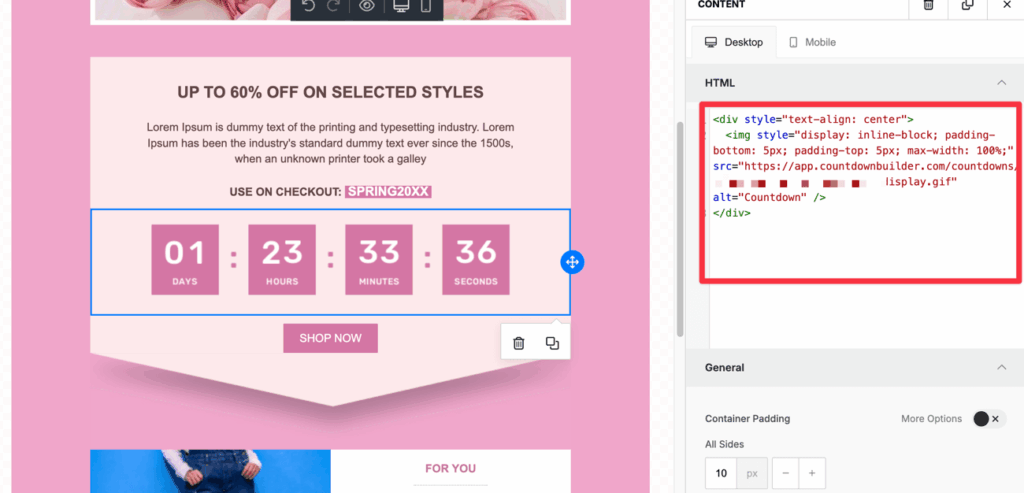
Woo-hoo! Your beautiful, multilingual, fully branded countdown timer is now live in your Keap broadcast.
Step 4: Test Thoroughly
- Send test emails to yourself
- Check on desktop + mobile (Gmail, Outlook, Apple Mail)
- Confirm the timer animates and labels display correctly in your language(s)
Best Practices for Timers in Keap Broadcasts
- Place the timer right above or beside your main CTA
- Use multilingual labels when sending to international lists
- Pair with urgent subject lines like “Only 48 Hours Left!” or “Offer Ends Soon!”
- Test custom HTML rendering — Keap handles it well, but always preview
Why Countdown Builder Beats Keap’s Native Timer
| Feature | Keap Native Timer | Countdown Builder |
|---|---|---|
| Custom colors & fonts | Limited | Unlimited |
| Multilingual / custom labels | No | Yes – any language/text |
| Evergreen timers | No | Yes |
| Pulsing animations | Basic | Advanced |
| Background images | No | Yes |
| Analytics | No | Yes |
| Watermarks | — | None (even free) |
Ready to create stunning, multilingual countdown timers for your Keap broadcasts?
Start free today → https://countdownbuilder.com/
Check our other popular guides:
Let’s make your next broadcast convert like never before! ⏰