
Circle and Rounded Rectangle Timer Designs for Email
 By Mehedi Hasan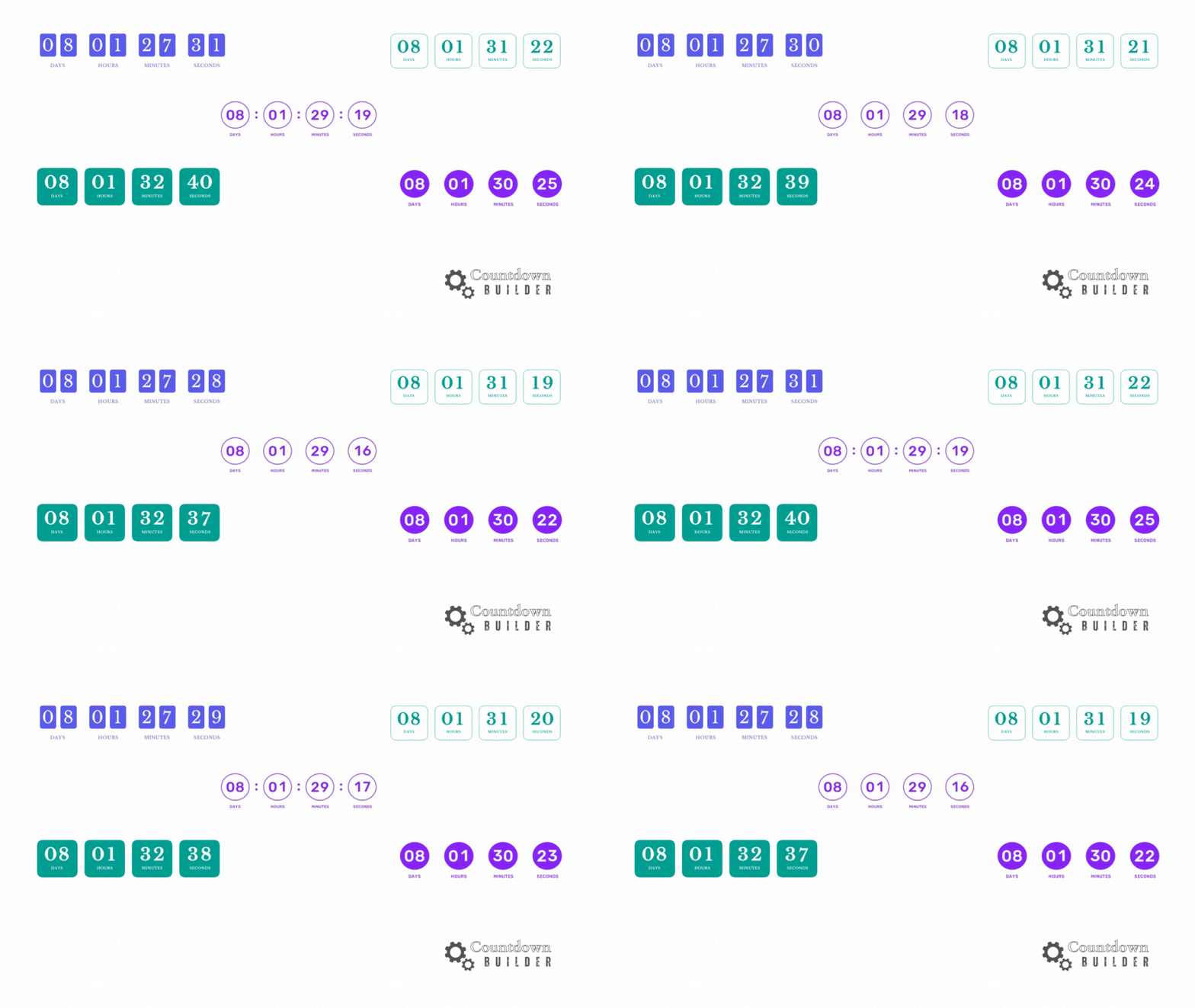
Countdown Builder's design library includes circle and rounded rectangle timer styles, alongside the original square and bordered rectangle designs. This guide shows what the four styles look like, when each shape fits an email layout, and how to build one.
The Four New Designs
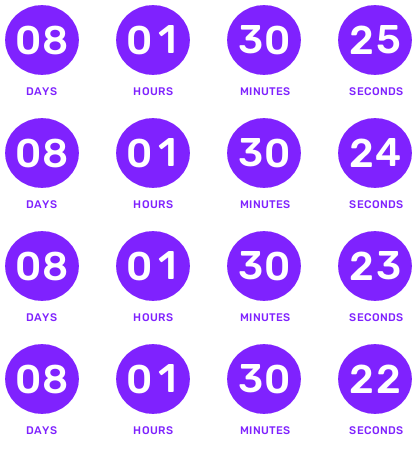
- Circle Bordered: a circular outline around each time segment.
- Circle Filled: a solid filled circle behind each segment.
- Rounded Rectangle Bordered: a rounded-edge outline, softer than a hard rectangle.
- Rounded Rectangle Filled: a solid filled rounded rectangle.
Which shape to pick is mostly a design decision — it depends on which one matches your email template. Filled styles give each segment a solid block of color, which tends to read well over photographic or busy backgrounds. Bordered styles are visually lighter and suit minimal templates.
Circle Timer Demos

Rounded Rectangle Timer Demos




How to Create a Circle or Rounded Rectangle Timer
- Log in or sign up. Open Countdown Builder and log in, or sign up for a free account.
- Start a timer. From the dashboard, click "Create" and select the timer style: circle bordered, circle filled, rounded rectangle bordered, or rounded rectangle filled.
- Set it up.
- Set the countdown deadline to match your campaign goal (for example, a 24-hour flash sale).
- Customize colors, fonts, and labels to match your brand.
- Optionally add a pulsing animation to the separators.
- Preview and embed. Check the real-time preview, then copy the HTML code and paste it into your email platform's editor (Mailchimp, Klaviyo, and other ESPs that accept HTML).
- Measure results. Compare clicks and conversions in your ESP between emails with the timer and equivalent emails without it.
Ways to Use the New Designs
- Seasonal promotions: a filled circle style for holiday sales.
- Webinars and virtual events: a rounded rectangle style on registration reminder emails.
- Evergreen sequences: any of the new shapes paired with Countdown Builder's evergreen timers, where each subscriber gets a personal deadline — a fit for onboarding flows.
- Product launches: a bordered style for launch announcements.
Whichever design you use, keep the deadline real. The timer should point at an offer or event that actually expires.
Getting Started
The circle and rounded rectangle designs are available in Countdown Builder alongside 65+ templates, custom fonts and colors, and fixed-date, evergreen, and dynamic timer types. If you'd like to try them, you can create a timer for free.
Last updated: September 2026. Designs and features described in this article reflect Countdown Builder at the time of updating and can change.
Written by Mehedi Hasan
Writer & Developer. He writes about email marketing, countdown timers, and campaign design.
Connect on LinkedIn