
Mailchimp Countdown Timer: How to Add One to Your Emails (2026)
 By Mehedi Hasan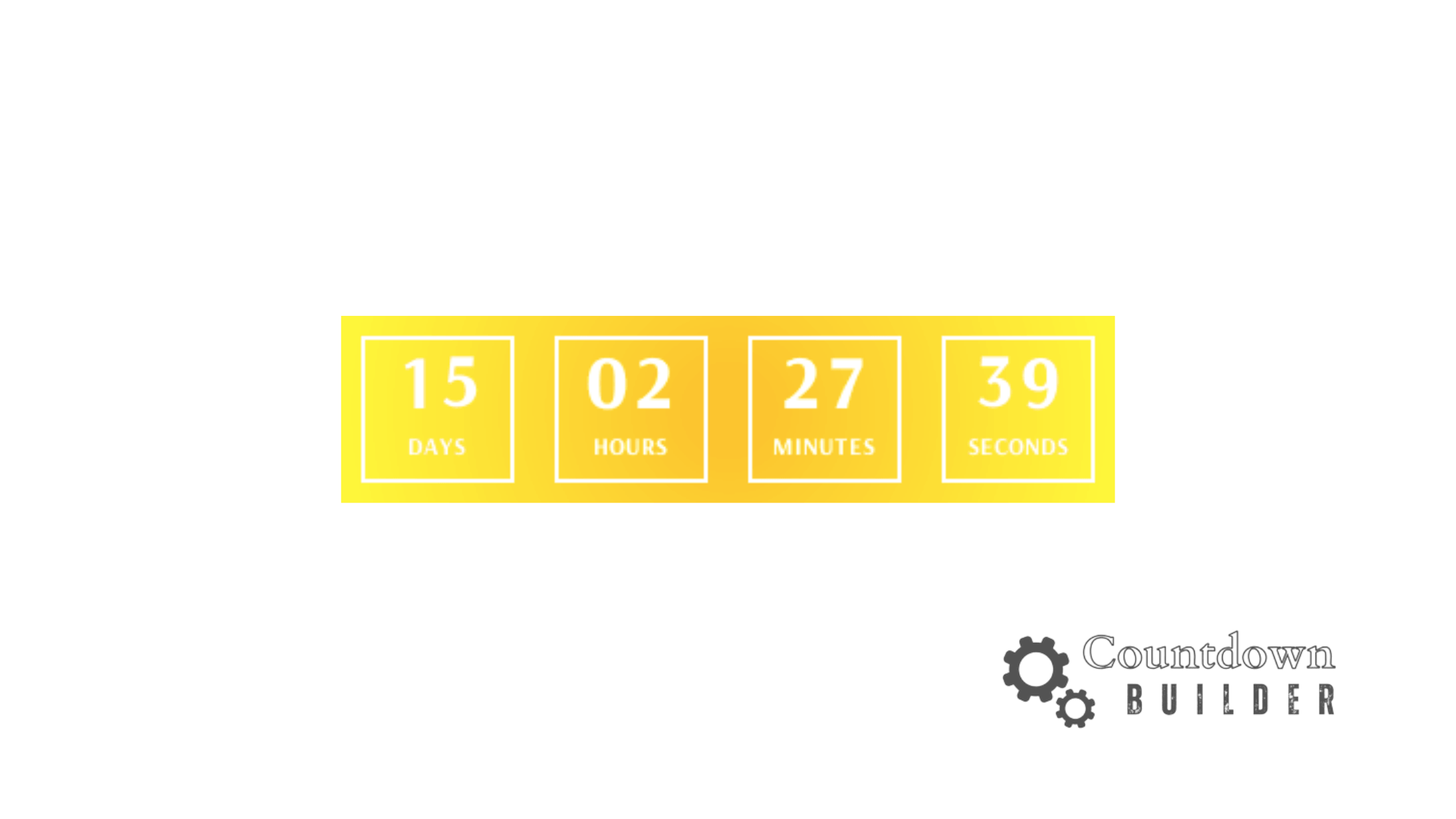
A countdown timer in a Mailchimp email shows subscribers how much time remains before an offer ends. Mailchimp doesn't include a timer block, but the classic email builder accepts custom HTML, so a timer generated by a separate service can be pasted in.
This guide shows how to do that with Countdown Builder, the timer service this blog is published by: create the timer, copy its HTML, add it to a Code block, test, and send.
Why Use a Mailchimp Countdown Timer?
A countdown timer communicates a deadline visually — subscribers see the time remaining instead of reading it in a sentence. It's useful when:
- The offer has a real end date — a flash sale, webinar, or discount deadline
- You want the deadline displayed next to the call-to-action button
- The whole list shares one deadline
What a timer can't do is make an offer urgent on its own. If the deadline isn't real, the timer works against you over time.
How to Add a Countdown Timer in Mailchimp Emails
Step 1: Create Your Mailchimp Countdown Timer
- Go to Countdown Builder and create a free account
- Click Create New Timer
- Choose from the 65+ templates, or start from a blank layout
- Set your end date and time zone
- Customize colors, fonts, and labels to match your brand
- Preview the timer at desktop and mobile widths
- Click Copy HTML to copy the embed code
Step 2: Open Your Mailchimp Campaign
- Log in to your Mailchimp account at mailchimp.com
- Go to the Campaigns section in the left sidebar
- Click Create Campaign, or select an existing campaign to edit
- Open the email designer — the Code block used below is available in the classic builder
Step 3: Add a Code Block in Mailchimp
- In the Mailchimp email builder, find the Content section in the right sidebar
- Locate the Code block under the "More" category, or search for "Code" in the block search
- Drag the Code block to where the timer should appear — usually near the CTA button
Step 4: Embed Your Countdown Timer
- Click the Code block to open the code editor
- Paste the HTML embed code you copied from Countdown Builder
- Click Save & Close to apply the changes
- The countdown timer now appears in your email template
Step 5: Preview and Test
- Use Mailchimp's Preview mode to see the email with the timer in place
- Send a test email to yourself and open it on:
- Desktop clients (Gmail, Outlook, Apple Mail)
- Mobile devices
- Adjust the placement or size if the timer crowds the layout
Step 6: Launch Your Campaign
Send or schedule the campaign. The timer image regenerates each time the email is opened, so it shows the current time remaining.
Best Practices for Mailchimp Countdown Timers
Only Use Timers for Genuine Deadlines
False urgency damages trust. Add a timer only when something actually expires — a flash sale, a webinar start time, limited inventory, or a discount deadline.
Place Timers Near Your CTA
Keep the countdown next to the call-to-action button so the deadline and the action sit together.
Match Your Brand Colors
Use the timer's customization options to align colors and fonts with the rest of the email design.
Test on Mobile
Check that the timer is readable on a phone without zooming.
Don't Overuse
A timer in every email stops registering. Save them for campaigns that are genuinely time-sensitive.
How the Timer Behaves in Email Clients
Countdown timers are animated GIF images loaded from the timer service each time the email opens. Two caveats are worth knowing:
- Apple Mail Privacy Protection (MPP) pre-fetches and caches remote images, which can freeze an animated timer at its cached frame. Countdown Builder serves a static fallback when the animated GIF can't be refreshed.
- Some subscribers block images entirely. Put the deadline in plain text as well — "Offer ends Friday at midnight" — and write alt text that says the same.
A Note on Pricing
The free plan covers the setup above — a real timer, embedded in a real campaign, no watermark — and paid plans add unlimited timers and views for the campaigns that follow. Current plan details are on the pricing page.
Final Thoughts
The setup is a copy-paste job once the timer exists: Code block, paste, preview, send. What decides whether the timer helps is whether the deadline is real.
If you'd like to try it, you can create a free Mailchimp countdown timer. The free plan doesn't require a credit card and doesn't add a watermark. To look around first, countdownbuilder.com has the template gallery and feature overview, and plan details are on the pricing page.
Related Guides
- How to Add Countdown Timer in Mailchimp — Complete Tutorial
- Free Email Countdown Timer Guide
- 9 Email Countdown Timer Tools Compared
- Sendtric Alternative: Countdown Builder
Last updated: September 2026. These steps reflect Mailchimp's classic campaign builder as of this date; Mailchimp's interface changes over time, so the exact menu names may differ. Countdown Builder features and pricing can change — verify current details on the pricing page before purchasing.
Written by Mehedi Hasan
Writer & Developer. He writes about email marketing, countdown timers, and campaign design.
Connect on LinkedIn