
How to Send a Product Offer Email with a Countdown Timer
 By Mehedi Hasan
A product offer email has one job: make the right person take action before the offer disappears. The problem is that most product offer emails look the same. A discount headline, a product image, a short paragraph, a button, and maybe a coupon code. That can work, but it often lacks the one thing that makes people act now instead of later: a clear deadline.
That is where an email countdown timer becomes useful. When your offer is genuinely time-sensitive, a live countdown timer shows exactly how much time is left. It turns a vague message like "limited time offer" into a visible deadline your subscriber can understand in seconds.
In this guide, you will learn how to send a product offer email with a countdown timer, what to write, where to place the timer, how to avoid false urgency, and how to create an email countdown timer quickly with Countdown Builder.
What Is a Product Offer Email with a Countdown Timer?
A product offer email with a countdown timer is a promotional email that presents a product, deal, launch, bundle, trial, bonus, or upgrade with a visible timer counting down to the end of the offer.
Common examples include:
- A 24-hour flash sale for a new product.
- A product launch discount that ends at midnight.
- A limited-time bundle with bonus items.
- A cart recovery email with a time-limited coupon.
- A seasonal promotion for Black Friday and Cyber Monday, Christmas, New Year, or a brand anniversary.
- A software upgrade offer that expires after a trial or onboarding window.
The countdown timer does not replace your offer. It supports the offer by making the deadline easy to see.
Why Countdown Timers Work in Product Offer Emails
People delay decisions when the cost of waiting feels low. If a subscriber believes they can come back later and get the same offer, many will close the email and forget about it.
A countdown timer helps because it communicates three things instantly:
- Urgency: The offer has a real deadline.
- Clarity: The subscriber can see exactly how much time remains.
- Focus: The email has one primary action to complete before time runs out.
This matters most when your product offer is already compelling. A weak offer does not become strong because you add a timer. But a strong offer with a real deadline can perform better when the deadline is visible.
When to Use a Countdown Timer in a Product Offer Email
Use a countdown timer when the deadline is real and meaningful. Good use cases include:
- A flash sale ending in a few hours.
- A product launch discount ending this week.
- A bonus offer for early buyers.
- A preorder window that closes on a fixed date.
- A webinar or demo promotion with limited registration time.
- A free shipping offer ending tonight.
- A cart abandonment discount that expires after 24 or 48 hours.
Avoid using a countdown timer for evergreen offers that never really expire unless you are using a real evergreen deadline based on each subscriber's journey. If the same offer comes back every day with a fake deadline, subscribers will notice and trust will drop.
Countdown Builder supports both fixed-date countdowns and evergreen-style countdown use cases, so you can match the timer to the campaign instead of forcing every promotion into the same format.
The Best Product Offer Email Structure
A strong countdown email should be easy to scan. Readers should understand the product, the benefit, the deadline, and the next step without working hard.
Use this structure:
- Subject line: Make the offer and deadline clear.
- Preheader: Add urgency or the main benefit.
- Hero section: Show the product and the core offer.
- Countdown timer: Place it near the top or close to the main CTA.
- Benefit bullets: Explain why the product is worth buying.
- CTA button: Use one clear action.
- Offer details: Clarify expiry, coupon, exclusions, or bonus rules.
- Final reminder: Repeat the deadline and CTA near the bottom.
For most ecommerce, SaaS, digital product, and creator businesses, this is enough. You do not need a long email if the offer is simple. You need a clear offer, a visible deadline, and a frictionless path to buy.
Product Offer Email Template with Countdown Timer
Here is a copy-ready template you can adapt.
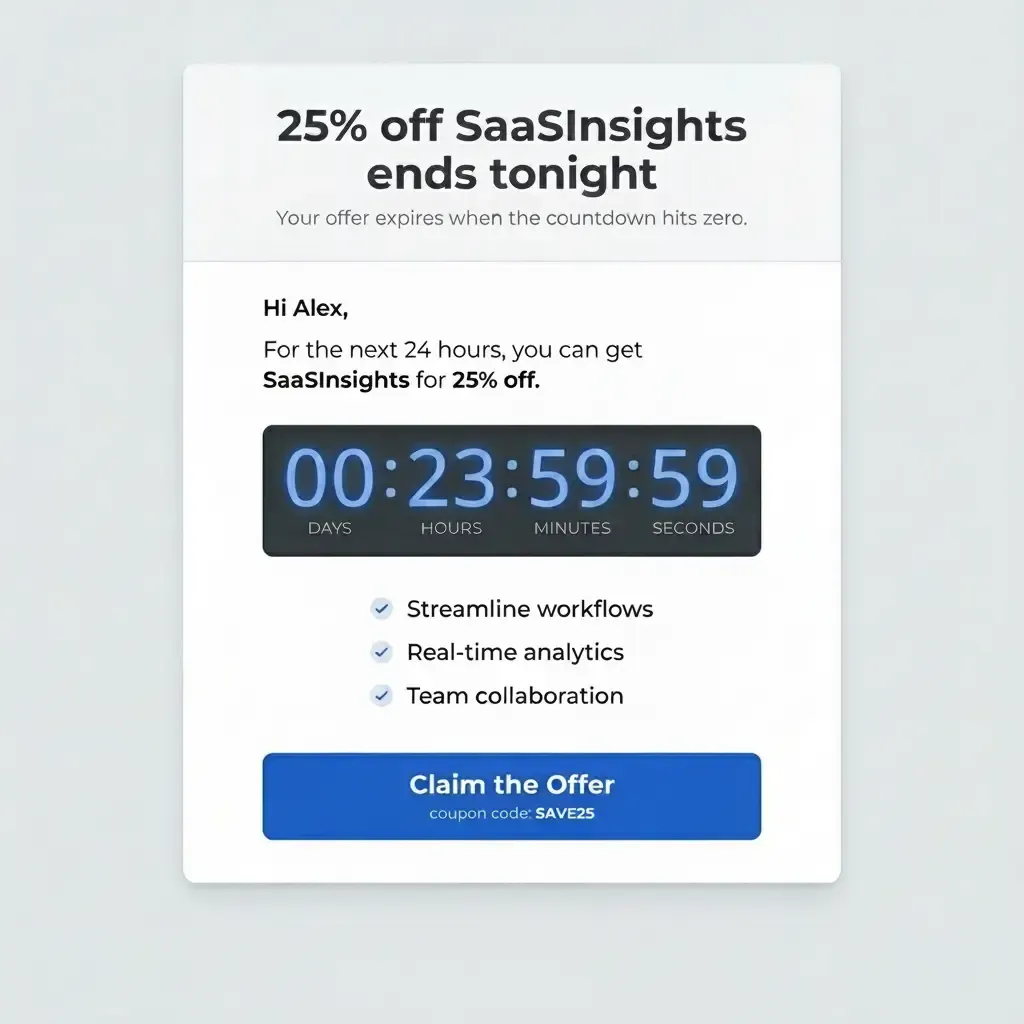
This works because it removes ambiguity. The subscriber knows what is offered, why it matters, when it expires, and where to click.
Subject Lines for Product Offer Emails with Countdown Timers
Your subject line should not try to say everything. It should get the right person to open the email.
Here are subject line ideas:
- Ends tonight: 25% off Product Name
- Last chance to claim your Product Name offer
- First Name, your offer expires soon
- Only a few hours left for Product Name
- Final call: Product Name launch deal
- Your Product Name bonus ends today
- The countdown is on: save on Product Name
- Tonight only: get Product Name for less
- Offer closes at midnight
- Last day to unlock your bonus
For click-through, keep the subject line honest. If the offer ends tonight, say that. If it is a launch bonus, say that. Do not overdo fake scarcity.
Preheader Examples
The preheader is the text subscribers often see after the subject line. Use it to add detail, not repeat the subject.
Good preheader examples:
- Open now to see how much time is left.
- The timer is running and the discount ends today.
- Your product offer expires when the countdown reaches zero.
- Claim the bonus before this launch window closes.
- A quick reminder before pricing goes back to normal.
Together, the subject line and preheader should answer: what is the offer and why should I open now?
Where to Place the Countdown Timer in the Email
The best placement depends on the type of offer, but these three placements usually work well.
1. Above the CTA
Place the timer directly above your main button:
[Offer headline]
[Product image]
[Countdown timer]
[CTA button]
This keeps the deadline and action connected. It is a strong layout for flash sales and launch discounts.
2. Below the Hero Copy
If the product needs a short explanation, place the timer after the headline and supporting sentence:
[Headline]
[Short benefit copy]
[Countdown timer]
[CTA button]
This works well for SaaS, courses, digital products, and higher-consideration purchases.
3. Near the Final CTA
If your email has more detail, add a second countdown timer or a final deadline reminder near the bottom. This catches readers who scroll before deciding.
Keep the design simple. A countdown timer should guide attention, not compete with every other element in the email.
How to Create the Countdown Timer with Countdown Builder
Countdown Builder is built for marketers who want a professional email countdown timer without coding. You create the timer, customize the design, copy the embed code, and paste it into your email platform.
Step 1: Create a Timer
Go to Countdown Builder and create a new countdown timer.
Choose the date and time your product offer ends. This might be:
- Midnight in your store's timezone.
- The end of a launch week.
- A fixed date for a seasonal sale.
- A subscriber-specific evergreen deadline.
Use the same deadline in your email copy, landing page, and checkout experience. Consistency improves trust.
Step 2: Match the Timer to Your Brand
Customize the timer so it feels native to your email design. In Countdown Builder, you can adjust:
- Timer style and template.
- Foreground and background colors.
- Font choices.
- Label text for days, hours, minutes, and seconds.
- Label styling.
- Background images.
- Transparent backgrounds.
- Animation effects.
If your product offer email uses a clean white layout, use a simple timer with strong contrast. If you are promoting a bold flash sale, use a more prominent timer style that matches the campaign.
Step 3: Add a Clickable Countdown Image
For product offer emails, the countdown timer itself should often be clickable. Countdown Builder supports clickable countdown images, so subscribers can click the timer and go directly to your offer page.
In the countdown editor:
- Open Edit.
- Go to Advanced Features.
- Enable Clickable countdown image.
- Add your product offer URL.
- Optionally add an expiry URL for clicks after the timer ends.
The expiry URL is useful because late openers still need a good experience. If the offer is over, you can redirect them to:
- The regular product page.
- A waitlist.
- A new promotion.
- A "sale ended" page.
- A related product category.
This prevents expired emails from becoming dead ends.
Step 4: Copy the HTML Code
After previewing your timer, copy the HTML embed code from Countdown Builder.
Most email marketing platforms support custom HTML blocks. Paste the code where the timer should appear, then send yourself a test email.
Countdown Builder works with major email platforms, including:
If your email platform allows HTML, you can usually add a Countdown Builder timer.
Step 5: Test Before Sending
Before launching the product offer email, test:
- The timer displays correctly on desktop and mobile.
- The countdown deadline is correct.
- The timer link sends users to the right product offer page.
- The expiry URL works after the timer ends.
- The CTA button and timer link use the same destination when appropriate.
- The email still makes sense if images are blocked.
Testing takes a few minutes and prevents expensive campaign mistakes.
Product Offer Email Example for Ecommerce
Here is an ecommerce example:
Subject: Ends tonight: 30% off our best-selling bundle
Preheader: The timer is running. Claim your discount before midnight.

Your favorite bundle is 30% off today only.

[Countdown timer]

Stock up on [Product Name] and save before the offer closes.

Why customers love it:
- [Benefit 1]
- [Benefit 2]
- [Benefit 3]

[Shop the Bundle]

Offer ends tonight at 11:59 PM. Discount applies automatically at checkout.
This email works because it is direct. The product, discount, timer, and button all support the same action.
Product Offer Email Example for SaaS
Here is a SaaS example:
Subject: Your upgrade offer expires in 24 hours
Preheader: Unlock [feature/plan] before the countdown ends.

Hi [First Name],

Your limited-time upgrade offer is still available, but it expires soon.

[Countdown timer]

Upgrade today and get:
- [Feature 1]
- [Feature 2]
- [Feature 3]

[Upgrade Now]

When the timer ends, this discount will no longer be available.
For SaaS, the timer should support a business outcome, not only a discount. Tie the offer to a clear benefit: more capacity, premium features, faster workflow, extra seats, or annual savings.
Product Offer Email Example for Digital Products
Here is a digital product example:
Subject: Bonus access closes tonight
Preheader: Enroll before the timer ends to get the extra templates.

Enrollment is open for [Product Name], and early buyers get [bonus].

[Countdown timer]

Inside, you will learn:
- [Outcome 1]
- [Outcome 2]
- [Outcome 3]

[Get Instant Access]

The bonus disappears when the countdown reaches zero.
This is useful for courses, templates, ebooks, workshops, communities, and creator products.
Best Practices for Product Offer Countdown Emails
Use One Primary CTA
Do not ask subscribers to do five things. A countdown timer works best when there is one obvious action:
- Buy now.
- Claim the offer.
- Upgrade today.
- Reserve your spot.
- Start the trial.
If you include multiple links, make sure they all support the same conversion goal.
Make the Deadline Specific
Do not rely only on "limited time." Use specific deadline language:
- Ends tonight at 11:59 PM
- Offer closes Friday
- Bonus expires in 24 hours
- Launch pricing ends June 30
Then let the countdown timer reinforce that deadline visually.
Keep the Timer Close to the Offer
If the timer is too far away from the product and CTA, it loses power. Keep the relationship clear:
Offer -> Timer -> CTA
That sequence is easy to understand and easy to act on.
Design for Mobile First
Many subscribers will read your product offer email on a phone. Use:
- Short paragraphs.
- Large CTA buttons.
- A responsive timer.
- Strong contrast.
- A clear product image.
Countdown Builder timers are designed to work well across screen sizes, so your offer does not depend on a desktop layout.
Use Real Urgency
Urgency works when people believe it. Use timers for deadlines that actually matter:
- A coupon code expires.
- A product bonus goes away.
- A price changes.
- Registration closes.
- Inventory is limited.
Do not reset the same fake countdown every time someone opens the email unless it is a real evergreen timer tied to that subscriber.
Send a Reminder Sequence
One product offer email is useful. A short sequence is usually stronger.
Example sequence:
| Timing | Message | |
|---|---|---|
| Email 1 | Offer launch | Introduce the product offer and deadline. |
| Email 2 | Mid-campaign | Remind subscribers of the benefit and show the timer. |
| Email 3 | Final day | Make the deadline the main message. |
| Email 4 | Final hours | Use a direct last-chance email with the countdown timer near the CTA. |
You can create one timer in Countdown Builder and reuse it across the sequence so every email counts down to the same deadline.
What to Track After Sending
After the campaign goes live, review performance. Important metrics include:
- Open rate.
- Click-through rate.
- Conversion rate.
- Revenue per email.
- Timer clicks.
- Offer page visits.
- Sales before and after reminder emails.
Use your email platform's reporting together with your ecommerce or SaaS analytics to understand the full funnel, and compare timer emails against similar sends without a timer.
Common Mistakes to Avoid
Mistake 1: Adding a Timer Without a Strong Offer
A timer adds urgency, but the product offer still needs to be valuable. Make the discount, bonus, or reason to act clear.
Mistake 2: Hiding the CTA
Do not make readers hunt for the button. Place the CTA close to the timer and repeat it near the bottom.
Mistake 3: Using Too Much Copy
If the product is familiar and the offer is simple, keep the email short. If the product needs explanation, use bullets and sections so the email stays scannable.
Mistake 4: Forgetting Expired Clicks
People open emails late. With Countdown Builder's expiry URL option, you can send expired timer clicks to a relevant page instead of a dead offer.
Mistake 5: Mismatched Deadlines
If the email says the offer ends Friday but the landing page says Sunday, trust drops. Make sure your email, timer, landing page, and checkout all use the same deadline.
Product Offer Countdown Email Checklist
Before you send, use this checklist:
- The offer is clear in the subject line or hero section.
- The countdown timer deadline is correct.
- The timer design matches your brand.
- The timer is visible on mobile.
- The CTA is close to the timer.
- The timer image is clickable when needed.
- The expiry URL is set for late openers.
- The landing page repeats the same offer and deadline.
- The email has been tested in your email platform.
- Analytics are ready to track clicks and conversions.
Countdown Builder Features and Pricing
Countdown Builder can create the timer, customize it to match the campaign, make it clickable, set an expiry redirect, and embed it in your email platform. No developer or custom GIF workflow is needed.
Features relevant to product offer emails:
- 65+ countdown templates.
- Brand-level customization.
- Support for email and website countdown timers.
- Clickable countdown images.
- Expiry URLs for ended offers.
- Unlimited timers and views on paid plans.
- Compatibility with major email platforms.
One offer, one timer — and when the next offer ships, the timer after it costs nothing extra on paid plans. The free plan carries the core features with no watermark, and the Business plan adds a custom domain with SSL. Current plans are on the pricing page.
If your product offer has a real deadline, Countdown Builder can make that deadline visible in the email.
Final Thoughts
A countdown timer helps a product offer email when three things line up: a real deadline, a clear product benefit, and a focused CTA.
Start with a simple campaign: one product, one offer, one deadline, one button. If you'd like to try it, you can create a free timer in Countdown Builder, paste it into your email, test it, and send. The free plan doesn't require a credit card and doesn't add a watermark.
Last updated: September 2026. Product features and pricing described in this article reflect Countdown Builder at the time of updating and can change. Verify current details on the pricing page before purchasing.
Written by Mehedi Hasan
Writer & Developer. He writes about email marketing, countdown timers, and campaign design.
Connect on LinkedIn